0:17
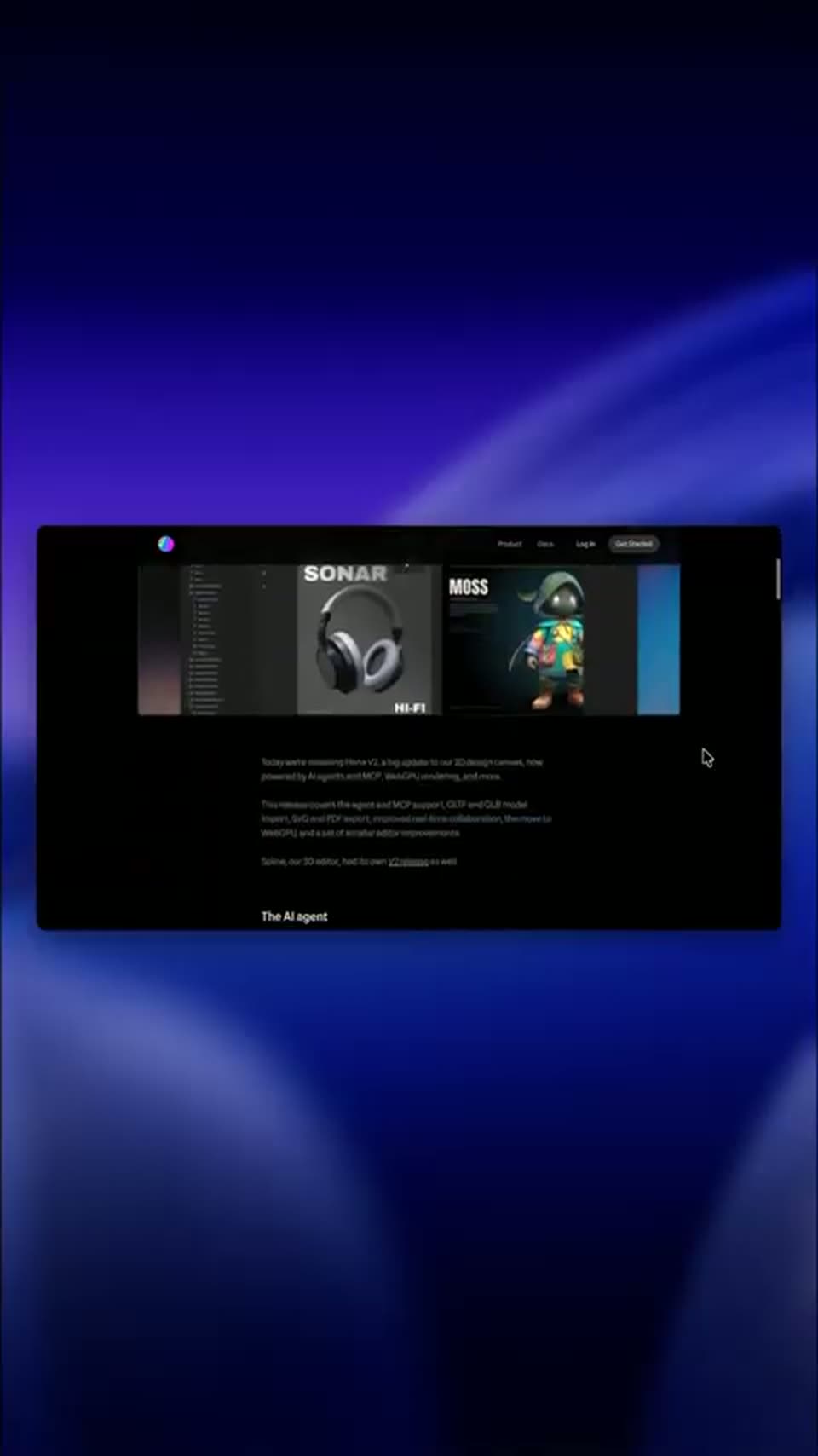

Hana V2 is here to stay 🌸 #3d #3danimation #uiux #productdesign #graphicdesign
Spline · Design · Sep 2026
EigenPal · Jan 2026 · 1:39 · Full motion · AI-annotated
EigenPal’s 1:39 launch film runs 36 scenes, about 2.8 s each. The product shows up at 0:07 and 4 features are revealed. The call to action lands at 1:35 (96% in), over a voiceover. A dark-green stage frames alternating 3D cartoon vignettes and flat product UI, with a bold pale-green headline pinned to one side while the visual plays on the other. The cut is steady and explanatory: each feature gets a headline card followed by a cursor-driven screen demo, building from the manual-work problem to the builder, evals, and deploy beats before a split-screen URL close.
Is this your launch? to your site or press kit.
Spline · Design · Sep 2026
open-diagram · Nov 2026
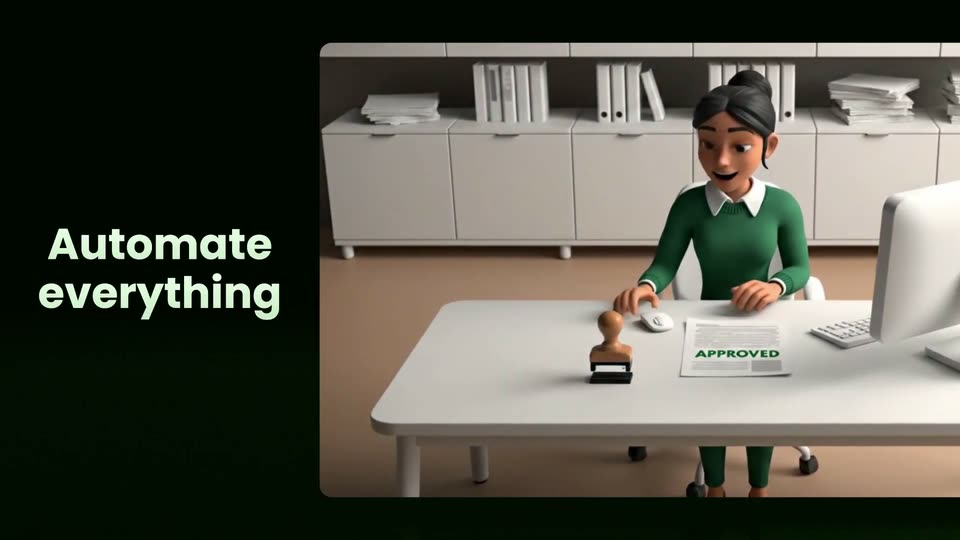
A 3D woman in a green sweater sits at a white desk with a tall paper stack. The camera pushes in on her hands as she presses a wooden stamp, revealing green APPROVED text, then pulls back as she rubs her tired eyes.
On-screen text: “APPROVED”
Camera: Push in
A flat white card on a black stage holds three crumpled paper sketches, a green asterisk badge, and an OCR results panel. A scan line sweeps the third paper as its checkmarks fill in, while the headline Meet EigenPal sits on the left.
On-screen text: “Meet EigenPal”
Camera: Static
A white 3D panel mockup tilts in perspective over a dark green-black background, showing three sketched document pages and a green asterisk in a white circle. The left headline reads Meet EigenPal, then swaps to Enterprise-grade document automation as the panel slides right.
On-screen text: “Meet EigenPal”, “Enterprise-grade document automation”
Techniques: 3D mockup
Camera: Pan
Black frame with a pale green three-line headline on the left. On the right, a light gray rounded panel floats with a soft reflection, holding three white document sketches that drift slowly right, while a white badge with a green asterisk stays pinned to the panel's right edge.
On-screen text: “Enterprise-grade”, “document”, “automation”
Techniques: 3D mockup, Parallax
Camera: Static
On a black background, a large white headline reads on the left while a light rounded panel slides in from the right and settles in the center. Inside the panel, three crumpled paper documents sit beside a green asterisk badge and an OCR results card whose fields fill in.
On-screen text: “Enterprise-grade document automation”, “OCR Results”, “99% accuracy”, “Vendor Name”, “DATA”, “$264k USD”
Camera: Pull out
A 3D cartoon office: a woman in a green sweater sits at a white desk while a huge paper stack vanishes and she stamps a single document marked APPROVED. The light green headline Automate everything holds on the left as a soft blue glow flashes across the desk.
On-screen text: “Automate everything”
Techniques: Light sweep
Camera: Pan
A 3D cartoon office scene: a woman in a green sweater sits at a white desk with a document stamped APPROVED and a rubber stamp, while a green 'Approve AI Work' pill pops in over the desk. The camera pans right across the set, revealing a plant and a second headline at the edge, as white headline text sits on the black margin.
On-screen text: “Automate”, “everything”, “APPROVED”, “more productive”
Techniques: Kinetic type, 3D mockup
Camera: Pan
A 3D cartoon office: a woman in a green sweater sits at a white desk and taps a green button on a translucent blue panel, while a stamped document rests on the desk. The headline “Become 4x more efficient” holds static on the right against black.
On-screen text: “Become 4x more efficient”
Techniques: 3D mockup
Camera: Static
A workflow builder screen fills the frame on a black background. A cursor hovers over the prompt box in the left panel while the center canvas shows a purple Start node linked to a green End node, and a right panel lists trigger methods.
On-screen text: “Become”, “Approve AI Work”, “4x more”, “efficient”, “*”
Camera: Static
A flat workflow builder screen fills the frame. The camera zooms toward the left panel, which holds a prompt box and three creation options, while the right shows a purple Start node above a green End node.
Techniques: UI zoom
Camera: Push in
A tilted white app window sits on the right over a black field beside a green 'AI Workflow Builder' headline. A salary-extraction prompt types into the input, then the view reframes onto the filled bubble as a cursor hovers at its corner.
On-screen text: “AI Workflow Builder”
Techniques: 3D mockup, Cursor demo, UI zoom
Camera: Static
A white workflow-builder window sits on a dark green field beside a gray AI Workflow Builder title. A cursor hovers at the typed prompt, then the view pans right to expose the node canvas with a purple Start and a green End block.
On-screen text: “AI Workflow Builder”
Techniques: Cursor demo, UI zoom
Camera: Pan
A workflow builder screen zooms in on a chat panel where a cursor clicks Allow Changes on a permission prompt. Status bars update to Permission granted and Generating workflow, then a YAML diff with red and green lines slides up, cursor resting on Accept.
Techniques: UI zoom, Cursor demo
Camera: Pan
On a black field, a large white headline sits at left while a white AI chat panel floats at right. The panel's red-and-green code diff wipes away, leaving only a thin header and an empty input bar at the bottom.
On-screen text: “Describe your workflow, let AI write it”
Camera: Static
A black left panel holds the headline while the right side shows the app canvas. A status banner updates to a validated message and a cursor glides from the input field to the right edge of the dotted grid.
On-screen text: “Describe your workflow, let AI write it”
Techniques: Cursor demo
Camera: Static
A black panel holds a pale-green headline on the left while the right shows the app's chat feed. The view pulls back to reveal the full workflow builder window, its node graph and sidebar, as the headline shrinks and rises.
On-screen text: “Describe your workflow, let AI write it”
Techniques: UI zoom
Camera: Pull out
A tilted 3D view of a workflow editor sits on a dark background while a pale-green headline holds on the left. The camera pushes in as a cursor clicks through the parse, extract and aggregate steps, opening a configure panel, and rests on the green End node.
On-screen text: “Describe your workflow let AI write it”
Techniques: 3D mockup, Cursor demo, UI zoom
Camera: Pan
A flat workflow screen shows the Salary Extraction page with a 100-page PDF attached; a cursor clicks Run, the view crossfades to a results panel where a progress bar reads 0% and a Running status spins.
Techniques: Cursor demo
Camera: Pan
A cursor moves to the Graph button on a workflow execution screen, then the view pulls back to the full app window as a green example headline appears. Workflow nodes update with timings and a 0/100 counter, then the view zooms into the step details panel.
On-screen text: “Example: Verify salary from a 100 page bank statement”
Techniques: Cursor demo, UI zoom
Camera: Push in
A white data card listing month values, currency and employer sits on a dark gray field. It eases to a slightly larger size, its bottom edge doubled by a stacked shadow, while an Expand control stays fixed at the top right.
Camera: Static
A zoomed-in white card listing workflow values sits centered over the panel, then zooms out to reveal the full output view with header and Expand control on a dotted grid background.
Techniques: UI zoom
Camera: Static
A product evals table on a black background holds the frame, then a large white headline 'Trust and rely on your workflows' pops in on the left while the window slides right and scales down to clear space.
On-screen text: “Trust and rely on your workflows”
Techniques: Kinetic type
Camera: Static
Pale-green headline “Trust and rely on your workflows” holds left on black while a 3D-tilted product screen on the right zooms in, reframing from the full two-panel view onto the Workflow Builder chat input.
On-screen text: “Trust and rely on your workflows”
Techniques: 3D mockup, UI zoom
Camera: Push in
A light green headline holds on a black field at left. At right, a white Workflow Builder panel shows a prompt box; a cursor moves in over the text, then a second panel listing statement inputs slides in beside it.
On-screen text: “Trust and rely on your workflows”
Techniques: Cursor demo
Camera: Pan
The interface crossfades between two views: on the left a workflow builder chat with a cursor hovering a dark run button, on the right an evals table listing bank statement files under Actions and Inputs columns.
Techniques: Cursor demo
Camera: Static
A light product interface fills the frame. The left chat panel shows a prompt bubble, then a green status line. The view zooms out and pans right to reveal a full eval table with input file names and numeric output columns.
Techniques: UI zoom
Camera: Pull out
A workflow builder interface fills the frame, its evals table listing document rows and month output columns beside a chat panel showing a user prompt and a running status with a spinner. The camera slowly zooms in.
Techniques: UI zoom
Camera: Static
The product interface floats in 3D perspective on the left, rotating to face front as a mint-green headline sits on the right. The view zooms into the Output table, rows marked with green checkmarks, then pulls back and the headline fades out as the Evals panel reports success.
On-screen text: “Add a test set, ask our AI to get perfect results on it”
Techniques: 3D mockup, UI zoom
Camera: Push in
A locked-off view of the product's workflow builder, showing a bank statement analysis table with document inputs and numeric outputs, beside a chat panel listing eval results. A cursor rests over the inputs column.
Camera: Static
A dark scene pairs a large pale-green headline on the left with the workflow editor shown in 3D perspective on the right. The headline slides in and out while the mockup rotates flat toward the camera and a cursor clicks the Save button.
On-screen text: “Share a link or API to your workflows”
Techniques: Kinetic type, 3D mockup, Cursor demo
Camera: Pan
The view zooms into the top-right of a workflow editor, framing the Copy trigger URL button. A cursor clicks it and a Copied! toast pops in beside it.
Techniques: UI zoom, Cursor demo
Camera: Push in
A close-up of a workflow editor zooms out to reveal the full screen. A black cursor hovers near a green Copied toast in the top right, then drifts to the center as the layout widens, showing the title, input fields and an empty output panel.
Techniques: UI zoom, Cursor demo
Camera: Static
A white EigenPal website mockup on a black background pans horizontally. The left feature list and the right document diagram slide right, while the capabilities headline at the bottom reveals additional words as the frame moves.
On-screen text: “Run”
Camera: Pan
A 3D-tilted EigenPal webpage rotates to face the camera and scrolls through its sections on black, while big pale-green headlines swap on the left: “Automate everything”, then “On-prem and in your cloud ready”.
On-screen text: “Automate everything”, “On-prem and in your cloud ready”
Techniques: 3D mockup
Camera: Pan
Split frame: a black panel on the left, the product website on the right with a row of crumpled paper document illustrations and a green asterisk badge. The pale gray headline pulses in with a motion echo, then slides right and fades behind the white divider as the page content shifts slightly.
On-screen text: “Automate everything. Start today.”
Techniques: Kinetic type
Camera: Static
Split screen: the left half scrolls through a product webpage, moving from a hero headline and two buttons to a document with an OCR results card, a cursor hovering along the way. The right half is a black panel holding the static white text 'Try for free' over green 'eigenpal.com'.
On-screen text: “Try for free”, “eigenpal.com”
Techniques: Split screen, Cursor demo
Camera: Pan