1:33

Kimi.ai - Meet Kimi K3.1 Pro, our most capable 3T-class model.
Moonshot AI · Oct 2026
Cluely · Jun 2025 · 2:25 · AI-annotated
Cluely’s 2:25 launch film runs 36 scenes, about 4.0 s each. The product is on screen from the first frame and 2 features are revealed. There is no explicit call to action; a voiceover carries the film. The video is built as one continuous product tour: a neon-lit host intro hands off to a screen recording of a live call, where 3D camera tilts and zooms isolate each UI panel, then the flow moves through the dashboard and the personalize tab before a cycling logo lockup. Signature moves are the perspective tilts on flat UI, glowing edge highlights on the active panel, and white caption lines that roll in sync with the voiceover.
Is this your launch? to your site or press kit.
A young man in a dark fleece sits at a desk before a concrete wall with a blue neon Cluely sign, framed by plants and a lamp. The shot fades in from black as he speaks and gestures; a name caption and a subtitle pill appear.
On-screen text: “Roy Lee, CEO / Cluely”, “Hey, I'm Roy”
Camera: Static
A man in a dark fleece jacket sits at a desk before a brick wall with a blue neon Cluely sign, gesturing as he speaks. A name lower-third and subtitles sit at the bottom; a white Cluely logo with tagline fades in over his chest.
On-screen text: “Roy Lee, CEO / Cluely”, “Hey, I'm Roy”, “And I am excited to introduce”, “Invisible AI to Cheat on Meetings”
Camera: Static
The Cluely logo and tagline hold on black, then white italic lines slide or scale in: “AI Desktop Assistant,” “Sees what you see” beside an eye, “Hears what you hear” beside an ear, then a cut to a man at a desk under a blue neon sign with a caption.
On-screen text: “Invisible AI to Cheat on Meetings”, “AI Desktop Assistant”, “Sees what you see”, “Hears what you hear”, “Let's jump into a call”
Techniques: Kinetic type
Camera: Static
A man in a dark zip-up sweater sits at a desk before a concrete wall with a blue neon Cluely sign, gesturing as he speaks. A white laptop and lamp frame him. Subtitles sit in a gray bar at the bottom; a macOS menu bar slides in at the end.
On-screen text: “Let's jump into a call”, “with my co-founder Neel”, “to see Cluely in action”
Camera: Pan
A live-action shot of a person at a desk crossfades into the Zoom Workplace interface. Two stacked participant video tiles fill the center, a Meeting Detected notification sits top right, and a cursor rests on the dark side panel. The screen then holds static.
Camera: Pan
A Zoom meeting window shows two participants stacked vertically with a Meeting Detected panel on the right. The view zooms in and tilts to the top control bar, then to the Record with Cluely button as a cursor hovers over it.
On-screen text: “Cluely shows up as a translucent window”, “that appears over all other applications”, “I can either press listen or record with Cluely”, “while in a meeting to have Cluely”
Techniques: UI zoom, Cursor demo
Camera: Push in
A Zoom call screen tilts in 3D perspective as a glowing Live Insights panel pops up over the video tile. The view pulls back to the full two-person window, then zooms into the panel as its summary and action bullets update live.
On-screen text: “while in a meeting to have Cluely”, “start picking up my microphone”, “and system audio”, “Hey Neel, what's up”, “Hey Roy”, “As you can see, there's a real time notepad”, “that pops up that allows Cluely to”, “suggest questions for me to ask”, “or define things that I might need defined”, “Neel, you went on a pretty interesting”
Techniques: 3D mockup, UI zoom, Parallax
Camera: Pull out
A screen recording of a video call app opens on the Live Insights notes panel, then pulls back to reveal the full window with two participant tiles and the app menu bar. A subtitle caption runs along the bottom edge.
On-screen text: “Neel, you went on a pretty interesting”
Techniques: UI zoom
Camera: Pull out
A Zoom call screen shows two participants; an AI Live Insights notepad over the top tile zooms in to reveal live meeting notes and action items, then reframes into a left sidebar with a definition card. Subtitles caption the conversation along the bottom.
On-screen text: “Neel, you were a pretty interesting date last week”, “Can you tell me a little bit more about that?”, “I did, yeah”, “It was pretty fun; we went to”, “Japantown for dinner”, “I think it went pretty good, but I talked”, “way too much about prompt engineering”
Techniques: UI zoom
Camera: Pull out
A slightly tilted app window floats on black, showing a two-person video call. A top panel streams a definition of Japan Town, then switches to Define prompt engineering, while a bottom Live Insights panel adds action items. Subtitles roll along the bottom edge.
On-screen text: “way too much about prompt engineering”, “Yeah, that's pretty cool”, “As you can see, throughout the conversation”
Techniques: 3D mockup
Camera: Static
A tilted 3D view of a Zoom meeting screen on a black background shows a left insights panel listing actions and two floating AI response cards over two video tiles. The camera pushes in, blurring the edges, to focus on the actions list and the prompt-engineering definition card.
On-screen text: “As you can see, throughout the conversation”, “Cluely picked up that Neel said”
Techniques: 3D mockup, UI zoom
Camera: Push in
A dark, blurred close-up of a suggestion list and an AI response card zooms in on the card, which floats in 3D over a video call, then pulls back to the full Zoom Workplace meeting window with two participants. Subtitles run along the bottom.
On-screen text: “Japantown and prompt engineering”, “and offered to define both terms”, “Cluely can also suggest follow up questions”
Techniques: UI zoom, 3D mockup
Camera: Pull out
A dark Zoom Workplace window shows two video tiles and a left insights sidebar. An AI Response panel swaps from a definition to two follow-up questions, then the view zooms into the tilted panel until a cursor clicks its close button.
On-screen text: “Cluely can also suggest follow up questions”, “for me so that I can keep the conversation going”, “every single time”, “What got you interested into prompt engineering”, “and did you use any specific techniques”, “during your conversation in Japantown?”
Techniques: UI zoom, 3D mockup, Light sweep, Cursor demo
Camera: Push in
A Zoom window shows a two-person video call with a Live Insights panel over the top tile; its bullet points and Actions list update in place. The shot opens zoomed into the panel, then settles on the full window while white captions run along the bottom.
On-screen text: “during your conversation in Japantown?”, “This works for everything too”, “Definitions, questions, and much much more”, “That's pretty cool, does it work”, “for all kinds of meetings?”, “Yeah, it even works in person too”, “A lot of the magic happens in the dashboard”
Techniques: UI zoom
Camera: Pull out
A Zoom meeting screen with an open Live Insights panel. The view zooms onto the panel toolbar as a cursor clicks the red Done button, then the panel switches to a summary list where the cursor moves to the Draft a follow-up email row.
On-screen text: “A lot of the magic happens in the dashboard”, “I'm gonna stop the recording”, “draft a follow-up email to send Neil”
Techniques: UI zoom, Cursor demo
Camera: Push in
A two-person video call fills the frame, the top tile showing a man in a white polo and the bottom a young person before a neon sign. A dark left sidebar with Actions and Follow-Ups slides in over the call, a cursor hovers in the top tile, and a prompt line sits at the bottom.
Techniques: UI zoom, Cursor demo
Camera: Pull out
A dark Zoom meeting interface fills the frame, two participants stacked in video tiles, a left sidebar listing actions, and a top command bar typing an email draft. A bottom caption bar subtitles the voiceover.
On-screen text: “draft the following email to send Neel”, “based on the conversation that we had”
Techniques: Cursor demo
Camera: Pull out
A screen recording of a Zoom call: a blurred participant video sits behind a centered Clear Response panel. The drafted follow-up email types itself out line by line as a warm glow traces the panel edge. White subtitles caption the voiceover at the bottom.
On-screen text: “based on the conversation that we had”, “I would send this along”
Techniques: Kinetic type, Light sweep
Camera: Static
Two stacked, semi-transparent copies of the Clear Response and Draft a follow-up email windows dissolve away, revealing the Zoom call with two participants and the Live Insights sidebar on the left. A white caption sits at the bottom.
On-screen text: “and let's take a look at the dashboard”
Camera: Static
A screen recording shows a Zoom call with two participants and a draft email, then the view opens into a side-by-side layout. The call remains on the left while a conversation list fills the right. A subtitle appears at the bottom.
On-screen text: “and let's take a look at the dashboard”
Techniques: Split screen
Camera: Pan
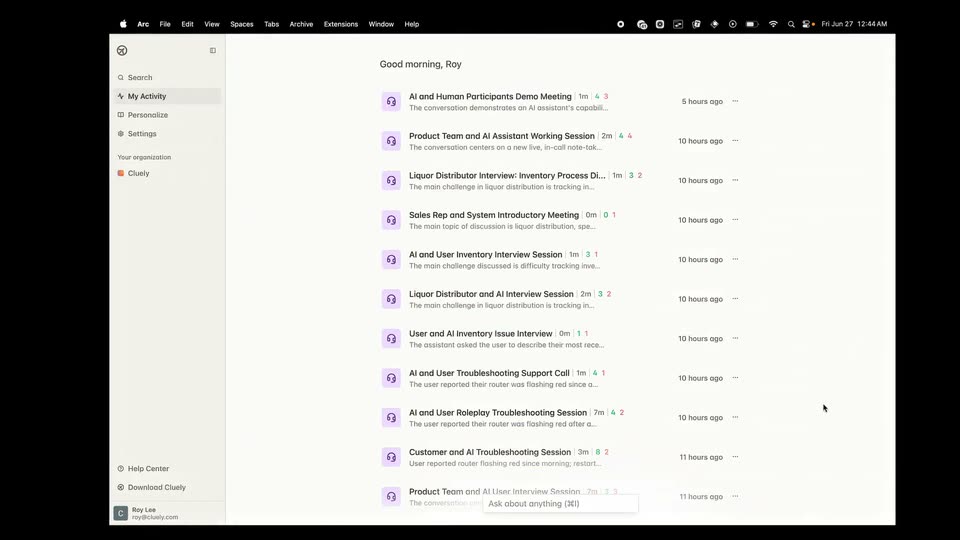
A dashboard lists past meetings under a greeting. The screen dims at the edges as a white glow frames the list, and white captions appear line by line along the bottom.
On-screen text: “you'll see an AI generated summary”, “of every meeting I've ever taken with Cluely”
Techniques: Masking
Camera: Static
A light app window lists AI meeting summaries with a left sidebar. A cursor opens a suggestions menu, clicks the question about yesterday's action items, and a small chat popup appears. A bottom caption narrates the action.
On-screen text: “You can ask anything here”, “like, what are yesterday's action items”
Techniques: Cursor demo
Camera: Static
A white chat panel floats over a dimmed dashboard, an orange Analyzing indicator in its header. A numbered list of action items scrolls upward through the panel as the assistant generates it, settling on the final item. A red record button marks the input line at the bottom.
On-screen text: “like, what are yesterday's action items”, “You can also see the latest meeting”, “I was just in”
Camera: Pull out
A macOS app list of AI session summaries, initially blurred, snaps into focus while a floating Chat panel carrying a bulleted task list settles into the lower center of the screen.
Camera: Static
A meeting summary page in the Cluely app fills the frame, then a usage drawer slides in from the right edge, partly covering the content. A white caption at the bottom updates in step with the voiceover.
On-screen text: “Here's a summary”, “Here you can see all the times”
Techniques: Kinetic type
Camera: Static
A light app window on a dark desktop shows a meeting summary page with stat cards and bullet lists. A right-hand usage panel slides off to the right, then the page scrolls up to reveal the title. White captions run along the bottom edge.
On-screen text: “Here used Cluely all the times”, “I used Cluely in the call”, “See the entire summary”
Techniques: Cursor demo
Camera: Static
A flat screen recording of a meeting summary page zooms into the open Share panel on the right. The cursor clicks the cyan Make Public button, which toggles to Make Private, as the panel tilts into a 3D perspective.
On-screen text: “As well as share the summary”, “I can make this entire thing public”, “get a link to copy it”
Techniques: Cursor demo, UI zoom, 3D mockup
Camera: Push in
A screen recording of a white meeting-notes document. The page starts blank, then the “AI and Human Participants Demo Meeting” summary, action items and notes fill in as a caption bar at the bottom reads the voiceover, and a mouse cursor hovers over the summary.
On-screen text: “get a link to copy it”, “and share this link with anybody”
Camera: Pull out
A screen recording of the Cluely meeting summary blurs as an 'Ask about your screen' bar appears; a query is typed and the bar morphs into a response card that types out steps. The view tilts into 3D perspective as the cursor hits the Personalize tab.
On-screen text: “and share this link with anybody”, “A ton of the magic behind Cluely also happens”, “in the personalize tab”, “Let's ask Cluey how we can do that”, “If you head over to the personalize tab”
Techniques: Morph, 3D mockup, Cursor demo
Camera: Push in
The Cluely app interface floats at an angle against a black background. The camera glides right, sliding past the left sidebar to reveal the Personalize panel, its preset text blocks, and a resting cursor.
Techniques: 3D mockup
Camera: Pull out
A tilted 3D document mockup of a sales-assistant instruction page sits over the Arc browser interface, with floating control panels at the top. The camera glides from the angled view to a flat front-on page while white caption phrases roll across the bottom.
On-screen text: “you can share anything about yourself”, “or use one of our default templates”, “to use it for some of our most”, “common use cases”
Techniques: 3D mockup, Kinetic type
Camera: Pull out
A front-on view of the app's Personalize screen. A cursor clicks the preset cards in a row, lighting each one up as a large white caption at the bottom names the use case, and the prompt text below updates to match.
On-screen text: “like for school”, “meetings”, “sales”, “recruiting”, “or customer support”
Techniques: Cursor demo
Camera: Static
A product settings screen slides up and out of the top of the frame, revealing a man in front of a glowing blue neon Cluely sign framed by leafy plants, who speaks to camera. A white caption sits at the bottom.
On-screen text: “AI is too smart to trap it inside a chatbot”
Camera: Pan
A man in a dark zip-up fleece sits at a desk before a blue neon Culely sign, talking and gesturing toward the camera. Potted plants frame the brick wall. At the start, a white browser window from the previous screen dissolves out over the shot.
On-screen text: “Al is too smart to trap it inside a chat bot”
Camera: Pan
A young man in a navy zip-up sits at a wooden desk before a brick wall lit by a blue neon sign, potted plants on either side. He talks and gestures over a silver laptop as white caption lines swap at the bottom. The frame stays locked-off.
On-screen text: “Al is too smart to trap it inside a chat bot”, “We believe, in the future”, “there will be a better way to interact with Al”
Camera: Static
On a black background the white Cluely wordmark sits centered, then the circular logo mark slides in to its left and the tagline fades in below. The last word of the tagline cycles through meetings, dates, and everything, then the whole lockup fades to black.
On-screen text: “there will be a better way to interact with AI”, “Cluely”, “Invisible AI to cheat on meetings”, “Invisible AI to cheat on dates”, “Invisible AI to cheat on everything”
Techniques: Kinetic type
Camera: Static