
2:38
Explore
Claude - Introducing Cowork and plugin updates that help enterprises customize
Claude · Feb 2026 · 2:00 · Full motion · AI-annotated
- Length
- 2:00
- Scenes
- 44 · 2.7 s avg
- Product on screen
- 0:05
- Features shown
- 2
- Voiceover
- No
- Views
- 15M on X
as of November 15, 2026
00:00:00 / 02:00:01
- Length
- 2:00
- Scenes
- 44 · 2.7 s avg
- Product on screen
- 0:05
- Features shown
- 2
- Voiceover
- No
- Views
- 15M on X
as of November 15, 2026
Claude’s 2:00 launch film runs 44 scenes, about 2.7 s each. The product shows up at 0:05 and 2 features are revealed, with social proof. There is no explicit call to action. The video stages a customer story on a flat beige field, alternating a single serif headline with one UI card at a time, each beat entered by a slow push in or pull out on a mock interface. Signature moves are the typewriter text, the spinning coral asterisk, and the zoom transitions between chat, spreadsheet and deck.
No filming indicatedEstimated needs: 7 capture groups — your screens or recordings · 1 official logo — reused across the film · 1 graphic passage — draw or supply
Is this your launch? to your site or press kit.
More like this

Claude - Introducing Cowork and plugin updates that help enterprises customize, scene by scene
· 44 scenes as text
01 · Hook · 0:00–0:00
A dark serif headline fades in on a plain beige background. A purple bar labeled Silvern Capital slides up from the bottom edge, revealing a CRM dashboard with pipeline stats and a deals table.
On-screen text: “Silvern Capital wanted to accelerate cloud growth.”, “Silvern Capital”
Techniques: Kinetic type, Masking
Camera: Static
02 · Hook · 0:00–0:02
A centered serif headline sits on a beige field above a CRM dashboard card that slides up from the bottom into the lower half. The card shows a navy header, five KPI tiles, and a deals table with green and amber status rows.
On-screen text: “Silvern Capital wanted to accelerate cloud growth.”
Camera: Pull out
03 · Problem · 0:02–0:05
A centered serif headline fades in above a flat Silvern Capital sales dashboard, then fades out as the dashboard zooms in, enlarging its metric cards and deal table.
On-screen text: “But the competition with ClearEdge Systems was intensifying.”
Techniques: UI zoom
Camera: Static
04 · Product intro · 0:05–0:06
A plain beige background holds a centered black serif headline. The opening phrase sits fixed while the closing words fade in to its right, completing the line on a locked-off frame.
On-screen text: “With Cowork and Plugins, Silvern's team”
Techniques: Kinetic type
Camera: Static
05 · Product intro · 0:06–0:11
A centered serif headline on a beige background is replaced by a white chat card that scales in, showing an avatar, the name Mia, and a message. A second card with Daniel's reply scales in below, stacking the two messages.
On-screen text: “With Cowork and Plugins, Silvern's team can tackle this challenge like never before.”
Camera: Static
06 · Problem · 0:11–0:14
A flat chat window card sits centered on a plain beige background. The view zooms steadily into the message list, the text growing until the last two messages and the empty reply field fill the frame.
Techniques: UI zoom
Camera: Push in
07 · Problem · 0:14–0:15
A white comment card on a beige background shows two user rows, Daniel and Divya, above a rich-text reply box with a toolbar. The card drifts slowly to the right, revealing the tail of the message text.
Camera: Static
08 · Feature reveal · 0:15–0:19
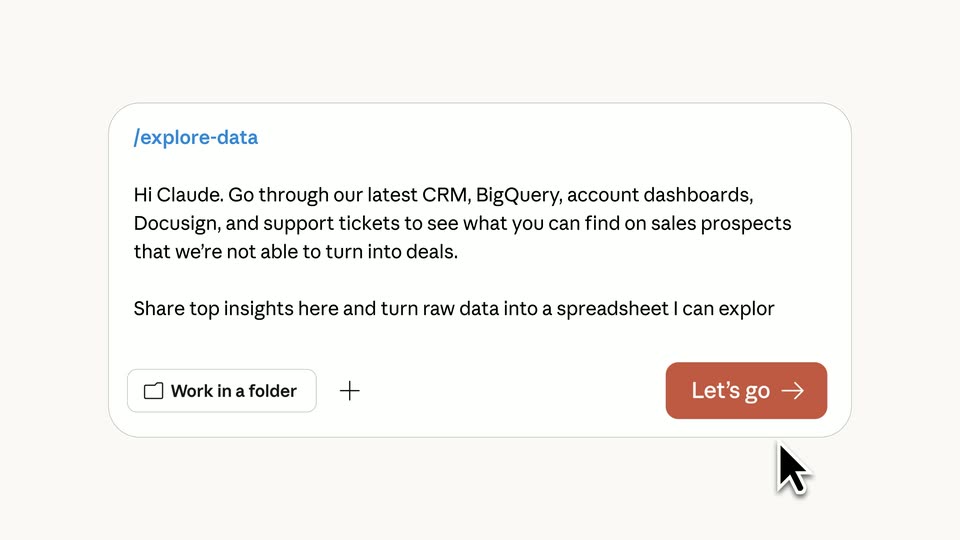
A cursor clicks the /explore-data chip under a serif headline, and the frame zooms into the prompt box as a message about CRM and sales data types in. A hand cursor taps the red Let's go button, then the screen fades to white.
On-screen text: “Let's knock something off your list”
Techniques: Cursor demo, UI zoom
Camera: Static
09 · Feature reveal · 0:19–0:22
On a cream background, a dark serif sentence types out word by word above a spinning red asterisk icon. Near the end the frame pulls back to reveal the assistant interface, with faded prompt text and a TodoWrite status line.
Techniques: Kinetic type, UI zoom
Camera: Pull out
10 · Feature reveal · 0:22–0:25
A chat screen shows a user prompt and the assistant's thought process, with a spinner row for a Hex integration. The view reframes right, revealing a numbered Progress panel listing seven steps, the first highlighted.
Techniques: UI zoom
Camera: Push in
11 · Feature reveal · 0:25–0:30
Close-up on a Progress panel as blue checkmarks fill in down the task list, then the panel scrolls to reveal a stack of connected app icons. The view zooms out to the full application window, showing the chat thread and a generated spreadsheet card.
Techniques: UI zoom
Camera: Pull out
12 · Feature reveal · 0:30–0:32
A light cream chat window fills the frame, showing an analysis message and a right-hand sidebar of connectors. The view then zooms into the lower half, and a cursor glides to hover the Open in Microsoft Excel button on a spreadsheet card.
Techniques: Cursor demo, UI zoom
Camera: Push in
13 · Feature reveal · 0:32–0:38
A spreadsheet window opens as a white source-notes panel fades out over the top. The sheet scrolls down through key metrics and a color-coded loss-reasons table, then a cursor taps the Loss Analysis tab to reveal a list of closed deals with company names and links.
Techniques: Cursor demo
Camera: Pull out
14 · Feature reveal · 0:38–0:42
A full spreadsheet window shows a dead-loss table; the cursor clicks the At-Risk Accounts tab at the bottom, then the view zooms into the churn warning sheet and pans right to reveal the action and source columns.
Techniques: Cursor demo, UI zoom
Camera: Push in
15 · Feature reveal · 0:42–0:42
A spreadsheet grid titled CHURN WARNING SIGNALS fills the frame, its risk rows tinted red and yellow. The view pulls back to reveal all eight rows as a chat input at the bottom shows the word Great! beside an orange loading spinner.
Techniques: UI zoom
Camera: Pan
16 · Feature reveal · 0:42–0:45
A close-up of a chat input box types a request sentence letter by letter, then the frame zooms out to reveal the full browser window, the message as a centered bubble, and the assistant showing a starting-up state.
Techniques: UI zoom
Camera: Static
17 · Feature reveal · 0:45–0:47
A light chat interface updates from a 'Working on it' task list to a nine-line deck summary with a PPTX file card. A mouse cursor then glides down and hovers over the 'Open in Microsoft PowerPoint' button.
Techniques: Cursor demo
Camera: Pan
18 · Feature reveal · 0:47–0:48
A close-up of a dark blue presentation slide with white serif headlines and a red stats column zooms out to reveal the full Mac editor window, showing a numbered slide thumbnail panel on the left and a top ribbon toolbar.
Techniques: UI zoom
Camera: Pull out
19 · Feature reveal · 0:48–0:50
A Keynote window sits on a beige desktop. The cursor moves down the left thumbnail rail and clicks a slide, swapping the main view from an executive snapshot to a losses-by-product-type bar chart with three summary cards.
Techniques: Cursor demo
Camera: Static
20 · Feature reveal · 0:50–0:51
A Keynote window shows a slide titled Competitor Spotlight: Clearedge, with two columns of cards under Their Moves and Our Response. A mouse cursor hovers over the slide panel on the left. The frame is locked-off with no motion.
Camera: Static
21 · Feature reveal · 0:51–0:52
A PowerPoint window displays a slide titled RECOMMENDED ACTIONS with a prioritized action list. The view zooms into the slide, enlarging the title and rows, while the cursor moves from the left thumbnail panel to the center of the slide.
Techniques: UI zoom
Camera: Push in
22 · Feature reveal · 0:52–0:53
A PowerPoint window fills the frame; a cursor clicks the red Opus Claude tab in the ribbon, opening a Claude side panel with a rocket icon and suggestion chips. The view scrolls down the slide and the panel as a prompt line types out.
Techniques: Cursor demo
Camera: Pan
23 · Feature reveal · 0:53–0:56
A close-up of a PowerPoint comment card shows a typed request, then a hand cursor clicks the orange send button as the camera pulls back to the full window. The frame then shifts to a Slack channel where Claude posts a checklist of contrast fixes.
Techniques: Cursor demo, UI zoom
Camera: Pan
24 · Feature reveal · 0:56–0:57
A chat window card floats on a beige field, then the view pushes in on the message list as the reply box types the words Claude and I.
Techniques: UI zoom
Camera: Push in
25 · Feature reveal · 0:57–0:58
A flat chat window holds a four-message thread. In the input box below, a reply types itself out word by word and completes, while the green send button sits idle at the right.
Camera: Static
26 · Feature reveal · 0:58–1:00
A chat thread with messages from Mia, Daniel and Divya sits above a message composer holding a typed analysis summary. A cursor moves into the composer and two file attachments, an Excel sheet and a PowerPoint deck, pop up along the bottom edge.
Techniques: Cursor demo
Camera: Static
27 · Feature reveal · 1:00–1:01
A white chat panel on a beige backdrop shows two file cards, a spreadsheet and a slide, above blue filename tags. The view then settles into the message composer, where a cursor types a reply and the same files appear as attachment chips.
Techniques: Cursor demo
Camera: Static
28 · Feature reveal · 1:01–1:05
A messaging app chat opens zoomed on the composer, then pulls back to the full thread as messages load in sequence: an analysis post with two file cards, reaction badges, then two short replies. A cursor rests on the send button.
Techniques: Cursor demo, UI zoom
Camera: Pull out
29 · Feature reveal · 1:05–1:08
A dark chat panel lifts away to reveal the CoCounsel workspace interface, with a 'Powered by Claude' badge and arrow pointing at the logo. The view then zooms into the documents list and main panel.
On-screen text: “Powered by Claude”
Techniques: UI zoom
Camera: Push in
30 · Feature reveal · 1:08–1:09
A light dashboard view with green “New task” and “New document” buttons reframes into a chat screen. A green speech-bubble icon sits above a rounded input field with placeholder text. A cursor hovers near the buttons at the start.
Techniques: UI zoom, Cursor demo
Camera: Static
31 · Feature reveal · 1:09–1:11
A close-up of a chat input box holding a long typed prompt; a hand cursor clicks the green send button, then the view pulls out to the full conversation as the assistant's reply types in.
Techniques: Cursor demo, UI zoom
Camera: Pan
32 · Feature reveal · 1:11–1:18
A close-up of an AI chat reframes to the full CoCounsel window. A task list fills with checkmarks as a comparison table and a downloadable playbook file card appear, while a cursor hovers over the file.
Techniques: UI zoom, Cursor demo
Camera: Pull out
33 · Feature reveal · 1:18–1:20
The full CoCounsel workspace shows a legal playbook document flanked by a task list on the left and a document list on the right. The frame then zooms into the right panel, which expands into a team chat thread with messages and a reply box.
Techniques: UI zoom
Camera: Pan
34 · Feature reveal · 1:20–1:23
A chat window for #priority-accounts-q2, with messages and two file attachments, floats over a duplicate of itself beside a channel sidebar. The frame then zooms into the composer at the bottom, where a reply types itself out letter by letter.
Techniques: UI zoom
Camera: Push in
35 · Feature reveal · 1:23–1:24
A chat view with a drafted legal note cross-fades into an upload screen. A document preview follows the cursor as it is dragged in, a blue tag shows its file name, and the heading Upload a document sits above.
Techniques: Cursor demo
Camera: Static
36 · Feature reveal · 1:24–1:28
A Word document page is dragged into a chat composer as an Uploaded label flashes, then the view pulls back and the file posts into the thread as a card. Reactions pop in beneath it and the thread scrolls down to reveal new replies.
Techniques: Cursor demo, UI zoom
Camera: Pull out
37 · Feature reveal · 1:28–1:30
Two comment cards for Mia and Tariq settle on a beige background, reaction icons popping in beneath each. The cards slide up and right as the frame widens to reveal two app windows below: a chat and document panel on the left, a kanban board on the right.
Techniques: UI zoom
Camera: Static
38 · Feature reveal · 1:30–1:36
Two chat windows with comment cards sit side by side on a beige field; the camera zooms out to reveal a grid of interface screens (spreadsheet, document, email, code, kanban), then the windows fade while a row of small colorful app icons appears in the center.
On-screen text: “Building new prospecting emails and campaigns based on the updated onboarding”, “Got it Taking the friction points from the analysis above and sprinting with engineering.”
Techniques: Split screen, UI zoom
Camera: Pan
39 · Feature reveal · 1:36–1:39
A row of eight colorful app icons bobs in a wavy line on a beige background, then settles into a straight, evenly spaced line before the icons drift apart to scattered positions and some drop out of view.
On-screen text: “HEX”
Camera: Static
40 · Social proof · 1:39–1:42
A beige task list scrolls upward while five lines slide in and their checkboxes fill with red checkmarks. Three flat app icons float at the top before the list fills the frame.
On-screen text: “Map the pipeline problem”, “Find the root cause”, “Launch a pilot”, “Prioritize the product gaps”, “Reach out to every prospect”
Techniques: Kinetic type
Camera: Pan
41 · Social proof · 1:42–1:48
A checklist of three tasks with red checkmarks slides in, then clears to reveal chat cards popping in around a central message as reaction counts tick up. The cluster zooms, then cuts to a pipeline dashboard titled Silvern Capital.
Techniques: Kinetic type, UI zoom
Camera: Pan
42 · Social proof · 1:48–1:50
A CRM dashboard card titled Silvern Capital sits on a beige field. Its top stat tiles and the account rows cross-fade from one set of figures to another, then the view tracks right to settle on the owner, deal value and status columns.
On-screen text: “Customize Cowork for your team with plugins.”
Camera: Pan
43 · Outro · 1:50–1:56
Two lines of black serif text appear in sequence on a beige background, crossfading between them. The final line fades out to reveal a small orange asterisk logo in the center.
On-screen text: “Customize Cowork for your team with plugins.”, “Bring ambitious projects to life faster than ever before.”
Techniques: Kinetic type
Camera: Static
44 · Outro · 1:56–2:00
A coral starburst mark and the black serif wordmark Claude sit centered on a flat beige field. The mark rotates slowly while the frame stays locked.
Camera: Static