0:35

World Labs - The World API is live. Generate persistent, explorable 3D worlds fro
World Labs · Jan 2026
Alibaba Cloud · Nov 2026 · 1:57 · AI-reviewed
Alibaba Cloud’s 1:57 launch film runs 53 scenes, about 2.2 s each. The product is on screen from the first frame and 3 features are revealed. The call to action lands at 1:55 (99% in). WonderClip introduces 3D Studio with a purple-highlighted title, then follows a prompt through script creation, a grayscale city model, character references and video generation. Matched previs and generated skating scenes use moving vertical and diagonal dividers to show how geometry, camera movement and character paths carry into the result. A restaurant route adjustment, a returning stopwatch detail and an Agent × Canvas workflow diagram lead to the closing WonderClip × Qwen invitation.
Is this your launch? to your site or press kit.
World Labs · Jan 2026
DJI · Hardware · Feb 2017
Films whose music sounds like this one, voice left out
Anthropic · Lo-fi hip-hop, chillwave, vaporwave
Kimi · Electronic dance music with disco and funk elements
Moonshot AI · Funk, Disco, Electronic Dance Music
White New 3D Studio lettering enters on black. A glowing purple rectangular highlight reveals Free for a Limited Time while a multicolored flowing 3D form develops behind the headline.
On-screen text: “New 3D Studio”, “Free for a Limited Time”, “WonderClip × Qwen4”, “Build 3D Scenes in Blender with One Prompt”
Techniques: Kinetic type, Masking
Camera: Static
A flowing multicolored 3D form moves behind New 3D Studio and the purple-highlighted Free for a Limited Time offer. Smaller WonderClip × Qwen4 and Blender/one-prompt lines sit below while the highlight briefly clears and re-reveals letters.
On-screen text: “New 3D Studio Free for a Limited Time”, “WonderClip × Qwen4”, “Build 3D Scenes in Blender with One Prompt”
Techniques: Kinetic type, Masking
Camera: Static
The WonderClip home interface digitally enlarges its Creation prompt. A pointer enables Sync Canvas, selects the Short Drama Creator skill and enters a story request about a young chef skateboarding to work. The layout expands into the session view as processing begins.
Techniques: UI zoom, Cursor demo
Camera: Static
The session view scrolls through planning status, story instructions and a script document. The pointer opens Skills, selects 3D Studio and enters a request for models of the character and street environment.
Techniques: Cursor demo
Camera: Static
The submitted 3D Studio request sits above an advancing processing timer. Planning status and collapsible tool-call rows populate the dark chat view as the page scrolls.
Camera: Static
The agent log completes its export and upload status, then a grayscale city-model card and generated file appear. The right-hand Infinite Canvas panel opens as the interface reframes to show both panels.
Camera: Static
A dark product UI with a chat panel and a 3D city preview. The camera zooms into the city card, a cursor clicks the Open 3D Studio button, and the view opens to a full 3D city on a dark grid.
Techniques: UI zoom, Cursor demo
Camera: Static
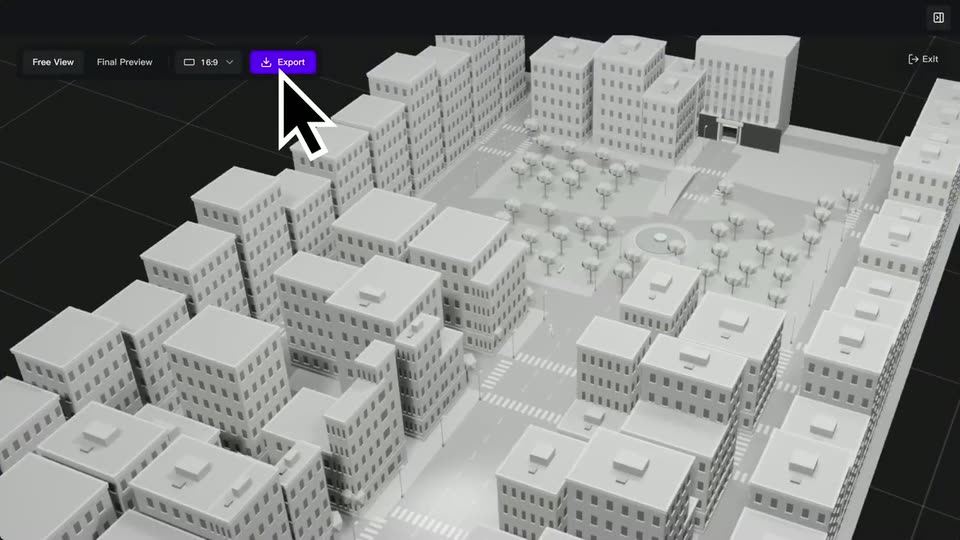
The Preview the 3D Model headline appears above a grayscale city in the 3D Studio viewport. The view moves closer to the model, then a pointer opens Export, exposing video/image/3D-asset options and Add to Canvas.
On-screen text: “Preview the 3D Model”
Techniques: 3D mockup, Cursor demo
Camera: Static
The export view returns to the dotted canvas. The city preview contracts into a small card with an Open 3D Studio button as the large pointer moves alongside it.
On-screen text: “Open 3D Studio”
Techniques: Cursor demo, 3D mockup
Camera: Static
A dark dotted canvas holds two cards: a left thumbnail of a white 3D city with an Open 3D Studio button, and a right player that loads the same city flythrough. The timeline runs to 00:08 as the view zooms in until blocky buildings fill the frame.
Techniques: 3D mockup, UI zoom
Camera: Static
A request to create character reference images is entered into the Creation prompt. The view returns to the canvas with front, side and rear reference poses of a young chef wearing a white jacket and chef hat, with a yellow plaid garment tied around the waist.
Techniques: UI zoom
Camera: Static
A request to create scene reference images is entered in the dark Creation field. A pointer approaches the purple send control before the view returns to the reference canvas.
Techniques: Cursor demo
Camera: Static
A dark node canvas opens on two reference cards, then zooms out to show the full graph. A cursor clicks plus, picks Video, and a new node connects via purple lines. The view zooms into the panel as a prompt is typed and settings appear.
Techniques: Cursor demo, UI zoom
Camera: Static
The video-generation prompt panel pans across its Wan 3.0, aspect, resolution and reference controls. The panel then clears and an aerial red-brick city preview opens on the canvas.
Camera: Static
Aerial view over rows of red brick apartment rooftops with a hazy Manhattan skyline on the horizon. The camera pushes forward and tilts down, dropping the skyline out of frame and closing in on the rooftops.
Techniques: Parallax
Camera: Push in
An aerial shot glides over brick rooftops and tilts down onto a city street, framing yellow taxis, parked cars and pedestrians moving along the sidewalk.
Camera: Push in
The red-haired chef in a white jacket, chef hat and blue star-shaped sunglasses crouches over a skateboard on a city sidewalk. A grayscale previs layer enters from the left to compare the model with the finished-looking image.
Techniques: 3D mockup, Masking
Camera: Pull out
A moving vertical divider compares a grayscale skateboard-and-mannequin previs with the finished-looking chef riding a red-wheeled board. Both views follow the board down the same sidewalk.
Techniques: Split screen, 3D mockup
Camera: Pull out
The synchronized sidewalk comparison continues: the grayscale board and mannequin occupy the left portion, while the chef’s black boots and red-wheeled skateboard remain on the right. The moving divider reveals matching street geometry.
Techniques: Split screen, 3D mockup
Camera: Static
The vertical comparison divider retreats toward the left edge, uncovering the chef in a white jacket with a yellow plaid garment at the waist. The chef skates past the low viewpoint and continues away along the sidewalk.
Techniques: Masking, Split screen
Camera: Static
The same low sidewalk view continues as the chef skates away. Two pedestrians approach and pass close to the lens beneath autumn trees and brick buildings.
Camera: Static
In an autumn park, the chef in a white jacket and chef hat crouches and jumps a skateboard across a fountain pool. The board approaches the stone rim as water sprays near the low viewpoint.
Camera: Pull out
A low tracking shot follows a longboard with pale wheels as a rider in dark boots rolls it along a wet stone ledge. A fountain and yellow autumn trees stay blurred in the background.
Camera: Pan
The chef pops a skateboard trick from the curved fountain rim and rolls onward beside the water. The sequence hands off to two rounded comparison panels showing a staircase in grayscale previs and finished-looking imagery.
Techniques: Split screen
Camera: Pan
Two rounded panels compare a grayscale staircase and board previs on the left with the chef performing a rail trick beside a graffiti-covered brick wall on the right. The rider and board movements are shown in sync.
Techniques: Split screen
Camera: Pull out
The paired staircase views continue through the rail trick. The whole comparison layout tilts and rotates into a horizontal arrangement, with grayscale previs above the finished-looking chef image.
Techniques: Split screen, 3D mockup
Camera: Static
A horizontal split pairs a grayscale skateboard-and-mannequin previs above the chef’s airborne trick beside a brick wall. Matching board orientation links the two views.
Techniques: Split screen, 3D mockup
Camera: Pan
The upper grayscale board flips while the chef and skateboard move through the matching airborne trick below. Both views retain the horizontal comparison layout.
Techniques: Split screen, 3D mockup
Camera: Static
The two synchronized trick panels continue, then contract into the dark editor canvas as the finished-looking video preview remains below the previs.
Techniques: Split screen, 3D mockup
Camera: Static
The skating result plays inside a small canvas video card while neighboring grayscale model thumbnails and canvas controls return around it. The interface reframes toward the restaurant models.
Camera: Static
The canvas pans across grayscale city and restaurant model cards. A large white pointer hovers over a restaurant thumbnail, making its Open 3D Studio button visible.
Techniques: Cursor demo
Camera: Static
A 3D studio window displays a white clay restaurant model with tables and pendant lamps. The window expands to fill the frame while the viewport zooms in, a large cursor hovers, and a purple playhead moves along the bottom timeline.
Techniques: Cursor demo, UI zoom
Camera: Static
The interface reframes around an empty agent prompt. A restaurant reference image is attached and a request is entered to preserve the scene while adjusting the character path and tracking-camera movement.
Techniques: Cursor demo
Camera: Static
A grayscale restaurant model appears under Control Camera Moves & Character Paths. Its elevated preview reframes toward the front doorway while a red route line becomes visible on the pavement.
On-screen text: “Control Camera Moves & Character Paths”
Techniques: 3D mockup
Camera: Static
The grayscale restaurant entrance and red route line hold before a moving vertical divider reveals a colored generated example of the chef skateboarding toward the doorway.
Techniques: Masking
Camera: Static
The chef, wearing a white jacket and chef hat with a yellow plaid garment around the waist, skateboards through the restaurant doorway. The viewpoint follows behind, passing diners and pendant lights.
Camera: Push in
The viewpoint continues following the same chef into the warm restaurant. A server in black approaches with a plate beside the green banquette and tall windows.
Camera: Push in
The server presents a plate to the chef beside the green banquette. A diagonal comparison boundary reveals a white grayscale mannequin and tableware aligned with the chef’s movement.
Techniques: Masking
Camera: Push in
A diagonal split compares the grayscale chef mannequin on the left with the red-haired chef on the right. The chef leans back beside the banquette as a plate, glass and utensil rise through the matched composition.
Techniques: Split screen
Camera: Push in
The diagonal comparison rotates across the frame, placing grayscale mannequin and floating tableware above the same chef in a white jacket below. The serving and balancing action continues beside the green banquette.
Techniques: Split screen
Camera: Push in
The moving diagonal comparison aligns a grayscale chef mannequin and suspended tableware with the chef’s white jacket and raised hands. A dark-sleeved server’s hand remains at the left edge.
Techniques: Masking
Camera: Static
The rotating comparison divider progressively uncovers the chef in blue star-shaped sunglasses reaching for a clear glass. The grayscale plate and mannequin remain on the opposite side until the colored result fills the view.
Techniques: Split screen
Camera: Push in
The chef handles a clear glass beneath a suspended utensil as the viewpoint circles toward a wider restaurant composition. A dark Creation prompt panel appears at the bottom and a request for a different route is entered.
Camera: Pull out
The restaurant result continues behind the bottom Creation panel, which shows Try a different route. Close views of the glass and plate alternate with the chef moving away through the restaurant.
On-screen text: “Try a different route.”
Camera: Static
The grayscale restaurant entrance returns with a chef-hatted mannequin. The prompt panel clears and a green route line appears at the doorway before the viewpoint advances inside.
Techniques: 3D mockup
Camera: Push in
The viewpoint follows the chef-hatted grayscale mannequin through the open doorway into the restaurant, passing model tables, seated figures and the window wall.
Techniques: Parallax
Camera: Push in
A chef in a white hat and checkered apron glides on a skateboard through a restaurant aisle toward the bar. The camera tracks forward, tightening from a wide shot of the dining room to a medium shot of the counter as the chef reaches it.
Camera: Push in
The chef reaches the wooden bar, turns toward the viewpoint and raises a small handheld device. The framing moves closer to the hands before the following stopwatch insert.
Camera: Push in
A hand holds a teal digital stopwatch in close-up against a blurred wooden background. Its LCD reads 7:30 AM.
On-screen text: “7:30 AM”
Camera: Static
A red-haired chef in a white uniform and blue star-shaped sunglasses faces the camera, mouth open then smiling, in front of blurred shelves of bottles.
Camera: Pull out
On a white dotted field, the Agent × Canvas headline sharpens from blur above a Script card containing a purple text block.
On-screen text: “Agent x Canvas - Create in One Seamless Flow”
Camera: Static
The white dotted-field diagram grows from Script into connected 3D Studio, 3D Previs Video and camera-path cards, with branches for character and scene assets. Generated clips feed into the final film card while the headline stays above.
On-screen text: “Agent x Canvas – Create in One Seamless Flow”
Techniques: UI zoom
Camera: Static
The diagram fades onto a white end card. WonderClip and Qwen marks appear above Bring Every Scene to Life / Create in Moments, followed by the gray invitation Try 3D Studio at www.yikeai.com.
On-screen text: “WonderClip”, “Qwen”, “Bring Every Scene to Life”, “Create in Moments”, “Try 3D Studio at www.yikeai.com”
Techniques: Kinetic type
Camera: Static