0:43
Explore
Airtable: introducing interface designer
Airtable · Nov 2021 · 1:14 · AI-annotated
- Length
- 1:14
- Scenes
- 26 · 2.8 s avg
- Product on screen
- 0:00
- Voiceover
- Yes
00:00:00 / 01:14:01
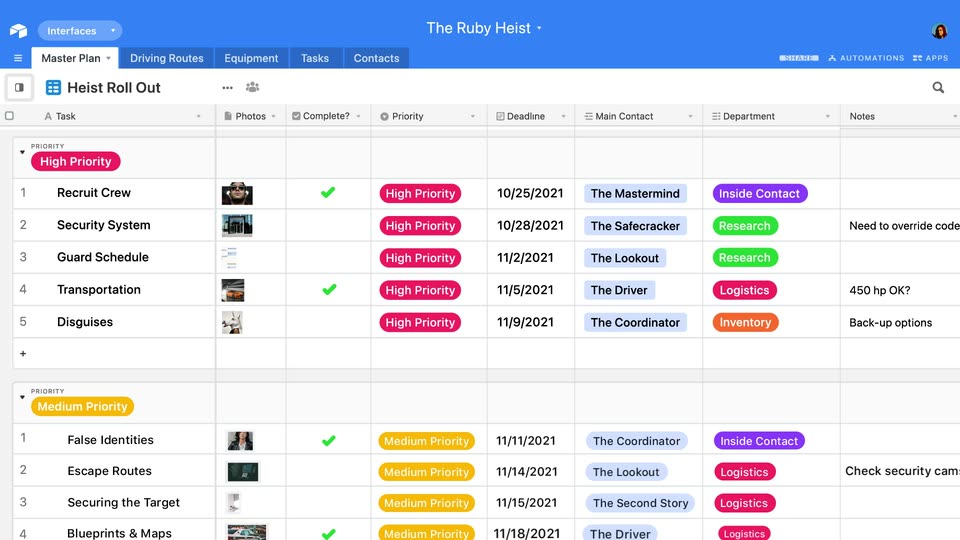
Airtable’s 1:14 launch film runs 26 scenes, about 2.8 s each. The product is on screen from the first frame. There is no explicit call to action; a voiceover carries the film. The video opens on a 3D laptop render that dissolves into full-screen UI, then chains cursor-driven micro-demos (build, share, approve, review) with smooth zooms, 3D tilts and staggered panel splits. Pacing is steady at about 118 BPM with short cuts, using a heist-themed sample project to turn interface features into a story.
No filming indicatedEstimated needs: 6 capture groups — your screens or recordings · 1 official logo — reused across the film · 3 3D passages — build or supply
Is this your launch? to your site or press kit.
More like this

0:55
OpenAI - Introducing ChatGPT Images, powered by our flagship new image generat
OpenAI · AI · Dec 2025
3:23
Meet the all new Codex Cloud
OpenAI · AI · Sep 2026
Airtable: introducing interface designer, scene by scene
· 26 scenes as text
01 · Product intro · 0:00–0:02
A silver laptop sits on a wooden desk before a blurred window, its screen showing an Airtable login card with a circular avatar, the name Mastermind, and a blue Sign in button. The camera slowly pushes in on the laptop.
Techniques: 3D mockup
Camera: Push in
02 · Product intro · 0:02–0:03
A laptop on a desk shows a white Airtable card with a circular avatar, the name Mastermind, and a blue Sign in button. A black cursor glides in from the lower right and presses the button, which scales on the click.
Techniques: 3D mockup, Cursor demo
Camera: Static
03 · Product intro · 0:03–0:04
A laptop on a wooden desk, framed against a soft-focus window, holds a locked-off shot as its screen crossfades from a Mastermind panel with a blue Sign in button and cursor into the Interfaces grid of colorful base cards.
Techniques: 3D mockup
Camera: Static
04 · Product intro · 0:04–0:06
A 3D laptop on a desk shows the Airtable interface, then the view zooms into the Master Plans row. A black cursor glides to the pink Ruby Heist calendar tile, which lights up with a highlight ring.
Techniques: 3D mockup, UI zoom, Cursor demo
Camera: Push in
05 · Demo · 0:06–0:11
A close-up of the blue header pulls back to reveal the full Airtable interface, a task table grouped by priority with colored pills. The list scrolls down through the rows, then the view zooms back in on the top rows as a cursor hovers over the High Priority pill.
Techniques: UI zoom, Cursor demo
Camera: Pan
06 · Demo · 0:11–0:13
A large black cursor sweeps across a blue project-management interface, lifting from the Master Plan tab to the Interfaces dropdown. A compact tooltip card springs open to the right, pairing a small screen illustration with the label Record Summary.
Techniques: Cursor demo
Camera: Static
07 · Demo · 0:13–0:15
A flat onboarding screen lists four layout options on the left beside a preview mockup of a record view. A cursor hovers the Record Review row, slides down the table, then clicks the blue Next button.
Techniques: Cursor demo
Camera: Static
08 · Demo · 0:15–0:20
A product screen titled Add elements pairs a left panel of field toggles with a right preview of two columns. A cursor flips each toggle green in turn as the preview fills with project cards, an orange car photo and detail fields, then clicks the Finish button.
Techniques: Cursor demo
Camera: Pan
09 · Demo · 0:20–0:20
A light app-builder interface shows a project list on the left and a detail panel on the right. The detail panel holds an orange car photo under an Assets heading, with a request brief beside it. A cursor hovers over the car as the view slides slightly left.
Techniques: Cursor demo
Camera: Pan
10 · Demo · 0:20–0:24
A cursor clicks the Publish button in a project tracker interface, the view zooms onto the top bar, then the screen tilts into a 3D perspective with a Share dialog open and a large Getaway Plan headline scaling in below.
On-screen text: “Getaway Plan”
Techniques: Cursor demo, UI zoom, 3D mockup
Camera: Push in
11 · Demo · 0:24–0:29
A Share dialog sits over a dimmed project screen, a white cursor resting beside it. Four email chips fill the recipient field, then a message types itself out below. The view reframes closer on the dialog at the end.
Techniques: UI zoom
Camera: Pan
12 · Demo · 0:29–0:30
Three app interfaces slide into a staggered grid layout. The top-left screen shows a project dashboard with an orange car. The bottom-left screen displays a dark warehouse view. The bottom-right screen features a map with escape routes. The screens enter and exit the frame sequentially.
Techniques: Split screen
Camera: Static
13 · Demo · 0:30–0:31
Four colored panels split the screen into personalized views: pink shows a car brief, purple tool cards, orange a loading dock photo, teal a route map. Each has an avatar header. The teal header and its title slide in from the right, the rest hold still.
Techniques: Split screen
Camera: Push in
14 · Demo · 0:31–0:32
A dark photo-review interface centers a loading dock photo between navigation arrows, with a comments panel at right. An orange header reading The Second Story Team slides in from the top as a cursor moves to the right arrow.
Techniques: Cursor demo
Camera: Push in
15 · Demo · 0:32–0:33
A dark photo-viewer window fills the frame beneath an orange team header. A cursor taps the right arrow, sliding the photo from a loading dock to a centered parking-garage shot, while a comments panel sits at right and four thumbnails line the bottom.
Techniques: Cursor demo
Camera: Static
16 · Demo · 0:33–0:35
A flat product interface shows a dark photo viewer holding a museum entrance image that brightens as it loads, next to a comments panel with a blue comment bubble. A cursor sits on the right arrow, and the filename above the viewer updates to the new image.
Techniques: Cursor demo
Camera: Static
17 · Demo · 0:35–0:36
A flat two-column UI layout. The left shows an image viewer with an orange team header and a photo of a glass museum entrance. The right stacks three purple user dashboards listing lockpick tools, scrolling upward while a white cursor hovers over the panels.
Techniques: Split screen, Cursor demo
Camera: Static
18 · Demo · 0:36–0:40
A purple-headed Lockpicks board lists tool cards; stacked copies on the right show cursors clicking Approve, then the frame splits to pair the board with a blue Heist Roll Out task list, and the left board scrolls to reveal more tools.
On-screen text: “The Second Story Team”
Techniques: Cursor demo, Masking, Split screen
Camera: Static
19 · Demo · 0:40–0:43
A teal-headed dashboard titled Escape routes lists three routes with blue and red risk badges above a dark city map. A cursor clicks the High Risk badge on Route 3, the map redraws a green Route 3 path, and the header wordmark blurs through a change.
Techniques: Cursor demo, Morph
Camera: Static
20 · Demo · 0:43–0:46
A light approval dashboard shows a cursor opening the status dropdown and selecting Approved, which turns green and fills the approver field. A notification card then rises over a dimmed screen, announcing the equipment approval.
Techniques: Cursor demo
Camera: Static
21 · Demo · 0:46–0:47
A split view of a workflow app: the top panel shows the Equipment approval table with a green Approved pill, the dimmed bottom panel centers a notification card with a multicolored M icon announcing the approval. The layout holds static.
Techniques: Split screen
Camera: Pan
22 · Demo · 0:47–0:49
After a black bar wipes off the left edge, a Mastermind dashboard scrolls down from an overview of stat cards and charts to a launch timeline and a map.
Techniques: Masking
Camera: Pan
23 · Demo · 0:49–0:51
A dashboard interface zooms into a light green stat card labeled 'Days Until Ruby Heist' while its large number animates from 5 to 0. The surrounding Gantt chart, map and legend slide out of frame as the card centers.
Techniques: UI zoom
Camera: Push in
24 · Demo · 0:51–1:03
A dashboard UI shows a map strip, a green pie chart filling to a full circle, and a comment thread where four messages appear in sequence, ending with a red gem photo. Money bag and handshake emoji rain over the panel, then the scene fades out.
Techniques: Particles
Camera: Static
25 · Demo · 1:03–1:09
A white 'Create new Interface' form fades in on a plain background, a purple lightning-bolt icon beside the Name row. Text is typed into the Name field as 'Mona Lisa', then into the Description field as 'We're ready to go bigger. Paris, here we come!'.
Camera: Static
26 · Outro · 1:09–1:14
On a white background, the Airtable mark assembles in the center as orange, pink and blue shapes scale up and settle into the open-box icon. The bold Airtable wordmark then fades in to its right and holds still.
On-screen text: “Airtable”
Camera: Static