1:19
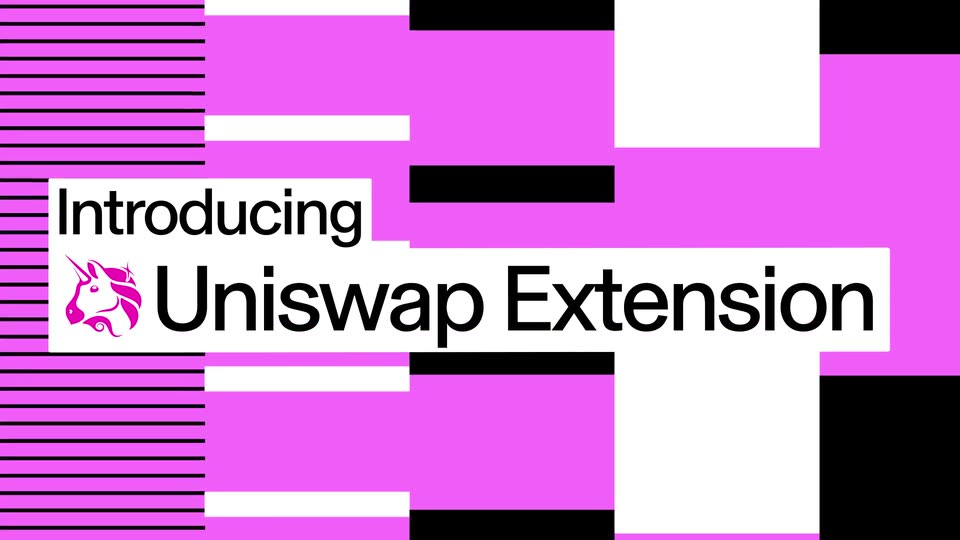
All New Uniswap Extension and More Tools for Users to Swap Smarter
Uniswap · Feb 2024
Adobe · Nov 2026 · 3:34 · AI-annotated
Adobe’s 3:34 launch film runs 129 scenes, about 1.7 s each. The product is on screen from the first frame and 10 features are revealed. There is no explicit call to action; a voiceover carries the film. The video is a rapid feature tour built on a black field: a bold white tagline card announces each feature, then a 3D-tilted UI mockup or live-action clip demos it, with a white cursor and a typing prompt bar as the recurring signature moves. Pacing is steady at roughly 9.5 cuts per minute over a 112 bpm track, alternating flat title cards with parallax 3D reveals and split-screen before/after wipes, all tied together by the red Adobe wordmark and a final red A logomark on white.
Is this your launch? to your site or press kit.
Uniswap · Feb 2024
Teamble · Feb 2025
A red Adobe wordmark sits centered on a black background, holding still before cutting to a solid black frame.
On-screen text: “Adobe”
Camera: Push in
The multicolor Creative Cloud logo blobs rotate and morph into pastel curved shapes framing a black center. The white “Creative Cloud.” title holds center as the tagline “Dream Big. Create bigger.” fades in beneath it.
On-screen text: “Creative Cloud.”, “Dream Big. Create bigger.”
Techniques: Morph
Camera: Static
Bold white type cards cut in sequence on a black background: “Creative Cloud.” scales in, “Dream Big. Create bigger.” holds, then the red and white Adobe Firefly logo appears, and a two-line card slides in with “Quick Actions.” in gray beneath “Ready-to-use.”
On-screen text: “Creative Cloud.”, “Dream Big. Create bigger.”, “Adobe Firefly”, “Ready-to-use”, “Quick Actions.”
Techniques: Kinetic type
Camera: Static
A centered white headline holds a black field while rounded video cards fly in from the edges and tilt into 3D perspective, forming a wall of clips around the text.
On-screen text: “Ready-to-use”, “Quick Actions.”
Techniques: Kinetic type, 3D mockup
Camera: Pull out
A dark interface shows a grid of video and image cards; the central card, a woman on a neon-lit Tokyo street with a yellow TOKYO headline, scales up toward the camera while the surrounding cards drift outward and off-frame.
Techniques: UI zoom
Camera: Pull out
A dark drop zone with a dashed border and an Upload video button sits centered. A white cursor slides in, then two tilted video thumbnails with play icons fly in from the right and settle over the button.
Techniques: Cursor demo
Camera: Static
A woman in a pink dress and red bag stands on a neon-lit street at night. A black pill-shaped bar with a pixel icon and up-arrow sits centered; a dashed outline and gray placeholder text fade in, then a blinking text caret appears at the end.
Camera: Pull out
A neon-lit Tokyo street with a smiling woman in a pink dress fills the frame. A dark search bar reading Tokyo sits centered, then shrinks and docks to the top as a cursor clicks its up-arrow button.
On-screen text: “Tokyo”
Techniques: Cursor demo
Camera: Pull out
A dark UI shows four square style previews of a woman with the word Tokyo, labeled Bold, Script, Paper collage, Cartoon. A cursor hovers the first card, which gains a white border, then moves to the second.
Techniques: Cursor demo
Camera: Static
A white social post card scales up on black. It shows a profile row, a night street photo of a woman with large yellow TOKYO, and a red heart like pill with a count.
On-screen text: “TOKYO”
Camera: Pull out
A tilted photo of a woman holding a colorful can is dragged by a white outline cursor into a dashed drop zone on a dark canvas, then snaps flat and centered as the cursor fills solid black.
Techniques: Cursor demo
Camera: Static
A 'Change background' label and four background swatches overlay a dimmed close-up of a woman holding a pink soda can. A cursor moves from the first swatch to the green one, which takes a white selection border as the footage brightens.
On-screen text: “Change background”
Techniques: Cursor demo
Camera: Static
A woman with bangs and a green sweater holds a pink soda can over one eye, eyes rolled sideways, lips pursed. A dark pill button with a white cursor arrow sits at center; a small AI-GENERATED CONTENT caption anchors the bottom.
On-screen text: “AI-GENERATED CONTENT”
Techniques: Cursor demo
Camera: Pull out
A woman holding a pink soda can against a dark green backdrop; a UI panel appears over her with the headline Pick a motion style and a row of thumbnail clips labeled Arc around, Tilt up, Push in, plus an empty card, while a play-triangle cursor hovers over the Push in tile.
On-screen text: “Pick a motion style”, “Arc around”, “Tilt up”, “Push in”, “AI-GENERATED CONTENT”, “Generate video”
Techniques: Cursor demo
Camera: Static
A dark green live-action shot of a woman holding a pink soda can fills the background. A white heading and three video thumbnails with a cursor sit on the left, then the whole interface blurs and recedes as the footage comes into focus.
On-screen text: “Pick a motion style”, “Arc around”, “Tilt up”, “Push in”, “AI-GENERATED CONTENT”
Techniques: Cursor demo
Camera: Static
A dark green screen shows rounded video cards, one of a woman with a pink can, an empty card with a plus, and a Push in caption. The center card pushes in to fill the frame, then cuts to two tan sneakers in 3D on a blue reflective floor.
On-screen text: “k a motion style”, “Push in”
Techniques: UI zoom, 3D mockup
Camera: Static
Olive sneakers with orange laces sit on a striped blue and orange block, mirrored on a glossy floor. A white headline scales in, then a blue selection box and 'Edit object' tooltip appear, a prompt 'Make the leather blue' is entered, and the leather panels turn blue.
On-screen text: “Edit pics and clips in a snap.”, “Video editing, made easy.”
Techniques: Kinetic type, 3D mockup, Cursor demo
Camera: Push in
A white bold sans-serif tagline, “Video editing, made easy.,” sits centered on a black background, sliding in from the right and locking into place.
On-screen text: “Video editing, made easy.”
Techniques: Kinetic type
Camera: Static
A video player card on black shows a product render of blue and green sneakers on a striped block under a blue sky. A cursor hovers top right, opening an 'Edit video' tooltip, as the player zooms in over a bottom control bar with a timecode.
Techniques: Cursor demo
Camera: Static
A defocused 3D sneaker rests on a striped pedestal behind a horizontal strip of video thumbnails, each with an audio waveform, that slides left across the lower third. The white text Trim it. holds steady in the center over the moving strip.
On-screen text: “Trim it.”
Techniques: 3D mockup
Camera: Static
A dark video-editing timeline of sneaker clips sits over a looping foot shot. A white cursor lifts the highlighted clip, drags it below the track, then drops it into a new slot as the white headline “Drag and drop.” appears over the timeline.
On-screen text: “Drag and drop.”
Techniques: Cursor demo
Camera: Pull out
A 3D sneaker in blue, green and orange rests on a striped box inside a rounded card against a blue sky. A second card on the right shows a man in green walking over an audio waveform. The view zooms into the sneaker as “Say the word.” holds center.
On-screen text: “Say the word.”
Techniques: 3D mockup, Split screen
Camera: Push in
A green, blue and orange sneaker rests on a striped geometric block against a blue sky, reflected on a glossy floor. A dark prompt bar reading 'Dramatically zoom in...' sits across the center as a white cursor arrow slides onto its right edge.
On-screen text: “Dramatically zoom in...”, “↑”
Techniques: Cursor demo
Camera: Static
A pair of blue, orange and olive sneakers rests on an orange box over a reflective floor, blue sky behind. The view dramatically zooms in to a close-up of the laces and toe box, with faint ghosted shoe copies and a cursor visible in the opening frame.
On-screen text: “Dramatically zoom in...”
Techniques: 3D mockup
Camera: Push in
A man in a green sweater and sunglasses stands in profile before a white wall with a large orange disc, holding a blue tote bag with a smiley face and eye shapes. Dark pill buttons Auto mode and Plan mode flank the bag; a white cursor appears beside Plan mode.
On-screen text: “AI-GENERATED CONTENT”
Techniques: Cursor demo
Camera: Static
A dark rounded chat bar types the prompt “Polish this pic for social” on a black background. A photo of a person in green holding a blue bag slides into the bar, the frame zooms to the right, and a cursor clicks the blue up-arrow send button.
Techniques: UI zoom, Cursor demo
Camera: Pan
A man in a green sweater stands in profile against a white wall holding a blue tote bag. A dark pill and plan panel fade in at right, the plan list refreshes, then both clear and a cursor taps a scaling Approve & run button over the bag.
Techniques: Cursor demo
Camera: Pull out
A white card reveals a grid of images, centering on a person with a blue tote bag. The text “Approve & run” scales into view.
On-screen text: “Approve & run”
Techniques: Masking, UI zoom, Kinetic type
Camera: Pull out
A dark concert stage with crossing spotlights, a drum kit and a silhouetted crowd. The headline slides in centered as the second line holds below it.
On-screen text: “Design across mediums.”, “All in Firefly Design.”
Techniques: Kinetic type
Camera: Pull out
A dark concert stage under blue spotlights, audience silhouettes in the foreground. A white two-line headline slides in over a ghosted browser and phone mockup, then a rounded input pill with a sparkle icon scales up, revealing a prompt.
On-screen text: “Design across mediums.”, “All in Firefly Design.”, “Set up artwork for a music festival using my assets.”
Techniques: Kinetic type
Camera: Pull out
A dark prompt bar with white text floats over a blue-lit concert stage and audience. A festival artwork card with a cursor scales up from the center, then zooms to fill the frame, ending on a close-up of the poster and a drummer.
On-screen text: “Set up artwork for a music festival using my assets.”
Techniques: Cursor demo, UI zoom
Camera: Pull out
A black void holds a grid of Hyper Local merchandise mockups: a blue album cover with a drummer photo and bubble logo centers the frame, ringed by a t-shirt, wristbands, a banner, a booklet and a CD on pink. The camera pulls back to reveal the spread.
Techniques: 3D mockup
Camera: Pull out
A teal map card with a person photo and graffiti lettering tilts in 3D, then flattens to face the camera as the white headline scales in over it. The card content swaps to an editing view showing a blue selection box and a cursor over a pink circle.
On-screen text: “With built in 3D and motion.”
Techniques: 3D mockup, Kinetic type, Cursor demo
Camera: Static
A vertical card on black shows a teal map, a black-and-white portrait and a pink 3D map pin inside a blue selection box. A white cursor clicks a pin icon then grabs the pin as the card tilts into 3D, revealing an orange map and sale text.
Techniques: Cursor demo, 3D mockup
Camera: Pull out
A 3D-tilted artboard mockup of a concert poster, blue map background and black-and-white drummer photo, sits on black. A dark rounded bar slides in from the right across the card, revealing the white caption next to a pixelated cross logo.
On-screen text: “Lay out artboards for social media sizes”
Techniques: 3D mockup, Kinetic type
Camera: Static
A cyan music-poster artboard sits flat on a dark canvas while a caption pill slides from the center to the top edge. The poster then multiplies into a row of artboards at several social-media sizes, all front-facing.
On-screen text: “Lay out artboards for social media sizes”
Camera: Pull out
A grid of cyan artboard cards, each carrying a black HYPER LOCAL wordmark and a drummer photo on a veined texture, floats in 3D perspective on black. The cards rotate toward a flatter frontal view as a white caption, Created 8 new artboards, fades in at the center.
On-screen text: “Created 8 new artboards”
Techniques: 3D mockup
Camera: Pull out
A grid of teal poster artboards, each with a drummer photo and bold black type, brightens into view on a black background. A white checkmark and the caption Created 8 new artboards fade in at the center of the frame.
On-screen text: “Created 8 new artboards”
Camera: Pull out
Black screen holds a centered white headline. The line “Frictionless client review” forms first, then a second line “and delivery.” scales in directly beneath it. The frame stays locked off as the two-line statement settles.
On-screen text: “Frictionless client review”, “and delivery.”
Techniques: Kinetic type
Camera: Static
A dark grid of branded asset cards fills the screen under a Mark for review button, the white headline scaling in over it. The view scrolls down as status pills flip to green Approved and a blue Export button pops in under the cursor.
On-screen text: “Frictionless client review and delivery.”
Techniques: Kinetic type, UI zoom, Cursor demo
Camera: Pan
A dark dashboard lists approved design assets with a blue Export button, then the view zooms into a grid of brand mockups showing the Hyper Local identity on a tee, a taped poster, a stage banner and colored tickets.
Techniques: UI zoom
Camera: Pull out
A man in a white puffer jacket stands centered against a taupe studio backdrop. A dark search bar overlay types a query while white cursors flank it, then a dropdown of compositing tools slides in below as the man blurs out of focus.
Techniques: Cursor demo
Camera: Static
A dark interface shows a central 'Image Compositor' panel with a person in a camo jacket, linked by a glowing blue line to smaller panels on the left. The central panel slides right, revealing large white text on the left.
On-screen text: “Take creative control”, “with Firefly Graph.”
Techniques: Parallax
Camera: Pan
A dark starfield space holds a glowing prompt card for Nano Banana, with a purple cursor and a round avatar at its left edge. A blue path line runs behind the card to a Veo 3 badge on the right.
Camera: Push in
On a dark starfield, a blue line threads across. A prompt card titled Google Gemini - Nano Banana, with a purple play triangle and circular photo, blurs and slides left. A Veo 3.1 by Google card, edged in blue glow, shows a yellow-helmeted figure on a mountain ridge.
Techniques: 3D mockup
Camera: Pull out
A dark grid background frames a Veo 3.1 window showing a person walking before a mountain backdrop. Large white text “Adjust here and there.” scales across the center. A blue line links a code panel on the left to the window, and a small label scales in on the right.
On-screen text: “Adjust here and there.”
Techniques: Kinetic type
Camera: Pull out
A dark node editor shows a Veo 3.1 by Google video card linked by a blue line to Runway, Firefly and Google dropdowns as “Adjust here and there.” scales up. It cuts to a full grid of these cards, each with a model dropdown, under the static caption “And everywhere.”
On-screen text: “Adjust here and there.”, “And everywhere.”
Techniques: Kinetic type
Camera: Pull out
A dark grid of video thumbnails with thin blue connector lines fills the frame, then the view zooms into a single panel titled Topaz Video Upsample, where a pixelated aerial shot of autumn trees is crossed by a diagonal white line.
Techniques: UI zoom, Light sweep
Camera: Pull out
A dark screen centers the Topaz Video Upsample window, playing a clip of a person lying on orange lichen rocks with mountains behind. Blurred thumbnail columns sit at left and right, joined to the window by thin blue curved lines that drift with the frame.
Techniques: Parallax
Camera: Pull out
A dark node-graph interface is blurred except for a centered blue Run Graph button that scales into focus as a white cursor arrow hovers over it, with a small Auto Run control bar at the bottom.
Techniques: UI zoom, Cursor demo
Camera: Pull out
A white arrow cursor drifts up toward a glowing blue Run Graph button with a play icon, centered over a blurred dark node graph. Below, a small Auto Run toggle pill with a spinning loader stays still. The button's halo breathes.
Techniques: Cursor demo
Camera: Static
White bold text scales up on a black background into two lines reading Create apps and websites with Firefly Builder. The line then swaps to a smaller centered No coding required. as a gray textured bar slides in from the left edge.
On-screen text: “Create apps and websites”, “with Firefly Builder.”, “No coding required.”
Techniques: Kinetic type
Camera: Pull out
A grid of rounded outdoor-gear photos fills the frame on black. A dark pill-shaped input bar sits in the center with a pixel-grid icon and the prompt text. A white cursor glides over the bar, then a small tilted website preview card pops up above it.
On-screen text: “Build a website for my outdoor apparel brand”
Techniques: Cursor demo
Camera: Pull out
A flat browser window shows the Muso outdoor site, an orange hero with a hooded figure and product cards, over a misty mountain backdrop. A phone mockup slides in from the right with the mobile layout, then the view zooms into a product page reading Summit 40L Backpack, $148.
On-screen text: “Build a website for my outdoor apparel brand”
Techniques: UI zoom
Camera: Static
A product page for a black hiking backpack with red zippers sits on a white card. The frame starts tight on the title and pack, then pulls back to reveal the full layout: price, quantity, two dark buttons, and detail rows. A black nav bar tops the card.
Techniques: UI zoom
Camera: Pull out
A dimmed e-commerce product page for a Summit 40L backpack sits behind a dark chat box that types out an instruction. A cursor moves to the send icon and clicks, the overlay lifts, and the Add to Cart button turns orange.
On-screen text: “Change the color of this button to orange”
Techniques: Cursor demo
Camera: Pull out
The Adobe Premiere wordmark, red and white, scales in at the center of a black background and holds on a locked-off frame.
On-screen text: “Adobe Premiere”
Techniques: Kinetic type
Camera: Static
A split screen compares a desaturated surfboard on the left with a color shot of a bearded man holding it on the right, divided by a drag handle. The white headline and Adobe Premiere logo sit over the footage, then the interface bar appears at the bottom.
On-screen text: “Switch into”, “Color Mode.”, “Adobe Premiere”
Techniques: Split screen
Camera: Pull out
A dark color-grading interface frames a bearded man in sunglasses carrying a large surfboard. The Sequence tab is active and a Style 1 control chip slides in from the left across the preview, while a vertical filmstrip of beach thumbnails runs down the right edge.
Camera: Static
A desaturated clip of a man holding a surfboard plays behind a dark Style 1 pill and a right-hand column of thumbnails. The cursor clicks plus, a Style Presets grid scales in, and picking a thumbnail snaps the footage to a saturated orange grade.
Techniques: Cursor demo
Camera: Static
A color-grading app interface over a beach shot: a man in sunglasses holds a red surfboard while a control panel with a circular color wheel expands on the left and a column of photo thumbnails on the right reflows into a two-by-four grid. A cursor hovers the Vibrance knob.
Techniques: UI zoom, Cursor demo
Camera: Pan
A photo editor shows a large beach shot of a blue lifeguard tower beside a grid of beach thumbnails. A cursor clicks a plus, a dark adjust panel and a color wheel slide in, then the cursor drags the wheel and the blues warm across the photo and thumbnails.
Techniques: Cursor demo
Camera: Static
A pale blue lifeguard tower with a Refugio 2 state parks sign stands on a sandy beach, turquoise sea and clear sky behind it. The camera slowly pushes in on the tower.
Camera: Static
Close-up of hands rubbing wax onto a red surfboard flecked with white flakes on a beach. A video editing timeline of clips and purple audio waveforms slides in along the bottom, a blue playhead moves across it, and the title REFUGIO STATE PARKS 2 slides in.
On-screen text: “REFUGIO”, “STATE PARKS”, “2”
Techniques: Kinetic type
Camera: Pull out
A dimmed beach video plays behind a video editor timeline. Purple audio waveforms sit under five clips. A cursor drags out a new blue clip, and a dark panel slides in with a sound effect prompt, a duration slider and a Generate button.
On-screen text: “Describe the sound effect you want to generate”
Techniques: Cursor demo
Camera: Static
A dark control panel with a prompt field and duration slider floats over a dimmed timeline of beach clips. A white cursor moves to the blue Generate button and clicks it; a spinner turns, then the Add Timing control swaps to a play, waveform and close row.
Techniques: Cursor demo
Camera: Static
A dark interface panel with a prompt and a clip timeline fades out to reveal a hand rubbing white wax back and forth across a red surfboard on a beach.
Camera: Static
A man in a yellow shirt sits in an orange beach chair holding a blue book, then raises a camera to his eye. A dark timeline panel with video thumbnails and purple audio waveforms slides up across the bottom of the frame.
Camera: Pan
A sunny beach shot of a bearded man with binoculars plays above an editing timeline whose clips shuffle along the track; a prompt panel with a Veo 3.1 selector and 1080p setting slides in over the blurred footage.
Techniques: Cursor demo
Camera: Push in
A dark prompt panel glides across a video-editing timeline. A beach clip drops into the dashed box, a prompt line types out, then a hatched bar fills to a 100% progress ring while the blue clips and purple waveforms hold below.
Techniques: UI zoom
Camera: Push in
A dimmed beach backdrop sits behind a horizontal editing timeline. Four clips, a blue book, a man drinking, a crowded beach, a red surfboard, line up in a row, each with a purple waveform below. A blue playhead marks the position; a torn-edge preview floats at the top.
Camera: Pan
A high aerial shot drifts slowly over a packed beach, turquoise surf and rows of sunbathers under yellow and blue umbrellas, a rocky headland with palm trees at the right. The French tagline sits still over the scene.
On-screen text: “Le rêve éveillé”
Camera: Pull out
A low-angle close-up holds on a person's hands gripping a chrome steering wheel, the red fender of the vehicle filling the left foreground. The driver in a gray t-shirt stands against a bright blue sky with thin masts at right. The shot stays steady on the wheel.
Camera: Static
A bearded man in a cap and gray t-shirt sits behind a steering wheel, talking and gesturing against a bright blue sky. A dark caption chip with a small icon and the words Separate Sound Source scales in at the lower right.
On-screen text: “Separate Sound Source”
Camera: Static
A bearded man in a cap reaches for a red handlebar against a blue sky, a dark 'Separate Sound Source' pill scales in at the lower right. The shot blurs and reframes into a UI panel holding the same footage as a preview, with a purple waveform strip below.
On-screen text: “Separate Sound Source”
Techniques: Morph
Camera: Pull out
A rounded video card shows a man in a cap driving against a blue sky, set over a blurred duplicate of the same shot. A purple waveform strip animates beneath the card while a Separate Sound Source label with an icon scales in at the lower right of the frame.
Camera: Static
A product interface shows a video clip of a man in a cap above an audio timeline. A purple Dialogue track fills to 100% as a green Boat Motor track and a blue Seagulls track slide in below, each with a progress ring counting up.
Camera: Static
A video editor shows a harbor clip above four color-coded audio waveform lanes labeled Dialogue, Boat Motor and Seagulls, with a Separate Sound Source button at the clip's corner. The lanes clear and the clip expands to fill the frame.
Techniques: UI zoom
Camera: Push in
A bearded man in a surfboard shop gestures while talking to a woman; a dark Separate Crosstalk pill scales up at right. The footage then pulls into a centered card over a blurred copy of itself, and a purple audio waveform slides in along the bottom.
On-screen text: “Separate Crosstalk”
Techniques: Masking
Camera: Pull out
A small video window shows a man and a woman talking over a white surfboard in a workshop. Below, a purple waveform splits into two green tracks while a progress bar labeled Splitting into Clips climbs from 0% to 146%. A Separate Crosstalk chip sits at the video's lower right.
On-screen text: “Separate Crosstalk”, “Splitting into Clips...”, “0%”
Camera: Push in
The Adobe Photoshop wordmark sits centered on a black background. The red Adobe and white Photoshop start offset and overlapping, then slide and scale into a locked, aligned position.
On-screen text: “Adobe Photoshop”
Techniques: Kinetic type
Camera: Static
A hand holds a glowing sphere topped by a translucent butterfly against a purple gradient, dark leaves framing the corners. A black Relight button with a light icon sits upper left as a white cursor glides in and hovers beneath it.
Techniques: Cursor demo
Camera: Static
A 3D hand holds a glowing cream orb with a pale moth perched on it against a dark purple backdrop. An Edit Lighting panel with a cursor slides in at left; as the color swatch turns orange, the orb's glow warms from cream to deep orange.
Techniques: 3D mockup, Cursor demo
Camera: Static
A 3D night scene shows a hand holding a glowing orb topped by a butterfly. A cursor drags a Close/Far slider, the frame widens as an Add Light button appears, then a tap on a round control shifts the glow from orange to pink.
Techniques: Cursor demo
Camera: Pull out
A 3D-rendered hand cradles a glowing orange orb with a butterfly resting on it, set against a purple night sky and crescent moon. The scene slides upward to split the frame, revealing a live-action man in a striped shirt reaching his arm up against a blue sky below.
Techniques: Split screen
Camera: Pull out
Low-angle wide shot of a skateboarder in a plaid shirt and white tee crouching on his board against a clear blue sky, rolling onto a ramp edge. A dark rounded label with a split-view icon and the words Quick Compare appears at the left.
On-screen text: “Quick Compare”
Camera: Pan
A skateboarder crouches mid-trick on a ramp against a blue sky. A black Quick Compare pill with a cursor sits top left; a vertical divider drops in and the cursor drags its round handle right, wiping the right half into a flat pink and orange illustration of the same pose.
On-screen text: “Quick Compare”
Techniques: Split screen, Cursor demo
Camera: Pull out
A skateboarder crouches on a ramp against a blue sky, split down the middle by a vertical bar with a pointer icon. The right panel wipes open to reveal a color-shifted version of the rider overlaid with halftone dots, a lightning bolt and floating shapes.
Techniques: Split screen, Masking
Camera: Static
A close-up of a green car's headlight holds still as a prompt bar types a restyle request at the bottom. A cursor taps Generate, a Generative Restyle tooltip pops in, and the photo morphs into a wet rainy-night version as a Neo Noir Rain slider card appears on the left.
Techniques: Cursor demo, Morph
Camera: Pull out
A vertical clip of a teal car in the rain at night, headlight glowing on wet asphalt, sits centered on a dark blurred backdrop. A black rounded box at left reads Neo Noir Rain above a slider, and a white cursor arrow drags the slider handle rightward.
Techniques: Cursor demo
Camera: Static
A vertical photo of a teal car in the rain sits in a horizontal carousel, with a dark card labeled Neo Noir Rain and a slider over it. A white cursor rests on the slider knob. The card fades out as the track slides left, revealing a photo of cherry cocktails.
On-screen text: “Neo Noir Rain”
Techniques: Cursor demo
Camera: Pan
Over a photo of a red cocktail with cherries in ice cubes, a Remove chip and cursor appear. The cursor opens a dropdown and selects Related elements. The view zooms to a cherry in an ice cube, marked by a magenta oval and a white ring.
Techniques: Cursor demo, UI zoom
Camera: Push in
A 3D still life on a peach surface: a glowing orange orb on a ribbed glass pedestal, two cherries in clear cubes, a copper spoon. Magenta blobs grow over the cherries and a right-hand cube; a thin white ring scales in to frame that cube. The camera drifts slowly.
Camera: Pull out
A macro shot of a glowing amber glass base with a copper rod touching it, then the camera pulls back to reveal a coupe cocktail with cherry garnish against a red curtain. The frame splits horizontally, adding a panel of white orchids below the drink.
Techniques: Split screen
Camera: Pull out
A vertical portrait of a woman wearing white orchids sits on a dark canvas, framed by a top toolbar with AI Assisted and Pro Editor pills. A cursor drifts near the toolbar while a Gemini prompt panel slides up from the bottom.
Techniques: Cursor demo
Camera: Pull out
A dark Gemini prompt panel slides up over a portrait of a woman wearing white orchid flowers. The prompt line types in across the field, then a white cursor glides to the blue Generate button.
Techniques: Cursor demo
Camera: Static
A portrait of a woman crowned with mirror-chrome flowers sits on a vertical canvas against a dark backdrop. A cursor moves across the image, taps the Pro Editor pill, then opens the Layers panel, which slides in from the right with three layer thumbnails.
Techniques: Cursor demo
Camera: Pull out
A woman with metallic flowers on her head fills the frame against a red background. A dark Layers panel and a dropdown of three edit options slide in on the right, a cursor hovers over the top row, then the interface fades away.
Techniques: Cursor demo
Camera: Static
A centered close-up of a model wearing an iridescent petal headpiece and matching metallic collar against a flat red background. The Adobe Creative Cloud wordmark fades in across her face, blending red and white.
On-screen text: “Adobe Creative Cloud”
Camera: Static
The Adobe Creative Cloud wordmark, red “Adobe” and white “Creative Cloud” with extruded side shadows, sits centered on a black field and scales down to settle into place.
On-screen text: “Adobe Creative Cloud”
Techniques: Kinetic type
Camera: Static
The Adobe Creative Cloud wordmark holds centered on black, then dims as colorful geometric illustrations wipe in from the left, their hard edge sweeping across the frame.
On-screen text: “Adobe Creative Cloud”
Techniques: Masking
Camera: Pull out
A mosaic of vivid illustrations and a photo of a red building fills the frame, panning slowly. Centered bold white text slides in over the collage on two lines, the second line appearing below the first.
On-screen text: “Meet AI Assistant.”, “In your favorite apps.”
Techniques: Kinetic type
Camera: Pull out
A patchwork grid of flat, colorful panels, each holding simple line-art shapes or small photos of food and a building, drifts slowly across the frame as a two-line headline slides in over the center.
On-screen text: “Meet AI Assistant.”, “In your favorite apps.”
Camera: Pull out
A grid of earth-toned panels with thin black line-drawn arcs and circles fills the frame. The red and white Adobe Illustrator wordmark holds center, then the white tagline slides in over the same background.
On-screen text: “Adobe Illustrator”, “Effortlessly organize projects.”
Techniques: Kinetic type
Camera: Static
A grid of warm brown and red panels filled with abstract circles and arcs scrolls down. The white headline slides upward through the center as a new row of pale panels with blurred dots enters at the bottom.
On-screen text: “Effortlessly organize projects.”
Techniques: Kinetic type
Camera: Pan
Flat geometric shapes in red, green, pink and orange scatter across a cream field, including semicircle faces with eyes and target circles. A black rounded badge slides in from the left, holding a chat-robot glyph and the label AI Assistant.
On-screen text: “AI Assistant”
Techniques: Kinetic type
Camera: Static
A cream canvas scattered with flat colorful shapes frames a black AI Assistant input bar. The prompt “Place grouped objects on artboards” types out letter by letter, then a white cursor clicks the circular send button, which flashes blue.
Techniques: Kinetic type, Cursor demo
Camera: Static
Scattered flat shapes on a cream field, a red face, a green quarter-circle, orange and pink cards, fly from a loose layout and snap into a four-by-three grid of white tiles. The motion blurs then settles as the grid locks into place under a still camera.
Camera: Push in
A strip of flat colorful shapes wipes out of the top of the frame, revealing a surfer seated on a board in the ocean at sunset. The centered headline swaps from Adobe Premiere to Get to editing sooner.
On-screen text: “Adobe Premiere”, “Get to editing sooner.”
Techniques: Masking
Camera: Pull out
A dark interface shows a tablet of video thumbnails on the left and a sunset surf clip on the right. A black prompt field types the words String out underwater footage into a sequence while a cursor arrow moves to the send button.
Techniques: Kinetic type, Cursor demo
Camera: Pull out
A dark editing interface shows a thumbnail grid on the left and a sunset preview on the right, with a prompt box reading “String out underwater footage into a sequence” and a cursor on the send button. The box and cursor clear, and the preview cuts to a surfer in the water.
Techniques: Cursor demo
Camera: Static
A rounded rectangle frames underwater footage of a manta ray gliding near the surface, set over a blurred copy of the same clip. Below, small thumbnails fade in left to right, each with a purple audio waveform bar, building an editing timeline.
Camera: Static
A video editor interface shows a preview window above a horizontal timeline of underwater clips, each with a purple waveform. A blue playhead steps right across the clips while the preview switches to the matching underwater shot.
Camera: Static
A video editor interface fills the frame over a blurred underwater clip. A large preview window plays the teal footage while a row of small thumbnails with purple audio waveforms sits below; a blue playhead marks the second clip as the timeline zooms in to larger frames.
Techniques: UI zoom
Camera: Pull out
A top-down table setting with green plates, yellow napkins, citrus slices and blueberries fades up from black. A hand lowers a fork onto the left plate while the centered Adobe InDesign wordmark stays fixed.
On-screen text: “Adobe InDesign”
Camera: Pull out
Overhead shot of a yellow-tiled table with green plates, folded yellow napkins, lemon halves and blueberries, a hand holding a fork. The red and white Adobe InDesign wordmark sits centered, then gives way to the white headline Create at scale., which scales up in place.
On-screen text: “Adobe InDesign”, “Create at scale.”
Techniques: Kinetic type
Camera: Static
Top-down shot of a yellow and green table setting with a hand and fork fills the frame under the white caption 'Create at scale.' The footage shrinks into a left video window over yellow, an 'AI Assistant' pill appears, and green lines animate on a light green panel.
On-screen text: “Create at scale.”, “AI Assistant”
Techniques: Kinetic type
Camera: Pull out
A yellow-and-white document editor fills the frame with a black AI Assistant box where a prompt is typed: Create 50 versions of this document, replacing all content with the attached CSV file. The view then pulls back into 3D to reveal a grid of colored document versions.
Techniques: 3D mockup
Camera: Pull out
A grid of colorful recipe-book spreads, each pairing a food photo with placeholder text lines, scrolls horizontally across a black background at a steady pace, new columns sliding in from the left edge.
Camera: Pull out
A grid of colorful food brochure spreads on a black background zooms in, then quickly cuts to a woman at a laptop against a dark blue illustrated backdrop, with the title centered over her.
On-screen text: “Adobe After Effects”
Camera: Pull out
A flat illustration of a girl riding a leaping tiger among clouds and starbursts fills a dark navy frame. The Adobe After Effects logo scales in over it, then fades as the white headline “Tame complex tasks.” appears centered on the dimmed artwork.
On-screen text: “Adobe After Effects”, “Tame complex tasks.”
Techniques: Kinetic type
Camera: Pull out
A flat illustration of a rider on a leaping tiger flies across a blue sky filled with cream clouds and starbursts. A black AI Assistant pill slides in above a prompt box where text types out, while the artwork stays locked in place.
Camera: Static
A flat illustration of a rider on a striped tiger among clouds and stars fills a blue frame, with black chips for “AI Assistant” and “Fix expression errors” plus a cursor. The chip text fades, then the art pulls back into a bordered white card.
Camera: Pull out
A flat cartoon illustration of a rider on a leaping tiger, surrounded by cream clouds and orange and yellow starbursts on a blue field, bobs gently. A dark expression panel with code and an orange error bar sit along the bottom edge.
Camera: Push in
A flat illustration of a person in yellow and blue riding a leaping orange tiger on a solid blue field. White clouds and yellow and orange starbursts fill the space. The composition holds nearly still with a faint drift.
Camera: Static
A split frame pairs an illustrated leaping tiger over a blue sky with a woman in a blue coat walking a colorful town square. The illustration wipes away to reveal the full live-action shot as the red-and-white Adobe Photoshop logo scales up to the center.
On-screen text: “Adobe Photoshop”
Techniques: Split screen, Masking, Kinetic type
Camera: Pan
A woman in a long blue coat and peach dress walks across a sunlit square of pastel townhouses. The Adobe Photoshop wordmark scales into frame, then swaps to the white tagline as a dark AI Assistant chat bubble types a prompt on the left.
On-screen text: “Adobe Photoshop”, “Find the right tool faster.”
Techniques: Kinetic type
Camera: Static
A woman in a blue coat and orange dress walks slowly, head down, through a colorful street as a dark AI-assistant panel slides in on the left with a chat prompt and a menu path. The panel fades, the colors saturate, and red bars frame the image.
Camera: Static
A red square containing a small photo masked into an A shape sits centered on white, then morphs into a solid red A logomark that holds still.
Techniques: Morph
Camera: Static