0:56
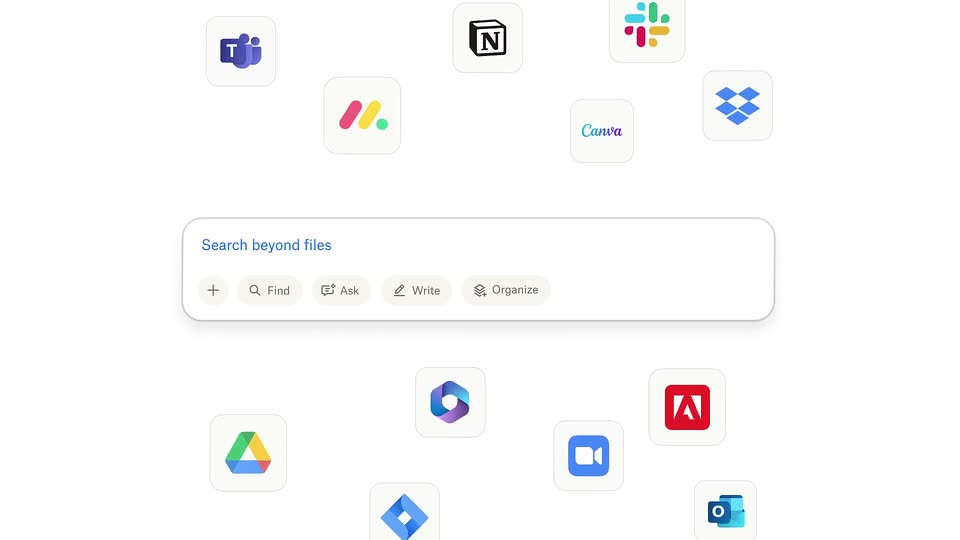

Dropbox Dash: Search videos, images, and create content fast
Dropbox Dash · Apr 2025
Webflow · May 2025 · 1:41 · Full motion · AI-annotated
Webflow’s 1:41 launch film runs 31 scenes, about 3.3 s each. The product is on screen from the first frame and 4 features are revealed. There is no explicit call to action; a voiceover carries the film. The video opens with a fast montage that names the product, then breaks into four captioned feature blocks, each a short flat screencast with one cursor action, and closes on a tagline and a 3D logo sting. Its signature is hard cuts locked to a steady beat, white bold captions pinned to the bottom edge, and a recurring floating metric-card overlay.
Is this your launch? to your site or press kit.
Dropbox Dash · Apr 2025
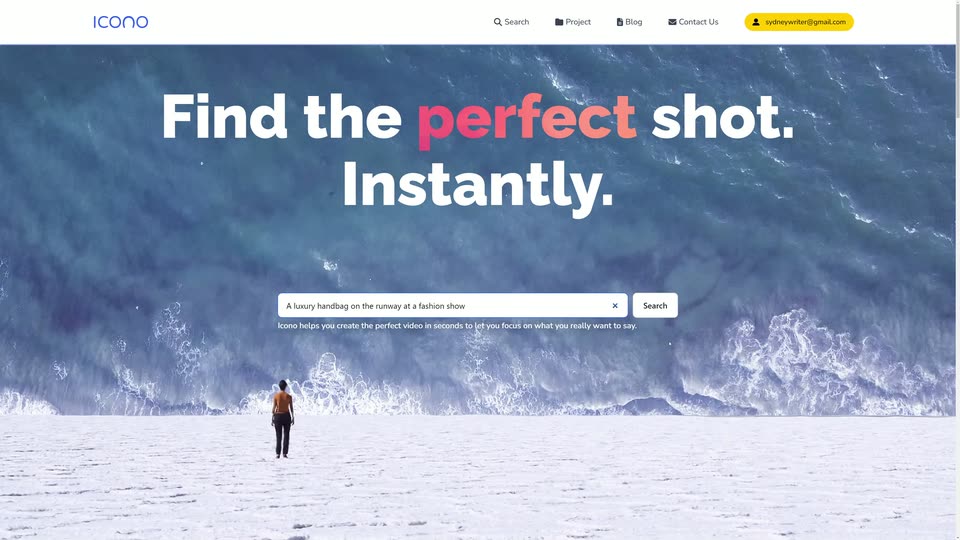
ICONO · Oct 2023
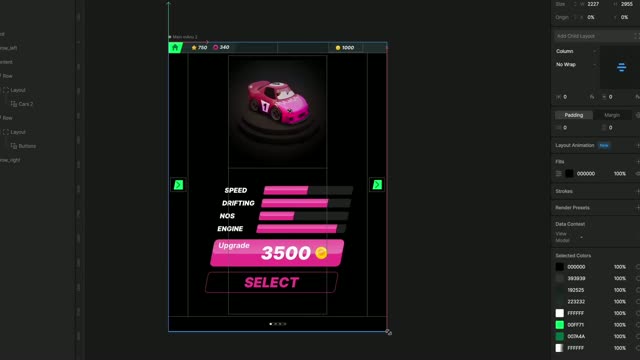
Rive · Design · Oct 2024
A held static view of the Webflow editor. The website canvas shows a photo of a smiling team with floating white metric cards for net profit, visitors and views, while a dark comments panel lists user feedback down the right edge.
Camera: Static
A Webflow CMS editor fills the frame, showing a team photo in the canvas with three white stat cards (Net Profit, Visitors, Views) floating over it, and a dark comments panel on the right. The view holds steady with no motion.
Camera: Static
A static interior-design webpage fills with a typed review comment in a dark floating box, the words appearing letter by letter, then a hand cursor moves to the user avatar.
Techniques: Cursor demo
Camera: Static
A flat desktop view of a design blog shows a comment thread popup beside an open emoji picker. A cursor clicks an emoji and the picker closes, leaving the comment input active. The right sidebar keeps the highlighted comment in view throughout.
Techniques: Cursor demo
Camera: Static
Two rounded cards on a dotted off-white background, linked by a down arrow: Webflow '1. New Comment' above Slack '2. Send Channel Message'. A hand cursor moves in from the right as the purple selection outline shifts from the top card to the Slack card, thickening as it settles.
Techniques: Cursor demo
Camera: Static
A white command palette lists Asana actions with “Create” typed in its search field; a cursor hovers down the list, highlighting “Create a Project”. The panel fades out, leaving the blue Webflow and red Asana icon circles side by side.
Techniques: Cursor demo
Camera: Static
A light-gray canvas shows a blue Webflow node left of center. A red Asana node slides in from the right, its translucent halo fading as it settles, while a dotted line with a wrench icon draws between them. A cursor hovers over the Asana node.
Techniques: Morph
Camera: Push in
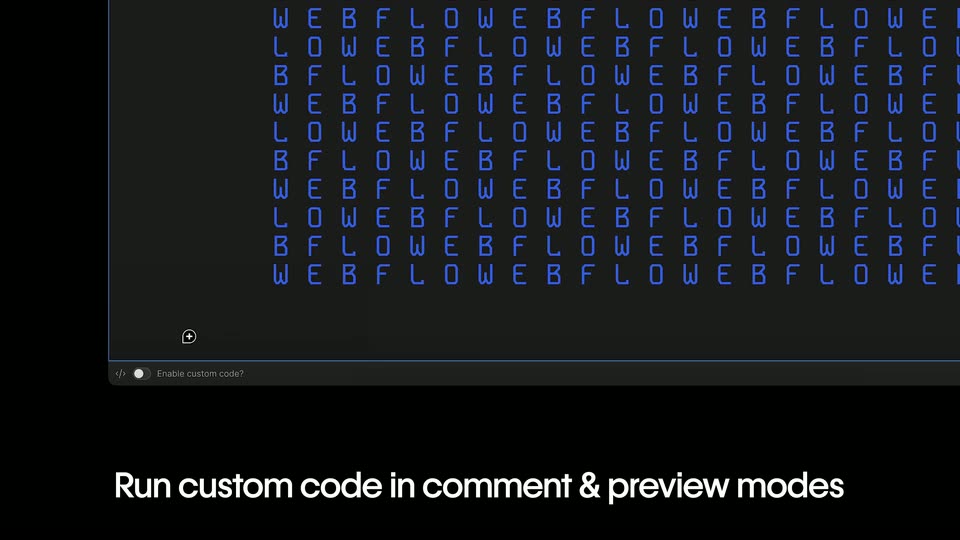
A dark preview panel fills the frame with rows of blue WEBFLOW text. A cursor glides from the panel's center to the Enable custom code toggle at the bottom edge. A white headline sits below the panel.
On-screen text: “Run custom code in comment & preview modes”
Techniques: Cursor demo
Camera: Static
A dark gray interface panel fills the frame, its bottom bar showing a code icon and the prompt “Enable custom code?”. A cursor hovers over the blue toggle, then drifts right. A white headline sits on the black strip below.
On-screen text: “Run custom code in comment & preview modes”
Techniques: Cursor demo
Camera: Static
A dark editor canvas fills the frame with a grid of blue letters. Green letters type in one by one along diagonal lines while a cursor drifts across the grid. A white caption stays fixed at the bottom.
On-screen text: “Run custom code in comment & preview modes”
Techniques: Cursor demo, Kinetic type
Camera: Static
A dark interface shows a canvas of repeating blue letters. A comment box over it types out a sentence character by character, next to a Post button. A white caption at the bottom reads Run custom code in comment & preview modes. The right panel shows an empty comments state.
On-screen text: “Run custom code in comment & preview modes”
Camera: Static
A CMS editor screen shows a two-column article, interior photo left, body text right. A cursor clicks a quote paragraph, a comment box pops open, and the words “Added a new quote he” type into it. A white caption reads “Comments on-canvas in the CMS” at the bottom.
On-screen text: “Comments on-canvas in the CMS”
Techniques: Cursor demo
Camera: Static
A CMS editor shows an article on the canvas with a comment box. A cursor clicks Post, the box expands into a posted comment card, and the right comments panel updates. A white caption reads Comments on-canvas in the CMS at the bottom.
On-screen text: “Comments on-canvas in the CMS”
Techniques: Cursor demo, Morph
Camera: Static
The Webflow site roles table holds still, then the two top rows fade to gray while the three Reviewer rows stay bright, isolating them. A white caption reads 'Comments on-canvas in the CMS' along the bottom.
On-screen text: “Comments on-canvas in the CMS”
Camera: Static
A web article view scrolls down a little, then a dark comment panel opens over the body text, listing two user comments with avatars and a reply field. A white caption reads Comments on-canvas in the CMS at the bottom.
On-screen text: “Comments on-canvas in the CMS”
Camera: Pan
A Slack channel view fills the frame. A white Zapier notification card pops into the message list, then the whole screen dims behind it. A white caption sits on a dark scrim along the bottom edge.
On-screen text: “Comments notifications in your favorite tools”
Camera: Static
A design tool workspace displays a website template, pairing a red-curtain interior photo with article body text, while a large white headline spans the bottom of the screen.
On-screen text: “Comments notifications in your favorite tools”
Camera: Static
A design-tool editor displays a webpage mockup; the view pans left to reveal the Connected Apps list with Zapier and Make, while a white headline stays fixed at the bottom.
On-screen text: “Comments notifications in your favorite tools”
Techniques: UI zoom
Camera: Push in
The Webflow editor's Apps panel slides in from the left, settling into a clean list of connected apps such as Zapier and make over a dimmed website preview. A large white caption anchors the bottom of the frame.
On-screen text: “Comments notifications in your favorite tools”
Camera: Push in
A flat view of a workflow builder: a cursor clicks New Comment in the open event dropdown, the menu fades out, and the choice fills the trigger field while the left block updates to 1. New Comment with a bolt icon. A white caption holds at the bottom.
On-screen text: “Comments notifications in your favorite tools”
Techniques: Cursor demo
Camera: Static
A dimmed Zapier editor frames a centered white apps panel listing integrations. The cursor glides from the right step panel to hover over Slack and Google Sheets. A large white headline sits static along the bottom edge.
On-screen text: “Comments notifications in your favorite tools”
Techniques: Cursor demo
Camera: Static
A Zapier editor canvas shows a Webflow card linked to a Slack card. A cursor clicks the Action event field, opening a dropdown that lists Slack actions like Add Reminder and Create Channel. A white caption runs along the bottom.
On-screen text: “Comments notifications in your favorite tools”
Techniques: Cursor demo
Camera: Static
A dark comment-thread panel floats over a layout of bold black headline text on the left and a live-action presenter on the right. A cursor glides over the second reply and drags to highlight its paragraph in blue. A white caption sits on the bottom band.
On-screen text: “Tiny but mighty comments improvements”
Techniques: Cursor demo
Camera: Static
A design editor frames a hero banner with a bold headline and floating metric cards. A cursor clicks into the subheadline, a formatting toolbar pops up, and the body text fills in under a blue selection highlight. A white caption sits at the bottom.
On-screen text: “Tiny but mighty comments improvements”
Techniques: Cursor demo
Camera: Static
A dark emoji picker floats center over a website mockup and two smiling women. A hand cursor taps the top category icons, switching the grid from smileys to animals and nature. A white caption anchors the bottom.
On-screen text: “Tiny but mighty comments improvements”
Techniques: Cursor demo
Camera: Static
A dark comment card floats over a home-design webpage. A white cursor moves to the link icon at the card's top right, a tooltip reads Copy link to clipboard, then the click switches it to Copied link to clipboard. A white caption sits at the bottom.
On-screen text: “Tiny but mighty comments improvements”
Techniques: Cursor demo
Camera: Static
A dark comments panel floats over a design blog page. A cursor opens an emoji picker, taps a reaction, and the picker collapses to reveal a reaction count. A white caption reads Tiny but mighty comments improvements along the bottom.
On-screen text: “Tiny but mighty comments improvements”
Techniques: Cursor demo
Camera: Static
A workflow builder canvas on a light beige background shows three stacked nodes, Webflow and two Slack steps, linked by purple arrows. The middle Slack node holds a purple selection outline, with a settings panel at the right edge. The view drifts slowly upward and holds.
Camera: Static
A dark comment dialog sits over an interior design article. A cursor moves from the emoji reply box to the blue Reply button and clicks it. The emoji post appears as a new thread entry, the side panel updates to two replies, and the dialog fades out.
Techniques: Cursor demo
Camera: Static
A tilted 3D app icon with a blue W mark floats in a dark space, ringed by small icon tiles and thin connecting lines. The icon's edge glows brighter over time while the headline fades in at the bottom.
On-screen text: “Website Experience Platform”
Techniques: 3D mockup, Light sweep
Camera: Static
Black background. The blue Webflow W mark scales up in the center, then the white Webflow wordmark fades in beside it. The lockup holds still as the sign-off.
On-screen text: “Webflow”, “Website Experience Platform”
Techniques: Kinetic type
Camera: Static