1:03
Notion - Introducing Ship OS: The agent-native way to ship software. Run your
Notion · Productivity · Jul 2026
Voyager’s 1:38 launch film runs 36 scenes, about 2.7 s each. The product shows up at 0:04 and 3 features are revealed. The call to action lands at 1:28 (90% in), over a voiceover. The video is a screen-recording tutorial intercut with 3D game renders: it opens on the finished obby, walks through connecting Roblox Studio, then builds and iterates the course by typing prompts, and closes on a navy end card. Pacing is steady at about 87 bpm with a cut every four seconds, and the signature move is a slow zoom into the UI paired with a violet highlight ring that traces each clickable element.
Is this your launch? to your site or press kit.
Notion · Productivity · Jul 2026
DJI · Hardware · Sep 2022
Films whose music sounds like this one, voice left out
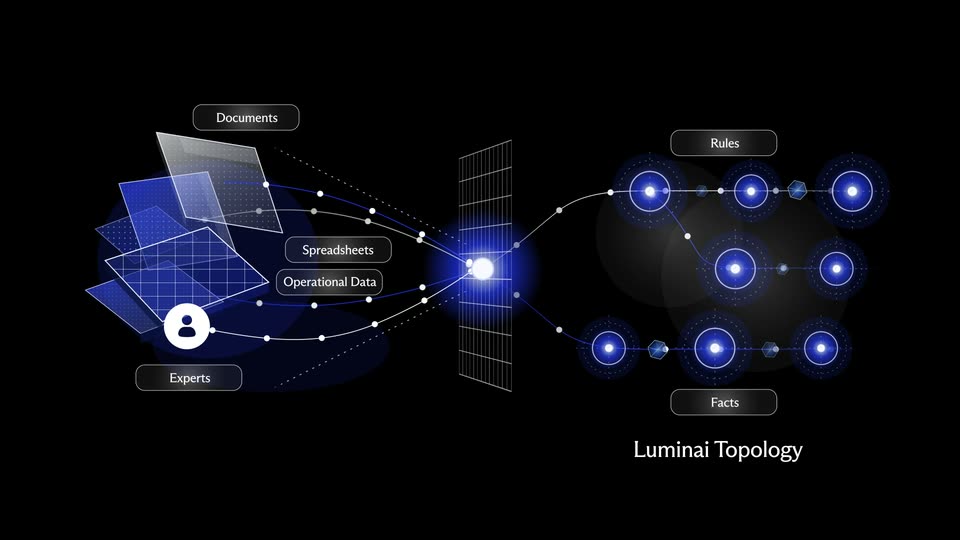
Luminai · Modern corporate electronic
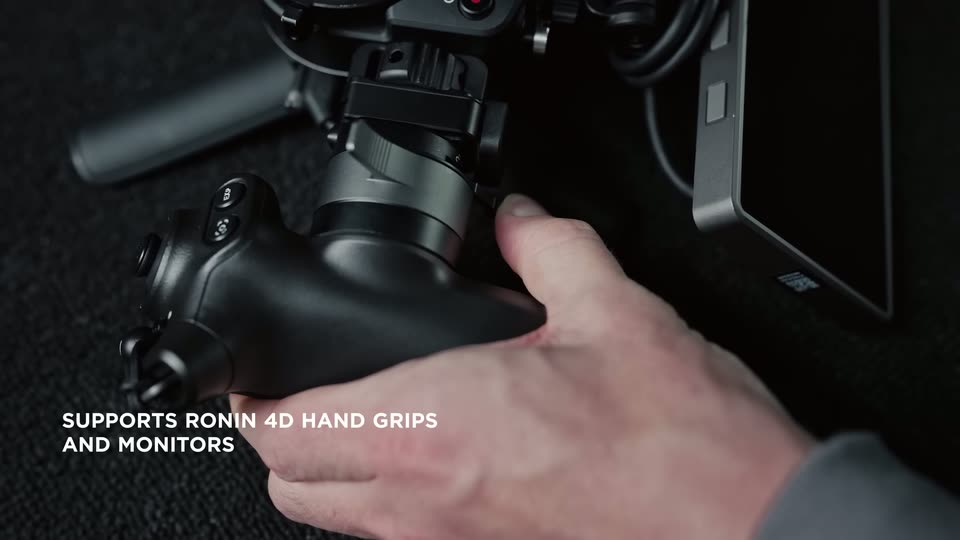
DJI · Modern electronic and cinematic trailer music
Opusense AI · Upbeat electronic
A blocky red-haired character in a white top and dark skirt hops across a cyan pad on a white path, orange ground and blue sky behind. Yellow 'Checkpoint 1!' text pops in at center as the character moves toward a floating checkpoint platform and a top timer counts up.
On-screen text: “Checkpoint 1!”
Techniques: 3D mockup
Camera: Static
A red-haired avatar stands on a glowing dark cube over a flat orange field, with floating white and pink platforms ahead. The camera orbits to behind the character and pushes in as the avatar hops onto a monitor-shaped platform marked Checkpoint 3.
Techniques: Parallax
Camera: Static
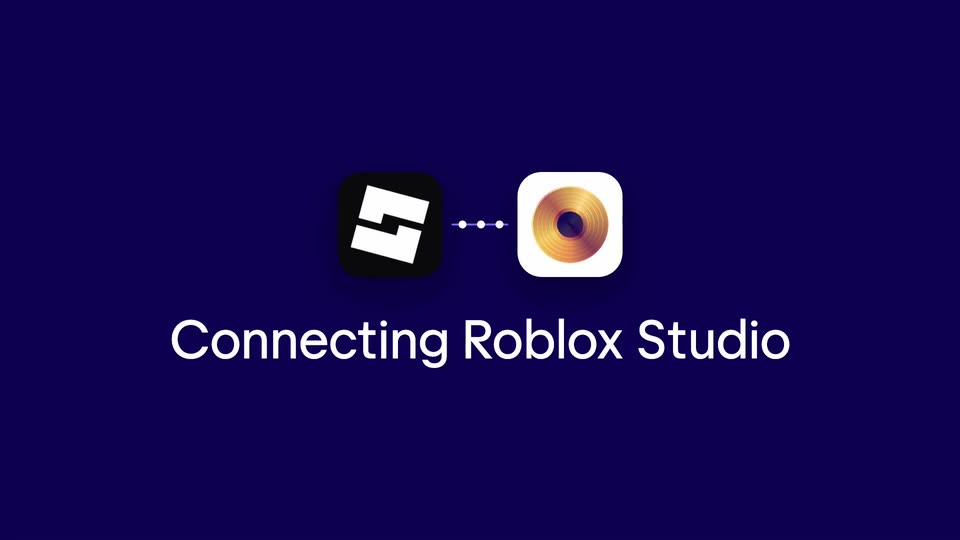
On a dark navy field, a black app icon with a white block mark sits beside a white icon holding a gold record disc. A dotted connector line draws itself between the two icons while the caption slides in below them.
On-screen text: “Stage 2/0 54.9 s”, “Connecting Roblox Studio”
Techniques: Kinetic type
Camera: Static
On a pale lavender background, the black Roblox Studio app icon sits centered above the fading-in headline Install Roblox Studio. A purple underline draws beneath it, a white pill reads Free from create.roblox.com, and a purple checkmark badge pops onto the icon's corner before the whole composition fades out.
On-screen text: “Install Roblox Studio”, “Free from create.roblox.com”
Camera: Static
A white Voyager home screen sits locked off: a centered heading above a prompt box, a row of dark sample cards below, and a tutorial strip at the bottom. Nothing moves for the full shot.
On-screen text: “Free from create.roblox.com”
Camera: Static
A light interface fills the frame, then zooms into the left sidebar where the Apps & Models row is ringed in violet. The view reframes to the right panel as the Games filter chip highlights.
Techniques: UI zoom
Camera: Push in
A light interface list of apps scrolls vertically, revealing a highlighted Roblox Studio card with a purple outline.
Camera: Pan
A Roblox Studio settings panel sits on the right while an app grid of cards fills the left. The camera zooms in to isolate the panel, and a purple outline highlights the green-check status reading Found on this computer.
Techniques: UI zoom
Camera: Push in
A white settings panel for Roblox Studio fills the frame, its “Found on this computer” badge ringed in purple. Below, an API key row and a sample prompt sit under the Try asking heading. The view holds still.
Camera: Static
A screen capture of the 3D editor holds on a white baseplate with a black spiky emblem, set on a checkered grid; the Creator Store, Explorer and Assistant panels frame the viewport. The viewport camera slowly orbits the plate while the side panels stay fixed.
Camera: Push in
A gray 3D grid floor with a white starburst-logo tile fills the left, beside a white Assistant chat panel on the right. The camera tracks left across the floor, sliding the logo tile out of frame while the chat panel, showing a greeting, stays in place.
Techniques: 3D mockup
Camera: Push in
On an orange backdrop, a white Assistant panel sits inside a browser window. A purple ring marks the three-dot button, then a purple outline snaps to the Settings row as the dropdown menu opens, guiding the eye.
Camera: Push in
A white Assistant Settings panel floats on a lavender background, the MCP Servers row boxed in violet. The view zooms in, tightening the crop onto the sidebar and the Enable Studio as MCP server block with its green status dot and client list.
Techniques: UI zoom
Camera: Push in
A settings panel holds still while a purple outline draws around the row labeled Enable Studio as MCP server, its toggle on and a green dot marking two connected clients. The clip opens on a blurred crossfade before the highlight snaps into place.
Camera: Static
The screen zooms from the full chat view onto a task card. A glowing purple border pulses around the instruction message, which tells the user to open Roblox Studio and enable the MCP server, with two reply options listed below.
Techniques: UI zoom
Camera: Push in
Roblox Studio's 3D viewport shows a blocky avatar with black hair and an orange cap on a green starburst platform. The view zooms in as blue steps and a Checkpoint 1 marker recede down the orange course, the right side panel sliding out of frame.
Techniques: UI zoom
Camera: Push in
A close-up of a chat composer on a pale background. The frame zooms in on the card as the text @robl is typed into the input line, then the Roblox Studio app row fills with a purple selection outline.
Techniques: UI zoom
Camera: Push in
A light product screen shows a prompt field pre-filled with a Roblox Studio chip and an obby build request under the headline 'What would you like to create?'. A row of example cards sits below. The view eases out slightly, then a purple focus ring highlights the black send button.
Camera: Push in
The studio interface gives way to a 3D zoom into an orange course. The camera glides right along a row of gray and colored jump pads, a pink kill-bar strip and a dark arch framing a yellow finish.
Techniques: UI zoom, 3D mockup, Parallax
Camera: Push in
A light document view shows a checked task row, a worked-time line, and a bulleted list of course stages. The whole view slowly zooms in on the text while it stays static.
Techniques: UI zoom
Camera: Static
A 3D editor viewport shows a blocky avatar standing on a cyan platform above orange lava, with a yellow Checkpoint 1! label and a dark stage timer pill floating above, framed by the editor's top toolbars and right panel.
Camera: Push in
A Roblox Studio window shows a blocky avatar hovering above an orange lava floor, a stage timer label floating over the blue sky. The view cuts to the assistant panel, where test notes and a bulleted course breakdown sit in black text on a white background.
Camera: Push in
A documentation page with body text and a bulleted course list sits on a white background. A purple-outlined pill reading 'Worked for 3m 33s' is highlighted. The view slowly zooms in, enlarging the text and pushing the top line off frame.
Techniques: UI zoom
Camera: Static
The Roblox Studio window fills the frame, its 3D viewport showing an orange ground with flat colored parts and a black frame. The view then zooms in on the right-side Explorer panel, listing the workspace tree, while the viewport stays on the left.
Techniques: UI zoom
Camera: Push in
The Roblox Studio window shows the Explorer tree on the right and a 3D viewport on the left. A purple rounded outline fades in around the ServerScriptService entry in the list.
Camera: Static
A 3D game world in perspective sits inside a studio window: a blocky avatar stands on a cyan platform over orange ground, with a yellow “Checkpoint 1!” banner and a dark timer pill above. The view reframes from the full studio chrome to a tighter crop on the viewport.
Techniques: 3D mockup, UI zoom
Camera: Push in
A Roblox Studio viewport shows a 3D course of glowing platforms under a blue-to-orange sky, a red-haired avatar at the bottom, a dark timer pill and a yellow Checkpoint 1 pop-up that scales up. A translucent chat panel then fades in over the scene.
Techniques: 3D mockup, Kinetic type
Camera: Static
A full chat app window with a left sidebar zooms in gradually, cropping the sidebar and the top of the thread so the bulleted stage list and the bottom input field grow to fill the frame. The input field shows a typed prompt.
Techniques: UI zoom
Camera: Push in
The 3D editor viewport shows an orange ground with a gray checkpoint platform, a black cube and red-yellow beams, while the whole window zooms in to tighten on the scene. A purple tile and a yellow tile sit on the ground; a monitor floats in the background.
Techniques: UI zoom
Camera: Push in
A 3D game viewport on an orange floor frames a grey platform holding a black cube and a red bar with yellow ends, tagged by a floating Checkpoint 2 label. The camera dollies in on the platform while a hierarchy tree and chat panel stay fixed on the right.
Camera: Push in
A white chat message with bulleted notes fills the frame. A purple rounded outline draws itself around the “One fix after testing” paragraph, then the phrase “Checkpoint 2” in the line below scales up for emphasis.
Camera: Push in
A blocky avatar in a white shirt and red shorts hops across pink and red platforms toward a black FINISH gate on a flat yellow field, tracked from behind by the camera, as a dark timer chip at the top counts the stage.
Camera: Static
A flat screen recording of the Voyager Canvas interface zooms in toward the central prompt panel. The left sidebar slides out of frame as the heading and the row of example cards grow larger, ending on a tighter framing of the Canvas box.
Techniques: UI zoom
Camera: Push in
A blocky avatar in a white shirt and orange head stands on a glowing purple tile on an orange plane, facing a black gate marked FINISH over a yellow pad. The camera pushes in as the avatar hops forward and raises both arms in a victory pose on the finish line.
Techniques: 3D mockup, UI zoom
Camera: Push in
A red-haired Roblox avatar walks a glowing yellow path in a sunset 3D world, turning from back view to side view while starburst particles drift across the sky. The camera holds a locked third-person shot on the receding track.
Techniques: Particles
Camera: Static
A dark navy end card fades up from black. A centered white headline reads “Start creating on Voyager,” with a purple pill button labeled “Follow for more” beneath it. The frame then holds still as the sign-off.
On-screen text: “Start creating on Voyager”, “Follow for more”
Camera: Static