2:27
Hang Huang ☁️ - We just raised an $8M seed round to kill AWS, GCP, and Azure. Introd
Insta Cloud · Sep 2026
Theo · Oct 2026 · 2:44 · Full motion · AI-annotated
Theo’s 2:44 launch film runs 53 scenes, about 3.1 s each. The product is on screen from the first frame and 3 features are revealed, with social proof. The call to action lands at 0:16 (10% in), over a voiceover. A single continuous screen recording of the theo.com site and its AI workflow, cut into step-labeled beats (free audit, AI build, plain-English editor) with a persistent dark lower-third caption that swaps at each step. The style is flat and high-contrast: a saturated yellow field, near-black ink, white rounded cards, a chunky condensed grotesque for headlines and a small monospace for labels, with motion driven by slow vertical scrolls, ticking progress bars, and a recurring black robot mascot.
Is this your launch? to your site or press kit.
Insta Cloud · Sep 2026
Cedar · B2B · Nov 2026
Servo7 · Industrials · Feb 2026
The yellow theo. homepage fills the frame, headline on the left and a robot graphic on the right. A cursor hovers over the body copy as a dark olive caption bar slides up with the step label, then the page scrolls down to reveal two call-to-action buttons.
On-screen text: “Step 1: Free Site Audit”
Techniques: Cursor demo
Camera: Pan
A website screen scrolls downward, the yellow hero section with a robot icon and two buttons sliding up to reveal a white 'Why is SEO' block. A black cursor hovers at the fold. A dark bar captioned 'Step 1: Free Site Audit' is pinned to the bottom.
On-screen text: “Step 1: Free Site Audit”
Techniques: Cursor demo
Camera: Pan
A website page with a yellow header scrolls slowly upward, revealing the heading “Why is SEO so important for your business?” alongside body copy. A caption “Step 1: Free Site Audit” sits in a gray box at the bottom.
On-screen text: “Step 1: Free Site Audit”
Camera: Static
A website page scrolls vertically from a white article section into a yellow Free Site Audit block, revealing a white card with a numbered list and a dark button, while a dark caption bar holds the step label at the bottom.
On-screen text: “Step 1: Free Site Audit”
Camera: Pan
The Theo website, with a fixed top navigation bar, scrolls down past a yellow hero headline and five numbered step cards into a reviews section. A dark gray caption box reading Step 1: Free Site Audit stays pinned at the bottom.
On-screen text: “Step 1: Free Site Audit”
Camera: Pan
The Theo website scrolls down through its reviews section. A bold black headline sits above four green-star review cards, and a gray Step 1 banner rises into view at the bottom edge.
Camera: Pan
A website screen scrolls down past a grid of star-rated reviews into a yellow section headlined “Here's how I go to work”, listing four numbered cards. A dark caption box reading “Step 1: Free Site Audit” stays pinned at the bottom.
On-screen text: “switching to Theo.”, “Step 1: Free Site Audit”
Camera: Pan
A yellow website page scrolls up slightly, revealing a bold black headline on the left and a numbered list of white cards on the right, with a dark gray caption bar holding white text pinned at the bottom.
On-screen text: “Step 1: Free Site Audit”
Techniques: Cursor demo
Camera: Static
A website page scrolls down from a yellow banner into a comparison table headed by the black title Theo vs the world. The Theo column stays highlighted in yellow as rows for cost, hosting and SEO slide up. A cursor hovers over the Theo column.
Camera: Static
A website screen scrolls down, moving from a comparison table with a yellow highlighted column to a dark section holding a large white headline and two growth cards. A cursor hovers over the table while a fixed caption bar stays at the bottom.
On-screen text: “Step 1: Free Site Audit”
Techniques: Cursor demo
Camera: Pan
The dark website scrolls down beneath a large white headline, bringing two case study cards into view. A black caption bar with white text sits fixed at the bottom of the frame.
On-screen text: “Step 1: Free Site Audit”
Camera: Pan
A website page scrolls downward, passing a stats panel and FAQ section into a services grid and a large headline. A cursor hovers over a trade card. A dark caption box reading Step 1: Free Site Audit stays pinned at the bottom.
On-screen text: “Step 1: Free Site Audit”
Techniques: Cursor demo
Camera: Pan
The Theo website scrolls down, closing its service menu, to reveal a dark hero with a large white headline and two buttons. A cursor glides to the yellow button and clicks it as bottom captions change.
On-screen text: “Step 1: Free Site Audit”, “Enter your website + email”
Techniques: Cursor demo
Camera: Static
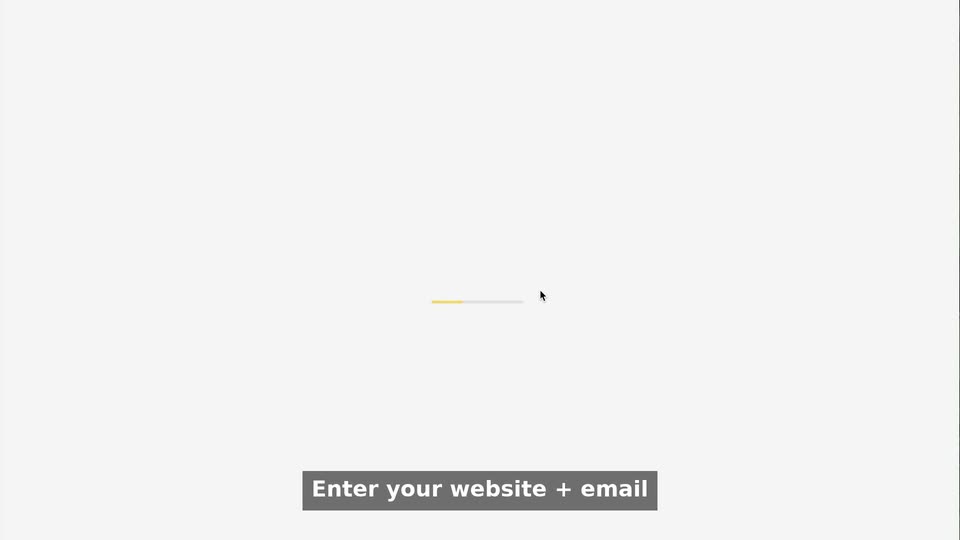
On a plain light gray field, a thin horizontal progress bar sits centered, its left portion filled yellow, with a black cursor arrow just to its right. A gray caption bar at the bottom holds white instruction text. The bar and cursor hold still throughout the short clip.
On-screen text: “Enter your website + email”
Techniques: Cursor demo
Camera: Static
A yellow landing page with a white form card scrolls up slightly. The website field is typed with yourbusiness.com, then focus shifts to the email field. A gray caption box reading Enter your website + email stays at the bottom throughout.
On-screen text: “Enter your website + email”
Techniques: Cursor demo
Camera: Static
A yellow landing page shows a white sign-up form. The email field types out '[email protected]' letter by letter behind a blinking caret, while a black caption pill reads 'Enter your website + email' over the submit button.
On-screen text: “Enter your website + email”
Techniques: Cursor demo
Camera: Static
A yellow page titled “Scanning your site...” shows a black status card whose step label and progress bar advance, plus a checklist ticking items off as the view zooms out. A gray caption “Enter your website + email” with a cursor arrow sits at the bottom.
On-screen text: “Enter your website + email”
Camera: Static
On a flat yellow field, a vertical stack of report cards scrolls upward: a dark estimate card, a white numbered findings list, then a dark card with a yellow button. A mouse cursor sits at the list's lower right corner.
Camera: Pan
A long product report page on a yellow background scrolls steadily downward, passing stat cards, dark banner blocks and numbered finding rows. A dark caption bar pinned to the bottom holds its line throughout.
On-screen text: “Theo finds exactly what is costing you customers”
Camera: Pan
A website audit report on a yellow background scrolls up fast, then eases to a stop on a black call-to-action bar and a white preview card. A cursor glides to the 'See my free preview' button. A bottom caption reads 'Theo finds exactly what is costing you customers'.
On-screen text: “Theo finds exactly what is costing you customers”
Techniques: Speed ramp, Cursor demo
Camera: Pan
A flat yellow product screen shows a site-design progress card with a percentage climbing from 11 to 15 and a filling bar, a while-you-wait card whose single line of text cycles, and a stats row, while a bottom caption bar carries the tagline.
On-screen text: “Theo finds exactly what is costing you customers”
Camera: Static
A yellow dashboard fills the frame. A dark progress card counts from 24% to 31% while a white card cycles through waiting tips and a notes card types out. A bold white caption sits at the bottom.
On-screen text: “Theo finds exactly what is costing you customers”
Camera: Static
A flat product interface on a yellow background shows stacked white cards with research stats and a live notes panel typing text, while a white caption sits at the bottom. The view drifts slowly upward to reveal the top progress bar.
On-screen text: “Theo finds exactly what is costing you customers”
Camera: Static
A flat product dashboard on a yellow field scrolls up as the progress counter ticks from 34% to 35% and a text cursor appears over a stat. The view reframes to reveal the headline “Designing your site” at the top, with a caption bar fixed at the bottom.
On-screen text: “Theo finds exactly what is costing you customers”
Techniques: Cursor demo
Camera: Pan
On a yellow product screen, a black progress card counts up from 32% to 75% as its bar fills and the active step shifts to Choosing a direction. A white card below cycles short waiting messages. A dark caption bar at the bottom holds the line about costing customers.
On-screen text: “Theo finds exactly what is costing you customers”
Camera: Static
On a yellow dotted background, the headline “Choose a starting point.” sits above body copy and a white pill. A 3D-tilted website mockup slides up from the bottom beside an option card, while a caption bar reads across the lower frame.
On-screen text: “THREE OPTIONS · EDIT LATER”, “Choose a starting point.”, “Pick the closest one. Theo will turn it into your free preview, and you can edit the copy, colors, and layout later.”, “Not final. Pick one now, change anything later.”, “Theo finds exactly what is costing you customers”
Techniques: 3D mockup
Camera: Static
On a yellow builder screen, the view scrolls down past two website template cards, each pairing a browser mockup with a label and a black button. A cursor hovers over the mockups. A dark caption bar sits at the bottom.
On-screen text: “Theo finds exactly what is costing you customers”
Techniques: Cursor demo
Camera: Pan
On a yellow background, white rounded cards scroll vertically, each pairing a website template mockup with a numbered option panel and a black button. A dark caption bar fixed at the bottom carries the line about Theo.
On-screen text: “Theo finds exactly what is costing you customers”
Camera: Pan
On a yellow background, the screen scrolls up to center a white card showing a bold, modern website template. The cursor clicks the black Build this one free button, which switches to Starting build... with a spinner, and a caption appears at the bottom.
On-screen text: “Theo finds exactly what is costing you customers”, “Step 2: AI builds your site — in minutes”
Techniques: Cursor demo
Camera: Static
A yellow dot-grid loading screen holds a white circle with a black robot icon centered, a faint ring and small caps status text below it. A dark olive caption bar at the bottom states the step title. The frame stays locked off.
On-screen text: “Step 2: AI builds your site — in minutes”
Camera: Static
A yellow build dashboard scrolls down past the Building your site header and a 28 percent progress bar, revealing stat tiles and two live activity columns. A dark caption bar spans the bottom of the frame.
On-screen text: “Step 2: AI builds your site — in minutes”
Techniques: Cursor demo
Camera: Pan
A flat product dashboard on a yellow background fills the frame, showing a notes feed and a live activity list that adds new rows. The view zooms in on the two panels, then eases back out to reveal the stat cards above.
On-screen text: “Step 2: AI builds your site — in minutes”
Techniques: UI zoom
Camera: Static
A yellow interface page scrolls upward, bringing a large blue heading into view above stacked white cards and a dark progress card reading 30%. A dark caption bar with white text stays pinned at the bottom.
On-screen text: “Step 2: AI builds your site — in minutes”
Camera: Pan
A flat product screen on a yellow field: a black robot badge sits above the bold title and a white card of body copy. The title and card open with a brief vertical offset that snaps into place, while a black lower-third banner holds the step label and a progress bar reads 30 percent.
On-screen text: “Step 2: AI builds your site — in minutes”
Camera: Static
Yellow dotted screen of the 'Building your site' interface: a white text card and a dark progress bar. The percentage counts 32% to 57% as the bar fills. Bottom caption reads 'Step 2: AI builds your site, in minutes,' then swaps to 'Edit in plain English. Publish when ready.'
On-screen text: “Step 2: AI builds your site — in minutes”, “Edit in plain English. Publish when ready.”
Camera: Static
A flat browser mockup sits on a yellow field under a bold black headline. A white save-preview modal fades in over a loading page, which resolves into a dimmed website preview behind it. A dark caption bar with white text holds at the bottom.
On-screen text: “Your site is built. It’s not live yet.”, “This preview works for you inside Theo, but customers and Google cannot see it until you publish. Save it first, then publish from the editor.”, “Edit in plain English. Publish when ready.”
Camera: Static
A browser window shows the Theo editor loading, a thin bar filling in the center, then the full interface appears with a text panel left and a preview toolbar right. A gray caption bar with white text stays locked at the bottom.
On-screen text: “Edit in plain English. Publish when ready.”
Camera: Static
Left pane holds a chat panel with copy guidance and an input field; right pane shows a website editor that scrolls down from the hero headline to four numbered cards. A dark caption bar at the bottom carries the line.
On-screen text: “Edit in plain English. Publish when ready.”
Techniques: Split screen
Camera: Static
Left chat panel and right website preview sit side by side. A large white headline moves up and fades out over the preview as the page scrolls from hero to footer. A dark caption bar at the bottom holds the line Edit in plain English. Publish when ready.
On-screen text: “Use plain language. Give people the next step.”, “Edit in plain English. Publish when ready.”
Techniques: Split screen, Kinetic type
Camera: Static
A split interface shows a chat panel on the left with a message box and a website preview on the right, where a bold headline and a four-card grid settle into place. A dark caption bar at the bottom carries the tagline. A cursor hovers in the input box.
On-screen text: “Edit in plain English. Publish when ready.”
Techniques: Split screen, Cursor demo
Camera: Static
A two-pane product view: a chat panel with body copy on the left, a website About page on the right that scrolls upward to reveal more text. A dark caption bar at the bottom reads “Edit in plain English. Publish when ready.”
On-screen text: “Edit in plain English. Publish when ready.”
Techniques: Split screen
Camera: Static
A chat panel sits left of a website preview. The cursor moves across the preview's navigation menu. A black caption bar at the bottom holds the tagline over the layout.
On-screen text: “Edit in plain English. Publish when ready.”
Techniques: Cursor demo
Camera: Static
A chat panel sits left of a website preview. The preview scrolls down past a large heading into a numbered list of three items, while a gray caption bar with white text holds at the bottom.
On-screen text: “Edit in plain English. Publish when ready.”
Techniques: Split screen
Camera: Static
A chat panel with body copy sits left of a website preview that scrolls from a light gray section to a dark navy hero. A black caption bar at the bottom carries the edit and publish tagline.
On-screen text: “Edit in plain English. Publish when ready.”
Camera: Static
Left chat panel types a request to make blue features purple; right website preview scrolls and its blue button and dot logo shift to purple. A black caption bar at the bottom holds the line 'Edit in plain English. Publish when ready.'
On-screen text: “Edit in plain English. Publish when ready.”
Camera: Static
A split product view holds static: a chat panel on the left shows a user message asking to recolor blue features purple, while a website mockup on the right displays a purple-and-green grid hero. A gray caption bar reads 'Edit in plain English. Publish when ready.'
On-screen text: “Edit in plain English. Publish when ready.”
Camera: Static
A split screen pairs a static chat panel on the left with a settings dashboard on the right that crossfades through Analytics, Forms and E-commerce cards. A cursor hovers over the yellow action buttons. A dark caption bar at the bottom reads the tagline.
On-screen text: “Edit in plain English. Publish when ready.”
Techniques: Split screen, Cursor demo
Camera: Static
A two-pane interface shows a chat column left and a Growth Engine panel right. A cursor moves to hover the See plans button while a gray caption bar at the bottom holds the tagline, then the bar clears.
On-screen text: “Edit in plain English. Publish when ready.”
Techniques: Cursor demo
Camera: Static
A sharp pricing panel on the right scrolls down past the Free, Basic, Starter and Pro tiers as a cursor hovers over the rows, while a blurred page sits to the left. A dark caption bar holds the line at the bottom.
On-screen text: “Edit in plain English. Publish when ready.”
Techniques: Cursor demo
Camera: Static
A two-panel product view: a chat panel with brand notes on the left, a dashboard card on the right where a cursor hovers the yellow See plans button. A dark caption bar at the bottom holds the line Edit in plain English. Publish when ready.
On-screen text: “Edit in plain English. Publish when ready.”
Techniques: Split screen, Cursor demo
Camera: Static
The left editor pane is blurred while the right pricing pane stays sharp, scrolling down past the Free, Basic, Starter and Pro plans. A dark caption bar with white text holds the bottom of the frame throughout.
On-screen text: “Edit in plain English. Publish when ready.”
Camera: Static
A cursor clicks the yellow Publish button, opening a dropdown, then selects Publish changes. A centered modal titled 'Publish so customers can see it' appears over the blurred interface, and the cursor clicks Start trial to publish, which shows a loading spinner.
On-screen text: “Edit in plain English. Publish when ready.”, “theo.com — Start your free audit today”
Techniques: Cursor demo
Camera: Static
A split-screen checkout: a yellow pricing panel on the left lists the Theo Starter plan and totals, a white payment form on the right shows card fields. The view starts as a gray skeleton, then resolves to content. A yellow bottom bar carries the URL and tagline.
On-screen text: “theo.com — Start your free audit today”
Techniques: Split screen
Camera: Static