
1:27
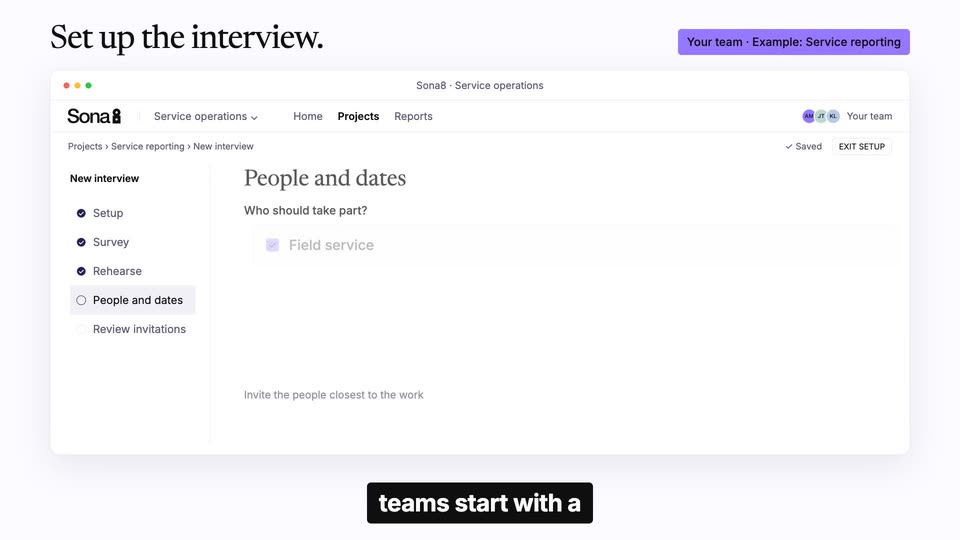

Sona8: general demo
Sona8 · B2B · Nov 2026
Microsoft’s 1:25 clip runs 19 scenes, about 4.5 s each. The product is on screen from the first frame and 1 feature is revealed. A one-feature tutorial built as product title card, feature title card, then a continuous screen recording driven by indigo caption banners that slide in and swap one step at a time, closing on a punchline card and the Microsoft logo. Pacing is steady at about 4 cuts per minute, with slow zooms into the UI and red highlight outlines marking the next click as the signature moves.
Is this your launch? to your site or press kit.
Sona8 · B2B · Nov 2026
Microsoft · AI · Sep 2026
A flat indigo background fills the frame as the title Microsoft Teams fades in at the center in a pale gray sans-serif, then holds for the rest of the shot.
On-screen text: “Microsoft Teams”
Camera: Static
The white Microsoft Teams wordmark starts centered on a flat periwinkle background, then shrinks and moves to the upper left as the large bold Meet in a channel slides in, words settling into one line. A white panel with a close X slides in from the right edge.
On-screen text: “Microsoft Teams”, “Meet in a channel”
Techniques: Kinetic type, Masking
Camera: Static
A flat Teams chat interface with a conversation list fills the frame. A purple caption banner slides in lower left, then swaps to a second banner as a cursor clicks the Meetings icon in the left rail, switching the view to a weekly calendar grid.
On-screen text: “Meet in a channel”, “Want to hold an open meeting?”, “Select Meetings”
Techniques: Kinetic type, Cursor demo
Camera: Static
A screen recording of the Teams Meetings calendar shows a cursor clicking the Meetings tab, then moving to the + New meeting button and opening the New meeting dialog. A purple caption banner at lower left updates from Select Meetings to Select + New meeting.
On-screen text: “Select Meetings”, “Select + New meeting”
Techniques: Cursor demo
Camera: Static
A Teams meeting dialog: the cursor opens the channel dropdown, scrolls the list and picks Go to Market Plan. The view zooms to the Location field, which receives the channel name, then the cursor moves to the Schedule button as indigo caption banners slide in.
On-screen text: “Under Select a channel to meet in, click the arrow”, “and choose a channel”, “Copy and paste the channel info in Location”, “Select Schedule”
Techniques: Kinetic type, UI zoom, Cursor demo
Camera: Pull out
A Teams chat window with a purple caption banner stating the meeting is now visible to the team. A red outline highlights the calendar card as a cursor hovers it, then the view splits into two side-by-side team columns.
On-screen text: “Now the meeting's visible to everyone in the team”
Techniques: Cursor demo, Split screen
Camera: Pan
The Teams channel view holds still while a purple caption banner slides in at the lower left, reading To join an ongoing channel meeting, then swapping to select the with a camera glyph. A cursor moves to the camera icon next to the Go to Market Plan channel.
On-screen text: “To join an ongoing channel meeting,”, “select the icon”
Techniques: Kinetic type, Cursor demo
Camera: Static
A Teams conversation view shows the Go to Market Plan channel. A cursor moves from the channel's video icon to the Join button on the stand-up card, as a caption reads select the icon.
On-screen text: “select the icon”
Techniques: Cursor demo
Camera: Static
A dark Teams pre-join panel brightens as a cursor taps Join now. The view shifts to the meeting screen, and the user's circular video of a smiling man with glasses scales up to fill the frame.
Techniques: Cursor demo, UI zoom
Camera: Static
A dark Teams meeting window fills the frame, a circular video of a smiling woman with glasses centered above a control bar with a red hang-up button. The left rail shows navigation icons and the meeting timer ticks from 00:06 to 00:07.
Camera: Static
A video call window with a smiling woman and a control bar fades out over the Teams chat, revealing the channel conversation and the team list on the left.
On-screen text: “M8A daily stand-up”
Camera: Static
A Microsoft Teams interface fills the frame, with a team list on the left and a conversation thread on the right. The view slowly zooms in, cropping the top search bar and enlarging the chat window.
Techniques: UI zoom
Camera: Push in
A Slack channel view with two messages and an event card holds steady, then a purple panel wipes in from the left, revealing the white caption across the top of the screen.
On-screen text: “The meeting appears on the Conversations”
Techniques: Masking
Camera: Static
A flat capture of a team chat interface with a purple caption panel reading that the meeting appears on the Conversations tab when it's done. A red outline flashes around the meeting card, then a cursor slides in and moves toward the reply row.
On-screen text: “The meeting appears on the Conversations tab when it's done”
Techniques: Cursor demo
Camera: Static
A Teams chat thread is framed by a white rounded card that dims the side panels, while a purple caption panel slides up across the top. The thread shows messages, a document and a meeting recording card, then scrolls to reveal a fullscreen notes button.
On-screen text: “the meeting appears in the Conversations tab when it's done”, “along with any notes or files shared”
Techniques: Kinetic type, UI zoom
Camera: Pull out
A chat interface shows a conversation thread with a file attachment and a meeting recording card, the list scrolling up slowly. A periwinkle caption box with white text sits over the top right corner.
On-screen text: “along with any notes or files shared”
Camera: Static
A solid indigo field holds a centered white headline that stays locked in place for the whole shot.
On-screen text: “Meeting accomplished!”
Camera: Static
A plain white field holds a static caption while the Microsoft four-square mark scales up from a small size at center, its colors saturating, and the gray wordmark appears to its right, then holds.
On-screen text: “Meeting accomplished!”, “Microsoft”
Camera: Static
A plain white field holds for the full duration of the clip. No elements, text, or motion appear; the frame stays static and empty from start to end.
Camera: Static