1:27
Sona8 general demo
Sona8 · B2B · Nov 2026
Judgment Labs · Nov 2026 · 1:19 · AI-annotated
Judgment Labs’s 1:19 launch film runs 14 scenes, about 5.7 s each. The product shows up at 0:08 and 2 features are revealed. There is no explicit call to action. The video is one continuous walkthrough: a problem dashboard hands off to a chat that builds a frustration judge, then a review flow, the judge's settings page, and a monitoring table, ending on the logo. The motion is steady, built from crossfades, slow zooms into input boxes and side panels, and blur-to-white wipes between steps, all on a light off-white interface with red accent buttons.
Is this your launch? to your site or press kit.
Sona8 · B2B · Nov 2026
Microsoft · AI · Sep 2026
Glen · B2B · Oct 2026
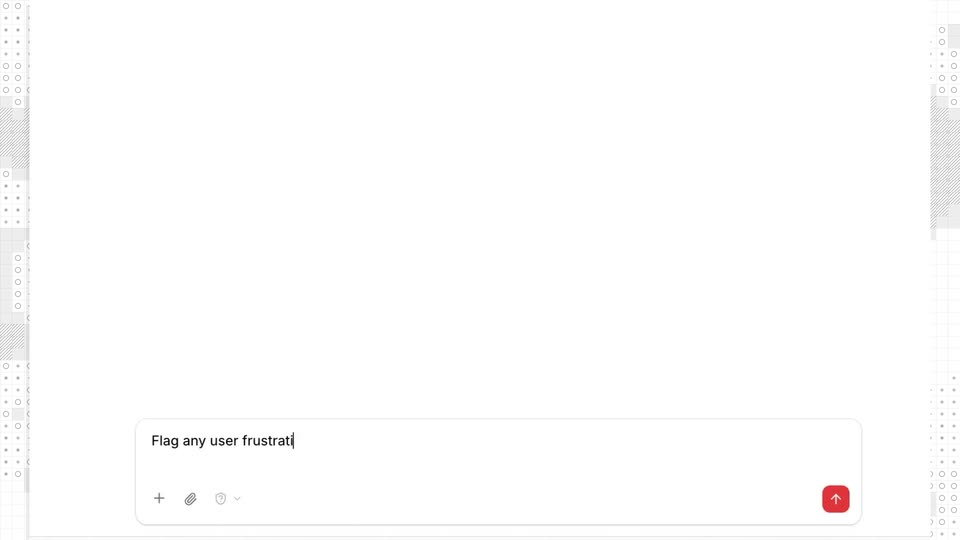
A support dashboard titled 'Needs attention' crossfades in over a fading chat view, listing four incident rows and three suggested actions. A cursor then types a prompt into the bottom input field letter by letter, after which the screen blurs and fades to white.
Techniques: Cursor demo
Camera: Push in
A chat UI shows a user asking the agent to monitor frustration, then the agent streams its reasoning under a Thinking indicator before the view zooms to the input box where a cursor types a new prompt.
Techniques: Kinetic type, UI zoom, Cursor demo
Camera: Static
A chat interface builds a frustration-monitoring judge: the agent streams a rubric and a settings table, the cursor types “Yes, review” in the input box, then the view zooms onto a three-example review card with a red Review button.
Techniques: Cursor demo, UI zoom
Camera: Push in
A support-agent interface resolves from a blurred, zoomed-in state into a full screen. The left conversation panel sharpens while a right-side rating panel fills in beside it, listing a frustration-detection task and answer options.
Techniques: UI zoom
Camera: Pull out
A review screen zooms into its right-hand answer panel, where a cursor clicks the Frustration detected option, turning it blue, then types a short comment into the text field before the frame whites out.
Techniques: UI zoom, Cursor demo
Camera: Push in
A light interface shows a coding-agent conversation on the left and a review panel on the right. The view zooms into the panel as a cursor clicks the No frustration observed option, which turns blue with a green Reviewed check, then a comment is typed into the field.
Techniques: UI zoom, Cursor demo
Camera: Push in
A right-hand feedback panel shows a comment box filling in with typed text while a blue option stays selected and the left list holds still. The frame then pulls back to reveal the full conversation thread and a numbered criteria list beside it.
Techniques: UI zoom
Camera: Pull out
A ratings screen shows a support conversation transcript on the left and a judge answer panel with radio options on the right. A tooltip explaining the 'Request to prevent further charges' choice fades out.
Camera: Static
A rating modal pairs a support conversation with a feedback panel. The view zooms in as a cursor types a comment and clicks Send feedback, then the screen blurs into a chat view where the agent confirms the feedback and opens a tool approval card.
Techniques: UI zoom, Cursor demo
Camera: Pan
A light chat view settles as a striped mask wipes off the side edges. Two paragraphs of feedback copy and a red View Judge button sit above a User Frustration row, with lines sliding into place.
Techniques: Masking
Camera: Push in
A split view shows two interface panels side by side. The left shows a monitor chat with a red View Judge button; the right shows the User Frustration agent page with run settings and instructions. A cursor hovers at the top, revealing a Minimize tooltip.
Techniques: Split screen, Cursor demo
Camera: Pull out
A product interface displays a User Frustration agent page, with a flow diagram of evaluation nodes on the left and an instructions panel on the right. A hand cursor hovers over the Details tab near the top left while the view stays static.
Techniques: Cursor demo
Camera: Static
A light monitoring dashboard opens on a sessions table with a bar chart above. The view pans right across the data columns, then zooms in on the tag columns, where rows of orange, purple and green labels scroll past.
Techniques: UI zoom
Camera: Pan
A washed-out spreadsheet table fades to white, then a faint construction grid appears as an orange logo mark fills in at center: two vertical bars over two horizontal feet. The grid dissolves and the mark scales down to a small centered glyph.
Camera: Static