1:41

Teamwork Just Got an Upgrade – Meet the New Webflow Commenting Experience 💬⚡
Webflow · Design · May 2025
DJI’s 3:11 clip runs 28 scenes, about 6.8 s each. The product is on screen from the first frame and 2 features are revealed. The video is a step-by-step tutorial built as a chain of title-capped sections, each pairing a locked-off hardware shot with a screen recording of the A2 Assistant, and bookended by the DJI logo and a black title card. Its style is flat and literal: clean white studio product shots, a recurring orbital-Earth wallpaper behind every UI capture, and a gray caption bar that narrates each step in plain white text.
Is this your launch? to your site or press kit.
Webflow · Design · May 2025
Dropbox Dash · Apr 2025
Cenote · B2B · Feb 2025
On a black background, the thin blue outline of the Arc logo starts to fade in at the center, dim and only partially formed, holding still as it begins to reveal.
Camera: Static
A dark blue DJI logo holds center on a black field. A cool blue rim light glints along its left edge at the start, then the glow fades to a flat matte finish as the mark settles.
Techniques: Light sweep
Camera: Static
A solid black frame holds for the full duration with no visible content, text or logo, reading as a brief transition or fade point between shots.
Camera: Static
A black frame holds a centered blue title that fades in near the start and remains static for the rest of the clip.
On-screen text: “New A2 Firmware (V2.5) Introduction”
Camera: Static
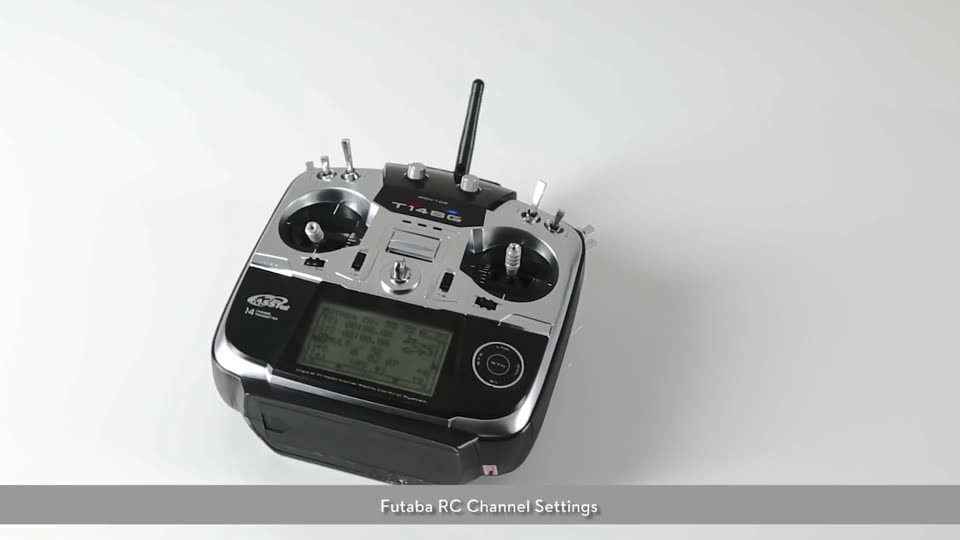
A black and silver Futaba T14SG radio transmitter sits on a white surface, angled with its antenna raised. The camera orbits from a high three-quarter view to a front-on view while a gray lower-third bar holds the caption. The LCD screen scrolls channel values.
On-screen text: “Futaba RC Channel Settings”
Camera: Pan
A locked-off screen capture of a desktop showing an Earth-from-space wallpaper and a taskbar packed with app icons. A mouse pointer rests near the center while a white caption line runs along the bottom edge.
On-screen text: “Connect the Main Controller and open the Assistant software”, “4”
Camera: Static
The DJI A2 Assistant window floats over a satellite view of Earth. A cursor moves to the Info tab, and the panel crossfades from the View settings to the Info screen showing the A2 logo and an Upgrade All button. A caption runs along the bottom.
On-screen text: “Download the latest Assistant software V1.6, and use the Assistant to upgrade the A2 Main Controller to V2.5”
Techniques: Cursor demo
Camera: Static
The DJI A2 Assistant window floats over an orbital Earth backdrop. Its Tools panel switches from a topological diagram of A2 modules to a firmware table with No updates links as a cursor glides across the rows; sensor readouts tick in the left panel. A caption runs along the bottom.
On-screen text: “Download the latest Assistant software V1.6, and use the Assistant to upgrade the A2 Main Controller to V2.5”
Techniques: Cursor demo
Camera: Static
A macOS window of the DJI A2 Assistant floats over an Earth-from-orbit backdrop. The cursor travels right along the tab row and clicks Zenmuse, swapping the motor-mixer grid for a Channels page with Z15 and H-3D toggles and sliders. A gray caption bar stays fixed at the bottom.
On-screen text: “Enter the “Zenmuse” page, and you will see the Z15 and H-3D section”
Techniques: Cursor demo
Camera: Static
A flat macOS window of the DJI A2 Assistant sits over a static Earth satellite backdrop. A cursor steps down the channel list, ROLL to AUX3, and the left info panel swaps to the matching setting, while a caption line updates at the bottom.
On-screen text: “Enter the “Zenmuse” page, and you will see the Z15 and H-3D section”, “In the Z15 section, you can select separate channels for ROLL, TILT, PAN, MODE, SHUT, AUX1, AUX2, and AUX3”, “according to your personal preferences”
Techniques: Cursor demo
Camera: Static
A Mac window of the DJI A2 Assistant floats over a static satellite image of Earth. The left info panel steps through Channels, TILT Setting, Gimbal Setting, and Channel Mapping pages while the right form holds the H-3D tab. A bottom caption updates with each step.
On-screen text: “In the H-3D section, you can select separate channels for TILT and MODE”, “according to your personal preferences”, “Click the Channel Mapping Button in the bottom right corner to view all of the channels”
Camera: Static
A macOS window of the DJI A2 Assistant shows a grid of channel sliders and mapping buttons over a satellite view of Earth. A cursor drifts across the right panels as the buttons flip from numbered channels to Unmapped. A gray caption bar at the bottom gives the instruction.
On-screen text: “Click the Channel Mapping Button in the bottom right corner to view all of the channels”
Techniques: Cursor demo
Camera: Static
A black and silver Futaba T14SG RC transmitter sits on a white table, plain gray background. A hand enters from the right, turns the right-side knob, scrolling the small LCD screen through menu pages, then exits, leaving the device alone. White captions fill a gray bar at the bottom.
On-screen text: “Using a Futaba T14SG RC as an example”, “Note that 12 channels are available for RC versions earlier than V5.0”, “14 channels are available for RC version V5.0”, “The extra two channels available for RC V5.0 are channels DG1 and DG2”, “Setting up the Futaba RC”, “To make changes to match your personal preferences, refer to the RC settings guide for details”
Camera: Static
A macOS settings window titled DJI A2 Assistant floats over a satellite view of Earth. The Channel Mapping panel shows sliders and a hand cursor resting on a control. A white caption runs along the bottom edge.
On-screen text: “Following the settings guide, set Channel 8 to IOC”
Techniques: Cursor demo
Camera: Static
A macOS channel-mapping window for the DJI A2 Assistant sits over a blue Earth-from-space backdrop. A cursor clicks Unmapped buttons, opens a numbered 1-to-18 dropdown, and assigns channels, while white captions at the bottom read out each step.
On-screen text: “Following the settings guide, set Channel 8 to IOC”, “Set Channel 9 to Cruise Control”, “Set Channel 13 to Landing Gear”, “Set Channel 10 to”
Techniques: Cursor demo
Camera: Static
The DJI A2 Assistant window sits over an Earth-from-space backdrop. A dialog box pops up in turn while a cursor clicks Select buttons, assigning channels to gimbal functions; the matching channel label updates in the main panel. White captions at the bottom swap to name each step.
On-screen text: “Set Channel 10 to ROLL”, “Set Channel 5 to PAN”, “Select Channel 6 to TILT”, “Set Channel 11 to MODE”, “Set Channel 14 to SHUT”, “Set Channel 12 to AUX3, which is for video recording”, “You can choose different settings for different RCs, according to your needs”
Techniques: Cursor demo
Camera: Static
A Canon DSLR on a black rig turns from a side angle to face forward while two hands hold a black remote controller steady on the right. The frame stays locked off on a white desk against a gray wall, with a subtitle bar at the bottom.
On-screen text: “Settings complete, now we will begin testing”
Camera: Static
A white DJI remote controller with two black joystick wells sits on a white surface as the camera slowly orbits from a three-quarter view to a front view. A hand enters from the right and presses the right stick.
On-screen text: “Settings complete, now we will begin testing”, “Setting Up the DJI NDJ6 Remote Controller to Work with A2”, “New DJI Remote Controller with C-Port and Micro USB charging port”
Camera: Pan
Close-up of a white DJI NDJ6 remote controller on a white surface. A hand rests on the right stick and rolls the small metal gimbal dial on the lower edge. A gray caption bar along the bottom swaps its text once mid-clip, camera locked off.
On-screen text: “Setting Up the DJI NDJ6 Remote Controller to Work with A2”, “New DJI Remote Controller (NDJ6) with Gimbal Control Dial and Training port”, “Required Firmware Version:NDJ6 v1.0.1.26”
Camera: Static
A close-up of a silver DJI A2 flight controller board mounted in a drone frame. A hand presses the LINK pairing button with a black tool, and the LED beside it flips from red to green. A gray caption bar at the bottom explains the pairing step.
On-screen text: “Required Firmware Version:NDJ6 v1.0.1.26”, “Pick an RC to be your Master RC, press the pairing button on the A2 receiver, then turn on the RC”
Camera: Static
A person in a black t-shirt holds the back of a white remote controller over a white table and plugs a black training cable into a rear port. The shot is static against a gray backdrop, with a caption bar at the bottom that swaps between two instructions.
On-screen text: “Pick an RC to be your Master RC, press the pairing button on the A2 receiver, then turn on the RC”, “If you have a second RC to use as your Slave RC, plug a training cable into the training port”
Camera: Static
Locked-off close-up of a person in a black shirt holding a white remote controller on a light surface. A thumb presses a small silver knurled dial on the controller's side down and holds it. A gray caption strip runs along the bottom.
On-screen text: “Push the Master RC's Gimbal Control Dial down and hold”, “If you have a second RC to use as your Slave RC, plug a training cable into the training port”
Camera: Static
A person in a black printed tee holds a white remote controller to the camera, showing its back, and plugs a black training cable into a rear port. A second white controller rests on the table at right. A gray caption bar at the bottom updates its text.
On-screen text: “While holding, connect the training cable from the Slave RC to the Master RC's training port”, “you will hear a “Beep” when it's successfully connected”
Camera: Static
A DJI A2 Assistant window floats over an Earth-from-space backdrop. A cursor glides across the channel sliders, then clicks the mapping icon, swapping the left panel from Channels to Channel Mapping. A lower-third caption updates to match the step.
On-screen text: “Use a USB cable to connect the A2 Main Controller to your PC, and open the A2 Assistant software”, “Open the “Channel Mapping” page”
Techniques: Cursor demo
Camera: Static
A static screen recording of the DJI A2 Assistant channel mapping window on a Mac desktop. The cursor clicks Unmapped buttons, opens a channel-select dialog, and assigns channels to Gear and gimbal functions while bottom captions give step-by-step instructions.
On-screen text: “Open the “Channel Mapping” page”, “Put the Channel Map Button in the bottom right corner”, “you can see all of the channels, to be sure all of the settings are correct”, “According to Z15-5D settings guide, set Channel 6 on the Master RC to Landing Gear”, “Then set Channel 9, 12, 10, 15, 13, 14 to ROLL, PAN, TILT, MODE, SHUT, AUX3”
Techniques: Cursor demo
Camera: Static
A black Canon DSLR on a carbon-fiber tripod rig holds center frame as two hands work the joysticks of a white drone controller in the right foreground. The rig turns slightly with the stick input, then the shot cuts to black with a centered sign-off line.
On-screen text: “Settings complete, now we will begin testing”, “Thanks for warching!”
Camera: Static
A dark blue, three-dimensional DJI logo fades into the center of a black screen. The mark features a subtle glowing rim light along its beveled edges.
Camera: Static
A dark blue metallic DJI logo sits centered on a black background, then fades out until the frame is fully black.
Camera: Static