1:15
Character.ai - Classics, now playable. 📚
Character.ai · Apr 2026
Dia · Oct 2025 · 0:45 · AI-annotated
Dia’s 0:45 launch film runs 26 scenes, about 1.8 s each. The product shows up at 0:07 and 1 feature is revealed. The call to action lands at 0:41 (91% in), over a voiceover. The video alternates rapid UI close-ups with locked-off black title cards, each card punctuating a new beat of the story. Its signature moves are character-by-character typing, skeleton cards filling into finished skill cards, and frosted interface panels floating over warm gradients.
Is this your launch? to your site or press kit.
Character.ai · Apr 2026
Replit · Developer tools · Jun 2026
Pitch · Productivity · Mar 2020
A rounded prompt input bar is centered on a cream background. Black text types out and wraps to a second line as the bar grows, finishing with a blinking caret. A plus icon, a microphone icon and a black circular send button sit at the field's edges.
Techniques: Kinetic type
Camera: Static
A black title card shows the white headline “The best prompt” centered and static. The frame is locked off and the type holds still for the full second.
On-screen text: “The best prompt”
Camera: Static
A rounded prompt input box sits on a light background. The prompt text types out character by character from left to right, ending with a blinking caret. A plus icon, microphone icon and a black send button sit in the box corners.
On-screen text: “The best prompt”
Techniques: Kinetic type
Camera: Static
A line of white slab-serif text reading “is the one never written” holds still in the lower third of a plain black background. The frame is locked off with no camera movement or animation throughout the shot.
On-screen text: “is the one never written”
Camera: Static
A pale gray frame holds a rounded input box in which a long research prompt types out line by line behind a blinking caret, two black circular send buttons stacked at the right edge. A static tagline sits in the open space beside the field while the cursor fills the box.
On-screen text: “is the one never written”
Camera: Static
Close-up of a macOS dock on a pink-orange gradient wallpaper. The Dia icon, a white tile with a faint grid and a blue-to-red gradient sphere, sits between Spotify and Notes. A white arrow cursor rests at its lower corner as the small “Dia” tooltip slides in above the icon.
On-screen text: “Dia”
Techniques: Cursor demo
Camera: Static
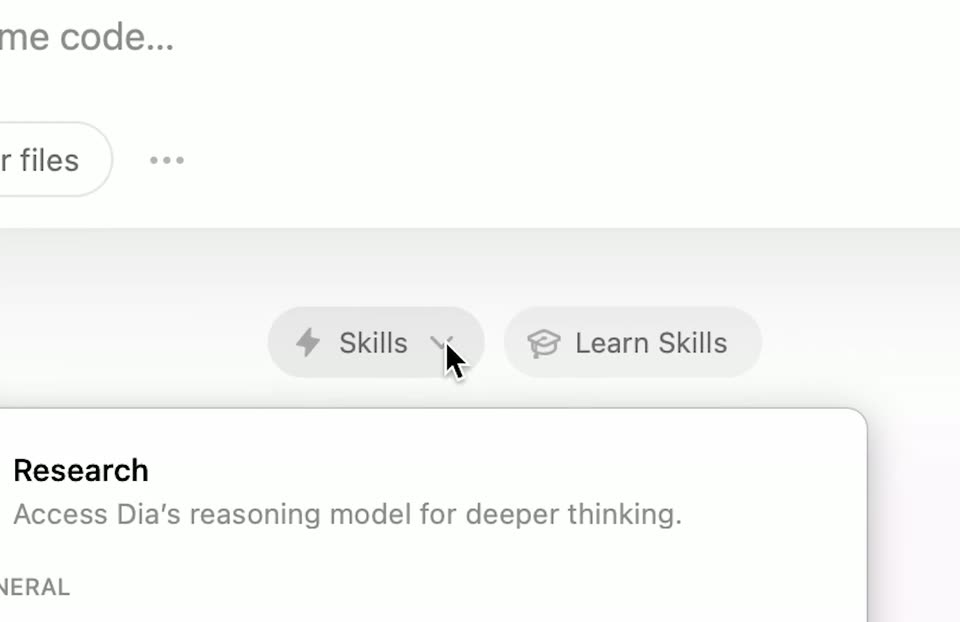
A light interface panel shows a Skills dropdown and a Learn Skills pill beside a Research card. A cursor hovers over the Skills control while the panel content slides up to reveal the GENERAL section.
Techniques: Cursor demo
Camera: Push in
A close-up of a light skills panel lists two entries, Analyze and Summarize, each with a one-line description, above rounded New Skill and Manage Skills buttons. A black arrow cursor travels down the list, flashing a blue highlight over the top row as it passes.
Techniques: Cursor demo
Camera: Static
A tight crop of a skills panel shows two truncated list rows above a footer row. A black arrow cursor rests on the New Skill button, which fills with a gray pressed state, while the Manage Skills button beside it stays white.
Techniques: Cursor demo
Camera: Static
A light prompt field shows the gray placeholder question with a blue text caret at the left. The caret moves right as the short string com is typed, then the view settles on the white input with a rounded send button at the right edge.
Camera: Static
A close-up of a white field types “comprehensive dossier on the next person im meeting with” letter by letter with a blue caret, then pulls back to reveal the full Create Skill window with traffic lights and two buttons, as a cursor hovers over the black Create Skill button.
Techniques: Kinetic type, UI zoom, Cursor demo
Camera: Pull out
Close-up of two interface buttons: a light “Advanced Mode” button cut off at the left edge and a dark “Create Skill” button with a return arrow. A white cursor hovers over the dark button as it flickers between dark and light states above a magenta gradient band.
Techniques: Cursor demo
Camera: Static
A browser window on a warm gradient background shows a Create Skill dialog with a progress bar. A New Skill card with a lightning icon fades in at center, then a Personalizing with memory... status line appears below it. A cursor rests at the bottom.
Camera: Static
A white skeleton card titled New Skill sits centered on a light gray field, captioned Personalizing with memory.... It swaps to a Meeting Dossier skeleton with the caption Creating Skill..., then zooms to fill the frame as an orange card. A prompt types into the card, which then shrinks behind a white card that reveals the line Generates a comprehensive dossier on the next person you are scheduled to meet.
On-screen text: “Personalizing with memory...”, “Creating Skill...”
Techniques: UI zoom, Kinetic type
Camera: Static
A flat macOS-style Create Skill window sits on a near-white background. A pink checkmark and the heading Your Skill is ready! fade in above a Meeting Dossier card, then Edit Skill and Try Skill buttons appear along the bottom edge.
Camera: Static
The Dia Skills wordmark sits centered on a black background, filled with a vertical gradient that fades from coral pink at the top to pale mint at the bottom. The logo holds still as a closing sign-off.
On-screen text: “Dia Skills”
Camera: Static
Close-up of a white rounded card on a pale background. The orange pill labeled Meeting Dossier brightens with a red text caret, then fades back to a faint gray outline as the pill dissolves.
On-screen text: “Create with a sentence”
Camera: Static
A black screen holds the white serif headline “Create with a sentence” centered and motionless for the full shot.
On-screen text: “Create with a sentence”
Camera: Static
A flat close-up of an AI prompt window titled Meeting Dossier, with body copy and a row of tool pills. Two hand cursors hover over the inline tool names, then lift away, leaving a blinking text caret. The frame stays locked-off.
On-screen text: “Create with a sentence”
Techniques: Cursor demo
Camera: Static
A black screen holds the white headline “Automatic Tools integrations” centered in the lower half. The text remains static throughout the short locked-off shot.
On-screen text: “Automatic Tools integrations”
Camera: Static
On a pale off-white background, a product interface shows a Thinking status line, a calendar step, and a web-search step; rounded grey search chips fade in row by row beneath each step. The frame is locked-off and the chips appear progressively.
Camera: Static
A light document view of a generated meeting dossier scrolls downward, revealing a header line, two headshot photos of a man, a Next Scheduled Meeting bullet, and a Dossier section with identity text. A mouse cursor rests at the right edge.
Camera: Pan
A frosted Create Skill window floats at a slight 3D angle over a yellow-to-magenta gradient. In the center, example prompts type out character by character, each line replaced by the next, while a thin progress bar fills at the top and two buttons sit at the bottom.
Techniques: 3D mockup, Kinetic type
Camera: Push in
Close-up of the lower corner of a pale-pink interface card on a magenta gradient. A thin text caret blinks in the empty field, then a mouse cursor glides in and presses the dark Create Skill button, which darkens on click. The Advanced Mode button sits to its left.
On-screen text: “Now Available”
Techniques: Cursor demo
Camera: Static
White serif text “Now Available” holds centered on a black field, then morphs into a gray rounded logo mark placed left of the white word “Dial”.
On-screen text: “Now Available”, “Dial”
Techniques: Morph
Camera: Static
A small white Now Available caption sits above the centered Dia logo on black, then the logo fades to black.
On-screen text: “Now Available”
Camera: Static