1:30

Introducing Notion 3.0: Agents
Notion · Productivity · Sep 2025
Composio’s 2:21 clip runs 51 scenes, about 2.8 s each. The product shows up at 0:49 and 1 feature is revealed. The call to action lands at 1:59 (84% in), over a voiceover. The video alternates full-frame live shots of a host at a desk with full-screen UI recordings that carry a circular webcam bubble of the same host pinned bottom right, creating a constant two-layer composition. Pacing is fast and cut-heavy, driven by a single continuous build task, with the host's gestures and the cursor's clicks doing the visual work and the bottom caption bar carrying every spoken line.
Is this your launch? to your site or press kit.
A woman in a black logo tee sits at a wooden desk before a bright window, speaking to camera and gesturing with both hands raised, then pinching her fingers. An open laptop sits on the desk in front of her. Subtitles appear at the bottom.
On-screen text: “Let's launch a production ready chatbot”, “that has access to over a thousand apps”
Camera: Push in
A woman in a black logo tee sits at a wooden desk before a bright window, gesturing with both hands while speaking. A laptop with a brand sticker faces the camera and a white caption line is locked at the bottom of the frame.
On-screen text: “that has access to over a thousand apps”, “in 10 minutes.”
Camera: Static
A white Vercel templates page fills the frame: a grid of template cards beside a filter sidebar. A cursor drifts from the Clear button to the first card as the page scrolls slightly. A circular webcam overlay of a talking woman sits bottom right, with subtitle captions swapping in below.
On-screen text: “The first thing I'm going to do”, “is go to Vercel Chat Templates.”, “in 10 minutes.”
Techniques: Cursor demo
Camera: Pull out
A screen recording of a template grid with a left filter sidebar. A cursor hovers over the top-left card while a circular webcam feed of a presenter sits in the lower right. Subtitles read 'They have so many options.' then 'Let's go with the basic chatbot.'
On-screen text: “They have so many options.”, “Let's go with the basic chatbot.”
Techniques: Cursor demo
Camera: Push in
A product page for an AI chatbot fills the frame, its dark chat panel showing a blue weather card, while a circular webcam feed of a woman sits in the lower right. The cursor glides to the Deploy button and clicks, then the page clears to a blank white screen.
On-screen text: “I'm going to get started”, “deploying right away.”, “I'm going to create”
Techniques: Cursor demo
Camera: Static
The Vercel New Project form is centered; the cursor types composio-chat into the repository name field, then clicks Create, which shows a Creating spinner. A circular webcam bubble of the presenter sits bottom right; caption bars run along the bottom.
On-screen text: “I'm going to create”, “a name for my repository.”
Techniques: UI zoom, Cursor demo
Camera: Pull out
The Vercel dashboard screen blurs from the Add Products list into the Create Database form, while the cursor moves and rests on the Create button. A circular webcam of the presenter stays in the bottom right corner above a static bottom caption.
On-screen text: “Done Now I can add storage”
Techniques: Cursor demo
Camera: Push in
A white Create Database modal switches from a Processing spinner to a success message; the cursor clicks Done and the modal clears, exposing the Storage list. A circular live video of a presenter anchors the bottom right, while a dark caption pill sits at the bottom.
On-screen text: “all of the free plans, caching,”
Techniques: Cursor demo
Camera: Static
The Upstash Create Database modal shows a region dropdown open, then scrolls down to the plan toggles as the cursor moves. A circular webcam inset of the presenter sits at right, and a white caption reads at the bottom.
On-screen text: “all of the free plans, caching,”
Techniques: Cursor demo
Camera: Static
A light 'Create Database' dialog shows a name field and parameter rows, then switches to a green success message and gray confirmation box. A cursor clicks the black Create button, then Done, where a spinner appears. A circular video of a woman in a black shirt sits lower right.
Techniques: Cursor demo
Camera: Static
A light dashboard shows a Create Blob Store modal; a cursor clicks Create, the panel switches to a Configure composio-chat form, and the cursor moves to the Connect button. A small circular webcam of a woman sits bottom right, and a caption reads at the bottom.
On-screen text: “And a blob store done.”
Techniques: Cursor demo
Camera: Push in
A screen recording of a deployment dashboard: a Connect dialog fades out, the cursor clicks the black Deploy button, a Congratulations panel loads, then the deployed chat preview appears. A circular webcam of the presenter stays in the bottom right corner.
On-screen text: “And a blob store done.”, “Now hit “Deploy” All right, there we go.”, “Now our app is deployed.”, “Here is what it looks like”
Techniques: Cursor demo
Camera: Pull out
A Vercel deployment dashboard fills the frame, showing a ready production build of the composio-chat app, while a circular webcam inset of the presenter sits at the lower right. A gray caption reading 'out of the box.' pops in at the bottom as the view pushes in.
On-screen text: “out of the box.”
Techniques: UI zoom
Camera: Static
A white chat app screen with a greeting and four suggestion pills fades in, the presenter in a circular inset at bottom right. It then cuts to her full-screen at a desk, finger raised, in front of a laptop.
On-screen text: “It's just a simple chat app”, “How do we get this chat”
Techniques: Cursor demo
Camera: Static
A woman in a black Composio t-shirt sits at a wooden desk behind a laptop, raising one finger as she speaks. A bookshelf with plants and a window fill the background. White subtitles on a dark bar appear at the bottom of the frame.
On-screen text: “How do we get this chat”, “bot to have access”
Camera: Static
A woman in a black t-shirt sits at a wooden desk behind a closed laptop, talking to the camera and gesturing with both hands. A bright window with blinds fills the background; a plant-lined shelf stands left. White subtitles run along the bottom.
On-screen text: “bot to have access”, “to over a thousand tools”, “and take actions across any app?”
Camera: Static
A woman in a black Composio tee sits at a wooden desk in a bright room, smiling at a silver laptop. She taps a mouse with her right hand while the caption 'Let me show you.' sits at the bottom of the locked-off frame.
On-screen text: “Let me show you.”
Camera: Static
The Composio homepage is locked on screen: a serif headline over a purple gradient, two buttons, and a cursor drifting below them. A circular webcam of the presenter is pinned bottom right while the caption holds at bottom center.
On-screen text: “Let me show you.”, “Go to composio.dev”
Techniques: Cursor demo
Camera: Static
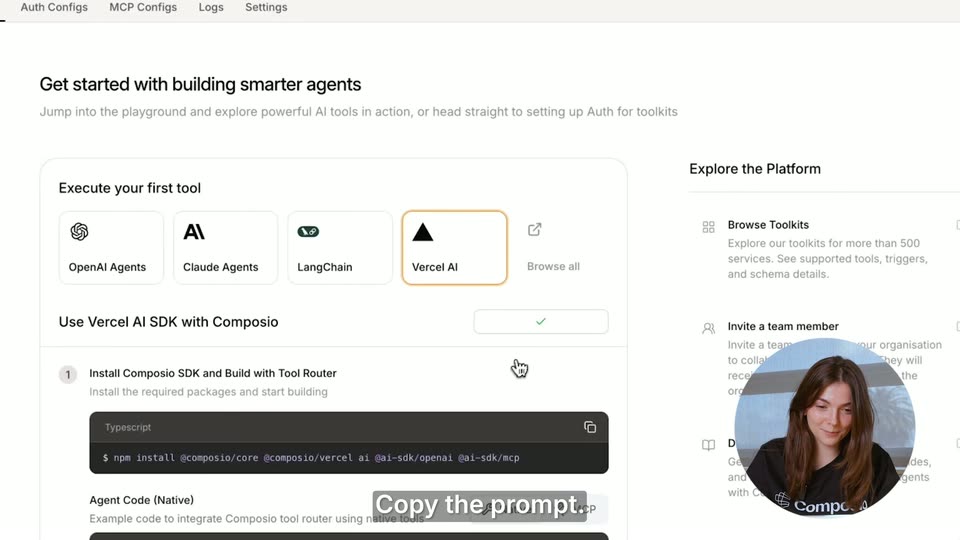
A locked-off dashboard view of the Composio platform shows the Get started page with agent tiles and a code block, while a cursor glides over the Vercel AI tile and the Copy as Markdown button. A circular presenter video sits bottom right, bottom captions swap, and a section title scales in.
On-screen text: “We're using Vercel AI for this project.”, “Copy the prompt.”, “Setting up your workspace”
Techniques: Cursor demo, Kinetic type
Camera: Static
A Vercel dashboard for composio-chat fills the screen. The cursor moves from the page center to the Repository button while a circular webcam feed of a woman stays bottom right, and a gray subtitle bar shows the narration.
On-screen text: “I'm going to navigate to my repository”
Techniques: Cursor demo
Camera: Static
A GitHub repository page for composio-chat shows the green Code dropdown open with clone options. A cursor moves over the menu. A circular webcam of the presenter sits in the bottom right corner, and a caption bar reads at the bottom.
On-screen text: “I'm going to navigate to my repository”
Techniques: Cursor demo
Camera: Static
A dimmed GitHub repository page fills the frame with a centered dialog asking to open GitHub Desktop. A cursor glides to the Open GitHub Desktop button and clicks it, while a circular webcam of the presenter sits in the lower right corner.
Techniques: Cursor demo
Camera: Static
A browser shows a GitHub repository with a launch dialog, then cuts to a dark code editor where a clone dialog holds the repository URL. A presenter's webcam sits in the lower right corner. A white caption reads “and clone it.”
On-screen text: “and clone it.”
Techniques: Cursor demo
Camera: Static
A dark clone-repository dialog shows a URL field and a blue Clone button. A cursor clicks Clone, and the panel switches to a cloning progress bar with an animated striped fill and a rising percentage. A circular webcam inset of the presenter sits in the bottom right corner.
On-screen text: “and clone it.”
Techniques: Cursor demo
Camera: Static
A dark IDE screen shows a git panel reading No local changes with action buttons, while a circular webcam of a woman sits in the lower right. A cursor glides across the panel to hover the Open in Cursor button as the view settles from a cloning state.
On-screen text: “and clone is”, “Cursor.”
Techniques: Cursor demo
Camera: Static
A dark code editor with two code panes and a top command palette dissolves to black, leaving a centered cube logo and a shortcut list. A circular webcam feed of the presenter holds the bottom right corner as white subtitles roll along the bottom.
On-screen text: “Cursor”, “And we're going to ask”, “my buddy who knows all the Compose tools.”
Camera: Static
A dark IDE screen shows a centered logo and a list of keyboard shortcuts. A mouse cursor glides from the left edge toward the list. A circular webcam of a presenter in a black Composio shirt sits bottom right, with a white caption along the bottom.
On-screen text: “my buddy Claude to add Composio tools.”
Techniques: Cursor demo
Camera: Static
A dark terminal panel types a command, then an output block with a pixel orange icon and version text pops in. A circular video of a woman appears at the right, and a white caption sits at the bottom.
On-screen text: “my buddy Claude to add Composio tools.”
Techniques: Cursor demo
Camera: Static
A dark code editor window fills the frame; in its terminal a command types itself out letter by letter, then a pasted-text tag pops in. A round webcam bubble of a woman in a black tee hovers bottom right, with a bold white caption bar across the bottom.
On-screen text: “Please add Composio Tools.”
Techniques: Cursor demo
Camera: Static
A dark code editor terminal scrolls upward as an AI agent prints documentation links, tool calls and package installs. A circular webcam inset of a woman in a black shirt sits in the lower right corner, and a white caption line appears at the bottom of the frame.
On-screen text: “Pasted the prompt.”, “so it added the Composio API key”
Camera: Pull out
A dark code-editor terminal streams green diff lines and status text while a circular webcam inset of a presenter holds the lower-right corner. White subtitles caption the bottom as the terminal scrolls.
On-screen text: “so it added the Composio API key”, “to our .env.example imported”
Camera: Static
A dark terminal window shows code with two green-highlighted import lines for the composio packages, while a circular webcam of a woman in a black shirt sits at the bottom right. White subtitle captions cycle along the bottom edge as the terminal text scrolls up.
On-screen text: “to our .env.example imported”, “the “composio/core””, “and “composio/vercel” packages.”, “It created a Composio session”, “and pass the tools to the agent.”
Camera: Pull out
A dark code editor shows a diff with red removed lines and green added lines, the cursor at line 174. A small circular webcam feed of a woman in a black shirt sits bottom right. A white caption reads 'and passed the tools to the agent.' at the bottom.
On-screen text: “and passed the tools to the agent.”
Camera: Static
A dark terminal diff fills the frame with a circular video of a woman in the lower right. A white monospaced caption, git push, appears in a dark pill at the bottom center.
On-screen text: “git push”
Camera: Static
A dark terminal interface fills the frame, showing dependency versions and git push output in green and white. A circular webcam of a woman sits bottom right, and a white caption appears across the bottom.
On-screen text: “now, after it's redeployed connect”
Camera: Static
The Vercel deployments dashboard fills the frame with a circular presenter webcam in the lower right. A cursor hovers the filter row, then a deployment detail panel with a Ready badge opens over the list while a gray caption sits at the bottom.
On-screen text: “now, after it's redeployed connect”
Techniques: Cursor demo
Camera: Static
A light chat interface fills the screen. The prompt is typed letter by letter into the bottom input box, then the view scrolls up to reveal the connection confirmation message, while a circular live-action clip of the presenter in the lower right fades out.
On-screen text: “now, after it's redeployed connect”, “to my Gmail”, “connect to Slack”
Camera: Static
A white chat screen fills the frame as the user types connect to Slack and sends it. A tool bar runs, flips to Completed, and the assistant's reply with a connect link appears. A circular presenter video sits bottom right, and gray captions track the voiceover below.
On-screen text: “connect to Slack”, “It will search through”, “the available tools”, “it notices that I'm not yet”, “connected in slack.”, “And send me a link through Composio.”
Techniques: Cursor demo
Camera: Static
A white modal card centered on a pale background flashes a connection prompt with two app icons, then fades to a blank placeholder layout. A hand cursor hovers at left while a circular video of a presenter sits in the bottom right corner.
On-screen text: “And send me a link through Composio.”
Camera: Static
A Slack sign-in page fills the frame with a URL field typing composio.slack.com and a purple Continue button under the cursor. A circular video of a woman in a black Composio shirt sits bottom right, and a gray caption bar reads I can securely connect.
On-screen text: “I can securely connect”
Techniques: Cursor demo
Camera: Static
A Slack sign-in page for the Composio workspace fills the frame, the Google button outlined in blue with a cursor on it. A circular webcam feed of a woman in a black shirt sits at the right, and a gray caption box reads in Slack at the bottom.
On-screen text: “in Slack”
Camera: Static
A screen recording of a Google sign-in flow for Slack crossfades through account selection, a welcome screen and a password page, while a smiling presenter sits in a circular webcam overlay at the bottom right. A bottom caption states the connection is complete.
On-screen text: “And I'm successfully connected to Slack.”
Camera: Static
A Slack permission page for the Composio app fills the frame, with a workspace selector on the left and a permission list on the right. A circular video of a smiling presenter sits bottom right. The page fades as a shadowed white card rises into the center.
On-screen text: “And I'm successfully connected to Slack.”, “Now I can go back into the chat”
Camera: Push in
A flat success window showing three app icons and a connection message is centered on a light gray background, with a circular webcam feed of a smiling presenter at the bottom right. The window eases from a soft blur into sharp focus. A gray caption bar runs along the bottom.
On-screen text: “and I can say, “Hey, send Julia a message”
Camera: Static
A chat interface scrolls down while the presenter's circular webcam video sits in the corner. A cursor types a command into the input box and sends it; tool cards with status badges stack up as the agent runs, and bottom captions narrate each step.
On-screen text: “and I can say, “Hey, send Julia a message”, “telling her this demo video is fire””, “It will search for the correct tool.”, “It can see Slack is connected”, “and instantly send her a message.”, “Wait - did you get the message?”
Techniques: Cursor demo
Camera: Static
A woman in a black Composio t-shirt sits at a desk behind a laptop, smiling at the camera. She raises both thumbs up, then shrugs with open palms as a quoted line appears on the right. A subtitle caption sits at the bottom of the frame.
On-screen text: “Wait – did you get the message?”, “i got the message”
Camera: Static
A woman in a black Composio t-shirt sits at a desk behind an open laptop, smiling and spreading both arms wide, then raising one finger to point up. A plant-filled bookshelf lines the left edge and a window with blinds sits behind her. White subtitles appear at the bottom.
On-screen text: “Let's go.”, “And this is in production.”
Camera: Static
A smiling woman in a black Composio tee sits at a desk behind a laptop, pointing up with one finger. She is framed in a bright office with a wooden bookshelf left and a blind-covered window behind. A subtitle sits at the bottom.
On-screen text: “And this is in production.”
Camera: Static
A woman in a black Composio tee sits at a desk behind a laptop, speaking to camera and gesturing with a raised finger and open hands. Bottom subtitles swap line by line, then a disclaimer bar appears across the top of the frame.
On-screen text: “And this is in production.”, “So go build.”, “Go build.”, “*In production: gate requests behind auth and rate limit per user.”, “- in your production apps.”, “Please set up an authentication system.”, “Do not just leave an open chat”, “for people to connect to.”
Camera: Static
On black, a small cluster of white binary digits grows into a dense rectangular block, and the dark three-lobed Composio mark emerges as a silhouette inside the field. A white tagline holds below the block.
On-screen text: “Composio”, “Go build, secure early.”
Techniques: Kinetic type, Masking
Camera: Static
A plain white frame holds the black Composio mark left of center. The wordmark fades in to its right, then the full lockup holds still for the sign-off.
Camera: Static