0:41
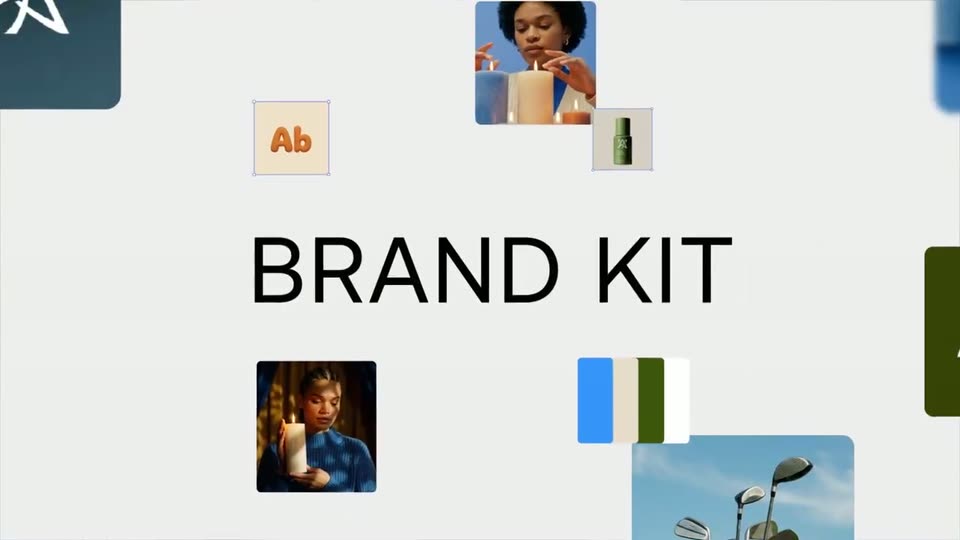
LTX.io - Introducing Brand Kit. A new enterprise feature in LTX Studio that l
LTX Studio · Feb 2026
Clerk · Jun 2026 · 0:52 · AI-annotated
Clerk’s 0:52 launch film runs 16 scenes, about 3.3 s each. The product shows up at 0:04 and 1 feature is revealed. There is no explicit call to action. The video alternates plain white cards that build headlines word by word from a soft blur with angled UI cards on a pastel gradient, walking the SSO setup through three captioned steps. Its signature moves are the blur-in word reveals and the cursor-driven UI walkthroughs, closing on the Clerk logo.
Is this your launch? to your site or press kit.
LTX Studio · Feb 2026
Anthropic · AI · Jun 2026
A plain light background holds a headline that builds word by word, the last word in purple, then a white security settings panel slides in from the right edge.
On-screen text: “Let customers set up SSO themselves”
Techniques: Kinetic type
Camera: Pan
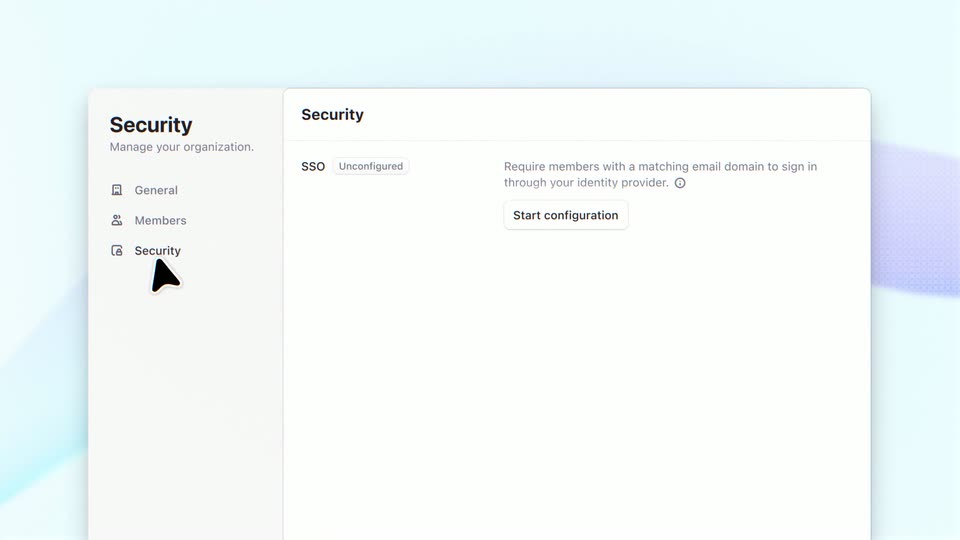
A settings screen floats at a slight angle on a soft blue-and-lavender gradient, its sidebar and SSO panel settling into place as a black cursor glides up to the Security menu item.
Techniques: 3D mockup, Cursor demo
Camera: Push in
A security settings panel dissolves into a soft blue and purple gradient, leaving a black cursor arrow pointing at a Start configuration button in the left center.
Techniques: Cursor demo
Camera: Static
On a plain white field, the sentence builds word by word at center, each word fading in from a soft blur until the full line settles.
On-screen text: “They add their domain”
Techniques: Kinetic type
Camera: Static
A white settings card titled “Add SSO domains” sits on a soft blue and lavender gradient. A black cursor clicks the empty Domain field, types acme.com, then presses the Add button. A new row appears with an Unverified badge and a TXT record value, and the badge flips to a green Verified badge.
On-screen text: “They add their domain”
Techniques: UI zoom, Cursor demo
Camera: Pan
On a plain off-white background, the phrase builds left to right: “Configure their” is already set while “connection” resolves from a soft blur into sharp type. The whole line then scales up slightly and settles centered in the locked-off frame.
On-screen text: “Configure their connection”
Techniques: Kinetic type
Camera: Static
A white settings card listing four identity provider tiles eases into place on a soft blue and purple gradient background. A cursor glides in from the lower left and hovers over the Okta Workforce tile.
Techniques: Cursor demo
Camera: Static
A white settings card on a soft gradient background scrolls down, revealing SAML setup steps, two URL input fields, and Previous and Continue buttons. A black cursor moves downward and stops beside Continue.
Techniques: Cursor demo
Camera: Push in
A tight crop on the footer of a white settings card shows a black arrow cursor resting on the dark Continue button beside a Previous button. Body copy sits above on a pale blue and purple gradient.
Techniques: Cursor demo
Camera: Static
A plain white card holds the caption “And test their connection,” which builds word by word: each word blurs in gray and snaps to solid black, then the full line holds.
On-screen text: “And test their connection”
Techniques: Kinetic type
Camera: Static
A white SSO test card fades in over a soft gradient, its results table filling with one green and two red rows. The view reframes down to the footer, a cursor glides to the dark Continue button and clicks it, then the card fades to white.
On-screen text: “And test their connection”
Techniques: UI zoom, Cursor demo
Camera: Pan
A white modal card fades in over a soft cyan and purple gradient, showing a shield icon and SSO confirmation with two buttons. A cursor moves to the dark Activate SSO button, which gains a focus ring, then the card fades out to reveal the Security settings page.
Techniques: Cursor demo
Camera: Static
A flat Security settings panel sits on a soft pastel gradient. The SSO row's green Active badge and the acme.com domain field fade in from a faint ghost state. Near the end, a large gray word No appears in the empty content area.
On-screen text: “No”
Camera: Static
The word No appears in black, then hand-offs required fades in from grey to black on a white background, and the line fades out at the end.
On-screen text: “No hand-offs required”
Techniques: Kinetic type
Camera: Static
The headline holds centered in black on a plain white background for the full shot, then the purple clerk logo fades in at the center as the text clears.
On-screen text: “Enterprise SSO, self-served”
Camera: Static
The Clerk logo sits centered on a plain off-white background. A purple person icon with an open arc above it stands left of the dark lowercase wordmark. The frame stays locked and static for the full shot.
Camera: Static