
1:28
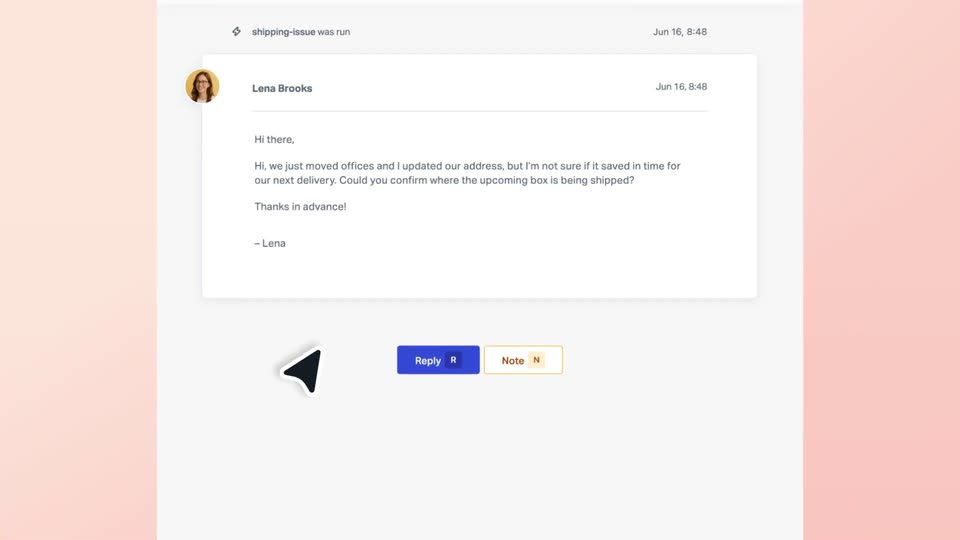

Customer Support Software Demo | Help Scout x MotionCue
Help Scout · Oct 2026
Claude · May 2026 · 1:27 · AI-annotated
Claude’s 1:27 launch film runs 35 scenes, about 2.5 s each. The product is on screen from the first frame and 4 features are revealed. There is no explicit call to action. The video is built as one continuous chat conversation that hands off between four Microsoft 365 apps, each introduced by a centered icon and serif title card before a tight UI demo. Pacing is brisk and rhythmic, alternating locked-off cream title cards with zooming 3D window mockups and in-place UI typing, while a pulsing terracotta starburst marks every loading state and the type alternates between a high-contrast serif for headlines and a clean sans for the interface.
Is this your launch? to your site or press kit.
Help Scout · Oct 2026
Designeer · Oct 2026
On a cream background, four Microsoft 365 app icons (Outlook, Word, Excel, PowerPoint) settle into a centered row with a small slide and scale. Below them the black serif headline “Claude now works across Microsoft 365” appears and holds. The locked-off frame drifts slightly at the end.
On-screen text: “Claude now works across”, “Microsoft 365”
Camera: Static
Three app icons (Outlook, Word, Excel) sit in a row on a beige field, then the outer two slide in and merge into the centered Outlook icon. A black serif headline reads below, then fades out, leaving the single icon centered.
On-screen text: “Focus your attention in Outlook with Claude”
Techniques: Morph
Camera: Static
A tilted 3D mockup of an email client, with a Claude assistant panel docked on the right, scales up toward the camera on a plain light-gray background. The window stays centered while growing to fill the frame.
Techniques: 3D mockup
Camera: Push in
A close-up of a light chat interface zooms into the reply field as a prompt types itself in. A hand cursor clicks the black send button, and the field resets to the empty Reply placeholder.
Techniques: UI zoom, Cursor demo
Camera: Push in
On a cream field, an orange asterisk logo sits left of the word Thinking in dark gray sans-serif. Three dots fade in one at a time after the word, marking a loading state. The frame stays locked off.
On-screen text: “Thinking...”
Camera: Static
A cream screen holds the orange spark mark beside the word Thinking..., then the view opens into a two-panel chat: a message list on the left and a Claude conversation on the right, with a user bubble asking about emails and a Responding... status below.
On-screen text: “Thinking...”
Camera: Static
A chat interface shows a user message, then scrolls down to reveal a long response where a specific paragraph is highlighted in pink.
Techniques: UI zoom
Camera: Pull out
A white chat card fills the frame as a long assistant message scrolls up, its pink-highlighted lines giving way to a summary and a file chip; the Responding... pill at the bottom swaps to a Reply input bar with a model selector.
Camera: Pan
The Microsoft Word icon, a blue gradient tile with a white W, sits centered on a plain cream background. A two-line serif headline fades in beneath it, holds, then fades out to an empty frame.
On-screen text: “Then continue making progress”, “with the full context in Word”
Camera: Pull out
A tilted laptop mockup on a light gray background shows an email app with a sender list, an open message, and an AI panel on the right. The frame stays locked off throughout the clip.
Techniques: 3D mockup
Camera: Pull out
A flat desktop layout holding a chat panel, an email list and a document window rotates into 3D perspective, the three windows tilting apart with soft drop shadows on a cream background.
Techniques: 3D mockup
Camera: Push in
A front-facing macOS window shows a law firm memorandum in Word, with a Claude command panel docked on the right. The view zooms out to reveal the full window frame and the pale desktop behind it.
Techniques: UI zoom
Camera: Push in
A Word memo and a Claude side panel fill the frame, then the view reframes onto the input box. A prompt types in, a hand cursor clicks send, and the panel resets to an empty reply field with a small orange dot.
Techniques: UI zoom, Cursor demo
Camera: Push in
A small orange starburst logo sits left of center on a plain off-white background as grey status lines fade in and out in sequence. The logo pulses gently. The frame ends by cutting to a document editor showing a memorandum template.
On-screen text: “Thinking...”, “Filling field...”, “Checking formatting...”, “Final consistency check...”
Techniques: Kinetic type
Camera: Pan
A memorandum template sits in a document editor, letterhead and table of fields visible. The frame opens tight on the header, then pulls back to the full window as a Claude side panel on the right fills with a structured, numbered response.
Techniques: UI zoom
Camera: Pull out
On a cream background, a sage chat bubble holds the user's request in black sans. A small red asterisk spinner spins below it; a black reply line then appears above it, and the frame scrolls up to leave the gray 'Messaged Excel' link with the spinner at the bottom.
Camera: Static
On a plain cream background, the green Excel icon sits centered above a black serif headline. Both fade in from transparent over the first second, then hold still on a locked-off frame.
On-screen text: “And build live analysis in Excel”
Camera: Static
A desktop workspace displays a Word memo and a spreadsheet beside an AI assistant panel. The view reframes onto the spreadsheet as a cursor hovers over a column header.
On-screen text: “And build live analysis in Excel”
Techniques: UI zoom, Cursor demo
Camera: Pull out
A spreadsheet window floats in 3D perspective on a light gray background, tilted with its right edge receding. The sheet shows a valuation model table beside a chat sidebar. The window eases slightly smaller and flatter toward the camera.
Techniques: 3D mockup
Camera: Push in
A full spreadsheet window with a Claude side panel zooms into the chat input box, where a typed message builds word by word. The frame stays locked on the input field as the sentence completes.
Techniques: UI zoom, Kinetic type
Camera: Push in
A spreadsheet editor with an AI input box at the bottom. The typed prompt about synergy assumptions fades out and the field resets to a “Reply” placeholder as the frame pulls back, revealing more grid and the zoom toolbar.
Techniques: UI zoom
Camera: Static
A locked-off close-up of a financial table with four fiscal-year columns. The bottom row updates in place from $2,491 to $2,978 with new percentages, while a soft red smudge drifts across the right column and the grid shifts left to reveal partial figures at the edge.
Camera: Pull out
A spreadsheet model fills the left of a static frame while a Claude chat panel on the right streams a reply and appends a before-and-after results table. The view is locked off with no camera movement.
Camera: Static
A cream chat screen holds a light gray bubble with the prompt to add a slide to the SteerCo deck. Below it, a Messaged PowerPoint line fades in above a spinning orange asterisk labeled Thinking.
Camera: Static
A cream chat view holds a gray bubble reading “Add a slide to the SteerCo deck based on the key assumptions in this model”. Below, “Messaged PowerPoint” and a starburst “Thinking...” sit, then a pink PowerPoint icon fades in over the bubble.
Camera: Static
A circular orange-to-pink gradient icon with a red P badge sits centered on a cream background, above two lines of black serif text reading “Relevant changes in PowerPoint update in real time”. All elements hold still for the duration.
On-screen text: “Relevant changes in PowerPoint”, “update in real time”
Camera: Static
A spreadsheet with an AI chat panel on the right fills the screen. A dark blue PowerPoint slide titled Project Lighthouse scales up in the center, and a white caption card with gray text appears at the left edge.
On-screen text: “Relevant changes in PowerPoint”, “update in real time”
Camera: Pull out
A presentation app window floats on a cream background, its dark navy Project Lighthouse slide centered between a thumbnail rail and a comment panel. The view tightens on the slide as a second Responding line appears in the panel.
Techniques: UI zoom
Camera: Push in
A sentence types out line by line in dark sans-serif on a cream background, left aligned. A small coral starburst sits below the text, then condenses into a dotted circle spinner as the final line completes.
On-screen text: “I grabbed the assumptions from the Excel model, now let me build the new slide based on the deck's existing style.”
Techniques: Kinetic type, Morph
Camera: Static
A slide titled with a serif headline and a sans subtitle sits on a cream card. A prompt text box with a rotating orange spinner occupies the top-left panel; the four content panels then build in, the lower two still fading at the end.
Camera: Static
A four-quadrant financial assumptions slide fills the frame, then the view zooms in and pans left while a vertical side panel of small text slides in from the right edge.
Techniques: UI zoom
Camera: Pan
A split screen pairs a financial slide on the left with a chat panel on the right. Both pan downward as the slide's margin bridge and scenario tables scroll into view while the chat reveals new messages and a Responding indicator.
On-screen text: “FY25A → FY29E build; scenario multipliers flex Conservative / Base / Stretch”
Techniques: Split screen
Camera: Static
A gray chat bubble on a cream background asks to schedule 30 minutes. It scrolls up as a coral asterisk spins below it, then a plain gray reply about drafting an Outlook invite appears.
Camera: Static
A centered two-line serif headline in black on a plain cream background fades in, holds still, then fades out. The text stays locked to the middle of the frame throughout.
On-screen text: “One conversation across”, “your Microsoft 365 apps”
Techniques: Kinetic type
Camera: Static
On a cream background, a small terracotta dot expands into the radiating Claude starburst mark, then the black serif word Claude appears to its right. The lockup settles with a slight rotation of the mark and holds.
On-screen text: “Claude”
Techniques: Morph
Camera: Static