1:53

Mistral AI - Introducing powerful new features in Le Chat, making it more capable
Mistral AI · AI · Jul 2025
Canva · Oct 2023 · 1:54 · AI-annotated
Canva’s 1:54 launch film runs 63 scenes, about 1.8 s each. The product is on screen from the first frame and 9 features are revealed. The call to action lands at 1:49 (95% in), over a voiceover. The video opens on a shattering Canva logo and a promise headline, then tours each Magic feature as a split-word title card followed by a tight UI or live-action demo, and closes on a wall of feature tiles and a logo plus URL lockup. Pacing is fast at about twenty-three cuts a minute, with signature moves of feature names flanking a centered thumbnail, named collaborator cursors, four-point star sparkles, and quick zooms from the full editor to a close-up.
Is this your launch? to your site or press kit.
Mistral AI · AI · Jul 2025
Warp · Developer tools · Apr 2026
The white Canva script logo sits centered on a teal-to-purple gradient. It shatters into a swarm of small dots that scatter outward, clearing the center to reveal the white sans-serif line “Let the power”.
On-screen text: “Let the power”
Techniques: Particles
Camera: Static
White headlines scale in on a shifting blue-purple gradient, building the line “Let the power of AI supercharge your work with Magic Studio”, the last word marked by a spark. Tilted 3D cards, a feature list, a video frame, and an orange panel with red blobs, float up from below.
On-screen text: “Let the power of AI”, “supercharge your work”, “with”, “Magic Studio”
Techniques: Kinetic type, 3D mockup
Camera: Static
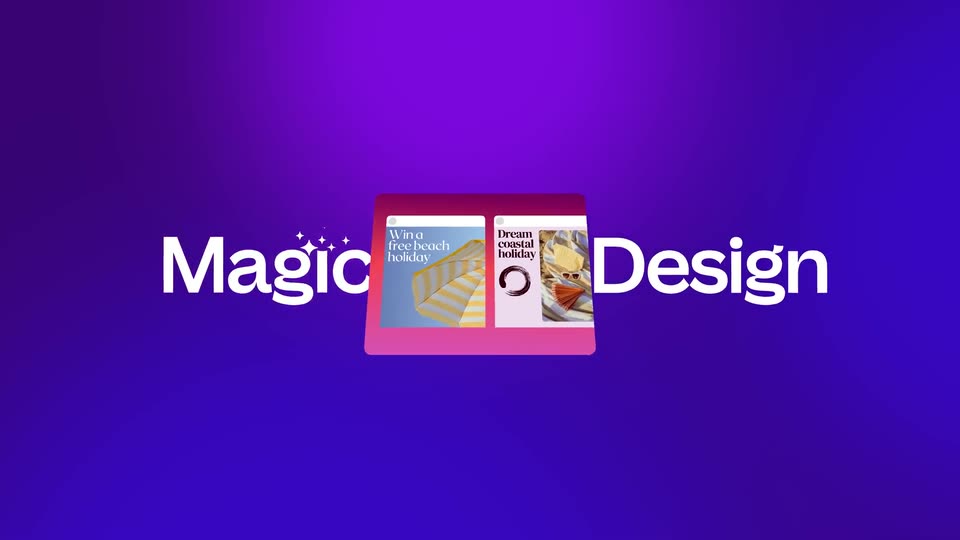
A pink rounded card holding two postcard images sits at center on a purple-to-blue gradient. Large white Magic Design text flanks the card on both sides, with small white sparkles by the left word; the composition scales into place and holds.
On-screen text: “Magic Design”
Techniques: Kinetic type
Camera: Static
The view pulls back from a tight crop of the purple Magic Studio hero to the full Canva page, exposing the logo, search field, row of category icons, and a horizontal band of colored feature cards along the bottom.
Techniques: UI zoom
Camera: Pull out
On a purple gradient, a white input bar grows from left to right as the prompt text types in, with a red Lily tag and arrow tracking the typing cursor.
Techniques: Kinetic type
Camera: Static
A grid of generated onboarding slide thumbnails sits under a row of filter chips. The blue card showing a woman with raised palms scales up to fill the frame as the page headline grows and re-centers above it.
On-screen text: “Generate an Onboarding Plan for Val”
Techniques: UI zoom, Kinetic type
Camera: Pull out
A purple banner showing a yellow logo and a person in an orange shirt sits above a white strip with a red Lily tag. Below, a row of rounded cards with photos and headlines scrolls left past purple four-point stars.
On-screen text: “Created just for you”
Techniques: Parallax
Camera: Pan
A website layout pans slowly: a hero banner with a person in an orange shirt on purple holds the tagline, while a row of three cards (mission, team, growth chart) drifts left and a red Lily notification bubble slides right. Decorative purple stars sit between the layers.
Techniques: Parallax
Camera: Push in
A small video-editing UI card with two dog thumbnails, checkmarks, time labels and an audio waveform sits centered on a pink-purple gradient, flanked by the large white words Magic and Video. The frame is locked-off and holds still.
On-screen text: “Magic”, “Video”
Camera: Static
Three video cards of people tossing confetti, each with a duration badge, line up on white. The view pans down to the Magic Video heading and a prompt box, where the typed text fills in while a red Maia cursor sits at the end.
Techniques: Kinetic type, UI zoom, Cursor demo
Camera: Push in
A video editor timeline close-up: a black playhead sweeps left to right across clip thumbnails and a purple audio waveform, brightening each thumbnail from gray to color as it passes. A preview above plays a man in a green jacket with yellow Happy lettering.
Camera: Pan
A hand holds a phone on a wooden table beside a plant and coffee cup. The screen plays a birthday video: a person in green blows confetti, captioned “Happy birthday Tay,” then one in white with pink confetti, “Have a great day,” ending as a bordered card.
Camera: Push in
A rounded UI panel showing a cartoon image and two thumbnails sits centered on a purple-blue gradient. Large white words “Magic” and “Switch” flank the panel and slide apart as small white sparkles grow beside the left word.
On-screen text: “Magic Switch”
Techniques: Kinetic type
Camera: Static
A purple-to-blue gradient fills the frame as white headline text builds in the center. 'Magic Switch' holds while 'Switch' slides into place, then 'between designs' settles on the line below. The two-line block holds, then dissolves to transparent.
On-screen text: “Magic Switch”, “between designs”
Techniques: Kinetic type
Camera: Static
A Canva team whiteboard with a Team Brainstorm title, columns of colored cards and named collaborator cursors. The view pushes in from the full board to a close-up of the teal Team word and the illustration of a person with raised arms.
Techniques: UI zoom
Camera: Push in
A purple cursor drops from the Magic Switch tab, trailing a Michelle name label, as the interface scrolls down past a brainstorm board and summary doc to land on a wide purple Transform into Doc button.
Techniques: Cursor demo, UI zoom
Camera: Push in
A Canva slide morphs into a document as the Brainstorm Summary header and body reflow onto a white page that scales up to fill the canvas. A Transform into Doc caption slides in, while Quadi, James and Michelle cursors hover at the edges.
On-screen text: “Transform into Doc”
Techniques: Morph
Camera: Push in
A purple-to-blue gradient fills the frame. The white headline “Magic Switch” sits centered; a second line “across languages” appears beneath it. The camera is locked off and the text holds still.
On-screen text: “Magic Switch”, “across languages”
Techniques: Kinetic type
Camera: Static
A locked-off capture of the Canva editor shows a blue 'Global Campaign' slide with 3D spheres, the left tool rail, and a bottom slide strip. A collaborator cursor tagged 'Quadri' hovers over the title while a caption reads 'across languages'.
On-screen text: “across languages”
Camera: Push in
A white translate dropdown scrolls down its language list, settling on Japanese with a checkmark, as a cursor tagged Quadri moves toward the purple Translate button. Behind it, a blue panel shows the large word Global and a 3D blue globe.
On-screen text: “Global”
Techniques: Cursor demo
Camera: Pan
The Canva editor sits in a flat front view with its left toolbar and bottom slide strip. On the central blue slide, the white headline text morphs from English into Japanese as the 3D spheres and cone hold still.
Techniques: Morph
Camera: Static
A static wide shot of a large outdoor LED billboard on a modern glass-and-steel building. The screen shows a blue field with 3D blue spheres, a cone, and a rounded shape, plus white Japanese headline text and a small white logo top right.
On-screen text: “グローバル”, “キャンペーン”
Camera: Static
A top-down flat lay shows a phone on green tiles, with a coffee cup, avocado toast, and a leather notebook at the edges. The screen holds a blue abstract wallpaper with white Korean text and a small logo.
Camera: Static
A wide blue billboard on a brick wall shows the CO logo and a white headline over ribbed 3D spheres, then cuts to a vertical digital kiosk on a train platform with the same creative. Both shots are static and locked off.
On-screen text: “CO”
Camera: Static
A white grid of small clips fills the frame, each showing the blue brand identity on laptops, billboards, mugs and coffee bags. A large white title “Campagne co Mondiale” overlays the center at the start, then the grid scrolls across the montage.
On-screen text: “Campagne co Mondiale”
Camera: Pull out
A purple-blue gradient holds a teal panel of Canva AI feature names and a white prompt box with a typed query. A large white bold “Magic Write” headline with a sparkle icon scales in over the center.
On-screen text: “Magic Write”
Techniques: Kinetic type
Camera: Static
A Canva canvas shows a purple-to-blue banner reading Operations Manager: London Office. A cursor labeled Quadri types a prompt into the Magic Write box, clicks Generate, and a paragraph of job-description text fills the page as purple sparkles scatter.
Techniques: UI zoom, Cursor demo, Particles
Camera: Pull out
A white job-description card on a light gray field scrolls upward at a steady pace, revealing more body copy under a purple-blue gradient header that reads “Operations Manager: London Office.” A purple “Quadri” tag and small purple sparkles remain fixed on screen.
Camera: Push in
A document editor shows a highlighted job posting beside a Magic Write panel; a purple named cursor moves up as the panel expands into a rewrite menu. The scene cuts to a white card with a purple gradient banner, white headline, body copy, and small purple sparkles.
Techniques: Cursor demo
Camera: Static
A white card on a light gray background shows a job posting: a purple-to-blue gradient banner with bold white text reading “London calling! Come join our ops team” above dark body copy that scrolls slowly upward, flanked by two small purple sparkles as the card drifts slightly.
Camera: Static
On a warm orange-to-pink gradient, the white words Magic and Media sit on either side of a centered 3x2 grid of video thumbnails, each carrying a play button. The grid drifts down a few pixels and the clips shuffle while small star sparkles rest by the first word.
On-screen text: “Magic”, “Media”
Camera: Static
A close-up of the Canva Magic Media panel shows a cursor labeled Stephanie typing a jungle-city prompt, then clicking Generate video. The frame zooms out to the full editor, a progress bar loads, and the generated image lands on the canvas.
Techniques: UI zoom, Cursor demo
Camera: Push in
The Canva editor shows a square artwork of a tropical city with palm trees on a dotted canvas. The image scales up steadily, filling the frame, while a purple collaborator cursor labeled Stephanie hovers at its edge.
On-screen text: “Shot 1: close-up”
Techniques: UI zoom
Camera: Push in
A purple gradient fills the frame behind a centered square icon: a woman with windblown hair holds a red phone and a plant, while the left half shows a transparency checkerboard. Large white text reads Magic and Expand on either side, with small white sparkles above the left word.
On-screen text: “Magic”, “Expand”
Camera: Static
A close-up of the Canva editor shows a cursor labeled Sarah clicking the Magic Expand tile. The panel switches to the Expand tab with size options, and the photo of two people on the right grows to fill a wider frame.
Techniques: Cursor demo, UI zoom
Camera: Push in
A Canva editor view opens on the crop panel, zooms out to reveal the full workspace as the cursor moves to the purple Magic Expand button, then zooms into the selected photo of two people on the canvas.
Techniques: Cursor demo, UI zoom
Camera: Pan
A low-angle live-action shot of two models in pink and green against a tall building starts as a small centered card with a purple border, then scales up to fill the frame. White words “Go” and “Beyond” fade and slide in at the top-left and bottom-right.
On-screen text: “Go”, “Beyond”
Techniques: Kinetic type
Camera: Push in
On a yellow-to-red gradient, a rounded UI panel with two backpack photos sits at center, overlapping a large white headline. The visible words are 'Magic' on the left and 'Edit' on the right, with white sparkles beside the left word. The headline words slide while the panel stays fixed.
On-screen text: “Beyond”, “Magic Eraser”, “Edit”
Techniques: Kinetic type
Camera: Static
The Canva editor opens on a pink canvas holding a portrait of a smiling woman in a lavender blouse. The left panel shows the Magic Studio tool grid, where the Magic Eraser thumbnail and its label slide into place.
Camera: Pull out
A 'Song' tag points at a woman's blouse in a Canva photo, then a purple brush stroke is painted over it; the left panel switches to step two and 'Professional portrait in a suit jacket' types into the field as a 'Laura' tag hovers by Generate.
On-screen text: “Song”, “Laura”, “Magic Eraser”
Camera: Static
A smiling woman in a pink patterned blazer on a pink background shrinks into a circular frame with a red ring. The words Edit and like a pro animate in from either side while white sparkles twinkle around the portrait.
On-screen text: “Edit”, “like a pro”
Techniques: Masking, Kinetic type
Camera: Pull out
On a yellow-to-orange gradient, a blue rounded icon shows a checkered hot-air balloon inside a purple selection box with a hand cursor. The white words Magic and Grab scale in on either side, with small sparkles beside Magic.
On-screen text: “Magic”, “Grab”
Techniques: Kinetic type
Camera: Static
A purple cursor tagged “Hi, I'm Lily” hovers over the Magic Grab tile in Canva's Magic Studio panel, then a purple selection frame with corner handles and small sparkles appears around the woman in the photo on the right.
Techniques: Cursor demo
Camera: Push in
A smiling woman in an orange blazer stands inside a purple selection frame with corner handles against a wood slat wall. A checkered cutout of her silhouette pops in beside her with a Lily tag, then a green frame adds Grab as and and Go stack below.
On-screen text: “Lily”, “Magic Eraser”, “Grab”, “Song”, “and”, “Go”
Techniques: Masking, Kinetic type
Camera: Push in
A green-to-blue gradient holds a green rounded icon where the word Now morphs, its ow letters shifting between flat dark and glossy 3D blob forms. The white title Magic Now Morph stays locked across the icon while small sparkles twinkle.
On-screen text: “Magic Now Morph”
Techniques: Morph
Camera: Static
A dark Canva side panel lists the Magic Morph steps while a prompt types itself into the description box. On the right, a smiling woman in a striped top stands beside a large cyan POP word inside a purple selection frame, and the view slowly pushes in on her.
Techniques: UI zoom
Camera: Static
The Canva Magic Morph panel sits beside a canvas showing a smiling woman with a flat teal POP text selected. A cursor labeled Hannah clicks the Magic Morph button, then picks a balloon variant, and the flat text morphs into a glossy 3D balloon POP with sparkles.
Techniques: Cursor demo, Morph
Camera: Static
A smiling woman with dark hair poses against a light blue backdrop, framed by teal foil balloons shaped like the letter P and a star. A dark app sidebar on the left slides out as the white headline “Make it” fades in; small white sparkles twinkle.
On-screen text: “Make it”
Camera: Push in
A smiling woman with dark hair looks upward against a plain light blue background. Teal foil balloons, two letter P shapes and a star, float in front of her with a slight drift. Small star sparkles twinkle at the edges. White text reads Make it on the left.
On-screen text: “Make it”
Camera: Push in
A man in a white striped shirt blows a kiss to camera on a flat red backdrop while glossy 3D red hearts float around him, their surfaces catching a glint and twinkling sparkles as the clip runs.
On-screen text: “Make it”, “x”
Techniques: Light sweep
Camera: Push in
On a teal-to-purple gradient, the white headline Safe. Secure. sits centered. A rounded lock icon hovers above Secure with a red Tiana label popping in beside it; a thin red outline around Secure is visible only at the start.
On-screen text: “Safe. Secure.”, “Tiana”
Camera: Static
A blue-to-teal gradient holds the white headline as it types out letter by letter behind a cursor, a purple outline box around “Built” clearing, while two chat bubbles, Koa in magenta and Mai in teal, drift into place at either end of the line.
On-screen text: “Koa”, “Built for work”, “Mai”
Techniques: Kinetic type
Camera: Static
A purple gradient fills the frame, with a flat red rounded card holding two small images centered and the large white headline “Magic Design” running behind it. Small white sparkles sit above the left word, and the whole composition stays static.
On-screen text: “Magic Design”
Camera: Static
On a purple-blue gradient, the white title “Magic Write” spans the frame with a small four-point sparkle between the words. Behind it, a translucent panel of repeated feature names and a white tooltip fade into view.
On-screen text: “Magic Write”, “List all the amazing AI features available with Canva”
Camera: Static
On a red-to-peach gradient, the words Magic and Expand flank a rounded card showing a woman with windblown hair holding a red phone. A checkerboard selection with purple handles covers the card's left edge, and the card scales up slightly.
On-screen text: “Magic”, “Expand”
Camera: Static
A coral-to-yellow gradient holds the white headline Magic Media. A purple-framed grid of six video thumbnails scales up in the center and drifts left, overlapping the text as the clips inside cycle.
On-screen text: “Magic”, “Expand”, “Media”
Camera: Static
A purple-pink gradient holds a flat editing card centered, showing dog clips with durations and a waveform strip. Large white words Magic and Video flank the card, with Media hidden behind it. The card eases slightly larger while the text stays locked.
On-screen text: “Magic”, “Media”, “Video”
Camera: Static
On a yellow-to-orange gradient, a blue folder holds a striped hot-air balloon inside a purple selection box with white handles, while a white hand cursor grabs its base. The white words Magic and Grab flank the icon, small sparkles twinkling above Magic.
On-screen text: “Magic”, “Grab”
Techniques: Cursor demo
Camera: Static
On a green-to-blue gradient, a green rounded-square icon holds a glossy 3D blob that morphs and slides across a thin vertical white line, while the white words Magic and Morph sit either side of the icon.
On-screen text: “Magic”, “Morph”
Techniques: Morph
Camera: Static
A purple-to-pink gradient holds a 3D tablet mockup showing a poster with cans, with two smaller copies floating to its right. Large white words flank the device, one on each side, locked in place for the shot.
On-screen text: “Magic Switch”
Techniques: 3D mockup
Camera: Static
A purple card titled Magic Switch holds the center as a grid of feature cards bursts outward around it, fanning to fill the frame. Each tile pairs a white headline with small interface thumbnails, settling over the blue-purple gradient.
On-screen text: “Magic Switch”, “Magic Media”, “Magic Animate”, “Magic Grab”, “Brand voice”, “Magic Expand”, “Magic Design”, “Magic Design for Video”, “Image to video”, “Flourish charts and graphs”
Camera: Pull out
A wall of rounded feature tiles in varied bright colors drifts rightward across a teal background, new tiles entering at the left edge. Each tile pairs a white feature name with a small photo, icon or interface snippet. The grid fills the frame edge to edge and moves at a constant pace.
Camera: Pull out
On a slowly shifting blue-to-purple gradient, the white 'Magic Studio' headline with small sparkle marks fades out, then the white Canva script logo and a rounded search pill with the URL fade in at center and hold for the rest of the clip.
On-screen text: “Magic Studio”, “canva.com/magic”
Techniques: Kinetic type
Camera: Static