0:29
Explore
CALLBOOK AI | Product Demostration
Callbook · Mar 2025 · 3:21 · Full motion · AI-annotated
- Length
- 3:21
- Scenes
- 13 · 15.5 s avg
- Product on screen
- 0:00
- Features shown
- 4
- Voiceover
- Yes
- Views
- 133 on YouTube
as of November 28, 2026
00:00:00 / 03:21:18
- Length
- 3:21
- Scenes
- 13 · 15.5 s avg
- Product on screen
- 0:00
- Features shown
- 4
- Voiceover
- Yes
- Views
- 133 on YouTube
as of November 28, 2026
Callbook’s 3:21 launch film runs 13 scenes, about 16 s each. The product is on screen from the first frame and 4 features are revealed. There is no explicit call to action; a voiceover carries the film. A continuous screen-recording walkthrough that steps from the dashboard overview into the Assistants list, CRM integrations, assistant settings, a long on-screen demo conversation, and the post-call log, with the cursor marking each click. A persistent bottom caption line pops in phrase by phrase and wraps one keyword in a purple pill, while the demo conversation plays as a static logo card with the spoken script rendered as those highlighted captions.
No filming indicatedEstimated needs: 5 capture groups — your screens or recordings
Is this your launch? to your site or press kit.
More like this

3:33
Vendo Demo Hacker News
Vendo · Aug 2026
2:50

Introducing Customer Requests
Linear · Productivity · Dec 2024
CALLBOOK AI | Product Demostration, scene by scene
· 13 scenes as text
01 · Product intro · 0:00–0:05
A Callbook dashboard shows a Summary line chart and a Calls table. A cursor sweeps across the chart, hovering over points to open time tooltips, while caption phrases pop in at the bottom of the screen.
On-screen text: “OKAY IN THIS DEMONSTRATION”, “WE ARE GOING TO”, “SHOW HOW TO PREPARE”, “A CODE”, “USING CALLOBOOK AI”
Techniques: Kinetic type, Cursor demo
Camera: Static
02 · Feature reveal · 0:05–0:06
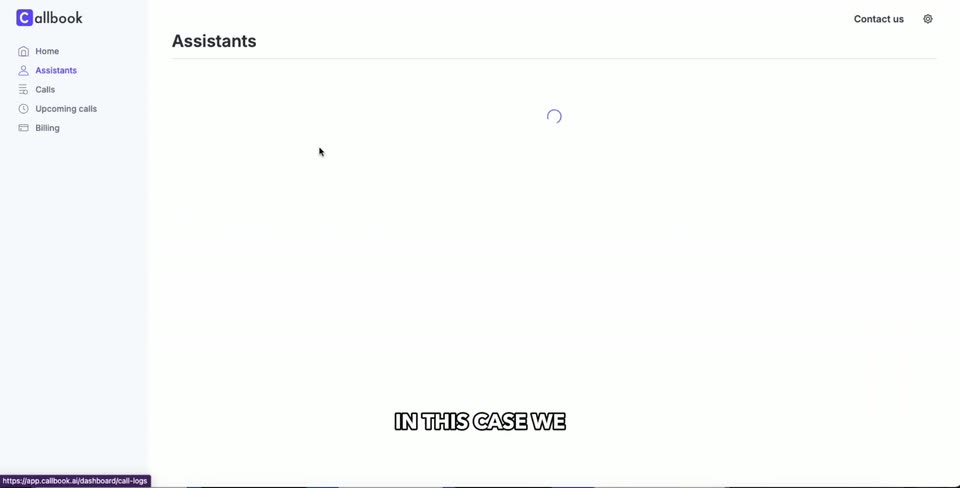
A light dashboard shows a calls line graph and metric cards. The cursor moves down the left sidebar and clicks Assistants, which turns purple while the main pane empties to a loading spinner. A white outlined caption reads IN THIS CASE WE at the bottom.
On-screen text: “IN THIS CASE WE”
Techniques: Cursor demo
Camera: Static
03 · Feature reveal · 0:06–0:24
The Callbook Assistants page scrolls up and down through a list of assistant cards, each showing Google Sheets or Zoho CRM integrations and variables, while a cursor hovers over rows. Bold caption phrases with a purple highlight chip pop in at the bottom center.
On-screen text: “HAVE THE SUMMARY AND”, “IMPORTANT METRICS”, “FOR THE ACCOUNTS IF”, “ASSIGN TO THE”, “ASSISTANT SECTION”, “YOU CAN LINK”, “THE ASSISTANT LINKED TO”, “THIS ACCOUNT”, “FOR EXAMPLE ONE AI”, “ANOTHER MANAGES CONFIRMATIONS OR AND FOLLOW UPS”
Techniques: Kinetic type, Cursor demo
Camera: Static
04 · Feature reveal · 0:24–0:24
A flat purple field fills the frame with a small cursor drifting near the upper left. A white caption with a black outline sits centered at the bottom, and the word Zoho briefly shows a purple highlight box that then clears.
On-screen text: “LIKE ZOHO CRM WE”
Camera: Static
05 · Feature reveal · 0:24–0:26
A Google Sheets call-tracking sheet fills the frame, its Spanish column headers and one populated row visible. Bold caption lines appear at the bottom, each highlighting a single word in purple as the voiceover continues.
On-screen text: “LIKE ZOHO CRM WE”, “CAN TRIGGER CALLS USING”
Camera: Static
06 · Feature reveal · 0:26–0:26
A light dashboard shows an Assistants list with two Maria cards, each listing a Google Sheets integration and variables. A cursor drifts down from the top toward a Send call button while a caption sits at the lower right.
On-screen text: “CAN TRIGGER CALLS USING”
Techniques: Cursor demo
Camera: Static
07 · Feature reveal · 0:26–0:30
The Callbook Assistants page shows an open Send call (Maria) modal with phone and name fields. A cursor moves from the background Send call button to the modal close icon. Lower-third captions swap in sequence at the bottom.
On-screen text: “CORRECTLY”, “APP FOR CONFIRMATIONS”, “WEB APP BEFORE THAT”
Techniques: Cursor demo
Camera: Static
08 · Feature reveal · 0:30–0:32
A white dashboard shows the Assistants list with a cursor over the Manage button, then the view switches to the María detail page with a Settings panel. Bold captions with purple highlights pop in at the bottom.
On-screen text: “WEB APP BEFORE THAT”, “I WILL SHOW HOW”
Techniques: Cursor demo, Kinetic type
Camera: Static
09 · Feature reveal · 0:32–0:49
The Callbook assistant settings page scrolls down past the Spanish context text and the right-hand settings panel. A cursor hovers over the language, direction and voice rows while bold white captions with purple highlight boxes appear at the bottom, naming each option.
On-screen text: “TO MANAGE THE ASSISTANT”, “SELECTING THE ASSISTANT'S LANGUAGE”, “WE CHOOSE THE VOICE”, “AND WHICH ACCENT TO USE”, “WE SUPPORT DIFFERENT ACCENTS”, “IN SPANISH ENGLISH”, “PORTUGUESE FRENCH”, “AND ITALIAN”, “THE SYSTEM ALSO MANAGES”, “AND THE KEY VARIABLES”
Techniques: Kinetic type, Cursor demo
Camera: Pan
10 · Feature reveal · 0:49–0:51
The Callbook Assistants page holds still in a light UI. A cursor drifts from the sidebar to the Send call button on the first card. At the bottom, bold white captions with purple highlight boxes swap from THAT NEED TO BE CAPTURED to TO TRIGGER A CALL.
On-screen text: “THAT NEED TO BE CAPTURED”, “TO TRIGGER A CALL”
Techniques: Kinetic type, Cursor demo
Camera: Static
11 · Feature reveal · 0:51–0:59
A Callbook dashboard on the Assistants page with a centered “Send call (María)” modal showing phone number and contact name fields. The cursor drifts and hovers the close icon while bold white captions with purple highlight boxes appear word by word along the bottom.
On-screen text: “WE CAN SIMPLY SEND”, “A REQUEST HERE”, “THIS EXAMPLE WILL SHOW”, “HOW A CALL WORKS”, “A DEMONSTRATION OF THE PROCESS”, “WHETHER DONE HERE OR”
Techniques: Kinetic type, Cursor demo
Camera: Static
12 · Feature reveal · 0:59–3:03
A static off-white card holds the Callbook.ai logo and the outlined DEMO CONVERSATION title locked at the top. At the bottom, caption lines of a demo phone script swap in every few seconds, each with a purple pill highlighting the spoken keyword.
On-screen text: “Callbook.ai”, “DEMO CONVERSATION”, “HELLO GOOD AFTERNOON”, “HOLA GOOD AFTERNOON”, “I'M MARIA FROM LUMINA TRAVEL”, “I UNDERSTAND YOU'RE INTERESTED”, “DO YOU HAVE A”, “NEW YORK IS AN EXCITING CHOICE”, “LIKE TIMES SQUARE”, “WHAT I CAN DO WEATHER BASED', 'BE DEPARTING FROM', 'PLAN TO TRAVEL FOR', 'CONSIDERING FOR THIS WEEKEND TRIP', 'LOOKING AT MARCH 1ST TO 3RD', 'BE ACCOMPANYING', ”
Techniques: Kinetic type
Camera: Pan
13 · Feature reveal · 3:03–3:21
A Callbook call-log page scrolls down through a conversation transcript to reveal an Updated Variables table, then scrolls back to the top. Bold white caption phrases with purple highlights appear at the bottom, word by word.
On-screen text: “OKAY AND AFTER THE CONVERSATION”, “LIKE THE TRANSCRIPTION ALL”, “THE VALUE VARIABLES”, “REPRODUCE ALL THE RECORDING”, “OR DOWNLOAD IT HERE”, “IN THE CRM”, “ALL THESE VARIABLES WILL”, “BE STORED IN THE SYSTEM”, “TO DEFINE NEXT ACTIONS”, “ACCORDING TO THE RESULTS”
Techniques: Kinetic type
Camera: Static