
3:44
Explore
assistant-ui | AWS GenAI Loft Demo
assistant-ui · Oct 2024 · 4:53 · AI-annotated
- Length
- 4:53
- Scenes
- 85 · 3.4 s avg
- Product on screen
- 0:12
- Features shown
- 5
- Call to action
- 4:38 · 95%
- Voiceover
- Yes
- Views
- 8.4K on YouTube
as of November 24, 2026
00:00:00 / 04:53:06
- Length
- 4:53
- Scenes
- 85 · 3.4 s avg
- Product on screen
- 0:12
- Features shown
- 5
- Call to action
- 4:38 · 95%
- Voiceover
- Yes
- Views
- 8.4K on YouTube
as of November 24, 2026
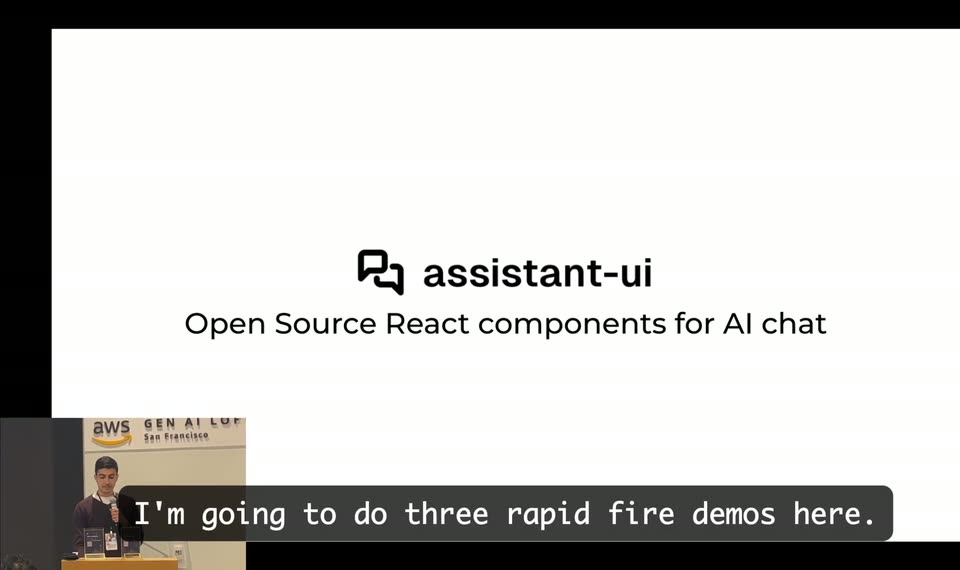
assistant-ui’s 4:53 launch film runs 85 scenes, about 3.4 s each. The product shows up at 0:12 and 5 features are revealed. The call to action lands at 4:38 (95% in), over a voiceover. A conference talk built as a series of rapid demos: each section opens on a white title card, then cuts to a full-screen screen recording with the speaker shrunk to a lower-left inset and a monospace caption pill pinned to the bottom. Pacing is fast, around 13 cuts per minute, with crossfades, slide pans and zooms moving between cards and UI, and the assistant-ui wordmark card returning as a reset between sections.
Footage neededEstimated needs: 5 capture groups — your screens or recordings · 2 filmed passages — shoot, supply or replace · 2 graphic passages — draw or supply
Is this your launch? to your site or press kit.
More like this


assistant-ui | AWS GenAI Loft Demo, scene by scene
· 85 scenes as text
01 · Hook · 0:00–0:02
A man in a maroon sweater holds a microphone at a podium before an AWS GenAI Loft backdrop, gesturing as he speaks, with a white caption box at the bottom. The frame then becomes a white headline card, his footage shrinking to a small lower-left inset.
On-screen text: “My name is Simon, and I have a question for you:”, “What is the right user interface for interacting with AI?”
Camera: Static
02 · Hook · 0:02–0:04
A white slide holds the black question text, centered on the frame. A small picture-in-picture in the lower left shows a man speaking at a podium in front of an aws Gen AI Loop San Francisco banner, while the voiceover reads the question.
On-screen text: “What is the right user interface for interacting with AI?”
Camera: Static
03 · Hook · 0:04–0:08
A locked-off white slide holds the question in black sans type while a small inset in the lower left shows the speaker at a podium. At 3s a dark rounded caption appears below it reading “I believe the answer is chat.”
On-screen text: “What is the right user interface for interacting with AI?”, “I believe the answer is chat.”
Techniques: Split screen
Camera: Static
04 · Hook · 0:08–0:12
A white slide holds the black question 'What is the right user interface for interacting with AI?' above a blue arrow and teal 'AI chat'. A small lower-left inset shows a man speaking into a microphone at an AWS event, while a dark caption bar updates with his words.
On-screen text: “What is the right user interface for interacting with AI?”, “AI chat”, “I believe the answer is chat.”, “Not any chat, but rather AI chat, which is a specific form of chat.”
Camera: Static
05 · Product intro · 0:12–0:14
A locked-off white slide poses the question about the right user interface for interacting with AI, with a teal AI chat label, a small stage inset at lower left, and a monospace caption below. It crossfades to the assistant-ui logo slide with its tagline.
On-screen text: “What is the right user interface for interacting with AI?”, “AI chat”, “Not any chat, but rather AI chat, which is a specific form of chat.”, “assistant-ui”, “Open Source React components for AI chat”
Camera: Static
06 · Product intro · 0:14–0:16
A white card centers the black assistant-ui logo and tagline, the logo wordmark scaling in slightly. A small inset in the lower left shows a speaker on a conference stage, and a dark rounded caption box with white monospace text sits at the bottom.
On-screen text: “And that's what I'm working on”, “with assistant-ui.”
Camera: Static
07 · Product intro · 0:16–0:20
A white title card holds the assistant-ui wordmark and tagline, the wordmark scaling in on a locked frame. A small inset shows the speaker at a podium while white monospace subtitles roll across the bottom.
On-screen text: “assistant-ui”, “Open Source React components for AI chat”, “And that's what I'm working on”, “with assistant-ui.”, “These are open source React components,”
Techniques: Kinetic type
Camera: Static
08 · Product intro · 0:20–0:24
A white slide centers the assistant-ui logo and tagline, the title scaling in. A small bottom-left inset shows a speaker at a podium holding a microphone, while a dark caption bar at the bottom swaps between two lines of his words.
On-screen text: “assistant-ui”, “Open Source React components for AI chat”, “that enable you to add AI chat to any application.”, “I'm going to do three rapid fire demos here.”
Techniques: Kinetic type
Camera: Static
09 · Feature reveal · 0:24–0:26
A white presentation slide shows the assistant-ui logo and tagline, with a small live-action inset of a speaker at a podium in the lower left and a caption bar along the bottom. The slide cuts to a large 'Demo' title with a 'Hello world' subtitle as the caption updates.
On-screen text: “assistant-ui”, “Open Source React components for AI chat”, “I'm going to do three rapid fire demos here.”, “Demo”, “Hello world”, “The first one is just a Hello World example.”
Techniques: Kinetic type
Camera: Static
10 · Feature reveal · 0:26–0:28
A white slide holds the black heading Demo above Hello world, static throughout. A small inset in the lower left shows a man in a maroon sweater speaking at a podium, and a dark rounded caption box at the bottom carries the voiceover line.
On-screen text: “Demo”, “Hello world”, “The first one is just a Hello World example.”
Camera: Static
11 · Feature reveal · 0:28–0:31
The GitHub page for assistant-ui settles in from a brief zoom, a speaker's webcam inset in the lower left; a cursor clicks the website link in the About panel while captions run along the bottom.
On-screen text: “So, this is assistant-ui.”, “You go on the website, you see a demo right here.”
Techniques: UI zoom, Cursor demo
Camera: Static
12 · Feature reveal · 0:31–0:32
A website landing page with a bold headline and an embedded chatbot demo fills the frame. A small inset in the lower left shows a man speaking at an AWS Gen AI Loft podium. A dark caption box at the bottom carries the spoken line.
On-screen text: “You go on the website, you see a demo right here.”
Techniques: Split screen
Camera: Static
13 · Feature reveal · 0:32–0:36
The assistant-ui website scrolls down from its headline to a chatbot demo, where a cursor moves to the Write a poem button. A speaker at a podium appears in a small corner window while dark caption boxes carry the voiceover.
On-screen text: “You go on the website, you see a demo right here.”, “So this is what you can add to your own app.”
Techniques: Cursor demo
Camera: Static
14 · Feature reveal · 0:36–0:38
A light chat interface fills the frame as a poem about the weather streams in line by line next to an A avatar. A presenter at a podium sits in a small inset at the lower left, and a dark caption box at the bottom carries the voiceover text.
On-screen text: “So this is what you can add to your own app.”, “The chat component, by default, handles streaming,”
Techniques: Kinetic type
Camera: Static
15 · Feature reveal · 0:38–0:40
A light chat UI fills the frame as a poem streams in line by line, a cursor rests below the text. A small inset in the corner shows a man speaking at an AWS stage, and a dark caption bar at the bottom carries the line.
On-screen text: “The chat component, by default, handles streaming,”
Techniques: Cursor demo
Camera: Static
16 · Feature reveal · 0:40–0:40
The assistant-ui chat screen shows a generated paragraph and a row of action icons, with a small inset video of a speaker in the lower-left corner. A dark caption box with white text appears at the bottom as the cursor hovers the icons.
On-screen text: “it allows the user to regenerate messages if they don't like it,”
Techniques: Cursor demo
Camera: Static
17 · Feature reveal · 0:40–0:48
A chat interface screen recording with a small speaker inset in the lower left. A cursor clicks the regenerate icon, the poem swaps to a new version, then the cursor steps through both versions and clicks the user's message, which expands into an editable field. Captions narrate the steps.
On-screen text: “it allows the user to regenerate messages if they don't like it,”, “and compare the two versions.”, “They can go back and edit their messages,”
Techniques: Cursor demo, Split screen, Morph
Camera: Static
18 · Feature reveal · 0:48–0:52
A screen recording of a chat interface fills the frame while a cursor edits the prompt from weather to sun and clicks Send, streaming a new poem. A small inset of a speaker at a podium sits bottom-left, and a dark caption bar carries the voiceover at the bottom.
On-screen text: “They can go back and edit their messages,”, “and you as a developer can change the way this is displayed,”
Techniques: Cursor demo
Camera: Static
19 · Feature reveal · 0:52–0:54
A flat screen recording of the assistant-ui chat page shows a poem in the thread. A cursor slides to the Claude Theme tab and clicks it. A dark rounded caption banner sits at the bottom, and a small picture-in-picture code window peeks in from the lower left.
On-screen text: “and you as a developer can change the way this is displayed,”
Techniques: Cursor demo
Camera: Static
20 · Feature reveal · 0:54–0:56
A documentation page displays a dark chat mockup with a poem. A cursor clicks the blue 'Claude Theme' tab, then a white caption types in line by line across the bottom.
On-screen text: “so you can make it look like Claude,”, “or however your app looks like.”
Techniques: Cursor demo, Kinetic type
Camera: Static
21 · Feature reveal · 0:56–1:00
A documentation page shows a dark chat panel with a poem about the sun and theme tabs above. A small inset video of a presenter at a podium plays in the lower left while white captions on a dark bar at the bottom change, then clear.
On-screen text: “so you can make it look like Claude, or however your app looks like.”, “so it's very customizable.”
Camera: Static
22 · Feature reveal · 1:00–1:00
A documentation page with a dark chat panel showing a generated poem sits behind a small live-action inset of a speaker at a podium in the lower left. The view pans right to reveal a white panel reading Demo Generative UI, then a caption box slides in at the bottom.
On-screen text: “So let's go to demo number two.”
Camera: Pan
23 · Feature reveal · 1:00–1:04
A white title slide reads Demo over Generative UI with a small hand icon above. A picture-in-picture of the speaker at a podium sits in the lower left, and a dark caption bar at the bottom carries the voiceover.
On-screen text: “Demo”, “Generative UI”, “So let's go to demo number two.”, “Generative UI.”
Camera: Static
24 · Feature reveal · 1:04–1:06
A white slide titled “Demo” with the subtitle “Generative UI” holds center frame. A small live-action inset of a speaker at a podium sits in the lower-left corner, and a dark caption bar reads “Chat, just as text, is kind of boring.” A hand cursor appears at the top.
On-screen text: “Demo”, “Generative UI”, “Generative UI.”, “Chat, just as text, is kind of boring.”
Techniques: Cursor demo
Camera: Static
25 · Feature reveal · 1:06–1:07
A dark GitHub repository page fills the screen as a white file-list card shrinks and slides out to the left, revealing the interface. A small video inset of a speaker at a podium sits bottom left, under a white caption bar.
On-screen text: “Demo”, “Generative UI”, “Chat, just as text, is kind of boring.”
Techniques: Masking
Camera: Pan
26 · Feature reveal · 1:07–1:12
A dark GitHub repository page fills the screen as a hand cursor glides to a link on the right. A small inset video of a speaker plays in the lower left, white monospace captions change at the bottom, then the page cuts to black.
On-screen text: “Chat, just as text, is kind of boring.”, “So, here's another example.”, “A stockbroker, that helps you pick stocks to buy.”
Techniques: Cursor demo
Camera: Static
27 · Feature reveal · 1:12–1:12
A black screen with a small inset of a speaker at an AWS Gen AI Loft podium and a white cursor cuts to a light chat interface showing 'How can I help you today?' above a dark input bar with suggestion chips. A white monospace caption stays at the bottom.
On-screen text: “A stockbroker, that helps you pick stocks to buy.”
Camera: Static
28 · Feature reveal · 1:12–1:16
A white chat screen shows an A avatar over “How can I help you today?” with three question chips and a message field below. A hand cursor drifts down toward the input. A small inset shows a man at an AWS podium. Dark caption pills read the voiceover.
On-screen text: “A stockbroker, that helps you pick stocks to buy.”, “I can ask this a bunch of questions.”
Techniques: Split screen, Cursor demo
Camera: Static
29 · Feature reveal · 1:16–1:20
A white chat interface shows an assistant greeting and three question chips; a cursor taps the Tesla chip, the question posts as a bubble, and a TSLA stock card appears. A small inset of a podium speaker sits bottom left under a caption bar.
On-screen text: “I can ask this a bunch of questions.”, “So let's say... What's the current stock price of Tesla?”
Techniques: Cursor demo
Camera: Static
30 · Feature reveal · 1:20–1:24
A chat interface shows a TSLA stock card and the AI answer typing itself out line by line. A small inset of a presenter at a podium sits bottom left, and white monospace captions on a dark pill swap above the message field.
On-screen text: “So let's say... What's the current stock price of Tesla?”, “Ah nice, it's going up!”, “So... Let me buy 10 of these.”
Camera: Static
31 · Feature reveal · 1:24–1:26
A light chat screen holds a Tesla price card; a 'buy 10' message bubble appears and the assistant shows a typing indicator. A small live-action inset of a speaker at a podium fills the lower-left corner, above a dark caption bar.
On-screen text: “So... Let me buy 10 of these.”
Techniques: Cursor demo
Camera: Static
32 · Feature reveal · 1:26–1:28
A screen recording of a chat interface fills the frame, showing a stock price message, a code line and a Confirm Transaction dialog. A small live-action inset of a speaker at an AWS podium sits in the lower left. A white caption bar appears along the bottom.
On-screen text: “And so, let's pause for a second and see what's happening here.”
Camera: Static
33 · Feature reveal · 1:28–1:32
A stock-buying chat interface fills the frame, showing a Confirm Transaction card with TSLA details. A small inset in the lower left shows a speaker at an AWS podium. A dark caption banner sits at the bottom while a cursor drifts toward the Confirm button.
On-screen text: “And so, let's pause for a second and see what's happening here.”
Techniques: Cursor demo
Camera: Pan
34 · Feature reveal · 1:32–1:36
A chat interface shows a TSLA stock card with price and daily change, while a presenter appears in a small bottom-left inset. A text cursor drifts over the card as a white caption line updates at the bottom.
On-screen text: “First of all, you see we're displaying a custom component”, “that this app's developer defined here for displaying the share price of the stock.”
Techniques: Cursor demo
Camera: Static
35 · Feature reveal · 1:36–1:40
A chat UI shows a Tesla stock card and a code snippet; the cursor slides in and highlights the price_snapshot call while the view scrolls slightly. A small stage inset sits bottom left under a white monospace caption.
On-screen text: “that this app's developer defined here for displaying the share price of the stock.”
Techniques: Split screen, Cursor demo
Camera: Static
36 · Feature reveal · 1:40–1:44
A screen recording of a chat interface shows a TSLA quote and a Confirm Transaction card with Reject and Confirm buttons. A cursor hovers the buy 10 button. A small inset of a speaker at an AWS event sits bottom left, and a dark caption bar carries the narration.
On-screen text: “And here, when I asked it to buy 10...”, “...it didn't actually execute the function call that it generated up here...”
Techniques: Cursor demo
Camera: Pan
37 · Feature reveal · 1:44–1:48
A screen capture of a chat interface shows a highlighted purchase_stock function call above a Confirm Transaction card listing 10 Tesla shares; a small inset of the speaker gestures bottom left while a monospace caption bar updates along the bottom.
On-screen text: “...it didn't actually execute the function call that it generated up here...”, “..., but rather waits until I press confirm or reject.”
Techniques: Cursor demo
Camera: Static
38 · Feature reveal · 1:48–1:52
A stock-trading chat shows a Confirm Transaction card with TSLA details while a cursor hovers over the Confirm and Reject buttons. A small speaker video sits in the lower-left corner and a dark caption bar at the bottom updates with the narrator's words.
On-screen text: “..., but rather waits until I press confirm or reject.”, “So this is like a human-in-the-loop. Verification, that this is what I want.”
Techniques: Cursor demo
Camera: Static
39 · Feature reveal · 1:52–1:56
A chat screen shows a Confirm Transaction card for a TSLA stock buy, with a code line above and Reject and Confirm buttons. A small inset of a man at an AWS GenAI podium sits bottom-left, and a dark caption bar at the bottom swaps his words.
On-screen text: “So this is like a human-in-the-loop. Verification, that this is what I want.”, “This is a dangerous action.”
Camera: Static
40 · Feature reveal · 1:56–2:00
A product chat screen shows a stock purchase confirmation card listing 10 TSLA shares at $253.17 each, while a small video of a speaker at an AWS stage plays in the bottom-left corner. A dark caption bar at the bottom swaps its text for a new line.
On-screen text: “This is a dangerous action.”, “I don't want the LLM to be able to do this without human approval...”
Techniques: Split screen
Camera: Static
41 · Feature reveal · 2:00–2:04
A chat interface shows a Confirm Transaction card for a Tesla stock purchase, with Reject and Confirm buttons. A small picture-in-picture of a speaker sits bottom-left, and white caption lines swap across the bottom. A cursor moves onto the Confirm button.
On-screen text: “I don't want the LLM to be able to do this without human approval...”, “... even if you prompt-inject it or whatever.”, “So the physical button, like this button, has to be pressed,”
Techniques: Cursor demo
Camera: Static
42 · Feature reveal · 2:04–2:06
A chat interface shows an agent message with a Confirm Transaction card for buying 10 Tesla shares; the card swaps to a green Purchase Summary with a checkmark. A small webcam inset sits bottom-left and a caption bar runs along the bottom.
On-screen text: “So the physical button, like this button, has to be pressed,”, “and only once it's pressed, then the LLM continues.”
Camera: Static
43 · Feature reveal · 2:06–2:09
A chat interface screen shows a green 'Transaction Confirmed' card with a Tesla purchase summary and total, scrolling up to reveal a confirmation line. A small inset of a speaker at an AWS Gen AI Loft podium sits lower left, with a dark caption bar narrating.
On-screen text: “and only once it's pressed, then the LLM continues.”, “This is backed by LangGraph, this example here.”
Camera: Static
44 · Feature reveal · 2:09–2:10
A white transaction-confirmed card for a Tesla purchase fills the screen above a small inset of a speaker at an AWS event. The view pulls back to the full LangGraph Studio interface, showing a chat panel and a node graph. A dark caption box carries the line.
On-screen text: “This is backed by LangGraph, this example here.”
Techniques: UI zoom
Camera: Pan
45 · Feature reveal · 2:10–2:21
A dark node-graph editor displays a flowchart of rounded boxes linked by colored arrows. A cursor hovers over nodes, and a small inspector panel pops up beside each, while a live-action inset of a speaker at a podium sits in the lower-left corner.
On-screen text: “This is backed by LangGraph, this example here.”, “So this, you see the flow we just went through,”, “where we waited for the purchase approval,”, “and only then did the actual purchase.”
Techniques: Cursor demo
Camera: Pan
46 · Feature reveal · 2:21–2:25
A documentation page shows an architecture diagram: white LLM and Tools boxes above a blue Runtime bar and a green UI Components bar. A cursor glides over the diagram while a small speaker video sits bottom-left and a dark caption box reads the narration at the bottom.
On-screen text: “assistant-ui comes with UI components, but also”
Techniques: Cursor demo
Camera: Static
47 · Feature reveal · 2:25–2:33
A documentation page titled Architecture shows a diagram of LLM, Tools, Runtime, and UI Components boxes. A cursor moves across the diagram, a small inset video of a speaker plays in the corner, and white captions swap in at the bottom.
On-screen text: “a runtime layer, which is where,”, “for example, the LangGraph integration comes into play”, “This fits in here and connects you to LLMs, tools, and everything else.”
Techniques: Cursor demo
Camera: Static
48 · Feature reveal · 2:33–2:37
A documentation page displays an architecture diagram with LLM, Tools, Runtime, and UI Components boxes. A cursor taps the diagram, then moves down the sidebar runtimes list while a speaker inset and a bottom caption play.
On-screen text: “This fits in here and connects you to LLMs, tools, and everything else.”, “I have a bunch of these runtimes,”
Techniques: Cursor demo
Camera: Static
49 · Feature reveal · 2:37–2:41
A documentation page shows an Architecture diagram: LLM and Tools boxes above a blue Runtime bar and a green UI Components bar. A small inset video of a speaker sits bottom left, with white monospace subtitles in a dark pill at the bottom.
On-screen text: “I have a bunch of these runtimes,”, “one for the Vercel AI SDK, one for OpenAI, Anthropic, etc.”
Camera: Static
50 · Feature reveal · 2:41–2:45
A white documentation page shows an Architecture diagram with LLM, Tools, Runtime and UI Components boxes. A small inset video of a speaker sits bottom left. A dark rounded caption at the bottom cycles white monospace lines naming the runtimes.
On-screen text: “one for the Vercel AI, one for OpenAI, LangGraph, et...”, “One for LangChain, one for LangGraph,”
Techniques: Kinetic type
Camera: Static
51 · Feature reveal · 2:45–2:49
A documentation page titled Architecture shows a flowchart: white LLM and Tools boxes above a blue Runtime bar and a green UI Components bar. A small video of a man speaking at a podium sits in the lower left. A dark caption bar at the bottom swaps between two lines of white text.
On-screen text: “and a bunch more coming up very soon.”, “Let's go to demo number three:”
Camera: Static
52 · Feature reveal · 2:49–2:50
A documentation page showing an Architecture diagram of LLM, Tools, Runtime and UI Components scrolls down slightly. A small live-action inset of a speaker at a podium sits bottom left, and a dark caption bar holds the line at the bottom.
On-screen text: “Let's go to demo number three:”
Camera: Pan
53 · Feature reveal · 2:50–2:51
A white slide with the title “Demo” over “In-App Agents” shifts left, centering the text as a documentation page slides off the left edge. A small inset of the speaker at the podium stays in the lower left, with a caption bar across the bottom.
On-screen text: “Demo”, “In-App Agents”, “Let's go to demo number three:”
Camera: Pull out
54 · Feature reveal · 2:51–2:53
A white slide holds the centered black title “Demo” above the bold subtitle “In-App Agents.” A small live-action inset of a speaker at a podium sits in the bottom-left corner, while white captions on dark rounded pills swap in at the bottom.
On-screen text: “Let's go to demo number three:”, “We want these agents to not just answer questions,”
Camera: Static
55 · Feature reveal · 2:53–2:57
A white slide holds the centered black title 'Demo' over 'In-App Agents' while a small inset of a speaker at a podium plays in the lower left. A dark caption bar at the bottom swaps white monospace lines of subtitles.
On-screen text: “Demo”, “In-App Agents”, “We want these agents to not just answer questions,”, “or tell you information,”, “but rather do stuff in apps for you.”
Camera: Static
56 · Feature reveal · 2:57–2:58
A white title card reading Demo and In-App Agents, with a small picture-in-picture of a speaker at an AWS stage and a monospace subtitle, cuts to a full-screen browser view of the assistant-ui Merch Store page.
On-screen text: “Demo”, “In-App Agents”, “but rather do stuff in apps for you.”
Camera: Pan
57 · Feature reveal · 2:58–3:01
A browser window shows a store homepage with a centered title and GitHub button; a small inset shows the speaker at a podium. A cursor clicks the Menu link, opening a vertical dropdown list. A caption reads “So, this is an e-commerce store,”.
On-screen text: “So, this is an e-commerce store,”
Techniques: Cursor demo
Camera: Static
58 · Feature reveal · 3:01–3:02
A browser window shows a web store. A cursor hovers the left menu, which closes to reveal a grid of product cards. A small webcam feed of a speaker sits in the corner while a caption updates at the bottom.
On-screen text: “So, this is an e-commerce store,”, “and I've got a bunch of products here.”
Techniques: Cursor demo
Camera: Static
59 · Feature reveal · 3:02–3:05
A browser window shows a product grid of four apparel items with prices, while a small inset video of a presenter at a podium sits in the lower left. A hand cursor glides across the cards and a chat panel slides up at the end.
On-screen text: “and I've got a bunch of products here.”, “But this website is kind of annoying to interact with, so”
Techniques: Cursor demo
Camera: Static
60 · Feature reveal · 3:05–3:09
A white storefront page shows a row of clothing products with prices and a chat widget in the corner. A small inset of a speaker at a podium sits in the lower left, and a dark caption bar runs along the bottom. The cursor moves to the chat toggle.
On-screen text: “But this website is kind of annoying to interact with, so”, “so I've integrated assistant-ui,”
Techniques: Cursor demo
Camera: Static
61 · Feature reveal · 3:09–3:10
A browser window displays an online store grid of clothing items with a chat widget in the corner, while a small inset shows a speaker at a podium. A monospace caption sits at the bottom as the view zooms in slightly on the products.
On-screen text: “and I'm going to use the voice mode to buy something.”
Techniques: UI zoom
Camera: Static
62 · Feature reveal · 3:10–3:15
A product grid and chat panel fill the screen as a hand cursor taps the microphone icon in the message bar, triggering a Voice Mode tooltip. The frame then pulls back to reveal the full store header. A small live-action inset shows the presenter at bottom left.
On-screen text: “and I'm going to use the voice mode to buy something.”, “Hey, I'm looking for a blender.”
Techniques: Cursor demo, UI zoom
Camera: Pull out
63 · Feature reveal · 3:15–3:17
A browser window shows the ASSISTANT-UI STORE product grid. A chat widget in the corner opens and a cursor types a message. A small inset in the lower left shows a man speaking on stage. A dark caption reads the typed query.
On-screen text: “Hey, I'm looking for a blender.”
Techniques: Cursor demo, UI zoom
Camera: Static
64 · Feature reveal · 3:17–3:19
A browser window shows an e-commerce store. A right-side chat panel holds the message 'For a blender.' and the assistant call product_search. The main view crossfades from a four-item grid to a single Blender detail page with color swatches. A small presenter video sits bottom-left.
Techniques: UI zoom
Camera: Static
65 · Feature reveal · 3:19–3:21
A light product page for a black blender fills a browser window, with a chat panel on the right and a small conference video in the lower-left corner. A dark caption box with white text rises at the bottom center.
On-screen text: “Yeah, that's what I'm looking for.”
Camera: Static
66 · Feature reveal · 3:21–3:25
A blender product page fills the frame. In the right chat panel, a user message types into the input and sends, then an assistant reply types out. A small video of a speaker at a podium sits in the lower-left corner.
On-screen text: “Yeah, that's what I'm looking for.”
Camera: Static
67 · Feature reveal · 3:25–3:29
A browser window displays a store page for a black blender, with a chat panel on the right and a small inset of a speaker at an AWS event in the lower left. A dark caption bar with the question fades in across the bottom.
On-screen text: “What colors is this available in?”
Camera: Static
68 · Feature reveal · 3:29–3:33
A browser window shows a product page for a black blender with a chat assistant on the right, messages appearing one after another. A small video of a speaker at an AWS podium sits in the lower-left corner. A dark caption box slides up at the bottom.
On-screen text: “Can you show it to me in white?”
Camera: Static
69 · Feature reveal · 3:33–3:35
A browser window shows a store page for a black blender with a chat panel on the right where messages scroll and a user types. A small inset video of a man at a podium sits in the lower left, and a white caption bar reads the question.
On-screen text: “Can you show it to me in white?”
Camera: Static
70 · Feature reveal · 3:35–3:37
A browser window shows a blender product page with a white blender on black, an AI chat panel on the right, and a small live-action video of a man at a podium in the lower left. A white subtitle on a dark bar appears at the bottom.
On-screen text: “Yeah, can you add that to my cart?”
Camera: Static
71 · Feature reveal · 3:37–3:41
A blender product page fills the frame with a chat panel on the right. A user message types out in the input field, then a bubble appears and the assistant replies with a code line. A small live-action presenter inset sits lower left; a caption bar states the question.
On-screen text: “Yeah, can you add that to my cart?”
Camera: Static
72 · Feature reveal · 3:41–3:45
A screen capture of the Assistant-UI store product page for a white blender, with a chat panel on the right where the assistant adds the item to a sliding cart drawer. A small live-action inset of a masked speaker at an AWS podium sits in the lower left corner.
On-screen text: “Now we can go through checkout.”
Camera: Static
73 · Feature reveal · 3:45–3:49
A browser window shows a blender product page with a right-side chat panel where the user message and the assistant reply begin_checkout() appear in turn. A small live-action inset of a speaker at an AWS podium sits bottom-left; a caption bar at the start reads Now we can go through checkout.
On-screen text: “Now we can go through checkout.”
Camera: Static
74 · Feature reveal · 3:49–3:50
A browser window shows a blender product page with a chat panel on the right, where a new assistant message appears. A small inset in the lower left plays a man at an AWS podium.
Camera: Static
75 · Feature reveal · 3:50–4:05
A checkout page with a shipping address form and a chat assistant panel on the right; as the voiceover speaks, the form fields fill in with Simon Farshid's address and the chat input is typed. A small inset video of a speaker sits bottom left, and dark caption bars show the spoken lines.
On-screen text: “My name is Simon Farshid.”, “I live on Market Street 100.”, “In San Francisco, California.”
Techniques: Cursor demo
Camera: Static
76 · Feature reveal · 4:05–4:20
A checkout screen with a shipping form left and cart right; the chat panel on the right scrolls as messages appear and the postal code and email fields fill in. A small inset video of a speaker sits bottom-left, and dark caption bars pop in at the bottom.
On-screen text: “The postal code is 11111.”, “My email is my first name dot last name at outlook.com.”, “Now we can submit order.”
Techniques: Cursor demo
Camera: Static
77 · Feature reveal · 4:20–4:25
A browser window displays a store success page with two centered lines of text. A small inset video of a man speaking at a podium in front of a seated audience sits in the lower-left corner. A dark caption box reading 'There we go.' appears at the bottom center.
On-screen text: “There we go.”
Camera: Pull out
78 · Feature reveal · 4:25–4:29
A white title card holds the centered text “assistant-ui” with a smaller subtitle below, while a small live-action inset of a conference audience and a speaker at a podium sits in the bottom-left corner. A dark rounded “Thank you.” caption fades in at the bottom center near the end.
On-screen text: “assistant-ui”, “Open Source React components for AI chat”, “Thank you.”
Camera: Pan
79 · Feature reveal · 4:29–4:33
A white title card holds the name assistant-ui and a one-line tagline while a small live-action inset of a speaker at an AWS event sits in the lower-left corner. Dark rounded caption boxes cycle through phrases of the voiceover along the bottom.
On-screen text: “assistant-ui”, “Open Source React components for AI chat”, “assistant-ui.”, “If you're a developer, you can use this”, “to add all sorts of functionality”, “in your app.”
Camera: Static
80 · Feature reveal · 4:33–4:37
A static white slide titled Supported form factors shows three blue rectangle diagrams labeled Full Screen, Sidebar, and Modal. A small inset of the speaker at the podium sits bottom-left, while white monospace subtitles on a dark bar cycle across the bottom.
On-screen text: “assistant-ui”, “to add all sorts of functionality in your app.”, “You can make it full screen,”, “as a sidebar, in a modal, or however you want.”
Camera: Static
81 · Feature reveal · 4:37–4:38
A white slide titled Supported form factors displays three blue diagrams of a chat panel: full screen, half-width sidebar, and a small modal. A small inset shows a speaker at an AWS stage, and a dark caption box sits at the bottom right.
On-screen text: “Supported form factors”, “as a sidebar, in a modal, or however you want.”
Camera: Static
82 · CTA · 4:38–4:41
A dark terminal window with red, yellow and green dots sits centered on a white field, showing the command $ npx assistant-ui create. A small live-action inset of a speaker at an AWS podium plays in the lower left while a caption bar appears at the bottom.
On-screen text: “This is the command you have to run”
Camera: Static
83 · CTA · 4:41–4:45
A black terminal window with three colored dots sits centered on a white background, showing the command npx assistant-ui create in monospace. A small inset video of a speaker at an AWS Gen AI Loft podium plays in the lower left, with a caption bar below.
On-screen text: “in your terminal to set up a project,”
Camera: Static
84 · CTA · 4:45–4:49
A white end slide holds the URL, tagline, a QR code and a grayscale headshot with the speaker's name. A small live-action inset in the lower-left corner shows the presenter at a podium, and white captions on a dark bar appear at the bottom.
On-screen text: “assistant-ui.com”, “React components for AI chat”, “Simon Farshid”, “assistant-ui.com”, “and you can also scan the QR code to get to the repository.”, “Thank you so much.”
Camera: Static
85 · CTA · 4:49–4:53
A white end card holds the URL, tagline, a QR code and a speaker headshot with name on the right. A small inset video of a man at a conference podium sits lower left. A dark caption “Thank you so much.” appears at the bottom, then fades.
On-screen text: “assistant-ui.com”, “React components for AI chat”, “Simon Farshid”, “assistant-ui.com”, “Thank you so much.”
Camera: Static