1:33

Seijin Jung - Introducing Helena: the world's first autonomous AI marketer. Busine
Enrich Labs · Mar 2026
Wonder · Oct 2026 · 2:30 · AI-annotated
Wonder’s 2:30 launch film runs 20 scenes, about 7.5 s each. The product is on screen from the first frame, with social proof. The call to action lands at 2:17 (91% in), over a voiceover. The video alternates warm live-action talking-head shots with dark full-screen UI recordings, keeping the presenter as a corner video inset while the app is toured. Signature moves are oversized white words popping into the frame corners around the speaker, white line-drawn sketches for the problem beat, and smooth zooms into the app panels.
Is this your launch? to your site or press kit.
Enrich Labs · Mar 2026
Covu · Apr 2026
A man in a dark Wonder tee talks to camera from a desk with a laptop in a warm home office. His name and a typing title label appear beside him, then large white words of his sentence pop into the frame corners one by one.
On-screen text: “Hey, I'm Aibek, CEO of Wonder,”, “Aibek”, “Co-Founder & CEO”, “The best harness”, “for designers”, “to work with code”
Techniques: Kinetic type
Camera: Pull out
Locked-off interview shot of a man with glasses in a warm, dim room. A white line-drawn clock spins fast to his left, then gives way to a sketched tombstone labeled Design 2026 with a flower at its base. Subtitles sit at the bottom.
On-screen text: “Every designer knows this feeling,”, “when you spend hours in design”, “polishing every tiny detail,”, “just for it to die on the way to production.”, “Design”, “2026”
Camera: Static
A man in a dark t-shirt sits at a desk with an open laptop against a warm, blurred room. Four white line icons in thin circles pop in around his head, then fade into dashed outlines as he gestures. White subtitles sit at the bottom.
On-screen text: “Coding agents were supposed to fix that,”, “but they don't fit our workflows.”
Camera: Static
A man with glasses in a dark tee talks in a warm office. White wireframe icons (cube, knot, starburst) cycle inside rounded squares at left. A thin white frame snaps around his head, then shrinks to a small corner thumbnail with a crosshair. Subtitles run along the bottom.
On-screen text: “but they don't fit our workflows.”, “We still end up jumping between tools,”, “screenshotting, and hoping”, “that AI gets our vision right.”
Camera: Pull out
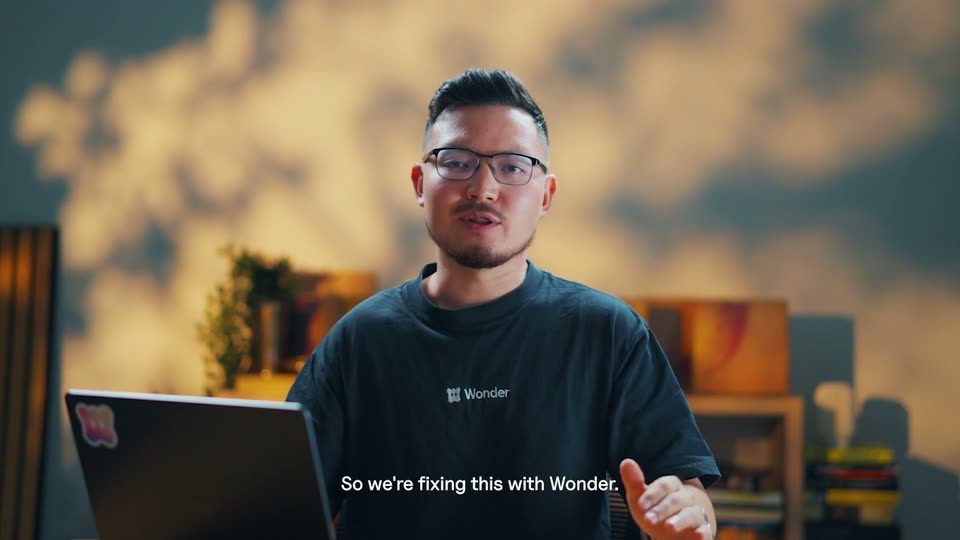
A man in glasses and a dark Wonder t-shirt sits at a desk with an open laptop, speaking to camera and gesturing with his right hand. The warm background shows a plant and bookshelf against a cloud-pattern wall. A white caption appears at the bottom.
On-screen text: “So we're fixing this with Wonder.”
Camera: Static
A man in a black Wonder tee speaks to camera in a warm-lit room, then a browser window with the Wonder interface slides in from the left as he shifts to the right and gestures.
On-screen text: “Let me show you how.”
Techniques: Split screen
Camera: Pull out
A dark app window fills the frame: chat panel left, gallery webpage in a purple selection box center, a man in a black Wonder shirt in a small video inset bottom right. The view zooms into the chat as a cursor opens a model list, then a tools list.
On-screen text: “Let me show you how.”, “Wonder is built on top of your terminal”, “and runs your Claude Code or Codex,”, “so it brings your MCPs and skills automatically.”
Techniques: UI zoom, Cursor demo
Camera: Push in
A dark app window fills the frame with a presenter's video inset in the corner. The cursor hovers over repository options, the view zooms into the chat input as a prompt is typed, then zooms out as the agent renders a dropdown menu component on the canvas.
On-screen text: “You can connect it to your codebase”, “from your folder or GitHub,”, “or start from scratch.”, “Let's say we want to rework”, “the drop-down menu in this dashboard.”, “We can ask the agent to bring”, “the drop-down menu component,”, “and now it will show the full component”, “with all of the states,”, “exactly how it's built in code. Let's wait for it to bring it over. Great! Now that it's done,”
Techniques: Cursor demo, UI zoom
Camera: Pan
A dark design-tool screen shows a variables list, then zooms into a dropdown menu whose rows are outlined in purple as a cursor opens a colour picker. A small rounded video of the presenter stays in the lower-left corner.
On-screen text: “I can see it also imported”, “all of my variables and icons as well.”, “or by using an agent.”, “In this case, let's take out these borders”, “and change the text colour a little bit.”
Techniques: Cursor demo, UI zoom
Camera: Pull out
A dark design-tool interface fills the frame, an open account dropdown centered between a chat panel and a properties panel. A small inset video of a man in glasses sits bottom right, a cursor hovers below the menu, and a subtitle appears at the bottom.
On-screen text: “If you want to use your agent,”
Techniques: Cursor demo
Camera: Pull out
Locked-off screen of a dark design app: left chat panel, center canvas with a purple-outlined account dropdown, right properties panel, and a small webcam feed of a man bottom right. The cursor points at the dropdown while menu rows vanish and the user types a prompt.
On-screen text: “If you want to use your agent,”, “just point at anything on the canvas”, “and now you can select it as context.”, “Now I can select the changes”, “and ask Wonder to implement it”, “in my actual app.”
Techniques: Cursor demo
Camera: Push in
A dark Wonder editor fills the frame as a photo gallery app preview loads on the center canvas, white subtitles along the bottom. A cursor opens the account dropdown and drags a selection box over a card, while a small presenter video slides from bottom-right to bottom-left.
On-screen text: “I'll just click play”, “and it will show my app right on the canvas.”, “Now I can continue working with it”, “to fine-tune the interactions”, “and see exactly how it feels.”, “And the best part,”, “I can continue editing real code”, “just like a Figma file.”, “If at any point I want to take anything”, “out of my app,, I can always capture it”
Techniques: Cursor demo, UI zoom
Camera: Pull out
A dark app window with chat, canvas and preview panels scales into frame beside a small talking-head video of a bespectacled man at bottom left. The interface zooms between 70, 90 and 50 percent while a cursor points at the gallery preview. White subtitles run along the bottom.
On-screen text: “I can always capture it”, “and get it back to the canvas”, “if I need more flexibility.”
Techniques: UI zoom, Cursor demo
Camera: Pull out
A dark view of the Wonder app shows a chat panel, a demo page with image grids, and a frames panel, with a video-call tile of a man in glasses at the bottom. The viewport eases right onto the demo page as a white caption scales in at the bottom.
On-screen text: “Lastly, you can click share”
Techniques: UI zoom
Camera: Push in
A screen recording of the Wonder tool shows a dark gallery interface. A cursor clicks the purple Publish button in a dialog, loading the published page on the canvas. A presenter sits in a small window at bottom right as white captions narrate.
On-screen text: “Lastly, you can click share”, “and with one click it's now on the canvas”, “for your teammates to see.”
Techniques: Cursor demo
Camera: Pull out
A dark app window pairs an AI chat panel with a gallery design canvas, plus a video tile of a man in glasses at bottom right. The view zooms into the chat as open a pull request is typed and the assistant replies, then pulls back; captions track the voiceover.
On-screen text: “You can now collaborate”, “and when everyone agrees,”, “just type open pull request”, “and your design is now live in code,”, “exactly how you made it.”
Techniques: UI zoom, Cursor demo
Camera: Pull out
A bearded man with glasses in a dark tee speaks in a warm-lit office with slatted wood panels behind him. Small white captions run along the bottom while team logos fade in and out on the left. Oversized white words, Design & ship and much faster, then pop in around his head.
On-screen text: “We gave it to designers from some of the top teams”, “CROSBY”, “Si Steel”, “The Home Depot”, “to use in production.”, “SQUARE”, “Higgsfield”, “And they've been more aligned”, “Design &”, “ship much faster”
Techniques: Kinetic type
Camera: Static
A bespectacled man in a black Wonder tee sits at a laptop, talking to camera against a warm, blurred studio. Oversized white words pop in around his head to read What you design is what you ship, then small captions deliver the launch line as he gestures.
On-screen text: “For the first time,”, “What you design”, “is what you ship”, “The new Wonder is out today.”, “Download it and show us what you build.”
Techniques: Kinetic type
Camera: Pull out
A man in glasses and a dark Wonder tee sits at a desk with a laptop, talking to camera and giving a thumbs-up, set against a warm, blurred home office. A white subtitle line sits at the bottom of the frame.
On-screen text: “Download it and show us what you build.”
Camera: Static
On black, the white Wonder logo and wordmark sit centered. The lockup shrinks as the wordmark fades out, leaving the rounded icon, whose dot eyes blink open then closed as it settles smaller.
On-screen text: “Wonder”
Techniques: Kinetic type
Camera: Static