3:35

Toothy.ai (YC W25)
Toothy AI · Healthcare · Feb 2025
Sennu AI · Jun 2025 · 2:36 · Full motion · AI-annotated
Sennu AI’s 2:36 launch film runs 18 scenes, about 8.7 s each. The product is on screen from the first frame and 3 features are revealed. The call to action lands at 2:02 (79% in), over a voiceover. One continuous screen-recording walkthrough: a static landing page intro, a Jira workflow demo, and a playback of the AI test recording, all anchored by a fixed circular webcam bubble of the founder. Steady hard cuts move between UI states at a measured pace, with a dark caption bar and purple brand accents carrying the visual identity.
Is this your launch? to your site or press kit.
Toothy AI · Healthcare · Feb 2025
Google · AI · Jun 2011
A static Sennu landing page fills the frame, showing a purple headline, subhead, and a demo button on a soft gradient. A circular talking-head video of a man sits in the top right corner, gesturing as he speaks. Subtitles roll across the bottom in a dark bar.
On-screen text: “I'm Sriman,”, “co founder of Sennu.ai”, “We built an AI QA engineer for Salesforce.”, “With our product,”, “you can cut down your Salesforce testing time to”, “just minutes.”, “Let me show how it works.”
Camera: Static
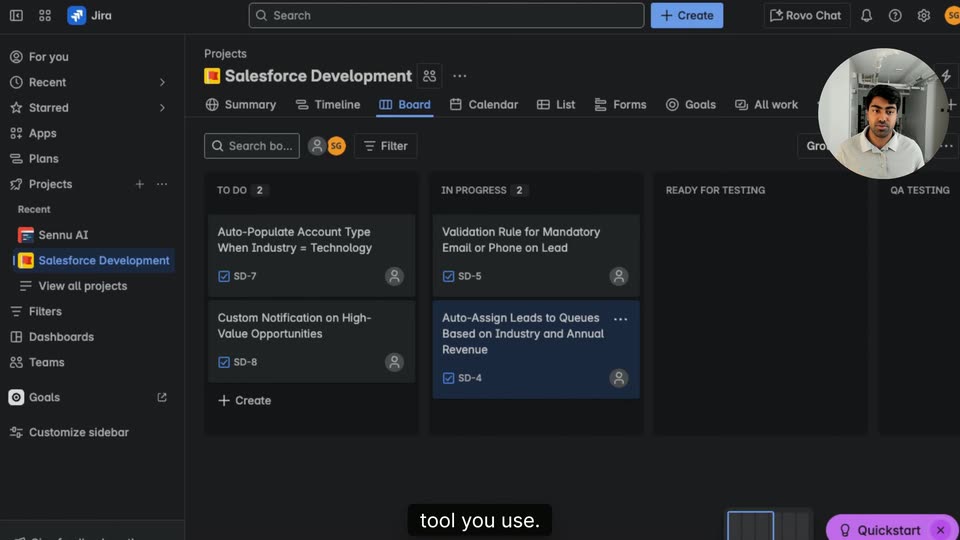
A dark Jira board fills the screen, showing To Do and In Progress columns with task cards, while a circular webcam feed of a presenter sits top right. A mouse cursor drifts across the cards, and a caption bar at the bottom updates with narration text.
On-screen text: “We connect directly to your JIRA or any other PM tool you use”, “Here we have an example user story”
Techniques: Cursor demo
Camera: Static
A dark Jira board displays a Kanban layout with a video call avatar in the top corner and a cursor over a card. The view then reframes to an open issue, showing its description on the left and a details panel on the right. A caption sits at the bottom.
On-screen text: “Here we have an example user story”
Techniques: Cursor demo
Camera: Static
A dark Jira epic view fills the screen, its description text scrolling up into place, while a circular video of a presenter sits in the top-right corner and white captions roll along the bottom.
On-screen text: “with the description and requirements.”, “You can simply move this to the Ready for Testing”, “column and our AI QA engineer”
Camera: Static
A dark Jira board fills the frame with a circular webcam feed of a presenter in the top right. A cursor drags the SD-4 task card from the In Progress column into Ready for Testing, then moves to the top left and clicks the refresh icon.
On-screen text: “column and our AI QA engineer”, “will generate all test scenarios for you.”, “So let's refresh the page”
Techniques: Cursor demo
Camera: Static
A mostly blank white screen holds two small mouse cursors near the center. A circular webcam inset in the top right shows a man in a light polo shirt against an unfinished room. The frame stays static for the brief clip.
Techniques: Cursor demo
Camera: Static
A dark Jira board for the Salesforce Development project loads, task cards filling its columns, then pans right toward the QA TESTING column. A circular webcam of the presenter stays top right. The cursor hovers the SD-4 card, highlighting it blue, as a caption appears at the bottom.
On-screen text: “and the tickets been moved to QA testing.”
Techniques: Cursor demo
Camera: Static
A dark Jira board with four columns sits behind a dimmed overlay showing a loading panel labeled SD-4 with gray placeholder bars. A cursor drifts across the center while a circular webcam of a man in a white polo stays fixed in the top right corner.
Techniques: Cursor demo
Camera: Static
A dark Jira ticket fills the screen with a circular webcam of the presenter top right. The comment panel scrolls through AI-generated test scenarios, the cursor clicks a thumbs-up reaction, then the comment swaps to a test execution report listing passed and failed results. Subtitles run along the bottom.
On-screen text: “So now you can see that we have generated 13 test”, “scenarios based on the requirements in this”, “ticket. And now we can simply review these test scenarios,”, “make sure that everything is accurate, and if you want,”, “you can even add your own test scenarios into this”, “comment. Once everything looks good, you”, “just give it a thumbs up”, “and our automation will kick off.”, “It's been 15 minutes and all the tests have”, “finished executing. And here are what the results look like. So we have a summary of the test results where we have 12 tests that passed and then one test that”
Techniques: Cursor demo
Camera: Pull out
A dark interface fills the frame with a small circular webcam feed of a man in the top right corner. A mouse cursor rests at the left, and a white caption bar reads the narration at the bottom.
On-screen text: “that we can view here of how the AI QA engineer”
Camera: Static
A blank white video player fills the frame, with a circular webcam feed of a man in the top right corner and a playback bar at the bottom. A single caption line runs across the lower edge. The frame stays locked off as the player sits at the start of a clip.
On-screen text: “that we can view here of how the AI QA engineer”
Camera: Static
A locked-off screen recording shows a Salesforce login form with an empty, focused username field on the left and a circular webcam feed of a man on the right. A video player bar with a timestamp and a bottom subtitle reading actually works. sit along the lower edge.
On-screen text: “actually works.”
Camera: Static
A static screen capture of a Salesforce login page, with a circular webcam of a presenter in the top right. The username and password fields fill in via typing, and a video-player bar with rolling captions runs along the bottom.
On-screen text: “actually works.”, “So right now it's exactly how human”, “QA Engineer goes into the Salesforce Sandbox”, “environment”, “and just performs the test scenario.”, “Our AI QA engineer does the exact same thing.”
Techniques: Cursor demo
Camera: Static
A near-empty product screen shows a faint loading skeleton along the top and a circular webcam avatar top right. A small white-and-blue 3D robot mascot with a blue “'25” mark pops into the center as the bottom caption bar fades out.
On-screen text: “Our AI QA engineer does the exact same thing.”, “'25”
Camera: Static
A locked-off screen recording of a Seller Home dashboard of stat cards, with a circular video-call bubble of the presenter top right. White subtitles on a black bar run along the bottom while the interface stays still.
On-screen text: “So you can see it just logged in right here”, “and eventually it will create the record”
Camera: Static
A screen capture of a CRM sales view with a lead form modal centered, fields filled with test data. A circular webcam of a presenter sits top right and a mouse cursor moves over the form. A player bar with a caption runs along the bottom.
On-screen text: “and eventually it will create the record”, “and then verify what”
Techniques: Cursor demo
Camera: Static
A static screen recording of a Salesforce Lead record page. The mouse cursor drifts over the Lead Owner and Company fields while a circular webcam inset of a man speaking sits in the top right corner. Subtitles roll along the bottom.
On-screen text: “and then verify what”, “the lead owner is.”, “In this case,”, “make sure it's the right queue.”, “The benefit of using this AI QA approach is”, “there's no more need for any Selenium code,”, “There's no need to set up any no code tools,”, “and there's definitely no need for any manual”, “There's just no setup at all actually.”, “You just give a user story and the AI QA engineer will execute any test scenarios based on that.”
Techniques: Cursor demo
Camera: Static
A dark project interface shows a test-results thread and a details panel, with a presenter in a circular video-call window top right. A cursor hovers a Sennu AI link, opening a Copy link tooltip, as subtitles run along the bottom.
On-screen text: “And for full details on all the steps done and for”, “test coverage statistics and”, “for any more information,”, “you can go to this link right here for each test”, “where the full details will be shown.”, “And the cool thing about our platform here is that”, “for every single test that you actually create”, “using this method,”, “we actually save it for regression testing.”, “So in the future you can run this without having to write any regression tests of your own. If you want to cut down your Salesforce testing time from hours to”
Techniques: Cursor demo
Camera: Static