
0:50
Explore
00:00:00 / 01:57:20
- Length
- 1:57
- Scenes
- 14 · 8.4 s avg
- Product on screen
- 0:00
- Features shown
- 3
- Call to action
- 1:41 · 86%
- Voiceover
- Yes
- Views
- 485 on YouTube
as of November 24, 2026
Rulebase’s 1:57 launch film runs 14 scenes, about 8.4 s each. The product is on screen from the first frame and 3 features are revealed. The call to action lands at 1:41 (86% in), over a voiceover. The video alternates a founder talking head against a blurred office with flat, near-white UI mockups, moving from a guide setup walkthrough to a simulated phone call with checkmark benefit lists. Signature moves are word-by-word text reveals, green checkmark bullets, and black arrows that tie captions to the app panel.
Footage neededEstimated needs: 4 capture groups — your screens or recordings · 2 filmed passages — shoot, supply or replace
Is this your launch? to your site or press kit.
More like this

1:55

Replit Desktop | Agent meets your work where it already is
Replit · Developer tools · Nov 2026
3:59


Claude 3 Opus as an economic analyst
Anthropic · AI · Mar 2024
Beam - The real-time copilot for customer service agents., scene by scene
· 14 scenes as text
01 · Product intro · 0:00–0:32
A man in a black sweater speaks to the camera, centered against a blurred office wall with a warm lamp glow at upper left. A white lower-third caption with his name and title fades in at the start and out by the fifth second.
On-screen text: “Chidi Williams”, “Co-founder, Rulebase”
Camera: Static
02 · Feature reveal · 0:32–0:33
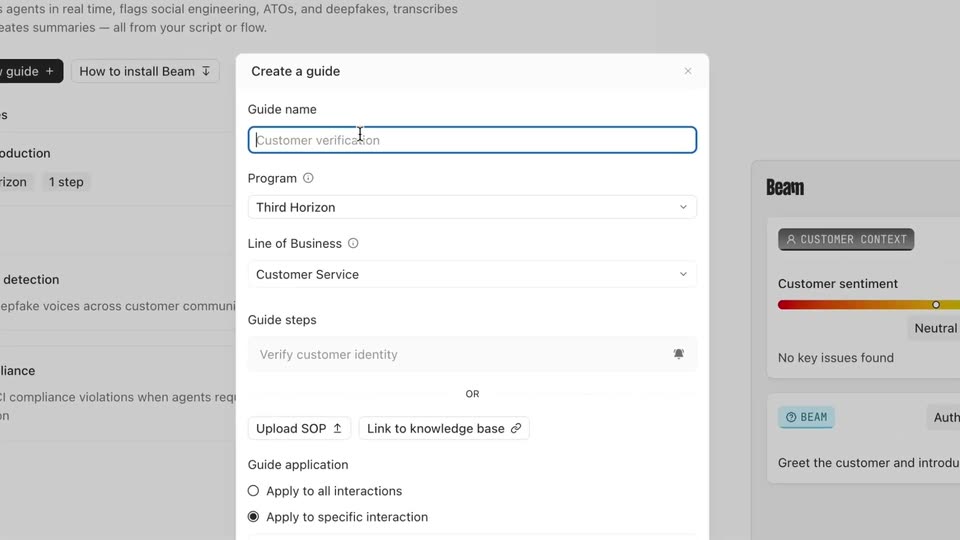
A dimmed settings page sits behind an open Create a guide modal. The view zooms in on the modal as a guide name field types Customer verification. A right-hand panel shows a live call mockup with risk, sentiment and authentication labels.
Techniques: UI zoom
Camera: Push in
03 · Feature reveal · 0:33–0:35
A white modal form, Create a guide, fills in as a cursor types the guide name, ticks a radio button, and reveals a link field. A dimmed Beam dashboard with a sentiment bar sits behind.
Techniques: Cursor demo
Camera: Pan
04 · Feature reveal · 0:35–0:38
A modal titled 'Link to knowledge base' sits over a dimmed form. A cursor types a URL into the input field, then clicks the 'Generate steps' button, which switches to a loading spinner.
Techniques: Cursor demo
Camera: Static
05 · Feature reveal · 0:38–0:39
A white settings modal fills the center of the Beam dashboard, listing guide steps, upload and link buttons, and a selected radio for a specific interaction. A dimmed list sits left, a customer context card with a red-to-yellow sentiment bar sits right, and a black cursor hovers in the panel.
Techniques: Cursor demo
Camera: Static
06 · Feature reveal · 0:39–0:42
A white settings panel in a support app lists guide steps with bell icons. A cursor moves down the list and hovers over an icon, revealing a tooltip, as the view zooms in on the steps.
Techniques: Cursor demo, UI zoom
Camera: Static
07 · Feature reveal · 0:42–0:44
A settings modal is cropped tight as a cursor types a one-line trigger into the specific-interaction field, then moves to the Save guide button and clicks. The frame pulls back to the full Beam dashboard, with guide toggles on the left and a live call-risk panel on the right.
Techniques: Cursor demo, UI zoom
Camera: Pull out
08 · Feature reveal · 0:44–0:45
A settings screen for a real-time co-pilot lists active guides and capability toggles on the left beside a live call context panel on the right. A cursor appears near the bottom edge while the interface holds still.
Camera: Static
09 · Other · 0:45–0:59
A flat Beam app window sits on the left with a customer sentiment slider and a verification checklist, while five benefit lines with green checkmarks fade in word by word down the right side.
On-screen text: “Takes a few seconds to get started”, “Integrates with your CX and CCaaS tools”, “Real-time agent coaching and QA”, “Flags compliance and fraud risks like social engineering and account takeovers”, “Prepares pre- and post-call context and summaries”
Techniques: Kinetic type
Camera: Static
10 · Feature reveal · 0:59–1:00
A flat Beam app window with a customer-context card and a red-to-green sentiment bar sits left of a five-point benefit list with green checkmarks. The panel and list clear, leaving a circular photo of a bearded man holding a phone to his ear on a white field.
On-screen text: “Takes a few seconds to get started”, “Integrates with your CX and CCaaS tools”, “Real-time agent coaching and QA”, “Flags compliance and fraud risks like social engineering and account takeovers”, “Prepares pre- and post-call context and summaries”
Camera: Static
11 · Feature reveal · 1:00–1:28
A flat Beam window sits between a bearded customer on the left and a headset agent on the right. A sentiment card and an authentication checklist fill the window in turn, while captions and top headlines, linked by a black arrow, track the call.
On-screen text: “Beam summarizes previous conversations to help the agent understand why a customer may be calling”, “Hi, this is Maya from Third Horizon Bank.”, “I see you recently reached out about increasing your credit limit — I'd be happy to help you with that.”, “Oh... yes, thank you, I submitted my pay stub two days ago and haven't heard anything.”, “Just wanted to check.”, “Beam catches the reference to the request and reminds the agent to verify before proceeding”, “Of course, before we continue, can I confirm the last four digits of your Social Security number and your ZIP code?”, “Beam continues to guide the agent throughout customer authentication”, “Sure it's 1234 and 19900.”
Camera: Static
12 · Feature reveal · 1:28–1:41
On the right, a Beam call window shows a red High risk banner and a suspicious-caller caution box. On the left, three benefit lines with green checkmarks type in sequentially, each appearing word by word.
On-screen text: “Lowers Average Handling Time”, “Flags missing authentication in real-time”, “Detects deepfakes and other suspicious behavior”
Techniques: Kinetic type
Camera: Static
13 · CTA · 1:41–1:50
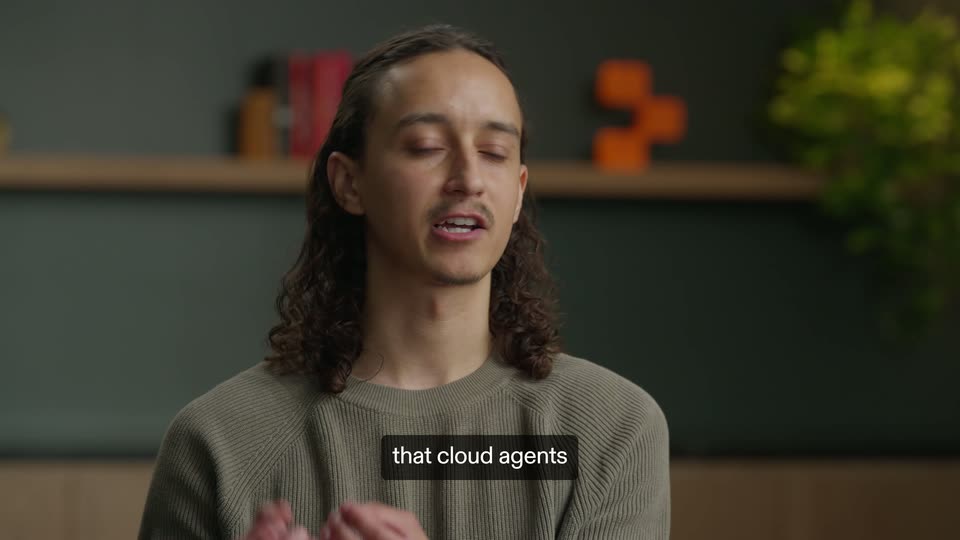
A man in a dark waffle-knit sweater faces the camera in a medium close-up, speaking steadily. The background is a blurred bright interior with a soft lamp glow top left and a small blue-and-red print on the left wall. The framing stays fixed throughout.
Camera: Static
14 · CTA · 1:50–1:57
On a near-black background, the phrase Get started at fades in word by word at center, then shrinks and moves up as the URL rulebase.co/beam scales in below it in large bold white. The lockup holds, then the frame fades to white.
On-screen text: “Get started at”, “rulebase.co/beam”
Techniques: Kinetic type
Camera: Static