1:55
Explore
Qwen - Cowork: Any role, build beyond
Qwen · Aug 2026 · 1:30 · AI-annotated
- Length
- 1:30
- Scenes
- 41 · 2.2 s avg
- Product on screen
- 0:05
- Features shown
- 10
- Voiceover
- No
00:00:00 / 01:30:03
Qwen’s 1:30 launch film runs 41 scenes, about 2.2 s each. The product shows up at 0:05 and 10 features are revealed. There is no explicit call to action. The film runs as a question, a product name, then a rapid relay of ten role prompts, each typed into a centered white card and morphing into a finished interface. Its signature moves are the camera push from prompt to full dashboard, the 3D card collages on pale fields, and the blue accent that ties every demo together.
No filming indicatedEstimated needs: 10 capture groups — your screens or recordings · 1 official logo — reused across the film · 2 graphic passages — draw or supply · 5 3D passages — build or supply
Is this your launch? to your site or press kit.
More like this

Qwen - Cowork: Any role, build beyond, scene by scene
· 41 scenes as text
01 · Hook · 0:00–0:00
On a pale off-white background, small gray outline icons fade in and drift into a loose cluster. The marks include a document, a device, code brackets, a drafting compass, and a layout sheet, with some icons appearing faint before sharpening.
Camera: Static
02 · Hook · 0:00–0:02
A pale gray field holds the centered headline “What if” surrounded by a loose ring of thin line icons. The phrase swaps to “any industry could,” then “achieve the unexpected?” with key words in blue, while small job titles fade in beside each icon.
On-screen text: “What if”, “any industry could”, “achieve the unexpected?”, “Corporate Compliance Lawyer”, “Restaurant Brand Manager”, “Structural Engineer”, “Sports Data Analyst”, “Full Stack Engineer”, “Curriculum Developer”, “Financial Analyst”
Techniques: Kinetic type
Camera: Static
03 · Hook · 0:02–0:05
A centered headline, achieve the unexpected?, in black and blue sits below two interface panels, then vanishes as the camera pulls back to reveal a full grid of floating UI mockups in 3D perspective: a biology slide, a basketball tactical board, and a financial dashboard.
On-screen text: “achieve the unexpected?”
Techniques: 3D mockup, Parallax
Camera: Pull out
04 · Product intro · 0:05–0:08
A collage of dashboard and analytics screens floats in 3D perspective on a light gray field, drifting at different depths, then cuts to the Qwen3.8-Max wordmark scaling in at center.
On-screen text: “Qwen3.8-Max”
Techniques: 3D mockup, Parallax, Kinetic type
Camera: Pull out
05 · Product intro · 0:08–0:10
The product name Qwen3.8-Max sits centered on a plain light gray field and scales up from a small size toward the frame edges. The first part reads in dark gray with a soft offset shadow, while Max is set in blue.
On-screen text: “Qwen3.8-Max”
Techniques: Kinetic type
Camera: Static
06 · Product intro · 0:10–0:11
A centered headline scales up from a small line to full width on a pale lavender background. The words are dark navy, and the final word 'beyond' shifts to a brighter indigo as the type grows.
On-screen text: “Any role, build beyond”
Techniques: Kinetic type
Camera: Static
07 · Feature reveal · 0:11–0:14
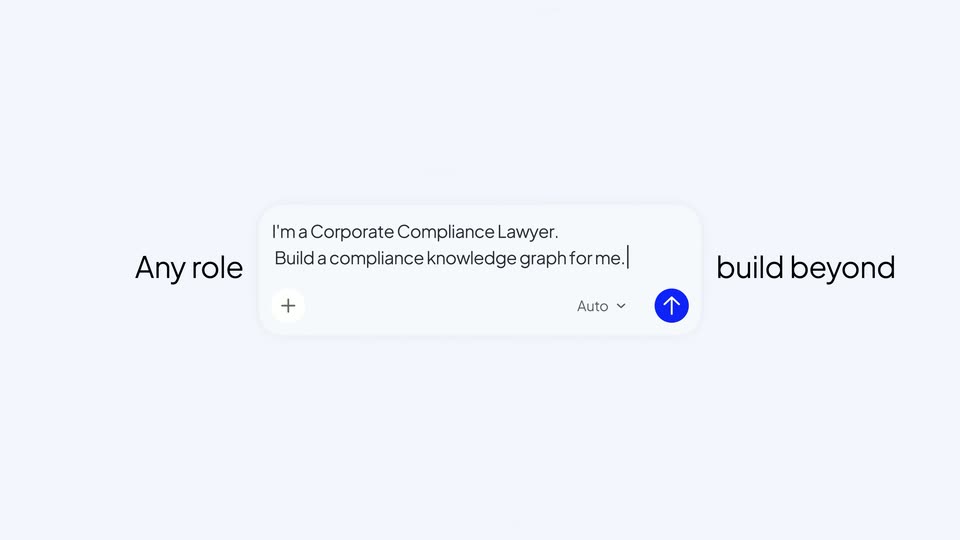
A white rounded chat input box fades and scales in at center while a two-line prompt is typed into it. The labels “Any role” and “build beyond” sit on either side, then fade to light gray once the text is complete.
On-screen text: “Any role”, “build beyond”
Techniques: Kinetic type
Camera: Static
08 · Feature reveal · 0:14–0:15
A centered white prompt card types out a compliance request line by line while thin gray lines draw a network across the pale background. Faint oversized words Any role and build beyond hold at the left and right edges.
On-screen text: “Any role”, “build beyond”
Techniques: Kinetic type
Camera: Static
09 · Feature reveal · 0:15–0:16
A chat prompt card over a node graph reframes outward to reveal the full compliance interface: a left document list, a central network of colored nodes, and a right panel detailing the User Consent gap.
Techniques: UI zoom
Camera: Pull out
10 · Feature reveal · 0:16–0:18
A compliance node-graph dashboard zooms into the central map, pushing the left source list and right detail panel out of frame while node labels enlarge. A cursor hovers near the Sensitive PI node.
Techniques: UI zoom
Camera: Push in
11 · Feature reveal · 0:18–0:22
A network graph of privacy concepts fills a light gray canvas. A cursor hovers over the User Consent node, its connecting edges glow blue while unrelated nodes fade, then the view resets to the full graph.
Techniques: Cursor demo
Camera: Static
12 · Feature reveal · 0:22–0:23
A white chat box over a pale node graph types the prompt “I'm a UI Designer. Build UI prototypes for me”, then dissolves into a side-by-side view of a desktop report window and a phone chat screen.
Techniques: Kinetic type, Split screen
Camera: Pull out
13 · Feature reveal · 0:23–0:25
A light grid of design-system and app-screen cards sits behind a centered chat prompt box. The box types out a request beside an Auto control and a blue send button, while the surrounding card grid drifts slowly downward.
Techniques: Kinetic type
Camera: Pull out
14 · Feature reveal · 0:25–0:27
A design-tool canvas fills the frame with color tokens, type specimens, and four phone mockups of a banking app. A central prompt bar types out a long brief for building the prototype, the box expanding as the text completes.
Techniques: Kinetic type
Camera: Pull out
15 · Feature reveal · 0:27–0:30
A design-system document fills the frame, showing a color palette, typeface list and component grid above a row of four phone screens. The view scrolls down to reveal the labeled flow screens, then zooms in on the Core Flows heading and the first two phones.
Techniques: UI zoom
Camera: Push in
16 · Feature reveal · 0:30–0:33
A blue headline and gray subline sit on a pale background. A dark menu interface panel slides up from the bottom, covering the headline, then the view zooms into the dish cards as a cursor hovers a View Ingredients button.
On-screen text: “Restaurant Brand Manager”, “Create dynamic menus featuring ingredient sourcing and calorie calculation”
Techniques: Cursor demo, UI zoom
Camera: Pull out
17 · Feature reveal · 0:33–0:35
A dark product card for Warm Sourdough and Cultured Butter slides in from the right, covering a white Nocellara Olives card that exits left. The card settles centered, showing a 456 kcal figure, a macro bar, an ingredient table, a green 100 LOCAL ring, and stat tiles.
Camera: Push in
18 · Feature reveal · 0:35–0:36
A blueprint floor plan with a top tab bar fills the left side and slowly zooms in, its corner number growing; a slim side panel slides in at the plan's right edge. A blue headline and gray body copy sit on the right.
On-screen text: “Structural Engineer”, “Preview lightweight 30-story office building seismic structure model directly in the brow”
Techniques: UI zoom
Camera: Static
19 · Feature reveal · 0:36–0:39
A cream two-page technical sheet: left, a gridded floor plan around a hatched core; right, a 3D perspective tower model among wireframe context blocks. A header bar with model name and seismic figures, plus a footer status bar, fade in at the top and bottom while the drawings hold still.
Techniques: 3D mockup
Camera: Pull out
20 · Feature reveal · 0:39–0:41
A dark app screen showing a 3D muscle-and-bone leg model scales up at center on a pale background. Blue 'Rehabilitation Therapist' text on the left and a gray caption on the right fade in around it.
On-screen text: “Rehabilitation Therapist”, “Generate 3D rehabilitation exercise demos to replace traditional paper instructions”
Camera: Static
21 · Feature reveal · 0:41–0:43
A dark app window titled Anatomical Motion Studio fills the frame, with a 3D quadriceps figure centered between a program list and an anatomy panel. A cursor moves into the range-of-motion panel as the angle readout ticks up from 7 to 11 degrees.
Techniques: Cursor demo
Camera: Static
22 · Feature reveal · 0:43–0:47
A flat anatomy-courseware app UI on a dark background. A centered prompt box types a two-line sentence with a blinking caret, then the text is replaced by a longer paragraph. Behind it, a 3D leg model loops a motion in the main panel.
Techniques: Cursor demo, Kinetic type
Camera: Static
23 · Feature reveal · 0:47–0:48
A tilted 3D view of the Anatomical Motion Studio interface centers a white prompt box with gray text and a blue arrow button. The camera zooms in and pans right as a Cells & Tissues card with a red femur diagram appears on the right.
Techniques: 3D mockup, UI zoom
Camera: Pull out
24 · Feature reveal · 0:48–0:49
A dark curriculum screen holds a top tab bar with Biology highlighted. On the left, an outlined 01, the chapter title and a short paragraph resolve from a brief overlapping ghost into clean type. On the right, a framed anterior-thigh muscle diagram stays static.
Camera: Static
25 · Feature reveal · 0:49–0:49
A flat dark curriculum screen showing the Biology chapter tilts and recedes into a 3D perspective card as its content swaps to the Geography chapter, which pairs a heading with a phone mockup of a mountain landscape.
Techniques: 3D mockup
Camera: Pull out
26 · Feature reveal · 0:49–0:52
A dark title card reading 02 Geography sits at the center of a 3D grid of white slide mockups. It then slides left while the four surrounding slides reposition into a clean two-by-two layout, revealing their full titles.
Techniques: 3D mockup
Camera: Pan
27 · Feature reveal · 0:52–0:52
A pale gray field of white slide thumbnails drifts slowly, two larger dark section cards reading 04 Math and 03 Chemistry sit near the center. The cards shift at slightly different speeds, giving the collage a gentle depth.
Techniques: Parallax
Camera: Static
28 · Feature reveal · 0:52–0:54
A scattered collage of document slides holds still on a light gray field, white and dark cards overlapping with soft drop shadows. The pages carry math and chemistry content, two large dark title cards reading 04 Math and 03 Chemistry anchoring the center.
Camera: Static
29 · Feature reveal · 0:54–0:55
A collage of white and navy slide mockups on a light gray field; the white cards fade out as the two navy chapter cards slide toward the center, enlarge, and merge into a single full-frame card.
Techniques: UI zoom, Morph
Camera: Static
30 · Feature reveal · 0:55–0:56
A blue headline and gray subtitle sit above a dark live-scoreboard card on a pale background. The away score counts up to 15 with rolling digits while the win-probability bar fills to a 62/38 blue-red split. A slow push-in scales the whole layout.
On-screen text: “Sports Data Analyst”, “Turn spreadsheet data into dynamic tactical briefs with player trajectories”
Camera: Static
31 · Feature reveal · 0:56–1:01
A dark basketball analytics dashboard floats on a light background. The score ticks up and blue and red player dots glide across the half-court tactical board as the win-probability bar shifts. The view then reframes onto the top score bar.
On-screen text: “Turn broadcast data into dynamic tactical boards with player trajectories”
Techniques: UI zoom
Camera: Push in
32 · Feature reveal · 1:01–1:03
A white prompt card holding the typed line about a Commercial Operations Director floats centered over a product dashboard. Behind it, the interface regenerates from a franchise roadmap into a league commercial roadmap, adding a stat banner and a list of budgeted workstream bars.
Camera: Pan
33 · Feature reveal · 1:03–1:06
A white prompt box floats over a league dashboard while its instruction text scrolls and updates. The send button switches to a loading arrow, then the view pulls back to reveal the full roadmap: stacked workstream bars and a color heatmap.
Techniques: UI zoom
Camera: Pull out
34 · Feature reveal · 1:06–1:09
A league analytics dashboard with revenue stats and a roadmap fills the frame. The view then zooms into the Gameday & Marketing Heatmap card, its orange intensity grid and caption expanding to fill the screen.
Techniques: UI zoom
Camera: Pull out
35 · Feature reveal · 1:09–1:16
A red-and-green stock heatmap card rotates in 3D beside the blue title “Financial Analyst”, then the frame opens into a full Ridgeline equity dashboard that scrolls down, ending on a white prompt box where a message types out.
On-screen text: “Financial Analyst”, “Build programable financial dashboards with real-time curve redrawing”, “I'm a Full Stack Engineer. Build product”
Techniques: 3D mockup, Kinetic type
Camera: Pull out
36 · Feature reveal · 1:16–1:18
A beige financial dashboard of sector tables and contribution bar charts fills the frame. A white rounded prompt card floats centered in front, its text set with a blinking caret, a plus icon, an Auto dropdown and a blue up-arrow button.
On-screen text: “I'm a Full Stack Engineer. Build production-ready apps for me.”
Camera: Static
37 · Feature reveal · 1:18–1:20
A white rounded chat card floats over a pale background with a faint green trend line. Text types itself into the card in overlapping lines, and the card footer shows a plus icon, an Auto dropdown, and a blue circular send button.
Camera: Static
38 · Feature reveal · 1:20–1:23
A finance dashboard crossfades from a stacked title card into a clean overview view, then a code editor window slides over the left half while line and bar charts remain visible.
Camera: Push in
39 · Feature reveal · 1:23–1:25
A floating code editor window slides left off the screen, revealing a financial dashboard with line and bar charts.
Camera: Pan
40 · Outro · 1:25–1:27
On a pale lavender background, the centered headline “Build anything” holds still, “Build” in blue and “anything” in gray. The letters then blur and collapse into a blue angular logo mark at the center as the text fades out.
On-screen text: “Build anything”
Techniques: Morph
Camera: Static
41 · Outro · 1:27–1:30
A blue three-part geometric mark beside a black Qwen wordmark sits centered on a pale lavender field, easing from a soft blur into a crisp locked-off sign-off.
Camera: Static