1:17
Explore
Shensi Ding - Introducing Merge’s Universal Context Layer. It substantially decre
Merge · Sep 2026 · 1:23 · AI-annotated
- Length
- 1:23
- Scenes
- 42 · 2.0 s avg
- Product on screen
- 0:04
- Features shown
- 1
- Voiceover
- Yes
00:00:00 / 01:23:14
Merge’s 1:23 launch film runs 42 scenes, about 2.0 s each. The product shows up at 0:04 and 1 feature is revealed. There is no explicit call to action; a voiceover carries the film. A calm, confident launch film that alternates a live-action host on a warm wood-slat set with clean beige motion graphics and 3D UI mockups, moving from a problem statement to a product intro, a side-by-side tool demo, a how-it-works deep dive and a closing tagline. Its signature moves are line-by-line headline builds framed by selection handles, cards that blur into focus on a faint grid, green glow accents and 3D perspective pushes into interface screens.
Footage neededEstimated needs: 3 capture groups — your screens or recordings · 1 official logo — reused across the film · 6 filmed passages — shoot, supply or replace · 3 graphic passages — draw or supply · 7 3D passages — build or supply
Is this your launch? to your site or press kit.
More like this





Shensi Ding - Introducing Merge’s Universal Context Layer. It substantially decre, scene by scene
· 42 scenes as text
01 · Problem · 0:00–0:04
A woman in a black shirt sits on a couch before a wood-slat wall with two framed abstract prints. To her right, white headline text builds the sentence in two-line groups, each second line larger and briefly boxed with selection handles. A dark caption pill at the bottom mirrors the same phrase.
On-screen text: “Most of what”, “your company”, “spends on”, “AI goes”, “to figuring out things”, “you already know.”
Techniques: Kinetic type, Masking
Camera: Push in
02 · Product intro · 0:04–0:06
A woman in a black top sits before a wood-slat wall with two abstract paintings. On the right, the MERGE logo appears inside a UI selection box with corner handles, then the box and logo clear and large white words “that changes.” fill the space.
On-screen text: “With Merge, that changes.”, “that changes.”
Techniques: Kinetic type
Camera: Push in
03 · Product intro · 0:06–0:09
A soft beige gradient field. The MERGE lockup, a dark Y mark in a light circle beside the wordmark, resolves from blur above a thin rule and the title Universal Context Layer. The frame pushes in on the lockup. Bottom captions read Introducing the, then Universal Context Layer.
On-screen text: “Introducing the”, “Universal Context Layer”
Camera: Static
04 · Product intro · 0:09–0:11
A white pill button labeled Connect slides to the center of a soft beige gradient. A cursor clicks it, the button glows green, and a green beam shoots left. A bottom caption pill swaps from Universal Context Layer to It turns your team's knowledge, then and skills.
On-screen text: “Universal Context Layer”, “It turns your team's knowledge”, “and skills”
Techniques: 3D mockup, Cursor demo, Light sweep
Camera: Static
05 · Product intro · 0:11–0:12
A grid of rounded tiles with gray app icons fills a pale background; several tiles flash green and yellow, then fade as a large translucent rounded rectangle scales in over the center. A black caption pill at the bottom cycles through the voiceover words.
On-screen text: “and skills”, “into a company”, “brain”
Camera: Pull out
06 · Product intro · 0:12–0:15
On a cream background with a faint gray grid, the phrase works with any AI tool or agent builds up, AI and Agent in light-green chips. A cursor arrow drifts to the Agent chip as the other words fade lighter. A dark caption pill at the bottom swaps its line.
On-screen text: “works with any AI tool or Agent”, “that works with any”, “AI tool or agent.”, “Let's say you're asking”
Techniques: Kinetic type
Camera: Static
07 · Demo · 0:15–0:16
A woman in a black shirt sits on a cream sofa before a wood-slat wall with two coral abstract canvases, smiling to camera. A thin UI bar graphic expands across her chest from a small pill, and a headline about AI tools slides in over her.
On-screen text: “Let's say you're asking”, “works with any”, “AI tool or”, “Al tool or agent.”, “Agent”
Techniques: Morph, Kinetic type
Camera: Pull out
08 · Demo · 0:16–0:19
A woman in a black shirt sits on a beige sofa before a slatted wood wall and two orange abstract canvases. A translucent ask bar floats in front of her as the question types itself out, then a mouse cursor slides in and rests on the white send button.
On-screen text: “Let's say you're asking”, “what your customers are upset”, “about this week,”, “and two different tools.”
Techniques: Cursor demo
Camera: Push in
09 · Demo · 0:19–0:19
A tight crop of two interface panels pulls back to a side-by-side layout. The left card holds a Claude chat window with an icon sidebar; the right stacks two tool pills, one Claude, one with a black logo. A dark caption pill sits at the bottom.
On-screen text: “and two different tools.”
Techniques: UI zoom, Split screen
Camera: Pull out
10 · Demo · 0:19–0:20
Two panels sit side by side. The left dark card scales up to reveal the Claude interface with its icon sidebar and input field. The right beige panel shifts from two tool pills to a chat thread with a question and a long answer.
On-screen text: “and two different tools.”
Techniques: Split screen, UI zoom
Camera: Pull out
11 · Demo · 0:20–0:21
A white chat window floats in 3D perspective over a dark field of wavy contour lines. A message bubble at top right asks which customers were upset, an orange Pondering marker sits center, and a black caption box reads at the bottom as the window eases slightly larger.
On-screen text: “The one on the left has to go”
Techniques: 3D mockup
Camera: Push in
12 · Demo · 0:21–0:27
A light chat interface shows a question bubble, then status lines appear under a spinning icon. The answer text types in as a bulleted list, and dark caption pills at the bottom swap phrases. At the end, the window is framed on a dark patterned background.
On-screen text: “The one on the left has to go”, “get everything”, “Call after call”, “Stuffing up the context window”, “and lowering accuracy.”
Camera: Pull out
13 · Demo · 0:27–0:28
A dark-themed chat window with a bulleted summary fills the frame. A vertical wipe then opens from the center, revealing a light-themed chat window on the right so the two product screens sit side by side.
On-screen text: “and lowering accuracy.”, “The one on the right already”
Techniques: Masking, Split screen
Camera: Static
14 · Demo · 0:28–0:34
Two chat panels split the frame, then the dark left one slides off as the light chat fills the screen, logging steps across HubSpot, Zendesk and Slack before answering and attaching a CSV card. The UI blurs as a giant white Skills Library title and a tilted 3D card enter.
On-screen text: “The one on the right already has your company indexed, so it searches across all of it at once. It comes back”, “Skills Library”
Techniques: Split screen, UI zoom, 3D mockup
Camera: Push in
15 · Demo · 0:34–0:35
Three colored report cards (orange, blue, purple) sit under a large white 'Skills Library' title on a green gradient. They begin blurred and snap into focus as a cursor points at the middle card, while a bottom caption pill reads 'it comes back' then 'with the information'.
On-screen text: “Skills Library”, “it comes back”, “with the information”
Techniques: Cursor demo
Camera: Pull out
16 · Demo · 0:35–0:35
A cursor drags the white Customer Feedback Summary card up to the front of a three-card row, while the orange and purple cards fade back against a pale green field with a faded Skills Library title. A dark caption at the bottom reads with the information, then prioritized.
On-screen text: “Skills Library”, “with the information”, “prioritized.”
Techniques: Cursor demo
Camera: Static
17 · Feature reveal · 0:35–0:37
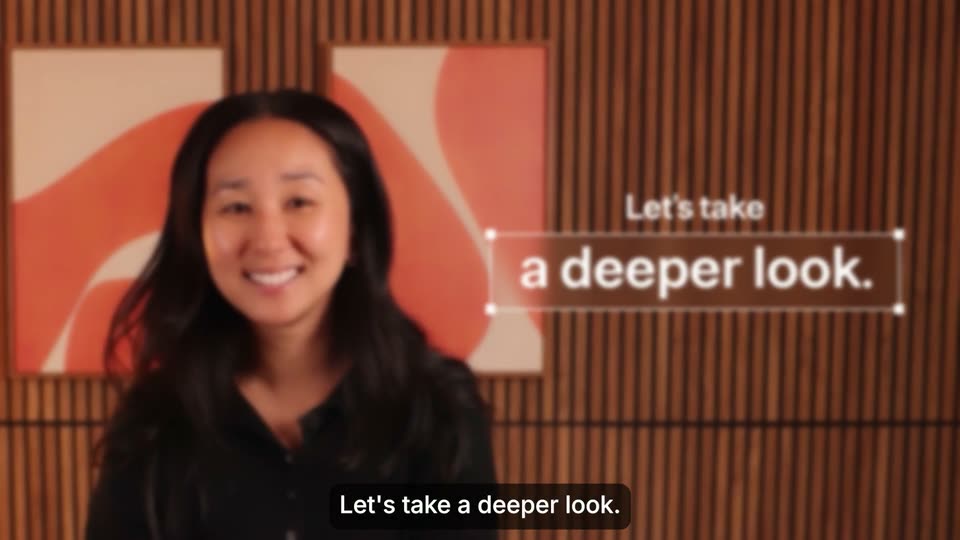
A woman in black stands before a wood-slat wall with two framed abstract prints, smiling and gesturing. White text 'Let's take a deeper look.' appears on the right inside a selection box with corner handles, an orange logo mark beside it. A subtitle repeats the line at the bottom.
On-screen text: “Let's take a deeper look.”, “Let's take”, “a deeper look.”
Camera: Push in
18 · Feature reveal · 0:37–0:38
A small dark logo mark on a light grid background scales up fast into a large gray arc. A white rounded badge with the brand logo and wordmark pops in at center. The bottom caption pill swaps from “Let's take a deeper look.” to “Merge checks.”
On-screen text: “Let's take a deeper look.”, “Merge checks”
Camera: Static
19 · Feature reveal · 0:38–0:39
A beige 3D chip labeled COMPANY KNOWLEDGE BASE sits centered on a pale circuit-board surface. Green traces light up and radiate outward as soft diagonal light bands drift across the frame. A dark pill caption at the bottom reads Merge checks, then your company's memory.
On-screen text: “Merge checks”, “your company's memory,”
Techniques: 3D mockup, Parallax
Camera: Static
20 · Feature reveal · 0:39–0:41
A dark arc spins into the MERGE logo mark on a faint grid, then the wordmark and two menu items, Overview and Dashboard, scale in below it as the background resolves into a blurred product card. The bottom caption swaps from your company's memory, to picks the right skills
On-screen text: “your company's memory,”, “picks the right skills,”
Techniques: UI zoom
Camera: Pull out
21 · Feature reveal · 0:41–0:42
A close-up of a Customer Feedback Summary card comes into focus and centers on screen, highlighted by a green glowing border, while a cursor hovers over its toggle switch. The background remains blurred.
On-screen text: “picks the right skills,”
Techniques: UI zoom, Cursor demo
Camera: Static
22 · Feature reveal · 0:42–0:43
A white Context Layer card fades in over a faint grid, listing a Slack thread, a Notion doc and a Zendesk ticket; dashed connector lines with nodes draw out to the right while a dark caption pill reads pulls from your synced systems, at the bottom.
On-screen text: “pulls from your synced systems,”
Camera: Static
23 · Feature reveal · 0:43–0:45
The Context Layer card fades out as the Context Bundle card fades in and settles on a light grid background, an orange dashed line running from the left edge to a small node. A dark caption pill at the bottom reads pulls from your synced systems.
On-screen text: “pulls from your synced systems,”
Camera: Static
24 · Feature reveal · 0:45–0:46
A green rounded document icon with a folded corner and white text lines sits centered on a pale grid. Bottom captions in a dark pill change from “your systems” to “then returns” to “with just the context” while the icon stays locked off.
On-screen text: “Context Bundle”, “Customer onboarding issues”, “your systems”, “then returns”, “with just the context”
Camera: Static
25 · Feature reveal · 0:46–0:48
A centered chat window sits over a blurred backdrop, out of focus with a loading spinner and the line “Preparing a team status update...”. It snaps sharp to reveal a generated status paragraph, while a dark caption pill at the bottom swaps its text.
On-screen text: “with just the context”, “your agent needs.”
Camera: Pull out
26 · Demo · 0:48–0:49
A flat macOS chat window shows a Slack-style thread: a user prompt and an AI reply ending in a spinning orange loader. A white caption sits over the dock at the bottom. The view is static.
On-screen text: “None of it lives in the tool.”
Camera: Static
27 · Demo · 0:49–0:50
A light chat window and a dark Claude Code terminal sit side by side on a macOS desktop. A white cursor rests in the terminal. A dark caption pill with white text reads at the bottom center. The shot holds still.
On-screen text: “None of it lives in the tool.”
Camera: Push in
28 · Demo · 0:50–0:51
A dark terminal window slides left into frame over a white document panel, its monospace text filling in line by line as the agent runs a search and a git log, ending on an Investigating status line.
Camera: Push in
29 · Demo · 0:51–0:52
A dark terminal window fills the frame, showing a coding agent running commands; the bottom line switches from a “Writing postmortem” status to a green “Done” entry. A white arrow cursor rests at the lower right, with a sliver of a white panel at the left edge.
Camera: Pull out
30 · Demo · 0:52–0:53
A macOS desktop shows a light chat window on the left while a dark terminal window slides in from the right, overlapping it. A row of dock icons sits at the bottom beneath a black caption pill. A cursor hovers at the terminal's top bar.
On-screen text: “It goes with them”
Camera: Pull out
31 · Demo · 0:53–0:54
A Mac desktop screen recording shows a white chat window center-left and a dark terminal window on the right. The chat window switches to an AI assistant view with a sidebar and composer, while a caption pill over the dock updates its text and a cursor drifts nearby.
On-screen text: “It goes with them”, “to any AI assistant”
Camera: Static
32 · Demo · 0:54–1:00
A ChatGPT desktop window types a prompt into the Work tab, then the view zooms into the chat as a dark two-track timeline graphic renders. The window fades to white at the end.
On-screen text: “to any AI assistant”, “or agent your employees use.”, “Running with the same access”, “as the person using it,”
Techniques: UI zoom
Camera: Pull out
33 · Demo · 1:00–1:00
A dark laptop rises into frame in 3D perspective against a deep blue grid, its screen glowing with a dim interface and a row of app icons. White caption text sits centered at the bottom of the black frame.
On-screen text: “as the person using it,”, “As the person working,”
Techniques: 3D mockup
Camera: Static
34 · Demo · 1:00–1:03
A dark blue grid backdrop frames a MacBook in 3D perspective showing the Skills Library screen. The camera zooms in on the screen, reframing to a close-up of the skill cards as the bottom caption switches from “Merge keeps working” to “after your team logs off”.
On-screen text: “Merge keeps working”, “after your team logs off”
Techniques: 3D mockup, UI zoom
Camera: Pull out
35 · Demo · 1:03–1:05
A tablet in 3D perspective shows a Skills Library screen against a dark blue grid with curved light arcs. Three app icons float above it. The view pulls back as a second interface panel stacks below, and bottom captions read creating skills, then they should be using.
On-screen text: “creating skills”, “they should be using.”
Techniques: 3D mockup, Parallax
Camera: Pull out
36 · Demo · 1:05–1:07
A glowing blue orb rests on a faint grid floor, a dark bubble above it ticks down from 93% to 75% as light beams sweep left to right across the frame.
On-screen text: “A routing change that cuts”, “your spend overall”
Techniques: Light sweep
Camera: Static
37 · Demo · 1:07–1:08
On a white field, a blurred dark blue curved band snaps into focus and reshapes into a black two-stroke chevron mark at center. A dark rounded caption pill at the bottom center swaps its text mid-scene.
On-screen text: “your spend overall”, “and by morning it's”
Techniques: Morph
Camera: Static
38 · Demo · 1:08–1:09
On a white background, a black bracket mark sits left of the wordmark MERGE in bold black and Insights in light gray, the second word fading in. The lockup then blurs and zooms out as a transition while a dark caption pill at the bottom carries the voiceover.
On-screen text: “and by morning it's”, “all in one place”
Camera: Static
39 · Demo · 1:09–1:10
A white MERGE Insights card hovers in slight 3D over a cream grid, showing a purple skill-detected row and a green routing row. A black cursor slides up to the black Approve button while a dark caption pill reads all in one place. below.
On-screen text: “all in one place.”
Techniques: 3D mockup, Cursor demo
Camera: Static
40 · Other · 1:10–1:16
A white MERGE Insights approval card blurs and slides off, revealing a woman in a black shirt seated before a wood-slat wall. As she speaks, large white words appear on the right in sync, ending with an 'AI' pill with a sparkle icon.
On-screen text: “Approve these changes”, “Approve these changes,”, “and now your whole company”, “is getting better results”, “from AI than ever before.”
Techniques: Cursor demo, Kinetic type
Camera: Pull out
41 · Other · 1:16–1:21
On a plain beige background with a soft diagonal shadow, large dark-gray words fade in and out in the center: “Universal Context Layer”, “AI assistant”, “and agent.” A small caption pill at the bottom reads the matching phrase. A thick dark letterform sweeps in from the left at the end.
On-screen text: “from AI than ever before.”, “than ever before.”, “One universal context layer”, “Universal Context Layer”, “for every AI assistant”, “AI assistant”, “and agent.”, “and agent that's merge.”
Techniques: Kinetic type
Camera: Static
42 · Outro · 1:21–1:23
A beige background with a diagonal shadow holds 'That's' and 'MERGE' around a white circle carrying the black logo mark. The circle and 'That's' drop away; the mark slides left to lock with 'MERGE' into the brand logo. A dark caption box at the bottom carries the voiceover.
On-screen text: “That's”, “MERGE”, “and agent that's merge.”
Techniques: Morph
Camera: Static