2:21
Explore
Owein - After a year and a half of hustle, I’m proud to introduce MecAgent 2.
MecAgent · Oct 2026 · 2:35 · AI-annotated
- Length
- 2:35
- Scenes
- 69 · 2.3 s avg
- Product on screen
- 0:00
- Features shown
- 12
- Call to action
- 2:28 · 95%
- Voiceover
- No
00:00:00 / 02:35:28
MecAgent’s 2:35 launch film runs 69 scenes, about 2.3 s each. The product is on screen from the first frame and 12 features are revealed. The call to action lands at 2:28 (95% in). The video is built as a feature montage: a logo and name reveal, then a run of feature reveals, each introduced by a scrolling capability list and a two-tone headline and demonstrated in a split screen of the CAD viewport beside a dark chat panel. Pacing is steady at roughly 117 BPM, and the signature moves are blur-in headlines, self-typing prompts, and before/after 3D renders of the helicopter, all on a near-black field with amber accents.
No filming indicatedEstimated needs: 13 capture groups — your screens or recordings · 1 official logo — reused across the film · 1 graphic passage — draw or supply · 7 3D passages — build or supply
Is this your launch? to your site or press kit.
More like this
4:40

New in Raycast AI: Automations, Projects and a new Harness
Raycast · Productivity · Sep 2026
1:06
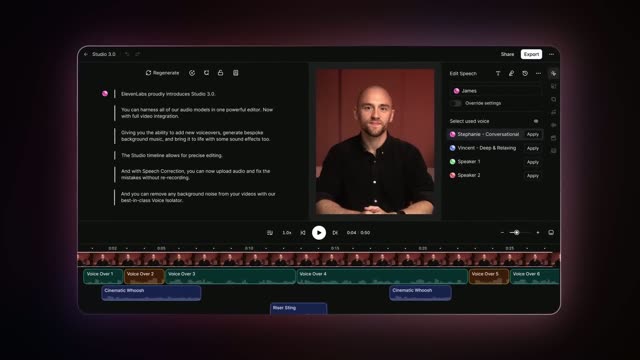

Introducing Studio 3.0 — The Best AI Audio Models in One Editor
ElevenLabs · AI · Sep 2025
Owein - After a year and a half of hustle, I’m proud to introduce MecAgent 2., scene by scene
· 69 scenes as text
01 · Product intro · 0:00–0:01
A white 3D hexagonal cube mark, with a small cube at its upper right, opens as a huge blurred close-up on black, then pulls back and racks into focus to settle centered.
Camera: Static
02 · Product intro · 0:01–0:01
The frame fades in from black to a split screen. On the left, a 3D helicopter model sits in a CAD viewport; on the right, a dark chat panel shows the heading “What would you like to build?” above an input bar.
Techniques: Split screen, 3D mockup
Camera: Static
03 · Product intro · 0:01–0:02
The frame splits between a SOLIDWORKS viewport showing a 3D RC helicopter with an orange body on the left and a dark AI chat panel on the right. The panel, with a cube logo and the prompt 'What would you like to build?', widens as its left edge slides left.
Techniques: Split screen
Camera: Static
04 · Product intro · 0:02–0:04
A white isometric cube logo with a small satellite cube sits centered on black. The mark slides left as the wordmark Mec wipes in from the left to its right.
On-screen text: “Mec”
Techniques: Masking
Camera: Static
05 · Product intro · 0:04–0:07
A white cube logo and the text 'MecAgent' in white with 'V2.0.0' in yellow reveal on a black background. The scene cuts to the text 'AI for' appearing with a motion blur effect.
On-screen text: “MecAgent V2.0.0”, “AI for”
Techniques: Kinetic type, Masking
Camera: Static
06 · Product intro · 0:07–0:09
A white and yellow title reading AI for CAD. is centered on a black background, with a thin horizontal line below it. The text starts slightly blurred and quickly sharpens into a locked-off frame.
On-screen text: “AI for CAD.”
Camera: Static
07 · Demo · 0:09–0:10
On a black field with a faint warm glow at the bottom, the white headline Describe it. scales up from center as the word it. blurs in from the right. A static tagline AI for CAD. holds in the frame.
On-screen text: “AI for CAD.”, “Describe it.”
Techniques: Kinetic type
Camera: Static
08 · Demo · 0:10–0:12
A dark prompt field types out a request line by line while the headline above swaps from “Describe it.” to “Your requirements.” with a blur scale. A dropdown of option rows opens above the input box as the cursor hovers the plus icon.
On-screen text: “Describe it.”, “Your requirements.”
Techniques: Cursor demo, Kinetic type
Camera: Static
09 · Demo · 0:12–0:13
A dark chat composer holds the prompt to create an RC helicopter from a spec. A cursor taps the plus button, an attachment menu opens, then a helicopter photo and a technical spec PDF pop in and settle into the composer as file chips while the menu fades out.
On-screen text: “Your requirements.”
Techniques: Cursor demo
Camera: Static
10 · Demo · 0:13–0:16
A dark screen shows a headline swapping from “Your design rules.” to “Your company context.” then “Pick the right model for the”, while the chat composer below folds its open menus into folder chips and a helicopter photo plus PDF, with a cursor on the model dropdown.
On-screen text: “Your design rules.”, “Your company context.”, “Pick the right model for the”
Techniques: Kinetic type, Cursor demo
Camera: Push in
11 · Demo · 0:16–0:18
A dark chat composer sits beneath the white headline. A cursor drags a slider inside a model-selection popover, cycling the model name, then the popover closes to leave the label beside the yellow send button.
On-screen text: “Pick the right model for the job.”
Techniques: Cursor demo
Camera: Static
12 · Feature reveal · 0:18–0:19
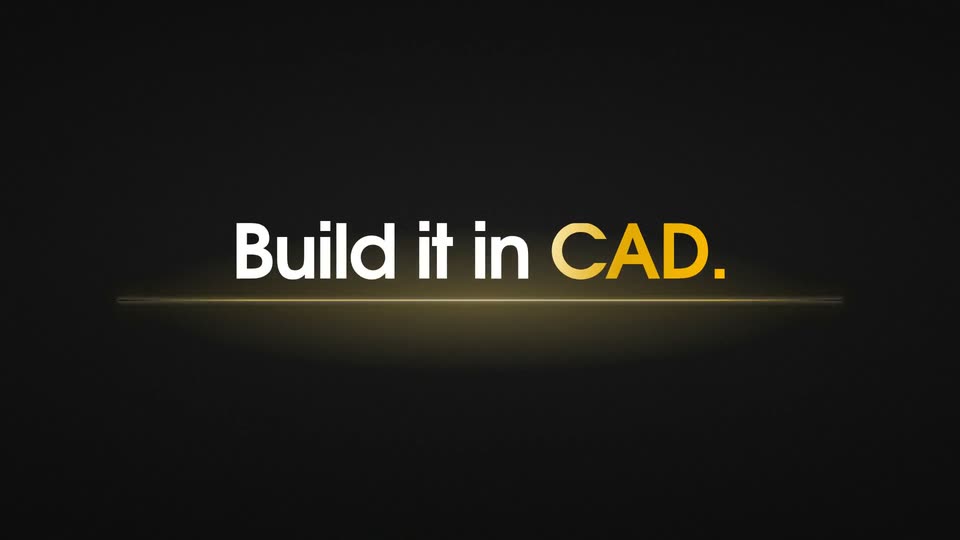
A dark file-browser card fades to black, leaving two thin golden light lines that merge into a single glowing horizontal streak, then dissolve as the centered headline Build it in CAD. fades in.
On-screen text: “Build it in CAD.”
Camera: Static
13 · Feature reveal · 0:19–0:26
A centered tagline 'Build it in CAD.' swaps to a larger 'Spec-to-CAD.' headline, then a split screen opens: SOLIDWORKS on the left builds an RC helicopter from sketch to render while a copilot panel on the right ticks off task steps. The frame blurs out at the end.
On-screen text: “Build it in CAD.”, “Spec-to-CAD.”
Techniques: Kinetic type, Split screen
Camera: Static
14 · Feature reveal · 0:26–0:27
On a black background, a left-aligned heading fades in beside a vertical list of mode labels on the right. The label Spec-to-CAD slides in and brightens to white while the other labels remain dim gray.
On-screen text: “Spec-to-CAD”, “Ask AI to do anything in your CAD software.”, “Text-to-CAD”, “Image-to-CAD”, “CAD → Drawing”, “Drawing → CAD”, “STEP → STEPAP”
Techniques: Kinetic type
Camera: Static
15 · Feature reveal · 0:27–0:31
A dark frame holds the static headline on the left while a feature list scrolls up on the right, a gold box tracking each line. The highlighted line then settles at the top as a centered two-tone headline.
On-screen text: “Ask AI to do anything in your CAD software.”, “In plain English.”, “Design & material application.”
Techniques: Kinetic type
Camera: Static
16 · Feature reveal · 0:31–0:34
A helicopter image card is dragged from the right into a glowing chat input as a prompt is typed, then the view cuts to a full CAD workspace showing the 3D helicopter model beside an AI task panel.
On-screen text: “Design & material application.”
Techniques: Cursor demo
Camera: Static
17 · Feature reveal · 0:34–0:36
A CAD window shows a helicopter model shifting from wireframe to a shaded orange-and-black view, while an AI chat panel on the right streams status updates. A static amber-and-white headline sits above.
On-screen text: “Design & material application.”
Camera: Pan
18 · Feature reveal · 0:36–0:39
A gold-and-white headline caps two side-by-side panels that orbit a 3D helicopter model over a light gray ground. The left shows the untextured black, white and silver model, the right the same model with orange materials, split by a yellow arrow badge.
On-screen text: “Design & material application.”, “BEFORE”, “Black · white · silver”, “AFTER”, “High-speed orange · materials applied”
Techniques: Split screen, 3D mockup
Camera: Static
19 · Feature reveal · 0:39–0:41
A dark screen displays a vertical list of text and two panels featuring a 3D helicopter. The list and panels fade out, revealing a single line, CAD to Drawing, highlighted by a yellow pill shape.
On-screen text: “Design & material application.”, “BEFORE”, “Black·white· silver”, “AFTER”, “High-speed orange · materials applied”, “Standards verification”, “Equations & relations”, “CAD → Drawing”
Techniques: Kinetic type
Camera: Static
20 · Feature reveal · 0:41–0:41
A white and gold headline, CAD → Drawing, sits centered on a dark field. It scales up and rises to the top as a period is added. A dark search bar with a plus icon, Max selector and gold send button fades in below.
On-screen text: “CAD → Drawing.”
Techniques: Kinetic type
Camera: Static
21 · Feature reveal · 0:41–0:42
A dark interface shows the headline CAD to Drawing above a single prompt field. The field's text types out letter by letter into a full sentence, then a gold ring highlights the yellow send button at the right edge.
On-screen text: “CAD → Drawing.”
Camera: Static
22 · Feature reveal · 0:42–0:44
A split-screen pairs a SOLIDWORKS window on the left with a chat panel on the right beneath a top headline. The CAD viewport cuts from a 3D helicopter assembly to a flat 2D part drawing while the chat messages refresh.
On-screen text: “CAD → Drawing.”
Techniques: Split screen
Camera: Static
23 · Feature reveal · 0:44–0:45
Two app windows sit side by side on a dark background. On the left a CAD program renders a technical drawing, lines and dimensions appearing across the sheet. On the right a chat assistant window displays a long instruction text. A headline spans the top.
On-screen text: “CAD → Drawing.”
Techniques: Split screen
Camera: Static
24 · Feature reveal · 0:45–0:47
A split view of the CAD app and a dark chat panel zooms into the white technical drawing sheet, which ends full-frame under a static top headline.
On-screen text: “CAD → Drawing.”
Techniques: Split screen, UI zoom
Camera: Push in
25 · Feature reveal · 0:47–0:49
On a black background, a flat CAD drawing sheet of a hanger hook eases into frame beneath the headline CAD → Drawing., with a caption line below. The sheet shows orthographic views, an isometric model, dimensions and a title block; a Production ready pill sits top-left.
On-screen text: “CAD → Drawing.”, “Views · dimensions · GD&T · title block — one drawing per part”
Camera: Static
26 · Feature reveal · 0:49–0:50
A vertical list of feature names over a faint blueprint scrolls upward as the top line CAD to Drawing fades out. A yellow pill highlights Exploded views at center.
On-screen text: “CAD → Drawing.”, “CAD information retrieval”, “Sheet metal conversion”, “Mass properties”, “DXF nesting”, “Hole callout checks”, “Exploded views”
Techniques: Kinetic type
Camera: Static
27 · Feature reveal · 0:50–0:51
On a near-black background, a small gold-and-white pill label reading 'Exploded views' scales up and rises to the top of the frame as a headline, while a dark ask bar with a placeholder field and a gold send button fades in beneath it.
On-screen text: “Exploded views”, “Exploded views.”
Techniques: Kinetic type
Camera: Static
28 · Feature reveal · 0:51–0:52
A dark textured background holds a two-tone headline, gold “Exploded” and white “views.”, above a prompt bar. Inside the bar the line “Create an exploded view of my assembly” types out left to right beside a plus icon, a Max dropdown and a gold send button.
On-screen text: “Exploded views.”
Techniques: Kinetic type
Camera: Static
29 · Feature reveal · 0:52–0:56
On a dark background, a light gray panel holds a 3D helicopter model that disassembles, its rotor blades, fuselage and landing gear drifting apart into an exploded layout. A static headline reads 'Exploded views.' at the top, with a faint prompt on the left.
On-screen text: “Exploded views.”
Techniques: 3D mockup
Camera: Static
30 · Feature reveal · 0:56–0:58
A dark screen holds the headline “Exploded views.” above a vertical list of feature names, backed by a faint exploded CAD model. The list scrolls upward through a gold pill highlight, ending on “Assembly → Drawing & BOM”, which scales to the center.
On-screen text: “Exploded views.”, “Mates & Constraints”, “Part renaming”, “Bounding boxes”, “Point clouds from CSV”, “Text-to-CAD”, “Assembly → Drawing & BOM”
Techniques: Kinetic type
Camera: Static
31 · Feature reveal · 0:58–0:58
The white-and-gold headline “Assembly → Drawing & BOM.” scales up into the top of a black frame. A dark command bar then fades in below, showing a plus icon, a Max dropdown and a gold send button, its placeholder text clearing to a blinking caret.
On-screen text: “Assembly → Drawing & BOM.”
Techniques: Kinetic type
Camera: Static
32 · Feature reveal · 0:58–1:00
A dark grid backdrop holds a static two-tone headline, Assembly in white and Drawing & BOM. in gold. Below, a centered chat input bar types out a prompt character by character, ending with a blinking caret.
On-screen text: “Assembly → Drawing & BOM.”
Techniques: Kinetic type
Camera: Static
33 · Feature reveal · 1:00–1:02
A SOLIDWORKS window builds a helicopter exploded drawing with balloon numbers and a BOM table while a dark AI copilot panel on the right lists task progress. The view then reframes onto the finished sheet opened in a PDF viewer.
On-screen text: “Assembly → Drawing & BOM.”
Techniques: UI zoom
Camera: Push in
34 · Feature reveal · 1:02–1:04
A flat drone assembly drawing with numbered callouts and a BOM table sits on black under the headline. The view zooms into the BOM, a yellow rounded box outlines a row block, and a yellow caption fades in at the bottom as the MecAgent logo scales in.
On-screen text: “Assembly → Drawing & BOM.”, “Exploded view · balloons · bill of materials”
Techniques: UI zoom
Camera: Push in
35 · Feature reveal · 1:04–1:05
A dark interface panel fades in showing a BOM table with a left icon rail, under the headline “Assembly → Drawing & BOM.” It then cuts to a chat bar with “Export my assembly” typed, as the headline becomes “...and go even further.”
On-screen text: “Assembly → Drawing & BOM.”, “...and go even further.”
Camera: Static
36 · Feature reveal · 1:05–1:06
A dark chat input box sits beneath a white headline reading ...and go even further. with further in yellow. The prompt types out character by character, then a yellow ring highlights the send button.
On-screen text: “...and go even further.”
Techniques: Kinetic type
Camera: Static
37 · Feature reveal · 1:06–1:08
A white headline sits above two flat interface panels shown side by side: a CAD parts table on the left and an AI chat thread on the right. The frame slowly pushes in on the pair.
On-screen text: “...and go even further.”
Camera: Push in
38 · Feature reveal · 1:08–1:12
A green-headed spreadsheet of parts, materials and weights resolves from a doubled, overlapping state into a single clean table, set under a static white-and-gold headline. A dark rounded caption pill listing the data fields fades in at the bottom.
On-screen text: “...and go even further.”, “Materials · colors · weights · volumes · processes”
Techniques: Morph
Camera: Pull out
39 · Feature reveal · 1:12–1:13
On a near-black background, a vertical list of feature labels scrolls upward while a rounded highlight bar with orange dots at each end slides down, turning each line amber as it passes. The motion ends with the bar resting below the last item.
On-screen text: “Image-to-CAD”, “Spec-to-CAD”, “Feature tree cleanup”, “Translations & file exports”, “Standards verification”, “Configurations & equations”
Techniques: Kinetic type
Camera: Static
40 · Feature reveal · 1:13–1:15
On a black background, a gold headline slides up to read “Configurations & equations.” while a blinking caret types a sentence into a rounded input field below, the line filling from left to right.
On-screen text: “Configurations & equations.”
Techniques: Kinetic type
Camera: Static
41 · Feature reveal · 1:15–1:18
A CAD interface window sits on a black field beneath a yellow-and-white headline. In the viewport, a two-blade propeller model on a stand extends its blades as a label at the lower left switches from Standard 100% to Large 125%, while a tree panel lists the model's parts.
On-screen text: “Configurations & equations.”, “Create multiple configurations and length variations for my propellers: small, standard and large.”
Techniques: 3D mockup
Camera: Static
42 · Feature reveal · 1:18–1:20
A SolidWorks window on black shows a 3D RC helicopter whose blades and body update as the configuration badge switches from Large 125% to Standard 100%. The view then reframes to a white card reading Standard with the blade-span measurement.
On-screen text: “Configurations & equations.”, “Configuration · Large 125%”, “Configuration · Standard 100%”, “Standard”, “100% · main-blade span 100.02 mm”
Techniques: 3D mockup, UI zoom
Camera: Static
43 · Feature reveal · 1:20–1:22
A black frame holds a gold-and-white headline above a white card containing a 3D orange-and-black helicopter. A small configuration panel on the left switches from Standard to Large, and the model scales up as its label updates to 125%.
On-screen text: “Configurations & equations.”
Techniques: 3D mockup
Camera: Pull out
44 · Feature reveal · 1:22–1:24
Three white cards on a black background each hold a 3D render of an orange and black helicopter, sized small, standard and large. The middle card fades in with a slight upward drift beneath the gold headline, while the side cards stay fixed.
On-screen text: “Configurations & equations.”, “Small 75%”, “Main-blade span 75.01 mm”, “Standard 100%”, “Main-blade span 100.02 mm”, “Large 125%”, “Main-blade span 125.02 mm”
Techniques: 3D mockup
Camera: Static
45 · Feature reveal · 1:24–1:25
A vertical list of feature names sits on a near-black background, the active line in white and the rest in dim gray. A rounded pill outline with two yellow dots at its ends travels down the list, and each line scales or slides into the highlight as the list scrolls up.
On-screen text: “Configurations & equations.”, “Mass properties”, “DXF nesting”, “Motion from text”
Techniques: Kinetic type
Camera: Static
46 · Feature reveal · 1:25–1:26
On a near-black background, the two-tone headline slides up from center to the top and gains a period. A dark prompt bar with a plus icon, a Max selector and an amber send button appears below as a caret types into the field.
On-screen text: “Motion from text”, “Motion from text.”
Techniques: Kinetic type
Camera: Static
47 · Feature reveal · 1:26–1:27
On a dark grid, the headline 'Motion from text.' sits above a centered prompt field. The prompt types itself out character by character, then a yellow ring draws around the send button.
On-screen text: “Motion from text.”
Techniques: Kinetic type
Camera: Static
48 · Feature reveal · 1:27–1:30
On a black stage, a SolidWorks window shows a red and gray helicopter turning in the viewport, beside a dark chat panel where messages about camera views and CAD activity type in. A video player window then pops up center, playing the exported clip, with a caption pill below.
On-screen text: “Motion from text.”, “Motion Study in SolidWorks - exported as MP4”
Camera: Push in
49 · Feature reveal · 1:30–1:32
A dark textured background holds a vertical list of feature names that scrolls upward through a fixed rounded highlight bar. The line aligned with the bar stays sharp and bright while the others blur and dim, and the centered word scales slightly as it passes.
On-screen text: “Motion from text.”, “Mass properties”, “DXF nesting”, “Hole callout checks”, “Mates & constraints”, “Part renaming”, “Bounding boxes”, “Point clouds from CSV”, “Text to CAD macros”, “Tech drawings & DXF export”
Techniques: Kinetic type
Camera: Static
50 · Feature reveal · 1:32–1:34
Dark chat UI: the tagline “Text to CAD macros.” scales in above a prompt field, then a SolidWorks export request types itself into the box. The field morphs into a result card with a Run Automation button.
On-screen text: “Text to CAD macros.”
Techniques: Kinetic type, Morph
Camera: Static
51 · Feature reveal · 1:34–1:35
A dark chat-style card slides in under the static headline, its content crossfading as the orange run button becomes a red Stop Automation button and the status line reads Automation is running.
On-screen text: “Text to CAD macros.”
Camera: Static
52 · Feature reveal · 1:35–1:39
A black frame holds the still headline 'Text to CAD macros.' over a sliding automation card and three stacked app windows. The card's red Stop button turns yellow Run as checkmarks fill the version tags, while the SolidWorks view swaps its 3D model for a file list.
On-screen text: “Text to CAD macros.”
Camera: Static
53 · Feature reveal · 1:39–1:40
A dark interface shows a headline fading from “Text to CAD macros.” to “Save. Share. Reuse.” at the top. A SolidWorks Automation result card sits left while a My automations list fades in on the right. The cursor moves onto the Add to favorites button.
On-screen text: “Text to CAD macros.”, “Save. Share. Reuse.”
Techniques: Kinetic type, Cursor demo
Camera: Static
54 · Feature reveal · 1:40–1:42
A dark product UI pairs a left menu with a right list of saved automations under the headline Save. Share. Reuse. The menu fades, the right panel reflows to a public library, the headline cross-fades to Explore the macro library., and a stat block slides in left.
On-screen text: “Save. Share. Reuse.”, “Explore the macro library.”, “community-shared automations”, “Copy one. Remix it. Run it.”
Camera: Static
55 · Feature reveal · 1:42–1:46
A glowing gold number counts up on the left beside a scrolling list of community automations in a dark UI panel on the right. A cursor clicks Add on the first row, flipping it to Added, then a menu panel slides in at the lower left.
On-screen text: “Explore the macro library.”, “community-shared automations”, “Copy one. Remix it. Run it.”
Techniques: Kinetic type, Cursor demo
Camera: Static
56 · Other · 1:46–1:48
A dark frame holds a centered list of feature labels. “CAD information retrieval” is highlighted white inside a gold-outlined pill, then the pill drops away and the list scrolls up as the highlight jumps to “Spec-to-CAD”. A thin gold line crosses the frame as a closing wipe.
On-screen text: “CAD information retrieval”, “STEP → SLDPRT”, “Drawing → CAD”, “Feature tree cleanup”, “Standards verification”, “Text-to-CAD”, “Image-to-CAD”, “Spec-to-CAD”, “Translations & file exports”, “Equations & relations”
Techniques: Kinetic type, Light sweep
Camera: Static
57 · Other · 1:48–1:50
On a black background, the phrase Just ask. scales up to the center, with Just in white and ask. in gold. Two modes. then fades in above it, and two faint mode cards labeled Live and Background appear below.
On-screen text: “Just ask.”, “Two modes.”
Techniques: Kinetic type
Camera: Static
58 · Feature reveal · 1:50–1:52
On a dark background with a faint grid, the headline “Two modes.” sits above two mode buttons. The headline becomes “Live.” as the Live button brightens, then a 3D mockup of the product interface tilts in from the right.
On-screen text: “Two modes.”, “Live.”
Techniques: 3D mockup
Camera: Static
59 · Feature reveal · 1:52–1:56
A monitor in 3D perspective on a black background displays SolidWorks beside a Copilot chat panel. The 3D model in the viewport shifts from a gear assembly to a satellite, then a helicopter, while a white Live. headline and gray caption stay fixed on the left.
On-screen text: “Live.”, “Copilot drives SolidWorks right in front of you.”
Techniques: 3D mockup
Camera: Static
60 · Feature reveal · 1:56–1:58
A dark screen fades in to the headline with 'designing' in gold. A cursor clicks the Background toggle, and the view cuts to a background tasks dashboard with a task list and an empty results panel.
On-screen text: “And now.. do all that”, “while you keep designing.”, “CAD → Drawing.”
Techniques: Cursor demo
Camera: Static
61 · Feature reveal · 1:58–2:04
A dark Background Tasks UI sits under a CAD to Drawing headline. A cursor clicks the CAD-to-Drawing card, the right panel fills with a technical drawing sheet and a progress bar runs to a green check, while a bottom caption fades in.
On-screen text: “CAD → Drawing.”, “AI works in the background. You keep designing.”
Techniques: Cursor demo, Light sweep
Camera: Static
62 · Feature reveal · 2:04–2:09
A dark UI panel lists background tasks as a cursor starts a Drawing-to-CAD job; the right panel zooms into a technical drawing, whose lines morph into a rotating 3D part once the task completes.
On-screen text: “Drawing → CAD.”, “AI works in the background. You keep designing.”, “Feature tree cleanup.”, “STEP → SLDPRT”
Techniques: Cursor demo, UI zoom, Morph, 3D mockup
Camera: Static
63 · Feature reveal · 2:09–2:11
A dark task-manager UI sits under a bold gold-and-white STEP to SLDPRT headline. A cursor drags a tilted STEP file card around the right panel while a dashed drop zone with a results note fades in beside it.
On-screen text: “STEP → SLDPRT.”
Techniques: Cursor demo
Camera: Static
64 · Feature reveal · 2:11–2:14
A dark task-list panel sits left of a SolidWorks window. The left list shows a STEP-to-SLDPRT job running from 28% to 54%, while the right window zooms into its feature tree as a flat sketch rebuilds into a 3D wireframe IBC tote.
On-screen text: “STEP → SLDPRT.”
Techniques: Split screen, UI zoom, Morph
Camera: Static
65 · Feature reveal · 2:14–2:17
Split screen on black compares two CAD views of a wireframe container. Left panel lists bodies in a red box; right panel shows a feature tree in a yellow box that scrolls as the model rotates. A gold arrow joins the panels beneath a STEP to SLDPRT headline.
On-screen text: “STEP → SLDPRT.”, “BEFORE · IMPORTED STEP”, “14 dumb solid bodies · no history”, “AFTER · NATIVE SLDPRT”, “Rebuilt as an editable feature tree”
Techniques: Split screen
Camera: Static
66 · Feature reveal · 2:17–2:23
A dark two-panel interface shows a tasks list beside a form being typed. A cursor clicks Run in background, and the form becomes a running rename job with a progress bar, then completed. The headline switches as the UI tilts into a 3D window over a CAD model.
On-screen text: “Automate anything.”, “Automate in the background.”
Techniques: Cursor demo, 3D mockup
Camera: Pan
67 · Feature reveal · 2:23–2:24
On a black background, a SolidWorks window with a helicopter model and a Background Tasks panel sit tilted in 3D. The task list updates live, the running count climbs and progress percentages tick up, while static captions label each panel.
On-screen text: “Automate anything in the background.”, “YOU · IN SOLIDWORKS”, “Keep working, nothing waits”, “COPILOT · IN THE BACKGROUND”, “Every task runs in parallel”
Techniques: 3D mockup
Camera: Static
68 · Feature reveal · 2:24–2:28
A dark scene pairs a laptop showing a SolidWorks drawing with a Background Tasks panel on the right, where progress bars fill and statuses flip to Completed; a large headline sits above and captions below. It fades to black at the end.
On-screen text: “Automate anything in the background.”, “COPILOT · IN THE BACKGROUND”, “Every task runs in parallel”, “YOU · IN SOLIDWORKS”, “Keep working, nothing waits”
Techniques: Split screen
Camera: Static
69 · CTA · 2:28–2:35
On black, a white cube logo sharpens out of a soft glow, then the title wipes in left to right with the version in gold. A gold URL pill with an arrow fades in below, followed by two small taglines at the bottom. Locked-off, centered frame.
On-screen text: “MecAgent Copilot V2.0.0”, “www.mecagent.com →”, “Start free with 3,000 tokens”, “AI FOR CAD · BUILT FOR CAD SOFTWARE”
Techniques: Kinetic type, Masking
Camera: Static