1:37


Introducing ElevenLabs Conversational AI 2.0
ElevenLabs · AI · May 2025
Perplexity · Sep 2026 · 1:32 · AI-annotated
Perplexity’s 1:32 launch film runs 24 scenes, about 3.8 s each. The product is on screen from the first frame and 2 features are revealed. There is no explicit call to action. A calm, dark-blue launch film built on a single drifting light beam and a serif/sans type pairing, where each feature is announced by a centered serif headline and then proven by a self-typing prompt that expands into a dark UI card. Pacing is slow and deliberate, with smooth zooms, count-up metrics and a recurring vertical step timeline carrying the eye through each automation, closing on a cycling 'Automate X' montage and the Perplexity lockup.
Is this your launch? to your site or press kit.
ElevenLabs · AI · May 2025
Apple · Hardware · Sep 2026
Clad Labs · B2B · Sep 2026
A white line-drawn logo, a hexagon enclosing a six-point star, rotates slowly in the center of a dark blue gradient background while a soft white light bloom drifts from right to left.
Camera: Static
A white serif tagline holds centered on a dark blue gradient with a vertical light beam, then fades out as a dark rounded panel with a plus icon and the words Create an automation slides in from the left.
On-screen text: “Automate anything with Computer.”
Camera: Static
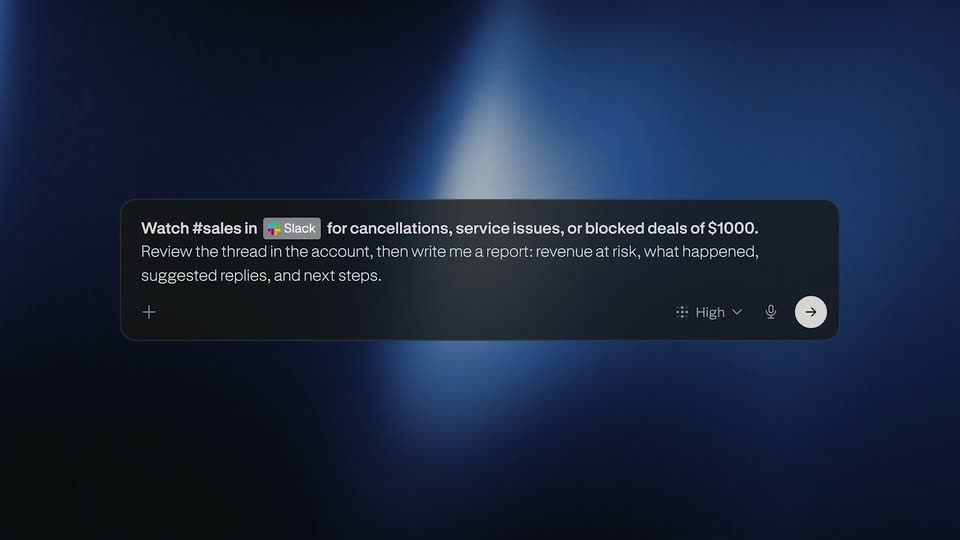
A dark input card on a blurred blue background starts in close-up on the placeholder, then zooms out as a prompt types itself in with an inline Slack chip. A second line of instructions fills in, and a white cursor moves in to click the circular arrow button.
Techniques: UI zoom, Kinetic type, Cursor demo
Camera: Static
A dark message card holding a sales-monitoring prompt, a Slack badge and a High priority tag, is centered on a deep blue gradient with a vertical light beam. A white cursor points at the card's arrow button, then the whole card fades out, leaving the empty background.
Techniques: Cursor demo
Camera: Static
A two-line serif headline sits centered on a dark blue gradient with a soft diagonal light beam drifting right. The first line fades to gray while the second line stays bright white, holding the emphasis.
On-screen text: “Kick off automations with”, “conditional triggers.”
Techniques: Light sweep
Camera: Static
On a dark blue gradient with a soft glow at right, a white serif headline sits centered and still. It hands off to a smaller white sans caption with a thin line icon that slides into the same spot.
On-screen text: “conditional triggers.”, “Create an automation”
Techniques: Kinetic type
Camera: Static
On a dark blue gradient with a soft light glow, the caption 'Created an automation' slides from center to the upper left. A dark notification card then builds beneath it, first showing the 'Sales risk report' row, then expanding to reveal trigger, instruction and advanced settings.
On-screen text: “Created an automation”
Techniques: Kinetic type
Camera: Static
A dark automation card titled “Sales risk report” rests on a soft blue gradient. The label “Created an automation” slides in above the card, which lists a Slack trigger and instructions.
On-screen text: “Created an automation”
Camera: Static
A Slack notification card appears at center over a blurred dark blue background, a small “Created an automation” label sliding in at top left. The card expands to show Alex’s message about a blocked $24,000 renewal, then slides up, leaving a dot on a vertical line beside “Automation started”.
On-screen text: “Created an automation”, “Automation started”
Camera: Pan
On a dark blue gradient, three task lines with small line icons slide and fade in one by one along a vertical connector line. A Finished tag appears beside the last line, then a dark PDF file card slides in at the bottom.
On-screen text: “Reviewing sales thread”, “Assessing renewal urgency”, “Drafting report”
Techniques: Kinetic type
Camera: Static
A dark blue interface shows a vertical list of three AI steps with icons, the last marked Finished. A white cursor glides up from the bottom and hovers over a document card labeled Aster renewal risk report.pdf.
Techniques: Cursor demo
Camera: Static
A dark report card fades in at the bottom of a blue gradient as three step labels slide in along a left timeline. The card then brightens, recenters and the timeline drops away, revealing the full Aster renewal risk report with its stats and event columns.
Techniques: UI zoom
Camera: Static
A dark report card holds on a blue gradient background. It shows the headline Aster: $24,000 renewal at risk, three metric tiles, a three-step timeline, and three contact cards. The layout stays static.
Camera: Static
A dark report card sits centered on a blue gradient. Its content scrolls upward at a steady pace, passing a serif headline, three stat tiles, a three-node timeline, contact cards, transcript quotes, and a recommended-plan list.
Camera: Pan
A dark report panel with a three-step timeline, three contact cards, two transcript quotes and a four-line action plan floats on a blue gradient. The panel drifts slowly as a vertical light beam brightens along the left edge.
Camera: Static
A white serif headline reads “Run automations on a set schedule.” over a dark blue gradient with a soft light beam, then fades out. A dark rounded input bar slides in and a prompt is typed into it line by line, ending with a cursor near the send button.
On-screen text: “Run automations on a set schedule.”
Techniques: Cursor demo
Camera: Static
Over a blurred dark blue gradient, a white status line with a monitor icon fades in and its first word swaps from Create to Created. A dark report card with a Run now button slides in below, then expands to reveal trigger, instruction, and setting rows.
Techniques: Kinetic type, Morph
Camera: Static
A rounded white time chip reading 7:59 AM sits centered on a dark blue glow, then swaps to 8:00 AM and scales up. The chip shrinks and slides left as a small dot-and-line marker and the caption Automation started slide in below it.
On-screen text: “7:59 AM”, “8:00 AM”, “Automation started”
Techniques: Kinetic type
Camera: Static
A dark blue gradient holds a thin vertical timeline that draws downward from a dot. The time and caption scale and slide in, then the line extends to an icon and “Reviewing Meta performance” appears over a faint dashboard panel.
On-screen text: “8:00 AM”, “Automation started”, “Reviewing Meta performance”
Techniques: Kinetic type
Camera: Static
A dark analytics dashboard card fades and scales in beneath the heading Reviewing Meta performance on a deep blue background lit by a vertical beam. Metric values count up, the final bar of a weekly chart highlights in peach, and the camera slowly zooms in on the table and chart.
On-screen text: “Reviewing Meta performance”
Techniques: UI zoom
Camera: Push in
A two-line step list slides up on the left, then three draft cards rise into view side by side; headlines and menu rows fade in as each card fills, and the frame settles on the trio as the labels fade out.
Techniques: Split screen, UI zoom
Camera: Pull out
A soft dark-blue gradient fills the frame with a pale bloom at the right edge. The serif line 'Automate repetitive tasks' fades from dim to bright white at center, the frame locked off.
On-screen text: “Automate repetitive tasks”
Techniques: Kinetic type
Camera: Static
On a dark blue gradient with a drifting soft glow, white serif phrases cycle one after another, each fading and sliding in: “Automate repetitive tasks,” “monitoring & alerts,” “recurring research,” “follow-ups,” “anything.” The text clears and a pale hand-shaped logo fades in at center.
On-screen text: “Automate repetitive tasks”, “Automate monitoring & alerts”, “Automate recurring research”, “Automate follow-ups”, “Automate anything”
Techniques: Kinetic type
Camera: Static
On a dark blue gradient with a soft vertical glow, a white filled emblem morphs into an outlined star mark, then the lowercase wordmark perplexity slides in from the right to lock up beside it. The centered lockup holds and the frame fades to black.
On-screen text: “perplexity”
Techniques: Morph, Kinetic type
Camera: Static