1:09

Introducing Zapier Agents: The Future of Automation is Here!
Zapier · Productivity · Jan 2025
Confetti · Oct 2026 · 1:35 · AI-annotated · YC Fall 2026
One presenter-led screen recording walks the full pipeline, with a corner facecam and a dark caption pill riding over every panel while a badge names each step. Signature moves are slow zoom-ins into UI cards, badge-led step transitions, and a closing dissolve from 3D render to live desk footage of the finished robot.
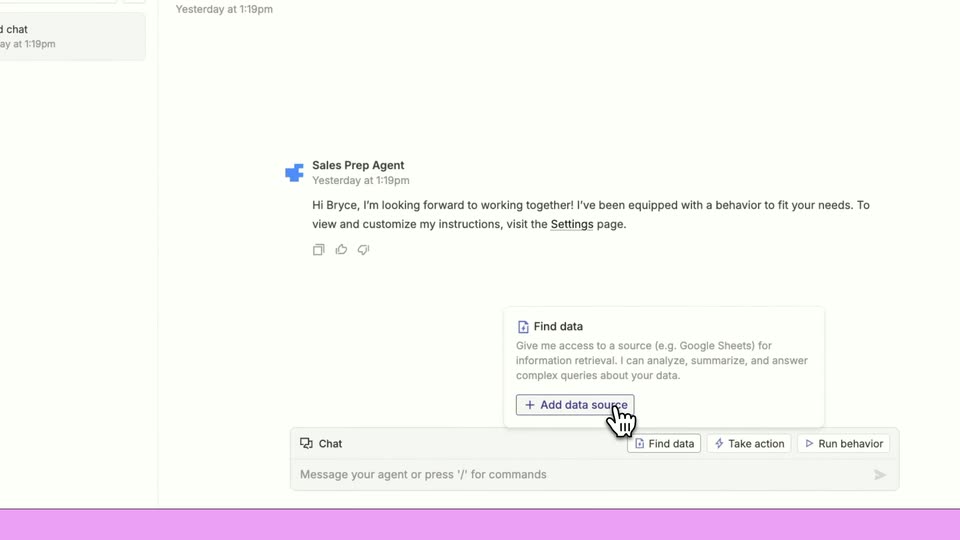
Zapier · Productivity · Jan 2025
Tana · Productivity · Nov 2026
Discord · Consumer · Oct 2020
The Confetti home screen fills the frame behind a corner video of the speaker, whose name tag fades in. Subtitles roll at the bottom while the view zooms into the prompt box, where a cursor types an idea in plain English.
On-screen text: “Tianyi Gu”, “Confetti”, “Hi, I'm Tianyi,”, “and this is Confetti.”, “We made it to help make designing”, “and building hardware a lot easier.”, “It helps you start making hardware with”, “just plain English.”, “So let's take a look.”, “So all you have to do is explain the idea that you have.”
Techniques: UI zoom, Cursor demo
Camera: Push in
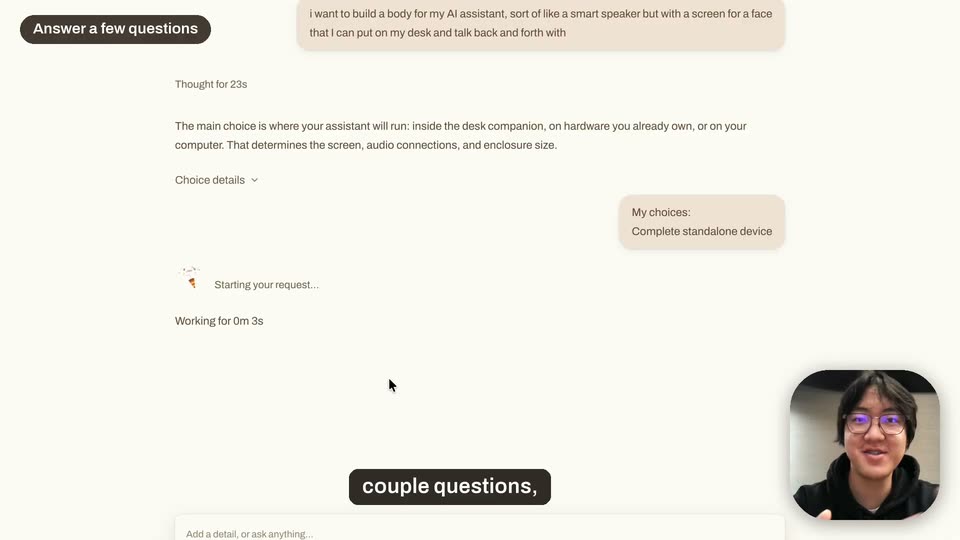
A chat interface scrolls up from the conversation thread to a grid of six 3D speaker concepts with cartoon faces. A small talking-head video of a man in glasses plays in the bottom-right corner throughout.
On-screen text: “Answer a few questions”, “After that, Confetti will ask you a”
Techniques: UI zoom
Camera: Static
A light product screen shows a grid of colorful robot-speaker concept images scrolling upward as the top badge switches to “Pick a direction.” A dark caption pill reads “give you some design options to pick from,” and a webcam inset of a man sits bottom-right.
On-screen text: “give you some design options to pick from,”
Camera: Static
A product UI lists three robot concept cards, Retro, Cartoon and Standard. A cursor glides to the Standard card and clicks it, drawing an orange selection border. A small video call window sits at the bottom right and a dark caption bar reads at the bottom.
On-screen text: “give you some design options to pick from,”
Techniques: Cursor demo
Camera: Static
A design screen shows a white speaker with a black face screen; a man in glasses reacts in a corner inset. The interface reframes to a wider view with a 3D model of the speaker, while a black bottom caption updates with the voiceover.
On-screen text: “and then start working on the one”, “that you choose.”
Techniques: UI zoom, 3D mockup
Camera: Static
A product interface splits the frame: a chat panel with text bubbles on the left, a beige 3D speaker model on the right that rotates slowly. A cursor moves near the model. A small rounded webcam video of a presenter sits bottom right, and captions appear at the bottom.
On-screen text: “And once it's done,”, “you'll get an initial design.”, “Review the design”
Techniques: 3D mockup, Cursor demo
Camera: Push in
A screen recording of the Confetti interface: a beige robot renders in 3D while a cursor ticks the exploded-view checkbox, revealing internal boards. The view reframes onto the chat, where a camera request is typed, and the model regenerates with a new lens.
On-screen text: “Review the design”, “You can see what it looks like.”, “You can see what parts are needed”, “for the job,”, “as well as seeing how everything fits together.”, “Edit in plain English”, “And so if I want to change”, “something, let's say I want to give”, “a camera to this little fella,”, “I can just ask', and Confetti will make those edits for me. — wait, let me re-check. Frame 10 caption: 'I can just ask'. Frame 11: 'and Confetti will make those”
Techniques: 3D mockup, Cursor demo, UI zoom
Camera: Push in
A two-column product screen shows a document on the left and a parts list on the right; the list scrolls up to reveal new rows as a cursor moves near the Complete project button. A facecam and a black subtitle pill sit at the bottom.
On-screen text: “And now once I'm happy with this design,”
Techniques: Cursor demo
Camera: Static
Screen recording of the app: a chat log on the left, the right panel switches from the Parts tab to the Order tab, showing a prints card and a components card. A cursor hovers near the Compare print quotes button; a circular webcam of the presenter sits bottom right.
On-screen text: “And now once I'm happy with this design,”, “I can order the electronic parts that it wants.”
Techniques: Cursor demo
Camera: Static
A product interface fills the frame, showing an order panel with a Confetti checks card and a numbered step list. A cursor hovers over the Prints tab. A facecam of a bespectacled man sits in the bottom right, and a black caption bar reads the line along the bottom.
On-screen text: “Order the parts”, “I can order the electronic parts that it wants.”
Techniques: Cursor demo
Camera: Static
Screen recording of the Order tab in a design tool: a cursor moves to the compare-quotes button, a white popover pops in with the $222.69 subtotal, then closes. A webcam bubble of the speaker sits bottom right and a caption pill runs along the bottom.
On-screen text: “Order the parts”, “I can order the electronic parts that it wants.”, “Order prints”
Techniques: Cursor demo
Camera: Static
An 'Order prints' modal shows the Material step: a grid of material cards with 3D objects beside a right panel holding a 3D model of the enclosure. A cursor rests on the Material tab, ringed in red, and a circular webcam of the speaker sits bottom right.
On-screen text: “I can also pick a material and”
Techniques: Cursor demo, 3D mockup
Camera: Static
A dark label fades in top left over an 'Order prints' modal showing material cards, PLA selected, with a preview and summary on the right. A cursor hovers the type dropdown, then clicks the close button and the modal shrinks. A circular webcam of a speaker and captions sit at the bottom.
On-screen text: “Choose material & color”, “I can also pick a material and color for the enclosure”, “and have the 3D prints ordered straight”
Techniques: Cursor demo
Camera: Static
A screen recording of the product's order screen; a cursor glides up to the top navigation and clicks the Build tab while the components subtotal updates from $222.69 to $270.87. A circular webcam of the presenter sits bottom-right, and white caption text on a black bar runs along the bottom.
On-screen text: “Choose material & color”, “and have the 3D prints ordered straight”, “to my doorstep and start working from there.”
Techniques: Cursor demo
Camera: Static
A screen recording of the Confetti interface shows an Order panel whose components subtotal counts up from $270.87 to $303.83 as the cursor clicks the Build tab. A webcam video of the presenter sits bottom-right, and white captions on dark pills appear at the bottom.
On-screen text: “Choose material & color”, “to my doorstep and start working from there.”, “I do create, and still start from there.”
Techniques: Cursor demo
Camera: Static
A screen shows a step-by-step build guide that flips from step 8 to step 9 beside a 3D model of a cream device with a speaker cup. A circular webcam of a bespectacled presenter sits in the corner, and a black caption reads at the bottom.
On-screen text: “And finally, Confetti will also help me”
Techniques: 3D mockup
Camera: Static
Screen recording of a build-guide app: left notes column, center step panel with diagrams, right 3D model of a cream device with a green board. The step counter ticks up as the model updates. A circular webcam inset of a hooded speaker sits bottom right above a black caption bar.
On-screen text: “And finally, Confetti will also help me”, “with figuring out how I can put”
Techniques: 3D mockup
Camera: Static
A product interface shows a build manual page with a 3D reference render of a hardware enclosure and callout cards; a circular webcam of the presenter sits bottom right. The view scrolls up to the top toolbar as a cursor hovers a control, while subtitle captions run along the bottom.
On-screen text: “Build, debug & code”, “with figuring out how I can put”, “as well as debug any issues I”
Techniques: Cursor demo
Camera: Pull out
The interface switches from the Build tab to the Code tab, where a file list scrolls and the cursor clicks voice.js to open its source. A corner webcam video of the speaker plays while dark caption pills update at the bottom.
On-screen text: “Build, debug & code”, “as well as debug any issues I”, “run into, and also help with the”, “software that I need to get this”, “up and running.”
Techniques: Cursor demo
Camera: Push in
A cream cube device with a black face panel, two white oval eyes and a small top latch sits on a plain light gray surface. It rotates slowly in 3D perspective, the camera holding a fixed high angle.
Techniques: 3D mockup
Camera: Static
A cream box-shaped device with a black face and two white oval eyes sits in 3D on a pale gray background, then dissolves into a live desk shot where the same unit rests beside a laptop and a small white speaker.
Techniques: 3D mockup
Camera: Static
A white desktop robot with two glowing oval eyes on its screen sits on a wooden desk in an office. A hand waves into frame from the right while a subtitle line appears at the bottom.
On-screen text: “And just like that, we've brought our”
Camera: Pull out
A man in a black hoodie sits at a desk beside a small white robot with a glowing face display. He gestures to the camera, then turns to the robot and asks it to introduce itself; its eyes glow blue. Subtitles caption his lines at the bottom of the frame.
On-screen text: “And just like that, we've brought our”, “idea to life.”, “Hey, Lumi,”, “can you introduce yourself?”
Camera: Static
A white box-shaped desktop robot with a screen of two glowing blue eyes and a blue LED ring sits on a wooden desk before a monitor. The locked-off shot holds as its eyes blink and the top lights shift to purple, while white captions in a brown box appear.
On-screen text: “can you introduce yourself?”, “Hi, I'm Lumi, your personal assistant, and”, “I'm here to help you.”
Camera: Static
A man with glasses in a black hoodie sits at a desk, gesturing as he speaks to the camera. A white box-shaped robot with a face screen and a blue light ring sits to his left, in front of a large monitor. White subtitles run along the bottom.
On-screen text: “We think that making things should be”, “for everybody, and Confetti can make it”, “easier to start.”, “Thank you.”
Camera: Static
A white box-shaped robot with two glowing blue eyes on a small screen sits on a wooden desk in front of a monitor and keyboard. Its eyes blink while a caption appears below the frame.
On-screen text: “You're welcome.”
Camera: Static
The confetti wordmark with a party-popper i sits centered on a cream background, a brown confetti.build pill below it. Small multicolored confetti pieces rain down from the top and drift across the frame.
On-screen text: “confetti.build”
Techniques: Particles
Camera: Pull out