0:17

Hana V2 is here to stay 🌸 #3d #3danimation #uiux #productdesign #graphicdesign
Spline · Design · Sep 2026
Raycast · May 2023 · 2:10 · AI-annotated
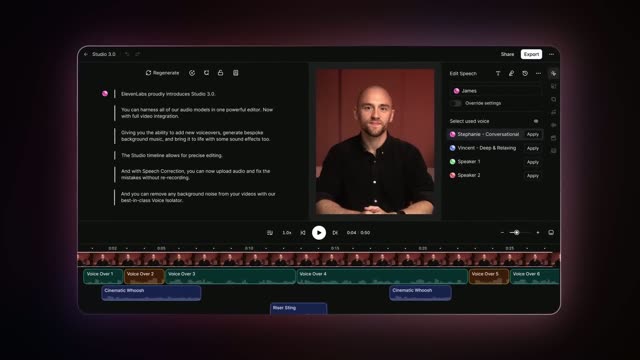
The video alternates a live presenter with fast 3D-tilted interface shots and bold scale-in title cards on black, cutting on a steady beat of about three seconds per shot. Its recurring moves are text that types itself into search and code fields, windows that tilt and rack from blur to focus over gradient backdrops, and headlines that scale up over a soft maroon glow.
Spline · Design · Sep 2026
Rive · Design · Jan 2026
ElevenLabs · AI · Sep 2025
A man in a black t-shirt sits at a desk, speaking to the camera and gesturing with both hands. A monitor with a perforated aluminum back stands at the left edge, and a warm desk lamp glows on the right. The frame stays locked off.
Camera: Static
The text “Al Commands” appears centered on a black background, scaling up from a smaller size to full size. The frame stays locked off, no camera movement, the type carries the entire scene.
On-screen text: “Al Commands”
Techniques: Kinetic type
Camera: Static
The white title “AI Commands” sits centered over a soft, blurred maroon glow on a black field. The frame stays locked off while the text scales up slightly over the shot.
On-screen text: “AI Commands”
Techniques: Kinetic type
Camera: Static
A dark translucent command palette floats over a pink gradient background. The list of AI command rows scrolls steadily upward, each row showing a small red icon, a label, and a relative date on the right.
Camera: Push in
The white text 'AI Chat' sits centered on a dark background, backed by a soft, blurry reddish glow that remains static throughout the short clip.
On-screen text: “AI Chat”
Camera: Static
A dark AI chat panel sits on a grainy pink gradient. Static sample prompts and a Raycast AI button stay centered while the input field types a debounce function.
On-screen text: “AI Chat”
Camera: Push in
The words Quick AI sit centered in white on a near-black background, lit by a soft diffuse red and purple glow filling the middle of the frame. The text stays locked and still for the whole shot.
On-screen text: “Quick AI”
Camera: Static
A dark rounded UI panel sits centered on a pink gradient. A vegan carbonara recipe types out line by line in the text field, the character count rising, while the header and bottom bar remain static.
Techniques: Kinetic type
Camera: Push in
Centered white headline “Cloud Sync” sits over a near-black field with a soft red-purple glow drifting behind it. The text holds still while the glow shifts slowly.
On-screen text: “Cloud Sync”
Camera: Static
A tilted dark settings window floats over a pink gradient. A cursor flips the Cloud Sync toggle on while a toast reads Enabling Sync. A large white Theme Studio headline then scales in across the center of the window.
On-screen text: “Theme Studio”
Techniques: 3D mockup, Cursor demo, Kinetic type
Camera: Push in
A white Theme Studio title holds center on a near-black field with a soft red glow behind it. The text scales up gradually over the shot while the frame stays locked off.
On-screen text: “Theme Studio”
Techniques: Kinetic type
Camera: Static
A dark theme-manager window shows a left list of installed themes and a right preview with a search bar, list rows and a grid of space images. A cursor moves down the list, highlighting the Raycast Light row.
Techniques: Cursor demo
Camera: Static
A macOS theme manager window, tilted in 3D over a purple gradient, fills the frame. A cursor moves down the installed themes list from Raycast Light to Sky, while the right panel shows list rows and grid thumbnails.
Techniques: 3D mockup, Cursor demo
Camera: Static
The large white word Unlimited sits centered over a dimmed window that lists themes and clip thumbnails. The window fades to black as the word swaps to Clip Library.
On-screen text: “Unlimited”, “Clip Library”
Camera: Static
A dark settings panel fills the frame as a cursor clicks the Keep History For dropdown, opening a list where Unlimited is highlighted. The panel fades out to a plain dark background where the word Developer sits centered in white.
On-screen text: “Developer”
Techniques: Cursor demo
Camera: Push in
A soft blurred maroon glow sits on a black frame behind the centered white word Developer. The word crossfades into Apps as the clip ends.
On-screen text: “Developer”, “Apps”
Techniques: Kinetic type
Camera: Static
A dark code editor fills the frame while the view pushes in. The AIArtists function body types out, settling on a highlighted const { data } = useAI(`Recommend`) line where a blinking caret completes the string.
Techniques: UI zoom
Camera: Push in
A near-black backdrop with a faint purple glow holds the bold white title 'Floating Notes 2.0', which cuts to 'Are', then 'Ready?' to form a question. The centered text stays static between each swap.
On-screen text: “Floating Notes 2.0”, “Are”, “Ready?”
Techniques: Kinetic type
Camera: Static
The title “Raycast Pro” sits centered on a plain black background. The frame is locked off and the text holds still for the full duration.
On-screen text: “Raycast Pro”
Camera: Static
The title Raycast Pro sits centered in white bold sans-serif over a soft pink and magenta glow on a dark field. The text holds still while the blurred blob of light drifts and brightens slightly behind it.
On-screen text: “Raycast Pro”
Camera: Static
A small white diamond mark with a square core and diagonal stripes sits centered on black. Its edges fringe red and blue, then snap to clean white. The “Raycast Pro” text holds still in a locked-off frame.
On-screen text: “Raycast Pro”
Camera: Static
A man in a black t-shirt sits at a desk in a dim, warm-lit room, talking to the camera and gesturing with his hands. The back of a Pro Display XDR monitor occupies the left edge of the frame. The shot fades to black.
Camera: Static
A black frame holds the white text Raycast AI centered. The wordmark fades in and stays locked in place, matching the voiceover that introduces the product.
On-screen text: “Raycast AI”
Camera: Static
A dark Raycast window scales in from a blurred thumbnail against a grainy black backdrop with a glowing white arc. The search field types 'raycast ai', the results list fills, then crossfades into a built-in AI Commands list.
Techniques: UI zoom
Camera: Push in
A dark AI-commands panel sits on a grainy charcoal backdrop with a white arc at the right. It slides right as a white document with black text slides in from the left, the two now side by side, a cursor hovering over the first row.
Techniques: Cursor demo
Camera: Pull out
A white document page sits left of a dark AI command panel. A cursor picks the Fix Spelling and Grammar command, the panel types out corrected text with red underlines, then the page swaps to the fixed version and a Done button appears.
Techniques: Cursor demo
Camera: Pan
A dark Raycast panel titled Ask AI Anything settles into frame from a fast blurred slide, listing three example prompts above a command field with a gradient border where A debounce function in TypeScr types out letter by letter.
Techniques: Speed ramp
Camera: Pan
A dark code window displays a syntax-highlighted TypeScript function. A cursor glides up to the copy icon at the top right of the code block and clicks it, and a green-checked Copied tag pops in beside the icon.
Techniques: Cursor demo
Camera: Static
A dark code editor fills the frame, showing the debounce.ts file with syntax-highlighted TypeScript and an I-beam cursor below. The window then blurs and tilts into a 3D perspective as the camera pulls back, revealing it as a floating panel over a gray desktop.
Techniques: 3D mockup
Camera: Pan
A dark chat panel on a grainy gray background shows a question and an answer typing out character by character, the word count updating below as the footer buttons switch from Cancel to Paste.
Techniques: Kinetic type
Camera: Static
The dim Quick AI panel fades to black, then the heading 'Cloud Sync' fades in centered on the black frame and holds.
On-screen text: “Cloud Sync”
Camera: Static
White bold sans-serif text “Cloud Sync” sits centered on a black background, static for the full shot.
On-screen text: “Cloud Sync”
Camera: Static
A dark Raycast search panel fills the frame. The query field types the words cloud sync while the results list below refreshes, settling on a highlighted Cloud Sync row at the top. The shot stays locked off on the panel.
Camera: Static
A dark settings window floats in 3D space over an abstract backdrop of curved gray surfaces and a thin prismatic light beam. The window tilts and rotates, sharpening from a soft blur into a clear view of the Cloud Sync panel and its toggle.
Techniques: 3D mockup
Camera: Push in
A dark Raycast settings window floats tilted in 3D space over curved light streaks. It racks from blur to focus on the Cloud Sync panel, a cursor resting on the blue toggle; the camera then pulls back to frame the whole window.
Techniques: 3D mockup, Cursor demo
Camera: Pull out
A dark settings list scrolls upward in a locked-off frame, each row pairing a thin line icon with a gray sans-serif label, new rows sliding in from the bottom edge.
Camera: Pan
A black frame holds as the title Custom Themes fades in at center, rising from dim gray to full white, then rests still for the rest of the clip.
On-screen text: “Custom Themes”
Techniques: Kinetic type
Camera: Static
Close-up of a dark Spotlight search window. The query is typed into the bar while the results list crossfades and reorders, settling on a highlighted top entry.
Camera: Static
A dark theme editor window sits on a soft lavender gradient. The left sidebar lists installed themes, the center panel previews the current theme with sample rows and a row of space photos, and the right panel shows a lock icon. A cursor hovers over the Raycast Dark entry.
Techniques: Cursor demo
Camera: Static
A static shot of a theme manager window. The left sidebar lists installed themes, the center shows a preview with sample list and grid items, and the right side displays a lock icon indicating a bundled theme.
Camera: Static
A dark theme-editor window tilts in 3D over a purple abstract backdrop. A cursor clicks the Midnight theme, then the Set as Current button, and the camera reframes onto the window's left sidebar.
Techniques: 3D mockup, Cursor demo, UI zoom
Camera: Push in
A dark theme editor fills the frame, with space thumbnails and color chips on the left and a settings panel on the right. A cursor opens a color picker popup showing hue, saturation and brightness sliders, then closes it, leaving the Selection swatch orange.
Techniques: Cursor demo
Camera: Static
A dark theme-editor panel sits in 3D perspective over a blurred purple backdrop. A cursor opens a context menu on the My Theme row, hovers Copy as URL, then the menu closes and the panel rotates to a flat front view.
Techniques: 3D mockup, Cursor demo
Camera: Push in
A dark macOS theme-editor window sits on a purple background with diagonal light beams. It opens blurred and zoomed in, then pulls back into a sharp full view showing a sidebar of theme names, list and grid items, and a right-hand settings panel.
Techniques: UI zoom
Camera: Pull out
A black screen holds until gray text reading 'Unlimited Clipboard History' appears at the center.
On-screen text: “Unlimited Clipboard History”
Camera: Static
A black screen holds two lines of centered white text, 'Unlimited' above 'Clipboard History', static for the full shot.
On-screen text: “Unlimited”, “Clipboard History”
Camera: Static
A dark Raycast panel floats on pale lavender with diagonal purple beams. The search field types out 'clipboard history' as the list crossfades from commands to history entries and a details pane opens at right. A large still headline 'Unlimited' holds on the frame.
On-screen text: “Clipboard History”, “Unlimited”
Camera: Static
A dark clipboard-history window sits centered on a pale lavender diagonal backdrop. Its right panel swaps from a screenshot preview to a dark red color swatch, then the whole window blurs as a second settings panel fades in, its Keep History For row in focus.
Camera: Push in
Close-up of the Raycast settings panel. The cursor opens the Keep History For dropdown, listing durations from 24 Hours to Unlimited with Pro tags, then the field reads Unlimited. The camera pulls back to reveal the full settings window on a purple gradient background.
Techniques: Cursor demo, UI zoom
Camera: Pull out
On a flat black background, the bold white headline Pro APls fades in at the center and holds. A small secondary caption appears. The frame stays static with no camera movement.
On-screen text: “Pro APls”, “Color Picker”
Camera: Static
A dark code editor window floats over a blurred duplicate with purple diagonal shapes. The view zooms into the code as a line types out useAI(`Recommend 10 songs...`), then pulls back to the window showing an autocomplete list.
On-screen text: “Pro APIs”
Techniques: UI zoom
Camera: Pull out
A tilted code editor mockup floats in 3D over a light backdrop of purple geometric panels. Overlapping lines of code scramble and settle into a clean, readable snippet while the window holds its angled perspective.
Techniques: 3D mockup
Camera: Pull out
The white caption “And more...” appears centered on a black background and holds static for the rest of the clip.
On-screen text: “And more...”
Camera: Static
A dark search panel floats over a pale lavender background crossed by two violet diagonal bands. The query “floating notes” is typed into the field as the results list locks onto three Floating Notes rows.
On-screen text: “And more...”
Camera: Static
A dark to-do list card sits centered on a pale lavender background crossed by violet beams. The card grows to add a top toolbar and a word-count footer while a cursor moves down the list, ticking the remaining checkboxes red.
Techniques: Cursor demo
Camera: Static
A dark checklist window listing feature toggles sits centered on a pale lavender field crossed by diagonal purple beams. The view whips right in a blur, sliding the window off the left edge as a second window enters from the right.
Camera: Pan
A dark layout settings panel settles into the center of a soft lavender background crossed by diagonal violet beams. A position dropdown flashes its options, then width and height fields fill in with typed values.
Camera: Pan
A dark settings dialog with Name, Position, Width and Height fields slides left with motion blur as a second dialog enters from the right, over a pale background crossed by purple diagonal beams.
Techniques: Parallax
Camera: Pan
A dark translator window floats in 3D perspective over a pale lavender background crossed by diagonal purple bands. Two panes type out the announcement in English and Spanish with a blinking caret, then the frame fades to black.
Techniques: 3D mockup
Camera: Pan
A man in a black t-shirt sits at a desk, hands clasped, speaking to camera. A warm glow lights the wall behind him and a Pro Display XDR monitor stands at left.
Camera: Static
A man in a black tee sits at a desk facing the camera, hands clasped, then opening to gesture. The perforated back of a Pro Display XDR monitor fills the left edge; a keyboard and trackpad sit in front, a lamp casts warm light on the wall.
Camera: Static
A large white URL types itself out letter by letter in the center of a black frame, backed by three dimmed, blurred pricing cards with a red glow behind the middle one.
On-screen text: “raycast.com/pro”
Techniques: Kinetic type
Camera: Static
Three pricing cards fade in on a dark background with a red glow, the center Pro card outlined in red, then the frame fades to black.
On-screen text: “raycast.com/pro”
Camera: Push in
A solid black screen holds for the entire duration of the clip. No elements, text or motion appear; the frame remains uniformly dark from start to finish.
Camera: Static