1:26

Introducing Claude Science (now in beta)
Anthropic · AI · Jun 2026
ElevenLabs · Oct 2026 · 1:07 · AI-reviewed
The film moves from a minimal agent-title teaser into a rounded-grid ElevenAgents Architect reveal. Prompt cards, data-gathering panels, workflow approval and customer mosaics demonstrate diagnosis and proactive improvement. A pink orb becomes a launcher for dictation with document attachments, followed by generated agent settings. Short gradient cards name Claude, Claude Code, Cursor, Grok Bot and ChatGPT before animated benefit lines and the final logo.
Anthropic · AI · Jun 2026
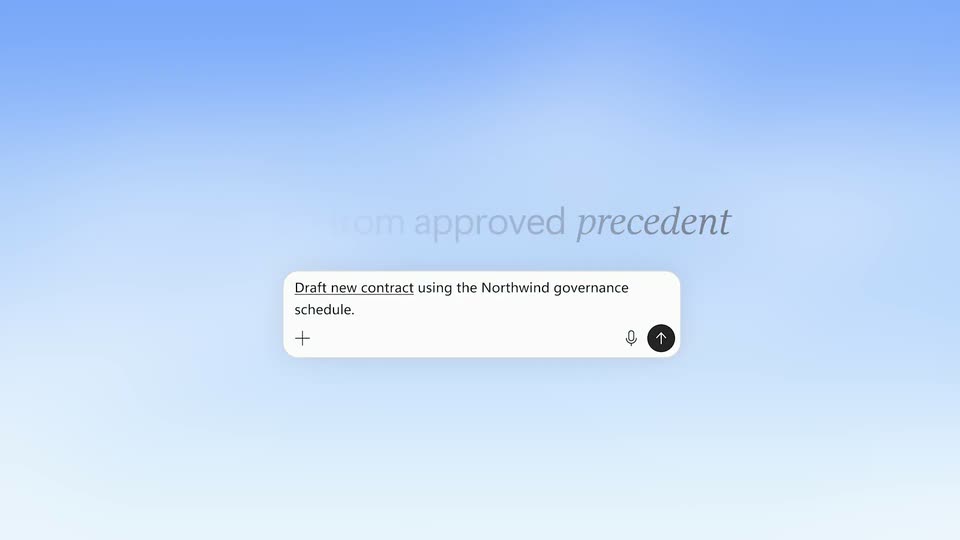
Microsoft · AI · Oct 2026
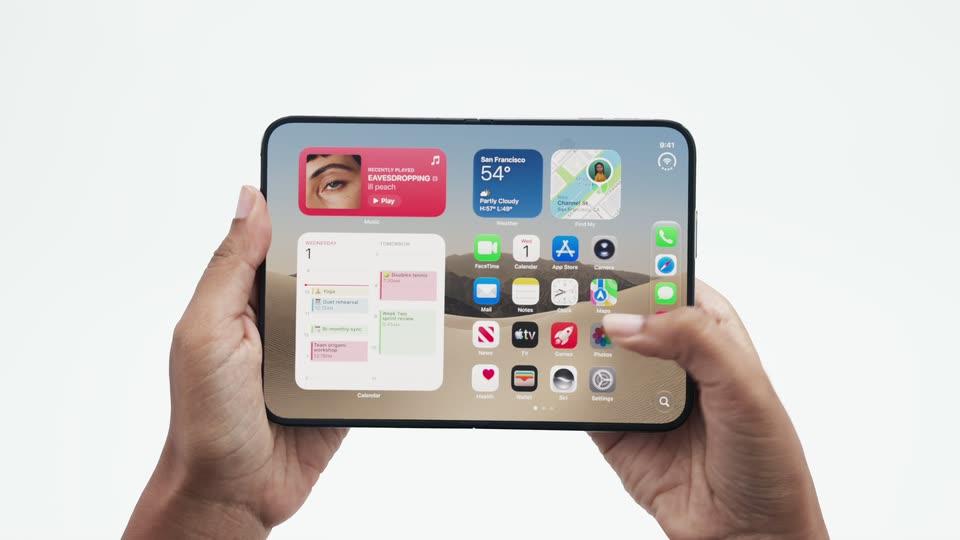
Apple · Hardware · Sep 2026
On off-white, the two-bar mark gives way to Your agents between square markers. The words contract into a small tile; a central soft gradient card and surrounding status labels appear, then the card enlarges. This is a continuous graphic teaser, not three hard-cut shots.
On-screen text: “Your agents”
Techniques: Kinetic type, UI zoom
Camera: Static
The enlarged gradient tile pulls back into a faint grid of rounded outlines. The two-bar mark reveals ElevenAgents and then Architect in blue-gray; the same title holds over the grid.
On-screen text: “ElevenAgents Architect”
Techniques: UI zoom, Kinetic type
Camera: Static
The logo fades through a blue gradient into a close view of a white Customer support agent prompt. The question begins typing beside an @ control.
On-screen text: “Customer support agent”, “Why do customers”
Camera: Static
A hard reframe at 8.983 seconds reveals the same prompt within a rounded blue-gradient panel. Why do customers ask to talk to a person? finishes typing and the pointer clicks the send control.
On-screen text: “Customer support agent”, “Why do customers ask to talk to a person?”
Techniques: Cursor demo, UI zoom
Camera: Static
Dark workflow, transcript and tools panels assemble around a white Gathering data checklist on a blue-purple field. Reading transcripts, Finding transfer patterns and Checking escalation rules check off; the panels then move and fade away, leaving a white tile.
On-screen text: “Gathering data”, “Reading transcripts”, “Finding transfer patterns”, “Checking escalation rules”
Techniques: Split screen
Camera: Static
A light conversation view resolves from the fading tile. It reports 62% of transfer requests come after a failed account lookup and proposes a new procedure. A reply references Salesforce and WhatsApp for order lookup and confirmation.
On-screen text: “62% of transfer requests come right after a failed account lookup.”, “Proposed fix: New procedure”, “Offer email + order number when account lookup fails”, “Salesforce”, “WhatsApp”
Camera: Static
A purple chat icon on a white guide grid expands into five vertically stacked colored workflow icons with corner handles. The icon stack holds until a hard cut to the workflow rows.
Camera: Static
Colored Tell, Ask, Tool, If, Say and Else if chips fill numbered steps in a refund workflow. The rows type in and hold; this is one interface-build demonstration, followed by a hard reframe to the approval controls.
On-screen text: “Steps”, “Tell”, “Ask”, “Tool”, “If”, “Say”, “Else if”
Camera: Static
A close interface view shows Reject and the dark Approve button. A pointer moves onto Approve and clicks, tinting the button as the surrounding panel clears.
On-screen text: “Reject”, “Approve”
Techniques: Cursor demo
Camera: Static
A woman on a call, a gradient phone tile and transcript/status cards expand into a broad drifting collage of people and interfaces. The tiles shrink and the field darkens into the scanning section.
Techniques: Split screen, UI zoom
Camera: Static
The darkened tile collage contracts into a ring of tiny squares around Scanning conversations... inside selection handles. The particles spread and settle; the lettering holds until the field fades to cream.
On-screen text: “Scanning conversations...”
Techniques: Particles
Camera: Static
The scanner fades into a cream guide grid. A thin white bar expands into an Alternate verification configuration diff, showing changed tools, model, turn taking and guardrails with red deletions and additions.
On-screen text: “Alternate verification”, “Tools”, “LLM”, “Turn taking”, “Guardrails”
Camera: Static
A Proposals table resolves inside guide handles on cream. Three proposal titles populate with source labels and yellow Pending status chips.
On-screen text: “Proposals”, “Pending”
Camera: Static
A hard cut reveals a moving mosaic of chat panels, succeeded evaluations and passed-test rows mixed with pink, blue and green gradient tiles. The panels populate and the arrangement collapses toward a central pink tile.
On-screen text: “Evaluation succeeded”, “Passed”, “Improve response”
Techniques: Split screen
Camera: Static
The central pink gradient panel rounds and shrinks into a sphere within faint grid outlines. The sphere becomes a small Ask Architect launcher pill, which expands before the dictation view.
On-screen text: “Ask Architect”
Techniques: Morph, UI zoom
Camera: Static
On a large pink-gradient panel, a rounded prompt transcribes a spoken request for an appointment and question-answering agent. PDF and DOC chips attach, and the request adds shared documents and Spanish-speaking callers. The prompt grows but stays in the same continuous view.
On-screen text: “I need an agent that can set appointments and answer questions. See the docs I'm sharing.”, “Hold to dictate”
Techniques: Cursor demo
Camera: Static
The configuration UI lists English as default and Spanish as an added agent language, with a model control above and LLM section below. This is a steady settings close-up, not an open dropdown or crossfade.
On-screen text: “Agent language”, “English”, “Default”, “Spanish”, “LLM”
Camera: Static
A hard cut shows the Agent tab and blank System prompt field. The veterinary-clinic receptionist instructions fade in line by line, including appointment handling and caller preferences.
On-screen text: “Agent”, “System prompt”
Camera: Static
A hard wider reframe reveals the complete agent settings page inside corner handles. The page fades through a pale blue wash into rounded guide outlines, which contract toward the center.
On-screen text: “Agent”
Techniques: UI zoom
Camera: Static
The rounded guide geometry appears on near-black; to the standards you set fades into the center and then softens away. Background outlines move independently of the fixed lettering.
On-screen text: “to the standards you set”
Techniques: Kinetic type
Camera: Static
A small customer tile expands into three live-action panels: a woman tapping her phone, a man on a call and another woman on a call. For, Real and Customers appear over the panels before the layout pulls back into a larger customer montage.
On-screen text: “For”, “Real”, “Customers”
Techniques: Split screen, UI zoom, Kinetic type
Camera: Static
A warm blue-to-gold gradient panel enlarges behind the centered line Connect Architect to — Claude.
On-screen text: “Connect Architect to — Claude”
Techniques: UI zoom
Camera: Static
The integration caption changes to Connect Architect to — Claude Code over a warm gold gradient, with a rounded panel edge briefly reframing the background.
On-screen text: “Connect Architect to — Claude Code”
Camera: Static
A cool blue and maroon gradient panel carries the centered white caption Connect Architect to — Cursor.
On-screen text: “Connect Architect to — Cursor”
Camera: Static
A pink and purple gradient panel carries the centered white caption Connect Architect to — Grok Bot.
On-screen text: “Connect Architect to — Grok Bot”
Camera: Static
The caption reads Connect Architect to — ChatGPT over a blue gradient. The gradient crops into a circle that shrinks against white, bridging into the closing benefit line.
On-screen text: “Connect Architect to — ChatGPT”
Techniques: Masking
Camera: Static
The blue-purple sphere shrinks between Improve and your agents on white. The black benefit phrase moves into place as the orb pulses.
On-screen text: “Improve your agents”
Techniques: Kinetic type
Camera: Static
Tiny pale particles form a loose globe behind Elevate your customer experiences. The phrase holds and then contracts into scattered letter fragments before the logo reveal.
On-screen text: “Elevate your customer experiences”
Techniques: Particles, Kinetic type
Camera: Static
A pale rounded-square grid surrounds the two-bar ElevenAgents mark. Architect reveals in muted blue-gray and the completed brand title holds to the end.
On-screen text: “ElevenAgents Architect”
Techniques: Kinetic type
Camera: Static