1:04
Introducing Cursor 2.0
Cursor · Developer tools · Oct 2025
Microsoft · Sep 2026 · 1:33 · AI-reviewed
Microsoft introduces the new Copilot through Home, Code and Autopilot. Home turns project prompts into supply-plan spreadsheets and a review deck, Code renders a supplier-performance app, and the Dot assistant reviews risks and schedules follow-up meetings. Large prompt typography, UI pans, dashboard builds, animated avatars and notification cards carry the narrative before the Your new OS for work and Microsoft Copilot close. Audio-model evidence indicates an energetic electronic backing track with processed vocal hooks; the isolated ASR sentence is not sufficient evidence of an explanatory narrator.
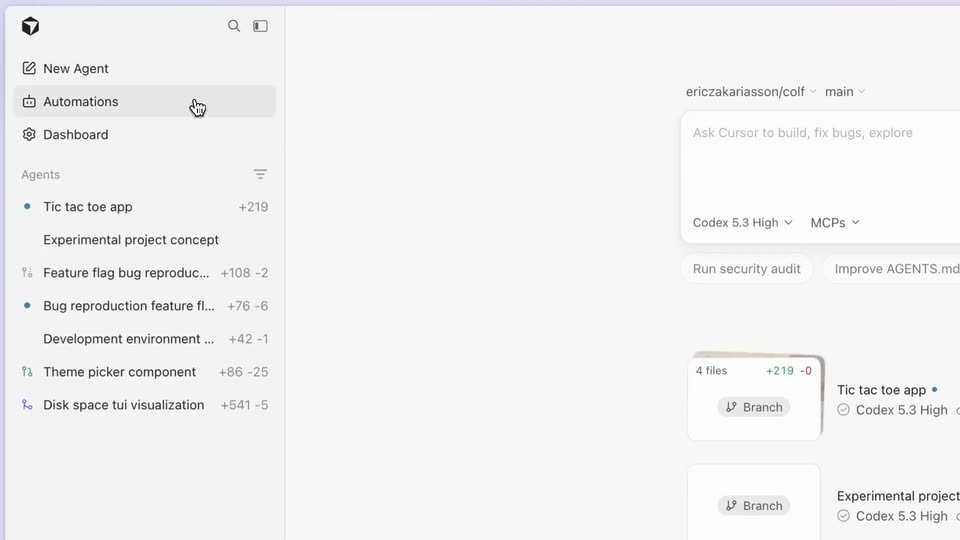
Cursor · Developer tools · Oct 2025
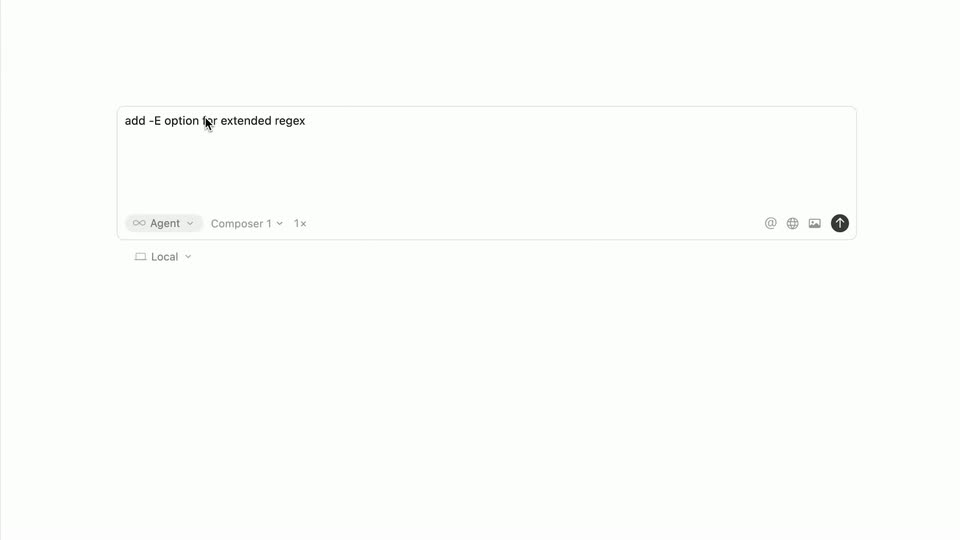
Cursor · Developer tools · Mar 2026
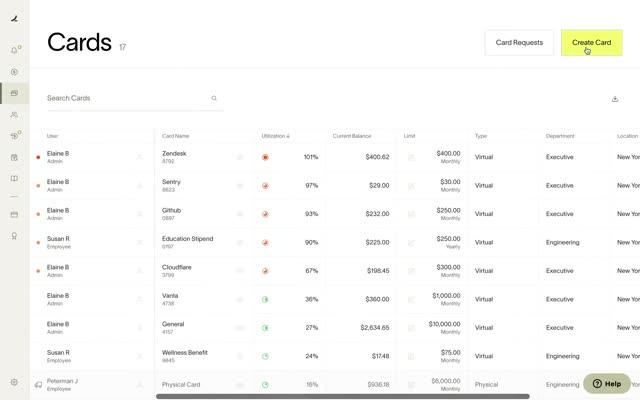
Ramp · Finance · Mar 2021
A soft light blue gradient background shows the word Copilot, which transitions to the phrase Made for how you work, then the Copilot logo appears centered.
On-screen text: “Copilot”, “Made for how you work”
Techniques: Kinetic type
Camera: Static
The Copilot mark gives way to Introducing Home and Your new starting point. Chat and Cowork pills appear and then join into Home in one continuous typography and control reveal.
On-screen text: “Introducing Home”, “Your new starting point”, “Chat”, “Cowork”, “Home”
Techniques: Morph, Kinetic type
Camera: Static
The Home sidebar slides into view; the frame pans toward Work IQ and Quick response. The dropdown opens with Auto, Quick response, Thinks deeper, GPT and Claude, then Auto becomes selected. The menu and panel continue moving without separate cuts.
On-screen text: “Copilot”, “Home”, “Code”, “Autopilot”, “New”, “Search”, “Library”, “Work IQ”, “Auto”, “Quick response”, “Thinks deeper”, “GPT”, “Claude”
Techniques: UI zoom
Camera: Pan
A white Copilot interface window rests centered on a pale blue background. The left sidebar lists navigation items while the main panel shows a greeting line and a message input box with Chat and Cowork tabs. The shot is static with no movement.
Camera: Static
A white rounded input card on a pale green field settles from a cropped close-up into the center as the prompt types out letter by letter with a blinking caret. Below sit a plus icon, a Chat/Cowork toggle, a mic icon and a black circular send button.
On-screen text: “Give me an Allerveo project update and compare performance.”, “Chat”, “Cowork”
Techniques: Kinetic type
Camera: Static
A small gray circular spinner rotates next to a centered gray status label on a flat cream background. The label reads Thinking... then swaps to Creating spreadsheet....
On-screen text: “Thinking...”, “Creating spreadsheet...”
Camera: Static
The supplier spreadsheet fills beside Copilot chat. Avatars enter, the view tightens and travels down to Reviewing supply plan detail..., then the loader resolves to Completed. These are connected reframing and UI updates of the same supply-plan result.
On-screen text: “Creating spreadsheet...”, “Reviewing supply plan detail...”, “Screens simulated. Sequences shortened. Availability of features shown may vary.”, “Completed”
Techniques: UI zoom, Morph
Camera: Pan
A white summary card on a soft blue gradient. The headline fills in word by word, then seven small icon chips slide in to fill two rows beneath it.
On-screen text: “Here's what changed since Friday.”
Techniques: Kinetic type
Camera: Static
The Chat/Cowork segmented control switches to Cowork. A rounded prompt card replaces the enlarged control and Create a presentation for tomorrow’s review and flag any roadblocks. types progressively. The selection and prompt reveal are one interface beat.
On-screen text: “Chat”, “Cowork”, “Create a presentation for tomorrow’s review and flag any roadblocks.”
Techniques: Morph, Kinetic type
Camera: Static
The view traverses a connected work canvas containing a Teams meeting, production report, green Supply Plan spreadsheet and design selections, then settles on the Word report with collaborative avatar markers. Status text cycles through data retrieval and Fabric/Dynamics connection.
Techniques: Split screen, UI zoom
Camera: Pan
A close PowerPoint view pans across the Copilot request, slide thumbnails and ALLERVEO LAUNCH slide. The same interface shifts continuously across38.267s; the distinct cut to a full window is retained at39.267s.
On-screen text: “ALLERVEO”, “LAUNCH”
Techniques: UI zoom
Camera: Pan
The full PowerPoint and Copilot window returns after a scale cut. Orange selection overlays and a rounded orange card build around the ALLERVEO LAUNCH slide.
Camera: Static
A white notification card sits on a soft blue gradient. The headline types out to 'Presentation ready, roadblocks identified.' while three status pills and a red file chip slide in, then the whole card drifts downward.
On-screen text: “Presentation ready, roadblocks identified.”
Techniques: Kinetic type
Camera: Static
The Home/Code/Autopilot selector switches from Home to Code while the soft blue background changes to dark. This is one chapter-selection handoff, not two independent stationary shots.
On-screen text: “Home”, “Code”, “Autopilot”
Techniques: Morph
Camera: Static
A dark UI screen opens on a segmented control, then a rounded input field expands as a prompt types itself in and a file chip slots in. The field collapses into a small logo with a loading status.
On-screen text: “Let’s [build] something together”, “Turn this report”, “Supplier_Review”, “into a live app for my team”, “Working on it”
Techniques: Kinetic type, Morph
Camera: Static
A tightly cropped dark JavaScript-style code editor types and scrolls through supplier risk and dashboard-rendering logic. const declarations and renderApp code are visible; this is not Python.
Camera: Pan
A smaller dark code panel appears under the Building interface loader and holds before the metric-card render.
On-screen text: “Building interface”, “Code”
Camera: Static
An outlined Portfolio OTIF card reading 95.2% renders on a dark grid, fills light gray, then the background turns cream and the view pulls back across the remaining dashboard cards into the full Allerveo Supplier Performance app.
On-screen text: “Portfolio OTIF”, “95.2%”, “Target 96%”, “Suppliers at risk”, “1 of 8”, “Open quality deviations”, “Certs status”, “Allerveo Supplier Performance”
Techniques: UI zoom, Morph
Camera: Pull out
A white rounded card floats centered on a pale cream field. A purple gradient tile with a white serif A scales up at left; the title Supplier Performance and the line Allerveo | Productivity hold at right. The card eases to a locked-off rest.
On-screen text: “Supplier Performance”, “Allerveo | Productivity”
Camera: Static
On a soft blue gradient, Your app is ready to share. types into a white notification card. The Supplier Performance app tile remains beneath it while Share changes to Shared with a checkmark.
On-screen text: “Your app is ready to share.”, “Supplier Performance”, “Shared”
Techniques: Kinetic type
Camera: Static
The Home/Code/Autopilot selector changes from Code to Autopilot and the dark field changes to soft blue, establishing the next chapter in one continuous switch.
On-screen text: “Home”, “Code”, “Autopilot”
Techniques: Morph
Camera: Static
On a plain off-white background, a small dark circle holding a plus icon widens into a rounded pill button, and the label Set up Autopilot fades in beside it in dark gray.
On-screen text: “Set up Autopilot”
Techniques: Morph
Camera: Static
A setup card names the purple mascot Dot, with progressive typing and a cursor at Continue. The card fades into an organization list with Kevin Sturgis, Elvia Atkins and Dot. The names arrive as whole UI rows, rather than animated letter headlines.
On-screen text: “Your new assistant”, “Dot”, “Continue”, “In your organization”, “Kevin Sturgis”, “Elvia Atkins”
Techniques: Cursor demo, Kinetic type, Morph
Camera: Static
A white command pill on a pale cream field, opened as a close-up on the left edge. The query types in, '@Dot' then 'Dot, stay ahead of supplier delays.', as the frame pulls back to the full centered pill and a dark send button fades in at the right.
On-screen text: “@Dot”, “Dot, stay ahead of supplier delays.”
Techniques: UI zoom, Kinetic type
Camera: Static
Dot, a purple animated mascot, floats among recognizable Microsoft app icons including Excel, PowerPoint, Word, Outlook, Teams and OneDrive. Icons move around the mascot; apparent Chinese glyphs are OCR errors on logos.
Camera: Static
A purple blob mascot with an animated face sits beside a spinner and the caption on a cream background. A supplier scorecard spreadsheet then slides in and the mascot peeks out from behind its left edge.
On-screen text: “Dot reviewing supplier data...”
Camera: Static
The supplier spreadsheet gives way to a Teams-style Supplier Performance conversation with two meeting suggestion cards. Dot moves from the left to the right of the interface.
On-screen text: “Supplier Performance”, “Weekly supplier status:”, “Schedule meetings for both?”, “Yes, let’s get those meetings scheduled.”
Techniques: Morph
Camera: Static
Dot floats beside the Dot scheduling meetings... status and rotating loader on a cream field. This is a workflow status graphic, without a large headline card.
On-screen text: “Dot scheduling meetings...”
Camera: Static
A white supplier check-in card with two purple meeting blocks floats over a cream background, a light-blue calendar page behind it. A purple cartoon face peeks from the card's lower-left corner and its eyes shift, while a Send button pops in at the bottom right.
Camera: Static
A purple blob mascot with a line-drawn face sits left of center on a cream background. A loading spinner with status text on the right is replaced by a three-line checklist with checkmarks filling in one by one. The mascot's outline settles from a wavy blob into a rounded square.
On-screen text: “Dot summarizing actions...”, “Analyzed supplier performance”, “Scheduled meetings”, “Protected your time”
Techniques: Kinetic type
Camera: Static
A white message card on a pale blue gradient. The heading types out word by word, 'Risks identified. Back on track.', above three static pill buttons: Email outreach, Stakeholder update, Approved.
On-screen text: “Risks identified. Back on track.”
Techniques: Kinetic type
Camera: Static
A Home, Code, Autopilot tab bar floats on a soft blue gradient, its active highlight shifting between segments. The control then dissolves as the centered tagline “Your new OS for work” fades in, and the frame fades to white.
On-screen text: “Your new OS for work”
Techniques: Kinetic type
Camera: Static
Two small multicolored tiles rotate and join into the Copilot mark. The Microsoft Copilot wordmark appears beside it and the lockup holds on the pale blue gradient. No numeral zero appears.
On-screen text: “Microsoft Copilot”
Techniques: Morph
Camera: Static