1:20
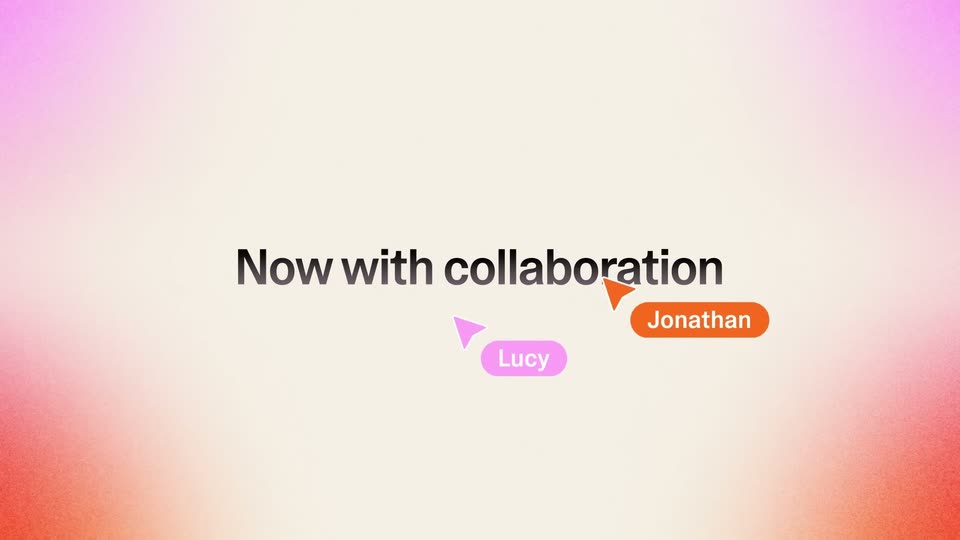

Lovable 2.0 is here. Multiplayer vibe coding. Smarter & more secure.
Lovable · Developer tools · Apr 2025
ClickUp · Jun 2023 · 1:59 · AI-annotated
The video follows one product manager through a launch crisis, demoing each AI feature as a captioned beat over shifting gradient waves. Cuts land near 136 BPM, with zoom punches, self-typing forms and multiplying UI cards as the signature moves.
Lovable · Developer tools · Apr 2025
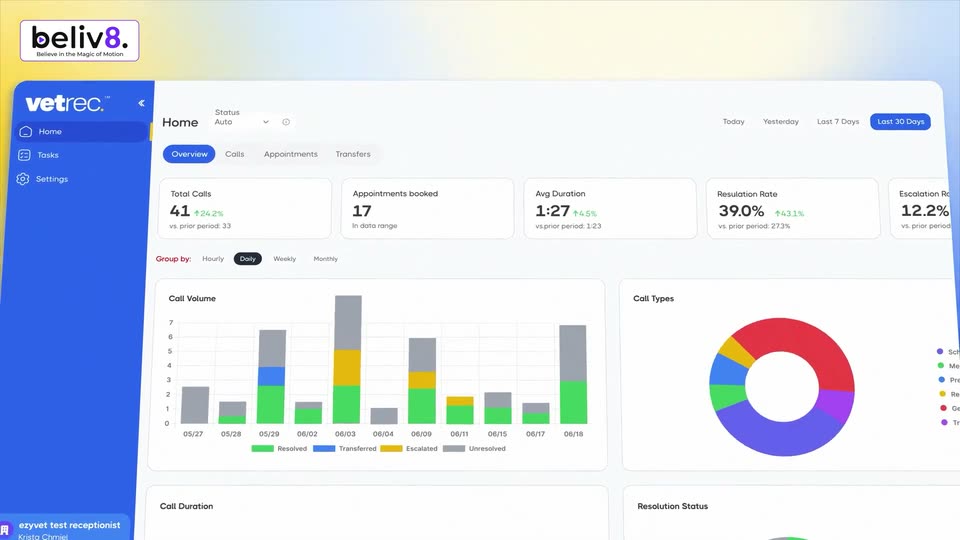
VetRec · Sep 2026
On a black field, thin streaks of pink and blue light spiral around a small central glow. The streaks tighten and a white C logo forms from the light at the center of the frame.
Techniques: Morph
Camera: Static
On black, a glowing purple ring snaps into the ClickUp AI mark as the white wordmark assembles beside it, then the lockup whips forward in a fast motion-blur zoom.
Techniques: Speed ramp
Camera: Static
A white document window on a teal gradient background holds a launch plan. A dark CEO comment toast drops in at the top right, the view zooms onto it, then a cursor brings up a small David, Product Manager chip before the frame blurs out.
Techniques: UI zoom, Cursor demo
Camera: Push in
A document editor shows the line “The new launch plan will include”. A cursor types “/AI Tools”, opening a dropdown that expands into a panel of AI actions; the cursor then hovers over “Create launch plan” while a small “David, Product Manager” card drifts nearby.
Techniques: Cursor demo
Camera: Static
On a light document page, a white Create launch plan card crossfades from an empty form to a filled form, then the AI response streams in and scrolls down through numbered steps and assigned team responsibilities. A purple-bordered caption card fades in at the bottom left.
On-screen text: “USE CLICKUP AI TO: Create GTM Plans”
Techniques: Kinetic type
Camera: Static
A white document card, Go-To-Market Launch Plan, settles centered on a teal 3D wave. A black cursor hovers at the lower left with a David, Product Manager comment chip, then moves up and drops a comment, flagged by a quick burst of yellow and red dots.
Techniques: Cursor demo, Particles
Camera: Pull out
A flat document mockup of a Go-To-Market Launch Plan page fills the frame over a blurred teal backdrop. Four teammate name chips with cursors sit in the left margin, each ringed by small multicolored confetti particles that drift.
Techniques: Particles
Camera: Static
A dimmed document window titled Go-To-Market Launch Plan floats tilted in 3D over a blurred teal backdrop. Four teammate chips with avatars and roles line the left margin, each marked by a cursor arrow. The shot holds static.
Techniques: 3D mockup
Camera: Static
A document editor titled Go-To-Market Launch Plan fills the frame over a soft blue gradient. Four collaborator cards with avatars and roles sit in the left margin, each beside a black cursor that drifts a few pixels down and right.
Techniques: Cursor demo
Camera: Static
A white document titled Go-To-Market Launch Plan sits on a blue gradient, four collaborator chips with avatars and black cursors line its left margin. The whole document then slides up and out of frame, leaving only the gradient.
Camera: Static
A white AI-tools panel hovers over a pink-purple wave background. A cursor opens the department dropdown, selects Engineering, and the tool list refreshes to engineering items. A caption card reading Role-based Requests slides in at the lower left.
On-screen text: “USE CLICKUP AI FOR:”, “Role-based Requests”
Techniques: Cursor demo
Camera: Static
A white form card sits centered on a pink-purple gradient. A cursor hovers as text types into the business requirements, systems involved and best practices fields in sequence, while a lower-left caption badge fades out.
On-screen text: “USE CLICKUP AI FOR: Role-based Requests”
Techniques: Cursor demo
Camera: Static
A white document card floats over a pink and purple gradient. The spec text scrolls upward inside the card, then a cursor moves to the Insert button and a small profile popover labeled Wilson appears.
Techniques: Cursor demo
Camera: Static
A white document card showing generated spec text and action buttons floats over a pink and purple wave background. A cursor hovers over the purple Insert button as a small white chip with a purple icon fades in at the bottom left.
Techniques: Cursor demo
Camera: Static
A white panel floats on a pink-orange gradient. A cursor picks Design from an open DEPARTMENT dropdown, and the tool list on the left swaps to design prompts. The cursor then rests on Brainstorm potential user journeys beside a Tanya Senior Designer card.
Techniques: Cursor demo
Camera: Static
A white form modal slides in from the left over a pink and orange gradient, titled Brainstorm potential user journeys. A cursor and a Tanya, Senior Designer presence chip appear, then text types itself into the Feature descriptions, Problem it solves, and Target users fields.
Techniques: Cursor demo
Camera: Pull out
A white modal card floats centered on a multicolor gradient. Inside, the generated journey text cycles through three personas, Sarah, John and Emily, as the body copy updates. A cursor glides down and presses the Insert button while a small Tanya, Senior Designer, user card fades in at the bottom.
Techniques: Cursor demo
Camera: Pan
A white panel floats on a blurred blue-purple gradient. A department dropdown opens and the cursor clicks Marketing; the left tool list refreshes. The cursor then moves to Outline email campaign, while a small card for Drew, Marketing Manager, stays at the bottom right.
Techniques: Cursor demo
Camera: Static
A white form card on a blue-purple gradient. The email campaign fields fill in while a profile chip with a photo and the name Drew slides in by the cursor, then fades. The card switches to a Blog post form with a Write featured snippet text field.
Techniques: Cursor demo
Camera: Static
A white email-campaign outline card sits on a blue and pink gradient. The outline text scrolls up inside the card while a small profile chip labeled Drew, Marketing Manager slides in at the bottom input row.
Camera: Static
A document interface on a blue gradient background scrolls down through its numbered launch-plan sections while a David, Product Manager card stays pinned at the right. The frame then zooms onto the title and the card, blurring the rest of the page.
Techniques: Cursor demo, UI zoom
Camera: Push in
A white document view titled Go-To-Market Launch Plan shows two lines of task text and a David, Product Manager comment card with an avatar; a purple-outlined Create Blog Posts button fades in at the bottom left.
Camera: Static
Close-up of a Go-To-Market Launch Plan document. A caption in the lower left reads Create Blog Posts. A cursor opens the AI Tools menu, fills the blog post form, and generates text. A re-prompt regenerates it, then the view zooms out to the full window on a blue gradient.
On-screen text: “USE CLICKUP AI TO: Create Blog Posts”, “Re-prompt”
Techniques: Cursor demo, UI zoom
Camera: Pull out
A project management task page shows the title and a cursor resting at the Share button, then the view reframes onto the right-hand comment thread where teammates post praise for the launch.
Techniques: UI zoom
Camera: Push in
A flat two-panel task view with a comments thread on the right. A purple-outlined callout pops in over an attachment, the cursor clicks a Summarize button and a panel types out a summary line, then the cursor types a new comment that posts below the thread.
On-screen text: “USE CLICKUP AI TO: Summarize Threads”
Techniques: Cursor demo
Camera: Static
A white 'Write with AI' card floats over a flowing pink and blue wave as the prompt 'Create a Go-To-Market launch plan.' types in. Copies of the card multiply and drift at different depths, then the view pulls back into a grid that dissolves to the ClickUp logo on black.
Techniques: Parallax, UI zoom
Camera: Push in
The ClickUp AI lockup holds centered on black, the gradient ring icon and white wordmark with glowing gradient AI letters still, while the gray tagline fades in below.
On-screen text: “AI, purpose-built for Marketing”
Camera: Static
Locked-off on black, the ClickUp AI logo and wordmark hold center while the tagline cycles through Marketing, Product Operations, then your team. A lavender URL fades in beneath.
On-screen text: “AI, purpose-built for Marketing”, “AI, purpose-built for Product Operations”, “AI, purpose-built for your team.”, “clickup.com/features/ai”
Techniques: Kinetic type
Camera: Static